 EM: Databases/SQL: Databases
> Tables
EM: Databases/SQL: Databases
> Tables
Description
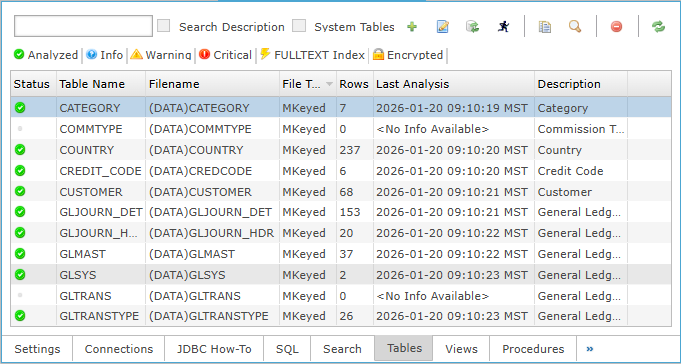
The  Databases Tables access to the tables defined in the selected database and their configuration. The table list displays table status and summary information, with the option to include BBj system tables, when System Tables is enabled. Selecting a table opens its definition pages, which are organized into Properties, Columns, Indexes, and FULLTEXT Index tabs. The FULLTEXT Index tab requires an active Software Asset Management (SAM) subscription for full functionality.
Note: Selecting a database from Databases name list, opens its configuration interface, and enabling access to Tables .
Location
EM Navigator →  Databases/SQL → Databases → Tables
Toolbar


Tables Column Settings
The tables defined in the selected database, including status indicators, file type, row count, last analysis timestamp, and description, providing a summarized view of table structure and analysis state.
Note: The Status column displays icons representing the state of each table after the table has been analyzed.
Tables Column Settings


Create a New Table
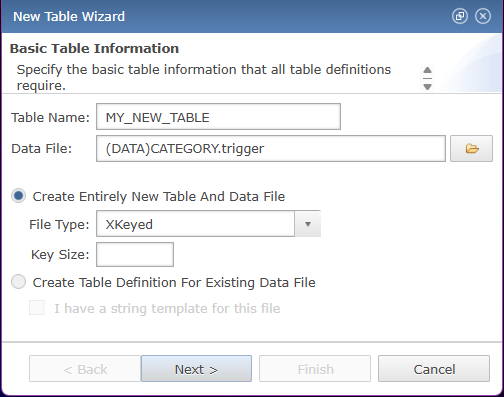
To access Create New Table Wizard, clicking the  button opens the New Table Wizard to define table name, data file, file type, and table creation options.
Note: Do not create single keyed files for new projects as they are significantly limited in functionality.
Create a New Table Settings
| Settings | Description | ||||||||||||||||||||||||
|---|---|---|---|---|---|---|---|---|---|---|---|---|---|---|---|---|---|---|---|---|---|---|---|---|---|
| Table Name | Enter a table name. | ||||||||||||||||||||||||
| Data File | To choose a Data File, click the  icon to browse the local system and select a data file; the selected file appears in the Data File field after clicking Open. Click the icon to browse the local system and select a data file; the selected file appears in the Data File field after clicking Open. Click the  button to create a new folder, enter its name, click OK, then select it. button to create a new folder, enter its name, click OK, then select it. |
||||||||||||||||||||||||
| Create Entirely New Table And Data File | Select this option to create New table and Data File. The string template option is disabled. | ||||||||||||||||||||||||
| File Type |
Select file type from the dropdown for the Table that is created.
|
||||||||||||||||||||||||
| Key Size | Specify a key size greater than zero for single keyed files, or zero to give the option for multiple indexes. | ||||||||||||||||||||||||
| Create Table Definition For Existing Data File | Choose this option to create a table definition for an existing data file. When selected, the I have a string template for this file checkbox becomes available. | ||||||||||||||||||||||||
| I have a string template for this File | Indicates that a predefined string template will be used to define the file structure for the existing data file. |
Create Table Definition For Existing Data File
The Create Table Definition for Existing Data File option allows you to build a table definition using an already existing data file. Select this radio button, then choose the data file by clicking the icon and browsing to select a data file . After selecting the file, click Next. You may optionally enter a string template to automatically define the columns, or proceed without one and manually add column definitions using the button. Once columns are defined, click Next or Finish to configure index definitions. In the Index Definitions pane, add or modify indexes as needed. After completing these steps, the new table definition appears in the Tables tab.
Duplicate a Table
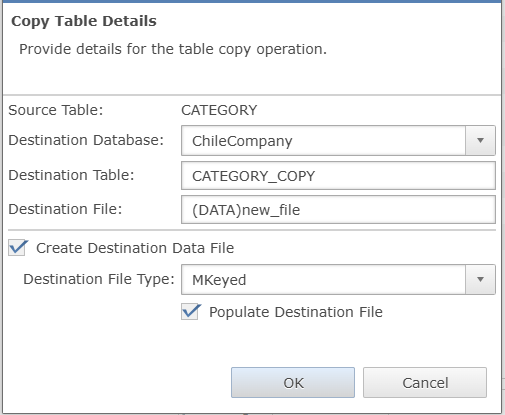
After completing the steps in Create a New Table for a selected database, begin by selecting the desired table from the Databases list. Then click the  button, as next step, In the Copy Table Details dialog, enter the Destination Table name as well as the Destination File name. Next, mark the Create Destination Data File checkbox to create an empty data file that matches the structure of the source table’s data file, and then select the Destination File Type from the dropdown. If you want to copy all records from the source table into the destination table, also mark the Populate Destination File checkbox. Finally, click OK, and then click Finish to complete the copy job and release the file for use.
Note: Once the copy is 100% complete, the destination table is available for use. To see the progress of the copy operation, click on the “Online Copy Jobs” item in the Enterprise Manager navigator.
Duplicate Table Settings
| Settings | Description |
|---|---|
| Source Table | Name of the existing table selected as the source for the table duplication. |
| Destination Database | Database where the duplicated table definition and associated destination data file will be created. |
| Destination Table | Name assigned to the new table that will receive the copied table definition. |
| Destination File | Data file name and path where the duplicated table records and structure will be stored. |
| Create Destination Data File |
|
| Destination File Type | File type for the destination data file. |
| Populate Destination File |
|
String Template
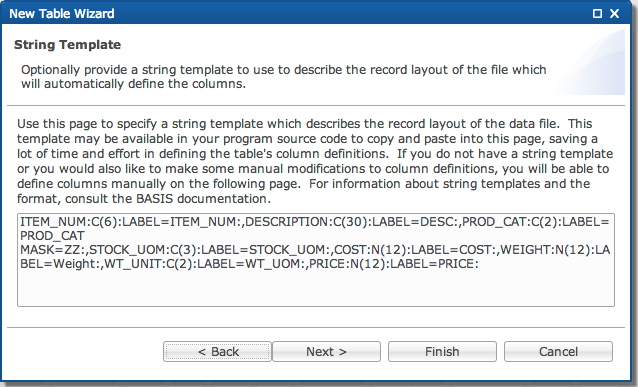
After configuring basic table settings and clicking Next, the wizard opens the String Template page, where you can optionally enter a template describing the record layout to automatically define table columns.
Columns Definitions
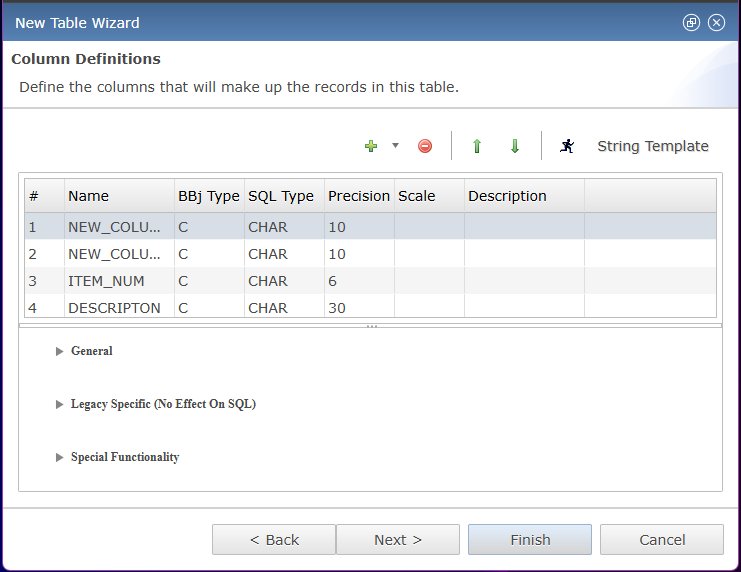
After entering a String Template and clicking Next, the wizard opens the Column Definitions page and the “Columns” tab provides an interface for defining the columns in the table. Specify the BBj data type for each column in MKEYED, XKEYED, VKEYED, etc., tables and then any special size information such as variable length, fixed length, variable length padded, etc.
For ESQL tables, specify the actual SQL data type for each column instead of a BBj type.
To add a new column, click the button and choose the insertion position (Start, Above Current, Below Current, or End). The new column appears in the column list and can then be configured in the Generalsection.
Clicking the  to move the selected column downward in the column list. Click the
  to move the selected column upward. This changes the column order within the table definition.
Clicking String Template in the Column Definitions page opens a dialog displaying a string template created based on the definitions of the columns in the table. You can modify this string template (or copy and paste an existing string template into the dialog) and the changes will be reflected in the list of columns for the table. It can also be useful to copy and paste this string template into a BBj program for use when accessing files with the OPEN, READ RECORD, and WRITE RECORD verbs.
Column Definitions Settings
| Settings | Description |
|---|---|
| Sequential position number of the column within the table. | |
| Name | The defined name assigned to the column in this table. |
| BBj Type | The BBj data type used for storing column values. |
| SQL Type | The SQL data type mapped from the underlying BBj data type. |
| Precision | Total number of digits or characters allowed for the column. |
| Scale | Decimal digits defined for numeric columns. |
| Description | Descriptive text associated with the column definition. |
Columns: General
The General section defines the core attributes of the selected column, including name, description, data type, length, precision, scale, and storage behavior. These settings control how the column is stored, validated, and interpreted within the table definition.
General Settings
| Settings | Description | ||||||||||
|---|---|---|---|---|---|---|---|---|---|---|---|
| Column Name | Column name used to reference the column within the table. | ||||||||||
| Description | Descriptive text associated with the column. | ||||||||||
| Data Type | The BASIS-specific data type for the data in this specific portion of the record. SQL data types differ from BASIS data types so you cannot specify a specific SQL type (with the exception of ESQL tables). | ||||||||||
| Dictionary Length | Length of the raw data in this portion of the record. This may not be the same as precision. This value corresponds to the size value in string template definitions. For example, an integer defined in a string template of I(4) would have a dictionary length of 4 even though the integer values can be longer than 4 digits. | ||||||||||
| Precision | Defined according to the definition in SQL terminology as the total number of digits/characters allowed in this column. For character values this simply means the number of characters allowed. For type NUMERIC, this means the total number of digits before and after the decimal point. Scale (see below) refers to the number of those digits that appear after the decimal. For example, a precision of 5 and scale of 2 allows for the numbers 123.00, 15.54, 1.23. 1, etc, but not 12454 because 2 of the digits are required to appear after the decimal. The Precision and Scale are not editable in Legacy format data dictionaries, only Enhanced format dictionaries. | ||||||||||
| Scale | Decimal digits defined for numeric columns. | ||||||||||
| Length Type |
Specify whether this is fixed length or one of the variable length types. These correspond to string template attributes For example, for a 10 character column, fixed length would be C(10), variable length terminated would be C(10*) and variable length padded would be C(10**).
|
||||||||||
| Pad/Terminator | Pad or terminator character if the type defined requires a pad or terminator character defined. Variable length terminated and variable length padded require this value to be configured. | ||||||||||
| Dim | Not recommended. The preferred method is to define a new column for each field. This remains for backward compatibility for those using arrays in their string template definitions. | ||||||||||
| Equality Optimize NUMERICs |
Available in BBj 20.20 and higher. BBj NUMERIC type columns are not normally ordered correctly in indices because they are stored and sorted in their string representations. To further complicate things, some BBx systems contain left-padding of spaces before the digits in these values. This means that even equality optimization is not possible. Therefore, the SQL engine does not include them for optimization by default. If the data is known to have no such left-padding (digits are left-aligned in the record field), equality optimization is possible. Enable this setting to override the global database setting for this individual column if its structure differs from other columns in other tables in the database
|
||||||||||
| Fully Optimize NUMERICs |
Controls whether the SQL engine applies full index and comparison optimization to this NUMERIC column, overriding the global database setting when specified.
|
Columns: Legacy Specific (No Effect on SQL) Fields
Note: The fields in this section are ignored by the SQL engine and only left in place for legacy purposes. Some applications have values stored in these fields and interpret those values on an application-specific basis.
Columns: Special Functionality
The Special Functionality section provides column-level settings such as NUMERIC Alignment, which controls numeric value alignment and is ignored by non-NUMERIC columns.
| Setting | Description |
|---|---|
|
Numeric Alignment controls how numeric values are aligned. When set to No Change, the existing alignment is preserved. When set to Right, numeric values are right-aligned. |
Index Definitions
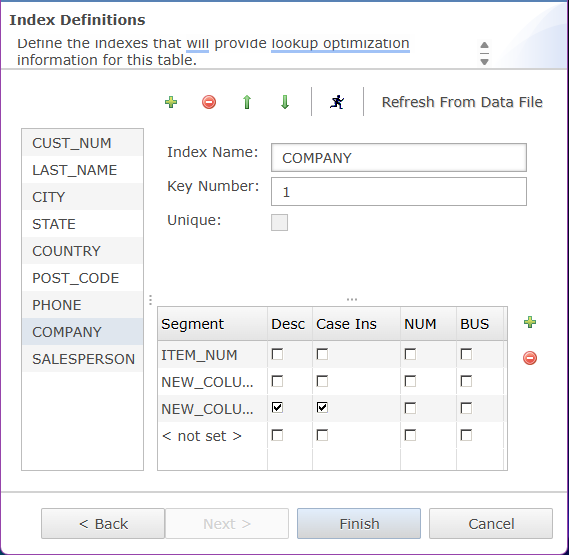
After configuring the Column Definitions and clicking Next, the wizard opens the Index Definitions pane. Click the button to add a new index, which appears in the index list column. Selecting an index from the column displays its Index Name, Key Number, and Unique options, allowing user to rename it. Additional indexes can be added by clicking the button. The and arrows reorder indexes in the list. To delete an index, select it and click the  button.
Refresh from Data File Button
When setting the index definitions, use the Refresh From Data File button to bring in the index definitions directly from the keys defined on the data file instead of from those defined in the data dictionary. Those defined on the data file will be the indexes actually used by the SQL optimization engine during query execution.
Index Definitions: Defining and Managing Index Segments
In the Index Definitions pane, the section of Index Segments lists the segments that compose the selected index. Selecting a segment row opens the Key Segment dialog, where you can define the segment using either Use a Column (selecting an existing column from the dropdown) or Use an Independent Segment by specifying Field, Offset, and Length values. Click the button to add a segment, if no column is selected, it displays as <not set>in the Segment column. Once the column reference is set, put a check in any of the cells in the segment table to indicate specific properties about the segment. To remove a segment from the list, select the segment and click button. If all settings configured then click the Finish to finalize creating the table, and table will appear in the tables list.
Indexes are made up of one or more segments. Each segment is bound to a particular column in most cases. Segments bound to a particular column are referred to as dependent segments. Independent segments may or may not correspond to a particular column. These are provided for legacy purposes since some BBx programs use segment definitions that reference a range of data in the record. However, it is important to understand that these types of segments may or may not be usable by SQL queries for optimization. Only those segment definitions that correspond exactly to a complete column definition are usable for optimization by the SQL engine. Therefore it is recommended to always used dependent segments when creating new tables.
Index Definitions Settings
| Settings | Description |
|---|---|
| Index Name | Name of the index when referencing it from SQL. |
| Key Number | Key number corresponding to the KNUM for the table’s underlying data file. This number is used when opening the file directly from BBj using the OPEN verb when specifying a KNUM=# option. |
| Unique |
|
| Segment | A single column within the table that makes up a portion of the index. Indices can contain multiple segments to provide improved optimization support for filtering as well as ordering. |
| Desc | Indicates the segment will be sorted in descending order. This is important if you plan to leverage the sorting optimization in the SQL engine for this segment and plan to typically sort the values in the referenced column in descending order. |
| Case Ins |
Whether this index segment will perform lookups in a case insensitive manneor. If this is not checked, all lookups using KEY= from BBj require exact case match for the key value. |
| NUM | Indicates the column contains numeric (specifically type N) data. If this is not set, only equality optimizations can be performed using this index segment due to the way the filesystem stores type N values. |
| BUS | Indicates the column is specifically type B (Business Math). This is an important indication so that optimization works properly on this type of column. |
Key Segment
Defines an index key segment by selecting an existing column or specifying independent field, offset, and length values.
Key Segment Settings
| Setting | Description |
|---|---|
| Use a Column | Indicates the segment is bound to a particular column in the table (recommended). |
| Use an Independent Segment | Indicates the segment is bound to a particular location within the record at the byte level (not recommended but only present for legacy purposes). |
| Field | Field number for the index segment definition. |
| Offset | Offset within the field. |
| Length | Length of the index segment. |
Properties: Modify Table Properties
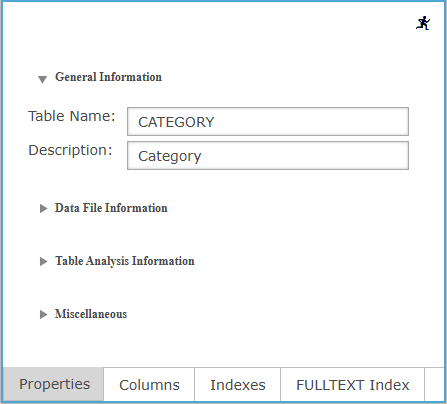
The Modify Table Properties section allows you to update the definition of an existing table within the selected database. To begin, double-click the desired table from the Databases/SQL list. The table’s Properties pane opens, displaying sections such as General Information, Data File Information, Table Analysis Information, and other related categories to be modified as needed.
Properties: General Information
Provides access to view and modify the selected table’s general properties and descriptive information.
General Settings
| Settings | Description |
|---|---|
| Table Name | Name of the table. In legacy format data dictionaries, this name is limited to 16 characters. In enhanced format dictionaries, the limit is 255. |
| Description | A short description for the table. |
Properties: Data File Information
The Data File Information section provides key details about the physical data file associated with the table. It identifies the file path and type, along with structural attributes such as record size, maximum row count, current row count, and encryption settings, allowing user to review file-level configuration and storage characteristics.
Data File Information Settings
| Settings | Description |
|---|---|
| Data File Path | Path to the data file. It is strongly recommended to use relative paths including global references (typically the DATA global) instead of absolute paths. This ensures portability of the data dictionary across machines and operating systems. For example, instead of C:\mydata\CUSTOMER, define C:\mydata\ as the value for DATA in the database configuration, then specify (DATA)CUSTOMER for the data file path. |
| File Type | Type of the table’s data file. If the file already exists, changing this value and choosing the rewrite the data file at save time will convert the data file to the new file type. |
| Record Size | Size of each record (in bytes) in the data file. |
| Maximum Row Count | Maximum number of records that can be written to the data file Strongly recommended to set to 0 (zero) which indicates unlimited. |
| Current Row Count | Read only, current number of records in the table’s data file. |
| Encryption String |
Encryption password used to encrypt the file if and only if it is an encrypted file. Usually this string will adhere to the following format: "CRYPTPASS=mypassword". See: MKEYED Verb - Create MKEYED File, XKEYED Verb - Create XKEYED File and VKEYED Verb - Create VKEYED File. |
Properties: Table Analysis Information
The Table Analysis Information section provides the date and time of the most recent table analysis, along with any exception message generated during that process. This information helps user verify when the table was last analyzed and identify potential issues detected during analysis.
| Settings | Description |
|---|---|
| Last Table Analysis | Date and time of the last successful table analysis. |
| Last Analysis Exception | The exception if the last table analysis was unsuccessful. |
Properties: Miscellaneous
The Miscellaneous section contains legacy BBx/BBj Data Dictionary attributes that correspond to fields defined in the Data Dictionary file structure. These attributes include form associations, report program references, execution hooks (PRE/POST OPEN and CLOSE), application-defined metadata fields (APP1–APP3), and processing flags. They represent dictionary-level metadata used by legacy BBx/BBj application logic rather than core table structure settings. See: FILMSC Data Dictionary File.
Properties: Miscellaneous Settings
| Settings | Description |
|---|---|
| Form | Default BBx/BBj form program name used with this table definition. |
| Narrow | Default narrow report program used for legacy 80-column listings of the data in this file. |
| Wide | Wide report program used for legacy 132-column file listings of the data in this file. |
| Pre-Open | Program executed immediately before this file is opened. |
| Post-Open | Program executed immediately after this file is opened. |
| Pre-Close | Program executed immediately before this file is closed. |
| Post-Close | Program executed immediately after this file is closed. |
| App1 | Application-defined field reserved for custom table-related metadata or program use. |
| App2 | Second application-defined field reserved for custom table-related metadata or program use. |
| App3 | Third application-defined field reserved for custom table-related metadata or program use. |
| Flags | Numeric flag values storing legacy processing options for this table. |
FULLTEXT Index
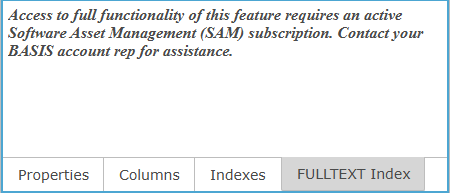
Note: The FULLTEXT Index feature enables full-text search capabilities on table data. Access to full functionality requires an active Software Asset Management (SAM) subscription. Contact your BASIS account representative for subscription assistance.
Common Questions
Q. If the Length type is fixed does the Pad/Terminator field supply the pad character?
A. No. The pad character is only used if you choose Padded Variable Length.
Q. If the Length type is NOT fixed does the Pad/Terminator field supply the terminator character?
A. Yes.
Q. For the system generated Record Length field is this calculated including terminator characters?
A. Yes. The size of the column is the size including the terminator.
Q. Does the Record Length Override allow the developer to manually set the Record length regardless of how large the sum of the individual columns plus terminators adds to?
A. The record length override is exactly that. It overrides the automatically generated size. You can make this number anything you want it to be which means it will allow you to cause yourself problems if you do it incorrectly. This is simply for backward compatibility.