 EM: Databases/SQL: Databases > Procedures
Description
The  Databases Procedures is a powerful feature of the BBj SQL engine that allows developers to embed portions of their application logic in the database. Putting logic in the database makes that functionality available to not only BBj programs, but also third party ODBC or JDBC applications via the SQL CALL statement.
Note: selecting a database from Databases name list, opens its configuration interface, and enabling access to Procedures.
Location
EM Navigator →  Databases/SQL → Databases → Procedures
Toolbar


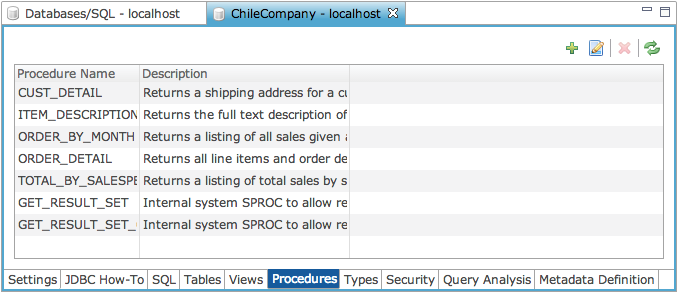
Procedures Pane
The Procedures tab lists stored procedures defined for the selected database and presents each entry with its Procedure Name, Description, and Sample SQL. The current UI also includes a search field, a Search Description option, and toolbar actions.
Procedures Pane Settings
Procedures Pane: Columns
The Column section, lists procedures with their names, descriptions, and sample SQL statements for reference.
Columns Settings
Create a Stored Procedure
Creating a stored procedure begins by clicking  icon opens the Stored Procedure Wizard to enter the procedure name and description. Selecting Next opens Return Type Information to choose the return type and, when applicable, define precision and scale. Selecting Next again opens Program Information to provide the source and optional config file locations. Selecting Next opens Parameters, then clicking the icon adds parameter entries to the list. Selecting Finish completes the procedure and adds it to the main Procedures list.
General Information
Specify a unique name for the stored procedure and a description briefly explaining its purpose. The General Information tab provides SPROCs with several options.
General Information Settings
| Settings | Description |
|---|---|
| Procedure Name | Specify a unique name for the stored procedure and a description briefly explaining its purpose. |
| Description | Description for the stored procedure. |
Return Type Information
The Return Type Information provide the type of the return information from the stored procedure.
Return Type Information Settings
Program Information
The Program Information provide the location of the stored procedure file and config file.
Program Information Settings
Parameters
Defines the parameters utilized by this stored procedure. Clicking the button duplicates the selected row values into another row.
Parameters Settings
Edit/View Code
Selecting Edit/View Code shows a read-only view of the source code for the stored procedure. To edit the code, BASIS recommends using the BASIS Development Kit (BDT) with the Eclipse IDE. Alternatively, if the file is a plain text file, a standard text editor will work as well.
Generate Sample Code Template
The Generate Sample Code Template button creates sample stored procedure source code from the current procedure configuration. When selected, a confirmation dialog warns that generating sample code will overwrite any code currently in the SPROC source file after the configuration changes are saved, allowing the user to confirm or cancel the action.
Licensing Considerations
The JDBC or ODBC connection used to execute a stored procedure (SPROC) CALL checks out the license at connect time. Once the connection is established, any number of SPROCs can be executed on that connection without any further licenses.
- Regardless of the statement type (i.e. SELECT, UPDATE, CALL - sproc, etc.) there are no additional licenses checked out. However, SPROCs can be written in such a way that they do in fact checkout additional license(s) and so care should be taken when writing sproc code.
- Performing normal OPEN, READ RECORD, etc. calls in the SPROC code do NOT checkout additional licenses unless they specify a different user on the open. If a different user is specified, a new license will be checked out. This is by design.
- When performing SQLOPEN in an SPROC, you must include MODE="PROCEDURE" on the SQLOPEN call: SQLOPEN(1, MODE="PROCEDURE")"ChileCompany"
- If the MODE="PROCEDURE" is left out, an additional license will get checked out for the SQLOPEN call.
- If you do an SQLOPEN and specify a different user in the MODE= string, then it will checkout an additional license. This is also by design.
- If the SPROC establishes a connection to a remote BBj DBMS, the remote BBj DBMS will checkout an additional license.