 ResBuilder Menus (Superseded)
ResBuilder has been superseded by the FormBuilder module in the BASIS IDE for BBj. ResBuilder is no longer included in the BBj download package as of version 12.0 but can be downloaded with Visual PRO/5.
Description
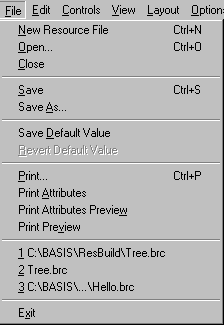
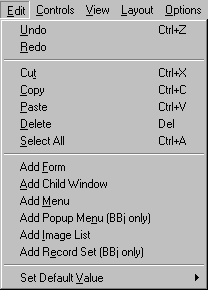
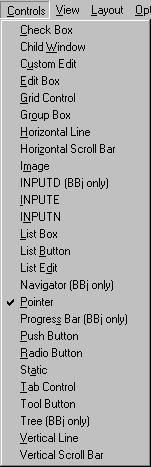
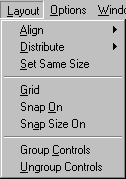
The menu bar occupies the upper boundary of the interface and is used to invoke most ResBuilder commands. It is divided into the File, Edit, Controls, View, Layout, Options, Window, and Help menus. Each menu is illustrated below, followed by a description of each of its items.
File Menu
|
Menu Item |
Shortcut |
Description |
|---|---|---|
|
Ctrl+N |
Creates a new resource file. See Creating New ResBuilder Files. |
|
|
Ctrl+O |
Opens an existing .brc, .brf, or .arc file. See Opening Existing .brc Resource Files. |
|
|
Closes the current file. |
||
|
Ctrl+S |
Saves the current resource file. See Saving Files. |
|
|
Brings up a dialog box that provides the capability to save the resource with a new filename or in a different format. Resources can be saved in either a binary resource file format (.brc) or an ASCII resource file format (.arc). The first a file is saved, ResBuilder will display the Save As dialog and either ASCII or binary file format can be selected. On the first save of a file, the default format is binary. Move into which directory the file will be saved, enter the filename into the File name box, change the file type in the Save AsType box if desired, and then click OK. See Saving Files. |
||
|
Saves the current default settings. (This command is automatically executed upon exiting ResBuilder Once this command is executed, it not possible to revert to previous settings via the Revert Default Value command. See Setting Default Values for Resources. |
||
|
Reverts to the default settings that existed at the beginning or the current ResBuilder session or the last time the Save Default Value command was executed during the current session, as follows:
|
||
|
Ctrl+P |
Prints the selected tree view or top-level resource. See Previewing and Printing the Contents of Form and Child Windows. |
|
|
Displays a standard Windows Print Preview dialog that allows you to preview the contents of the resource file before printing. See Previewing and Printing the Contents of Form and Child Windows. |
||
|
Defines page orientation and other settings. |
||
|
Opens one of the five most recently accessed files. The files are numbered from the most recently accessed (1) to the least recently accessed (5). |
||
|
Closes ResBuilder. See Exiting ResBuilder. |
Edit Menu
|
Menu Item |
Shortcut |
Description |
|---|---|---|
|
Ctrl+Z |
Reverses the last executed command. |
|
|
Reverses the action of the Undo command. |
||
|
Ctrl+X |
Removes the selection and places it in the clipboard. |
|
|
Ctrl+C |
Copies the selection and places it in the clipboard |
|
|
Ctrl+V |
Pastes the contents of the clipboard anywhere on the form. |
|
|
Del |
Delete removes the selection and does not place it on the Clipboard. |
|
|
Ctrl+A |
Selects all the items in the edit area. |
|
|
Creates a new form and places it in the edit area. See Creating Forms and Child Windows. |
||
|
Creates a new child window and places it in the edit area. See Creating Forms and Child Windows. |
||
|
Creates a new menu and places it in the edit area. See Creating a Menu Bar. |
||
|
Creates a new popup menu. Note: Visual PRO/5 does not support popup menus. Visual PRO/5 ignores popup menus. |
||
|
Creates a new image list and places it in the edit area. See Creating and Defining Image Lists. |
||
|
In BBj 4.00 and higher, this command creates a new record set. Note: Visual PRO/5 does not support record sets. Visual PRO/5 ignores record sets. |
||
|
Provides the capability to set the default resource properties See Setting Default Values for Resources. |
Controls Menu
|
Control |
Description |
|---|---|
|
Places a check box control on the selected form or child window. |
|
|
Places a child window on the selected form or child window. |
|
|
Places a custom edit control on the selected form or child window. |
|
|
Places an edit control on the selected form or child window. |
|
|
Places a grid control on the selected form or child window. |
|
|
Places a group box control on the selected form or child window. |
|
|
Places a horizontal line element on the selected form or child window. |
|
|
Places a horizontal scroll bar control on the selected form or child window. |
|
|
Places an image element on the selected form or child window. |
|
|
In BBj 4.00 and higher, places an InputD control on the selected form or child window. Note: This control is not supported by Visual PRO/5. Visual PRO/5 ignores the control if it is encountered in a resource file. |
|
|
Places an INPUTE control on the selected form or child window. |
|
|
Places an INPUTN control on the selected form or child window. |
|
|
Places a list box control on the selected form or child window. |
|
|
Places a list button control on the selected form or child window. |
|
|
Places a list edit control on the selected form or child window. |
|
|
In BBj 4.00 and higher, places a navigator control on the selected form or child window. Note: This control is not supported by Visual PRO/5. Visual PRO/5 ignores the control if it is encountered in a resource file. |
|
|
Specifies the cursor that is used to place or size controls in the edit area. |
|
|
Places a progress bar on the selected form or child window. Note: This control is not supported by Visual PRO/5. Visual PRO/5 ignores the control if it is encountered in a resource file. |
|
|
Places a push button control on the selected form or child window. |
|
|
Places a radio button on the selected form or child window. |
|
|
Places a static text control on the selected form or child window. |
|
|
Places a tab control on the selected form or child window. |
|
|
Places a tool button control on the selected form or child window. |
|
|
Places a tree control on the selected form or child window. Note: This control is not supported by Visual PRO/5. Visual PRO/5 ignores the control if it is encountered in a resource file. |
|
|
Places a vertical line element on the selected form or child window. |
|
|
Places a vertical scroll bar control on the selected form or child window. |
View Menu

|
Menu Item |
Shortcut |
Description |
|---|---|---|
|
Displays the Configuration dialog, which is used to display or hide the Main, Controls, and Align toolbars. See ResBuilder Toolbars. |
||
|
Displays or hides the status bar. |
||
|
Displays the selected item's properties page. See Defining Control Properties via the Properties Page. |
||
|
The tree view displays a graphical representation of the structure and contents of the resource file. The tree view can be used to add forms, child windows, image lists, and menus and to define and delete individual resources. |
Layout Menu
|
Menu Item |
Shortcut |
Description |
|---|---|---|
|
Aligns two or more controls along the left, right, top, or bottom boundary of the last control selected. See Aligning Controls. |
||
|
Aligns two or more controls along the left boundary of the last control selected. |
||
|
Aligns two or more controls along the right boundary of the last control selected. |
||
|
Aligns two or more controls along the top boundary of the last control selected. |
||
|
Aligns two or more controls along the bottom boundary of the last control selected. |
||
|
Aligns two or more controls along the horizontal center of the last control selected. |
||
|
Aligns two or more controls along the vertical center of the last control selected. |
||
|
Evenly distributes the vertical and horizontal spacing between three or more selected controls. See Distributing Controls. |
||
|
Evenly distributes the horizontal spacing between three or more selected controls. |
||
|
Evenly distributes the vertical spacing between three or more selected controls. |
||
|
Adjusts two or more items to the same size. The first item selected will be the size of all the items adjusted. See Sizing Controls. |
||
|
Enables or disables the grid function in the selected form or child window. See Using the Layout Grid. |
||
|
Enables or disables the snap to grid function. See Using the Layout Grid. |
||
|
Enables or disables the snap to size function. See Using the Layout Grid. |
||
|
Groups the selected controls. See Grouping and Ungrouping Controls. |
||
|
Ungroups the selected controls. See Grouping and Ungrouping Controls. |
Options Menu
|
Menu Item |
Shortcut |
Description |
|---|---|---|
|
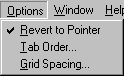
Determines the use of the mouse once a single item is inserted into the edit area. If the option is checked, the mouse can be used to edit items in the edit area. If the option is unchecked, each time the mouse is clicked in the edit area, an item identical to the first is inserted. |
||
|
Displays the Tab Order dialog, which is used to modify the tab order or resources contained within a form or child window. Visual PRO/5 uses control IDs to process resource events. Modifying the tab order also modifies the control ID order. If you modify the tab order of a resource file that has been incorporated into a Visual PRO/5 application, the modified control ID order will prevent the application from functioning properly. See Modifying the Tab Order of Controls. |
||
|
Displays the Grid Spacing dialog, which is used to define the grid height and width. See Using the Layout Grid. |
Window Menu
|
Menu Item |
Shortcut |
Description |
|---|---|---|
|
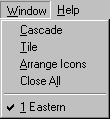
Stacks all non-minimized forms and child windows so that all tile bars are visible. |
||
|
Displays all non-minimized forms and child windows side-by-side. |
||
|
Arranges the icons of all minimized forms and child windows along the bottom of the edit area. |
||
|
Closes all forms and child windows without modifying them. To reopen each form or child window, click its icon in the tree view. |
||
|
Displays a listing of the most recently used windows. You can click on any of these windows and they will automatically open on your computer screen. |
Help Menu
|
Menu Item |
Shortcut |
Description |
|---|---|---|
|
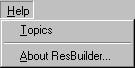
Displays all the topics in the Help System. |
||
|
Displays ResBuilder version and copyright information. |