 DDBuilder Menus (Superseded)
DDBuilder has been superseded by the BASIS DBMS Data Dictionary module accessible from the BASIS IDE or the Enterprise Manager. Recommended for usage with ODBC/JDBC access to PRO/5, Visual PRO/5, BBj application data. DDBuilder is no longer included in the BBj download package as of version 12.0 but can be downloaded with Visual PRO/5.
Description
The menu bar consists of the File, Edit, View, and Help menus. Each menu is illustrated below, followed by a description of each of its items.
File Menu
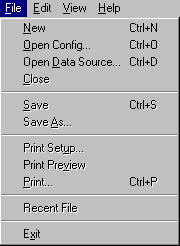
|
Menu Item |
Shortcut |
Description |
|---|---|---|
|
Ctrl+N |
Displays the New Data Source dialog. See Creating a New Data Dictionary. |
|
|
Ctrl+O |
Displays the Open dialog, providing the capability to open an existing configuration file. See Opening an Existing Data Dictionary. |
|
|
Ctrl+D |
Displays a list of existing data sources that are identified in the |
|
|
Closes the current data dictionary. See Closing a Data Source. |
||
|
Ctrl+S |
Saves the current data dictionary. See Saving a Data Dictionary. |
|
|
Displays a dialog to save the data source files under a new name. DDBuilder for Windows NT 3.51 does not provide the capability to create folders in this dialog. Move to the Windows Program Manager and create the DATA and DICTIONARY subdirectories before proceeding. |
||
|
Displays the standard Windows Print Setup dialog. See Print Setup. |
||
|
Displays the tree view image to be printed. See Print Preview. |
||
|
Ctrl+P |
Displays the Windows Print dialog, providing the capability to print the structure of the tree view. See Printing the DDBuilder Tree View. |
|
|
Lists the five most recently used files, numbered from the most recent (1) to the least recent (5). Select a file to open it. |
||
|
Exits DDBuilder. See Exiting DDBuilder. |
Save to SQL.INI displays the Save to sql.ini dialog, providing the capability to add the data source name to the SQL.INI file.
Edit Menu
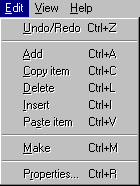
|
Menu Item |
Shortcut |
Description |
|---|---|---|
|
Ctrl+Z |
Reverses the most recent modification. This is a single-level Undo/Redo option: a single undo command can be performed, which can be followed by a single redo command. See Reversing/Reinstating the Last Modification. |
|
|
Ctrl+A |
Adds a new element to the data dictionary. See Adding Elements to a Data Dictionary. |
|
|
Ctrl+C |
Copies a data dictionary element, including its properties, to the Windows clipboard. See Copying Data Dictionary Elements to the Clipboard. |
|
|
Ctrl+L |
Deletes an element from the data dictionary. See Deleting Elements from a Data Dictionary. |
|
|
Ctrl+I |
Inserts a new column immediately prior to the selected column. See Inserting Columns into a Data Dictionary. |
|
|
Ctrl+V |
Pastes an element from the Windows clipboard into another data dictionary. See Pasting Data Dictionary Elements from the Clipboard into a Data Dictionary. |
|
|
Ctrl+M |
Creates an empty PRO/5 data file. Do not use the Make option on pre-existing data files unless you want to remove all records from the file. |
|
|
Ctrl+R |
Displays the properties page for the selected element. See Properties Pages. |
View Menu

|
Menu Item |
Shortcut |
Description |
|---|---|---|
|
Displays the toolbar. See DDBuilder Toolbar. |
||
|
Toggles the display of the status bar. See Status Bar. |
||
|
Displays the split bar to resize the tree view and property page areas. See Split Bar. |
Help Menu
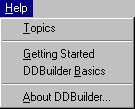
|
Menu Item |
Shortcut |
Description |
|---|---|---|
|
Displays all DDBuilder Help topics. |
||
|
Displays links to the following topics: Creating a New Data Dictionary, Opening an Existing Data Dictionary, Saving a Data Dictionary, Closing a Data Source, and Exiting DDBuilder. |
||
|
Displays links to the following topics: What is DDBuilder?, Creating a New Data Dictionary, Opening an Existing Data Dictionary, and Defining General Data Sources. |
||
|
Displays DDBuilder version and copyright information. |