Shop Floor Control - About the Work Order Entry Options
The Work Order Entry option menu allows you to work on one work order after another without ever leaving the Work Order Entry task. Once a work order has been accessed, the work order information can be reviewed,changes can be made to the work order, or information may be added and deleted by selecting available options from the menu.
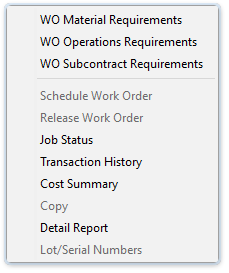
Work Order Entry options menu
Using the Additional Options Key
Selecting  reveals
a dropdown of additional functions:
reveals
a dropdown of additional functions:
Copy
WO Material Requirements
This option allows input
of material requirements for category Non-Stock A special type of work order that describes the manufacture of an item that is not normally stocked as a part number. Non-stocks can describe a custom manufacturing job or any job where a standard bill of material is not followed. Or, items that are needed from subcontracts or purchase requisitions that are part of the manufacturing of a product.
Item (N) work orders, and if the Bill
of Materials A listing of materials, operations, and subcontracts used to describe the manufacture of an item. is not installed, material explosion and commitment Material that has been promised to a transaction. Materials can be committed to a job or to a sales order. Releasing a work order will commit materials to it. for category Inventory The components, items, and raw material purchased or produced for resale or used to support production. Item (I) work orders.
If Bill of Materials is installed, then category Inventory Item (I)
work orders can be displayed but not have changes made to them. For existing
work orders, the WO Material Requirements option
screen may be used to view the material requirements information. Material
Requirements is not used for category Recurring/Permanent (R) work
orders. The Material Requirements grid is automatically displayed
when creating an inventory or non-stock work orders. The Explode
flag can be checked or unchecked as desired. When the Materials grid is
closed, the user is prompted to explode any flagged bills. If any items
are exploded, the Materials grid displays, showing the exploded list. This additional option is disabled except for planned work orders when the Edit Planned WO Materials is selected. Selecting the option when it is enabled allows editing the current WO Material Requirements grid.
A special type of work order that describes the manufacture of an item that is not normally stocked as a part number. Non-stocks can describe a custom manufacturing job or any job where a standard bill of material is not followed. Or, items that are needed from subcontracts or purchase requisitions that are part of the manufacturing of a product.
Item (N) work orders, and if the Bill
of Materials A listing of materials, operations, and subcontracts used to describe the manufacture of an item. is not installed, material explosion and commitment Material that has been promised to a transaction. Materials can be committed to a job or to a sales order. Releasing a work order will commit materials to it. for category Inventory The components, items, and raw material purchased or produced for resale or used to support production. Item (I) work orders.
If Bill of Materials is installed, then category Inventory Item (I)
work orders can be displayed but not have changes made to them. For existing
work orders, the WO Material Requirements option
screen may be used to view the material requirements information. Material
Requirements is not used for category Recurring/Permanent (R) work
orders. The Material Requirements grid is automatically displayed
when creating an inventory or non-stock work orders. The Explode
flag can be checked or unchecked as desired. When the Materials grid is
closed, the user is prompted to explode any flagged bills. If any items
are exploded, the Materials grid displays, showing the exploded list. This additional option is disabled except for planned work orders when the Edit Planned WO Materials is selected. Selecting the option when it is enabled allows editing the current WO Material Requirements grid.
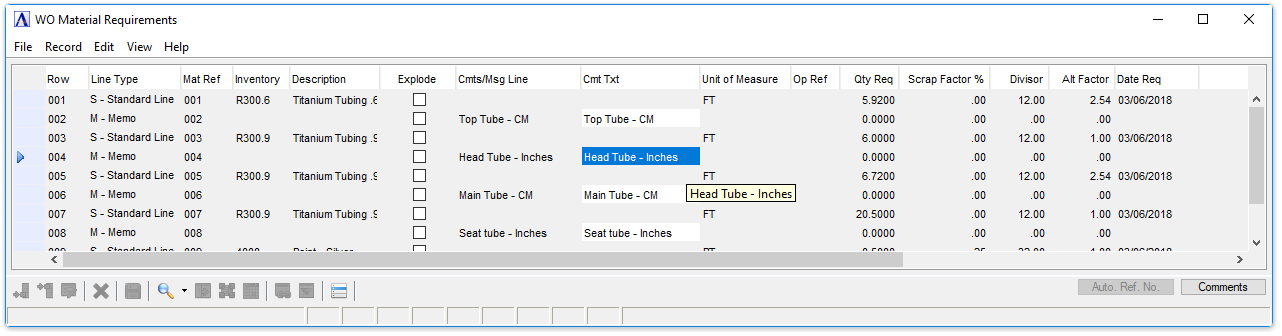
WO Material Requirements
If the item being built
contains stocked subassemblies, each stocked subassembly is displayed so that using
on-hand stock or building the subassembly from raw materials can be determined.
Anyphantom A bill of materials coding technique that provides for utilizing similar groups of components in multiple bills. These groups of components are defined once, but used many times. A phantom is like a subassembly that is never stocked. bill of materials (non-stocked
subassemblies) is automatically exploded. Stocked material requirements
cannot be changed.
About the Fields
Adding or Changing Material Requirements
-
Click
 to add an additional requirement to the list.
 -
Click
 to insert a new requirement
into the list.
to insert a new requirement
into the list. -
Click
 to edit the form.
Material requirements may be added or changed to an existing work order. When entering requirements for the first time the system walks through the fields in the order of the following instructions. When changing existing work order requirements the system backs through the following fields.
In the Row field...
Display only. Provides a sequential row number for identifying which row(s) should be affected when automatically generating Material Reference Numbers for the materials lines. It is not used as a reference number in other forms or documents.
In the Line Type field...
Use this field to assign a line sequence number for each new material item on the bill or to access any existing material line number directly.
-
Select the line type using the dropdown tool:
-
Standard Line
-
Memo
NOTE:
Up to 999 material items may be created for each bill.
In the Mat Ref field...
The Material Reference Number is a 6-character alphanumeric field that can be used to correlate the various materials on the work order to a drawing. You can enter any/all reference numbers manually, or generate the numbers using the [Auto. ref. no.] button. The auto-number function lets the user specify the beginning and ending row to number, the first number to use, an increment, and whether or not existing reference numbers should be overwritten. The beginning number is analyzed from right to left to find the first non-numeric character, which, if found, will act as a separator. Everything to the right of the separator is incremented by the user-specified amount. This feature makes it possible to number (or re-number) the entire list, or subsets of the list. Prior to actually creating the numbers, the system will warn if any duplicate numbers exist. Numbering can only proceed if all assigned numbers will be unique. Any/all numbers assigned via the auto-number function can be manually altered, again, so long as no duplicates are created. Once the desired reference numbers are in place, the "lock reference numbers" flag in the Work Order Header should be checked to prevent any further access to the reference numbers.
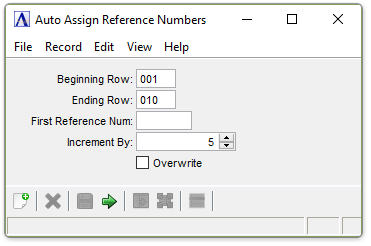
Auto Assign Reference Numbers
In the Inventory field...
In the Inventory field...
-
Enter a valid inventory item number.
-
Click
 to select from a list of valid
inventory item numbers.
to select from a list of valid
inventory item numbers. -
Click
 to
view the master record for the item number entered.
to
view the master record for the item number entered.
NOTE:
An
asterisk indicates this item is a subassembly or a manufactured component A single part or item that is a portion of an assembly for the bills of material..
In the Description field...
Display only.The inventory item description is displayed based on the item number entered.
Explode checkbox...
The checkbox is active for non-stock Planned or Quote work orders only.
- Mark the box to ‘explode’ a material line that contains a bill to reveal all details and answer Yes or No to confirm.
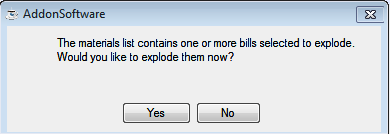
The materials list contains one or more bills selected to explode. Would you like to explode them now?
In the Cmts/Msg Line field...
-
A comment editor pops up automatically upon entering the Cmts/Msg Line field and allows entry of up to 1024 characters and can accept formatting such as line feed and tab characters.
-
The first 60 characters or up to the first line feed, (whichever is less) is stored in the Cmts/Msg Line field.
-
Hover over the column to the right of the Memo/Non-Stock Desc column to see the full text or select the column (double-click or single click and Ctrl + F/magnifying glass), or via the Comments button (or Alt + C) to invoke the comments editor.
NOTE:
Comments can only be edited when in the Edit mode.
In the Unit of Measure field...
-
Enter the two-character engineering unit of measure
The unit of which an item is stocked or consumed. Examples are each, case, dozen, foot, etc.
for this item. -
Press Tab or Enter to accept the unit of measure defined in the Inventory Master file.
In the Op Ref field...
The Operations Reference is a dropdown list showing the user-defined Operations Reference number (entered in Operations Requirements) along with the corresponding Operations Code and Description. Select the appropriate operation step for the given materials line, if applicable.
In the Qty Req field...
-
Enter the quantity of this item required for the work order.
In the Scrap Factor % field...
-
Enter the percentage of material expected scrap.
-
Press Tab or Enter to accept the default number of 0.00.
Entering
a scrap factor A percentage used to increase the net quantity needed to compensate for anticipated scrap. will increase
the units needed to compensate for the anticipated scrap. For instance,
if a 3’x 7’ piece is cut from a 4’x 8’ piece of plywood, a scrap factor
of 35.37% would be entered. This factor is figured by dividing the sq.
feet required by the sq. feet of the original piece and then converting
it to a percentage.
21 sq. ft. ÷ 32 sq. ft = .6563 or 65.63% used
100 - 65.63 = 34.37% scrapped
-or-
32 sq. ft. - 21 sq. ft. = 11 sq. ft. scrapped
11 sq. ft. ÷ 32 sq. = .3537 or 34.37%
In the Divisor field...
A divisor A number in the material requirements section that allows unit of measure conversions from the stocking unit of measure to an engineering unit of measure. For instance, a divisor of 12 will allow a materials requirement to be described in inches, even though the material is stocked in feet.
may be used when a unit of measure conversions are required. For instance,
36 will convert a material stocked in yards to be used in inches.
-
Enter a number by which the quantity required for this item will be divided, in order to arrive at the adjusted units to be used for this bill.
-
Press Tab or Enter to accept the default number of 1.00.
In the Alt Factor field...
An alternate
factor A factor that allows the adjustment of materials unit of measure from stocking to engineering when described in the materials requirements. may be used when a unit of measure conversions are
required. For instance, 12 will convert a material stocked in inches to
be used in feet.
-
Enter a number by which the quantity required for this item will be multiplied, in order to arrive at the adjusted units to be used for this bill.
-
Press Tab or Enter to accept the default number of 1.00.
In the Date Req field...
-
Enter the date required in MM/DD/YYYY format.
In the IV Unit Cost field...
Display only.Displays the unit cost of the inventory item.
In the Units field...
Display only. Shows the actual net quantity of material needed to create the finished product. The formula for determining the units is as follows:
Required x Alternate Factor ÷ (Divisor x ( 100 - scrap ) ÷ Yield %) = Units
In the Prod Unit Cost field...
Display only. Displays the cost per unit of production. (Inventory Unit Cost) * (Units on same WO Material Requirements grid row).
In the Total Units field...
Display only.(WO Schedule Production Quantity) * (Units on same WO Material Requirements grid row).
In the Total Cost field...
Display only. Shows the Total Units times the Inventory Unit Cost, which is the same as(WO Schedule Production Quantity) * (Production Unit Cost on same WO Material Requirements grid row).
When finished making entries to the fields...
-
Click
 to save the record.
 -
Click
 to clear the form and begin again.
 -
Click
 to delete the entry.
 -
Click the "Close Window" button to return to the Shop Floor Control menu.
WO Operations Requirements
The Operations Requirements option is used for inquiry, addition, change,
and deletion of all operations associated with producing any bill of materials
item. Within this option you set up the individual operations required,
the date the operation is required, the amount of time necessary to set
up assembly The joining together of items and/or parts to make a product. That product might also be a part or item for another product assembly., how many
pieces will be created per hour and how many hours it will take to create
a piece, and the length of time until this piece can move on to the next
operation. The Operation Requirements grid is automatically displayed
when creating non-stock or recurring work orders.
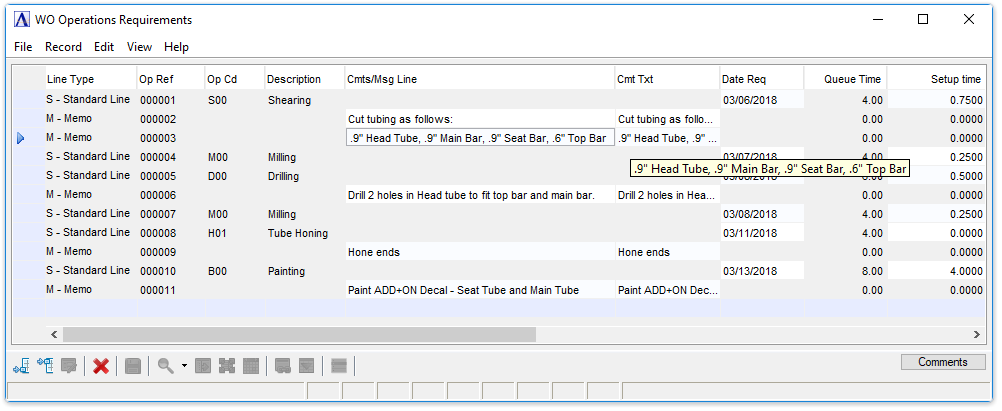
WO Operations Requirements
Adding or Changing Operations Requirements
Operation requirements may be added or edited to an existing work order or requirements form. When entering requirements for the first time the system walks through the fields in the order of the following instructions. When changing existing work order requirements, the system backs through the following fields.
-
Click
to edit the form. -
Click
to add an additional requirement
to the list. -
Click
to insert a new requirement
into the list.
In the Line Type field...
Use this field to assign a line sequence number to each operation line on the bill or to access any existing operation line number directly.
-
Select the line type using the dropdown tool:
-
-
Standard Line
-
Memo
-
-
Press Tab or Enter to accept the default Line Type.
NOTE:
Up to 999 operation lines may be created for each work order.
In the Op Ref field...
The Operations Reference field is a 6 character field that lets you assign a unique number to each operation step for the Work Order. For quick entry, the field is zero-filled – operators only need to enter the minimum significant digits (e.g. Key in 1 instead of 000001). This reference number is prepended to the Operations Code and Description in the Materials and Subcontracts grids so it's easy to choose the appropriate operation step for a specific Materials or Subcontracts line.
In the Op Cd field...
-
Enter a valid operation code.
-
Click
to
select from a list of valid operation codes. -
Click
to
view the master record for the operation code entered.
In the Description field...
Display only. Displays the description for the operation code entered.
In the Cmts/Msg Line field...
-
A comment editor pops up automatically upon entering the Cmts/Msg Line field and allows entry of up to 1024 characters and can accept formatting such as line feed and tab characters.
-
The first 60 characters or up to the first line feed, (whichever is less) is stored in the Cmts/Msg Line field.
-
Hover over the column to the right of the Memo/Non-Stock Desc column to see the full text or select the column (double-click or single click and Ctrl + F/magnifying glass), or via the [Comments] button (or Alt + C) to invoke the comments editor.
NOTE:
Comments can only be edited when in the Edit mode.
In the Date Req field...
-
Enter the date the operation is required.
-
Press Tab or Enter to accept the current date.
In the Queue Time field...
Display only. Shows the average amount of time material will wait in line for the operation.
Queue time is defined as the amount of time that a job waits prior to the start of the operation. It will be used to determine the date required for the completion of the operation. The queue time displayed is from the Work Order Operation Codes; or the Bill of Materials Masters file if installed.
In the Setup Time field...
-
Enter the amount of time needed to set up the assembly of the entire lot.
-
Press Tab or Enter to accept the default. The default is from the Operations Master File; or the Bill of Materials Master File if installed.
The
following formulas describe the anticipated hours and costs needed to
complete A finished job. By contrast, work order can be partially closed. That is, a portion of the production is closed, but some still remains to be processed. the work order:
| Run Time | = (Hours per Piece/Pieces per Hour) |
| Hours Each | = (Setup Hours/Production Qty) plus Run Time The actual processing time for an operation after setup is complete. Run time is expressed in hours per piece or pieces per hour depending on the item being produced. |
| Cost Each | = Hours Each times (Direct
Labor Rate times 1 plus
(Overhead Overhead reflects charges that are not attributable to a specific job. Overhead will include charges such as rent, utilities, and depreciation and those costs are allocated to jobs by an hourly rate. Factor/100)) |
| Hours Total | = Setup Hours plus (Run Time times Production Qty) |
| Cost Total | = Hours Total times (Direct Labor Rate times 1 plus (Overhead Factor/100)) |
In the Pieces Per Hr field...
-
Enter how many pieces per hour can be created.
-
Press Tab or Enter to accept the default. The default is whatever amount has been set up in the Operation Code task.
In the Hours Per Piece field...
-
Enter the number of hours needed to create the piece.
-
Press Tab or Enter to accept the default.
The default is 1.00 if there is an entry in the Piece/Hr field.
In the Move Time field...
-
Enter the amount of time needed to move to the next process.
-
Press Tab or Enter to accept the default.
Move
time The amount of time allocated by the scheduling system after an operation but before the products are ready to move to the next operation. It may represent cooling time, drying time, or any time required before an item can be physically moved.
is used by the scheduling system to allow for time between operations.
It may represent cooling time, drying time, or any time required before
an item can be physically moved. The default is whatever time has been
set up in the Operation Codes maintenance task; or the Bill of Materials
Master File if installed.
In the Unit Cost field...
Display only. The top figure shows the amount of the cost applied to this operation for each item; the bottom figure shows the total cost of the operation for the entire work order.
In the Tot Std Cst field...
Display only. Hours Total times (Direct Labor Rate times 1 plus (Overhead Factor/100))
In the Run Time In Hrs field...
Display only.(Hours per Piece/Pieces per Hour)
In the Tot Time Req In Hrs field...
Display only.Setup Hours plus (Run Time times Production Qty)
When finished making entries to the fields...
-
Click
to save the record. -
Click
to begin a new entry. -
Click
to delete the entry.