Bill of Materials - Masters
Function
Use this task to create
bills of material or modify existing bills. For each bill selected, additional
options are available which enable you to add, change, inquire, or delete
bill of materials A listing of materials, operations, and subcontracts used to describe the manufacture of an item. definitions.
Selections can be
made from the Display
additional options dropdown to edit Comments, Materials Detail, Operations
Detail, Subcontracts Detail, as well as access to Total Information, Hard
Copy, Packing List, and Availability Inquiry.
A listing of materials, operations, and subcontracts used to describe the manufacture of an item. definitions.
Selections can be
made from the Display
additional options dropdown to edit Comments, Materials Detail, Operations
Detail, Subcontracts Detail, as well as access to Total Information, Hard
Copy, Packing List, and Availability Inquiry.
To access this task...
Select Bill of Materials Masters from the Inquiry and Maintenance menu.
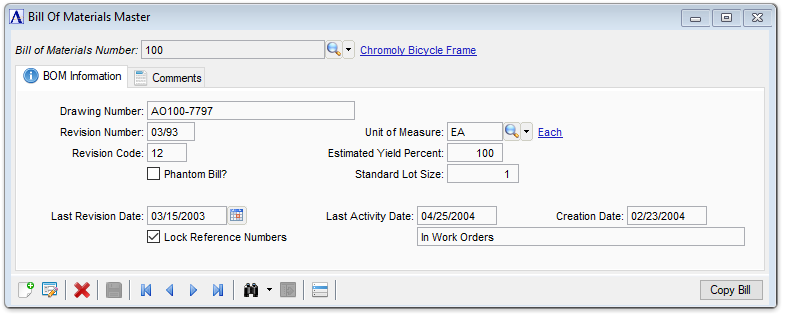
Bill of Materials Master
About the Fields
To enable edits to the form select  .
.
About the Bill Maintenance Options
The Bill Maintenance option menu allows you to work on one bill of materials after another without ever leaving the Bill Maintenance screen. Once a bill has been accessed, you can view the bill information, make changes to the information already applied to the bill, or add and delete information by selecting available options from the option menu.
Selecting an option takes you to the part of the bill where the addition or modification will take place. After you have entered the changes to the bill, the option menu will once again be displayed.
Apart from Bill Number and Header Information, any information previously entered for an option is displayed in the working area of the screen. Prompts requiring your attention, which pertain to the selected option’s fields, appear at the bottom of the screen.
Header Information
This option allows inquiry or change to the bill’s header information. This option is automatically accessed during the setup of a bill of materials, or may be used at any time to change information for an existing bill.
In the Bill of Materials Number field...
NOTE:
The Bill Number must correspond to an existing Inventory Item number.
-
Enter a valid bill number.
-
Click
 to select from a list of valid BOM numbers.
 -
Click
 to display the Bill of Materials
Bill Lookup - Active Inventory Items. Select a record and the BOM
Number field is populated with the selection. To view a list
of all records including inactive inventory records, see Query
Functions.
to display the Bill of Materials
Bill Lookup - Active Inventory Items. Select a record and the BOM
Number field is populated with the selection. To view a list
of all records including inactive inventory records, see Query
Functions. -
Click the record navigating buttons;
 to view the first record,
  to view the previous record,
  to view the next record, and
  to view the last record.
In the Drawing Number field...
-
Optional.Enter a drawing number if needed.
In the Revision Number field...
-
Optional. Enter a revision number if necessary.
In the Revision Code field...
-
Optional.Enter any necessary code for the revision number.
Phantom Bill? checkbox...
(Disabled and marked for kits.)
A phantom bill is an assembly that is listed in the item inventory but is not normally stocked on the shelf. It is useful for specifying common components used in several bills.
-
Mark the box if this is an item that is not inventoried.
-
Unmark the box if this is an item that is inventoried.
In the Last Revision Date field...
Optional date to track revisions to the bill.
-
Enter the date for revision.
-
Click
 to select a date using the calendar tool.
Lock Reference Numbers checkbox...
New work orders created from scratch will have the box unchecked by default, whereas new work orders that are copies of existing work orders will have the lock set. The "Lock Reference Numbers" flag is controlled by the user – it can be checked/unchecked at any time until a work order is closed. The user will need to confirm each time the flag is changed.
-
Mark the box to prevent reference numbers from being edited.
-
Unmark the box to allow edits to reference numbers.
In the Unit of Measure field...
The unit entered in the Unit-of-Sale of the Item Information option in the Inventory Control’s Inventory Item Maintenance task is the default in this field.
-
Enter a two-character unit of measure.
-
Press Tab to accept the default unit of measure.
In the Estimated Yield Percent field...
Yieldis generally associated with process manufacturing. Percentages are applied against the parent item and are used to compensate for anticipatedmanufacturing losses. The estimated yield is determined by calculating how much usable output is generated when the product is produced. For instance, a yield % of 95 will indicate that in order for you to manufacture 100 items, a production order of 105 should be initiated.
-
Enter the estimated percentage of yield.
-
Press Tab to accept the default of 100%. A yield of 100% does not have any effect.
NOTE:
Estimated Yield Percent does not pertain to subcontracts.
The estimated yield is determined by calculatinghow much usable output is generated when the product is produced. For instance, a yield % of 95 will indicate that in order for you to manufacture 100 items, a production order of 105 should be initiated.
| Production Qty | Yield % | Formula | Yield |
|---|---|---|---|
| P | Y | PxY% | = |
| 100 | 95 | 100x95 | 95 |
| 105.26 | 95 | 105.26x95 | 100 |
In the Standard Lot Size field...
The standard lot size is used in Operation Maintenance, where setup timefor each componentis calculated (i.e., each operation’s setup time will be divided by the lot size to accurately calculate the cost of each item produced).
-
Enter the size of the standard lot you want to produce.
In the Last Activity Date field...
Display only.The Last Activity Date indicates this bill was used in an Inventory Production Entry or a Work Order that has been closed.
In the Creation Date field...
Display only. Shows the date that the bill was created.
Copy Bill button...
This option copies all information from the selected bill to a new bill number. The new bill number must correspond to an existing Inventory Item.
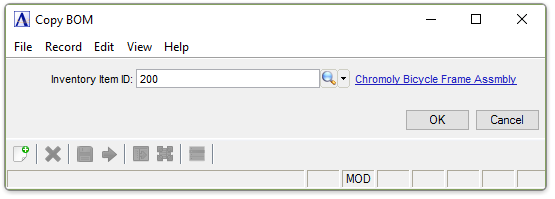
Copy BOM
In the Inventory Item ID field...
-
Enter the inventory item ID.
-
Click
to select from a list of valid inventory numbers. -
Click OK to copy the item or click
 to process the BOM copy.
 -
Click Cancel to exit from this process.
When finished making entries to the fields...
-
Click
 to clear the form and begin again.
 -
Click
 to save the report settings.
 -
Click
 to delete the record from the system.
Display additional options function...
Click  to reveal a dropdown of these additional functions:
-
Bill of Materials Comments - allows entry of up to 99 lines of free-form comments about the bill of materials. Comment Maintenance may be used for entering engineering notes, special handling instructions, and the like.
-
Materials Detail - used for inquiry, addition, change and deletion of material components of the bill.
-
Operations Detail - used for inquiry, addition, change and deletion of all operations (routings) associated with producing the bill.
-
Subcontractors Detail - used for inquiry, addition, change and deletion of any outside subcontracting associated with the bill.
-
Total Information - displays the material cost, direct labor cost, overhead cost, and subcontracts cost with a total cost for the selected bill number as of a specified production date.
-
Hard Copy - creates a report showing all information for a selected bill number. An asterisk (*) next to the component item number on the printed form indicates a bill number.
-
Packing List - creates the same packing list that is available from the main menu.
-
Availability Inquiry - displays component quantities that are required, on hand, committed, available, or on order, based on the specified demand quantity for the selected warehouse.