Shop Floor Control - WO Subcontract Requirements
Function
The Work Order Subcontract
Requirements is accessed from the Display
additional options dropdown
of the Work Order Entry task. Subcontract Requirements displays any outside
subcontracting associated with the work
order A document or group of documents that describes a job. A work order can also be a computer file that retains all job information.. For closed work orders, the fields display only
and cannot be changed. Only open work order subcontract requirements
can be changed. This option is automatically displayed when creating
non-stock A special type of work order that describes the manufacture of an item that is not normally stocked as a part number. Non-stocks can describe a custom manufacturing job or any job where a standard bill of material is not followed. Or, items that are needed from subcontracts or purchase requisitions that are part of the manufacturing of a product. work orders.
A document or group of documents that describes a job. A work order can also be a computer file that retains all job information.. For closed work orders, the fields display only
and cannot be changed. Only open work order subcontract requirements
can be changed. This option is automatically displayed when creating
non-stock A special type of work order that describes the manufacture of an item that is not normally stocked as a part number. Non-stocks can describe a custom manufacturing job or any job where a standard bill of material is not followed. Or, items that are needed from subcontracts or purchase requisitions that are part of the manufacturing of a product. work orders.
NOTE:
This function is active only if the Purch Order Interface Enabled parameter is ‘checked’ in Work Order Parameters. Subcontracts are not active for recurring work order.
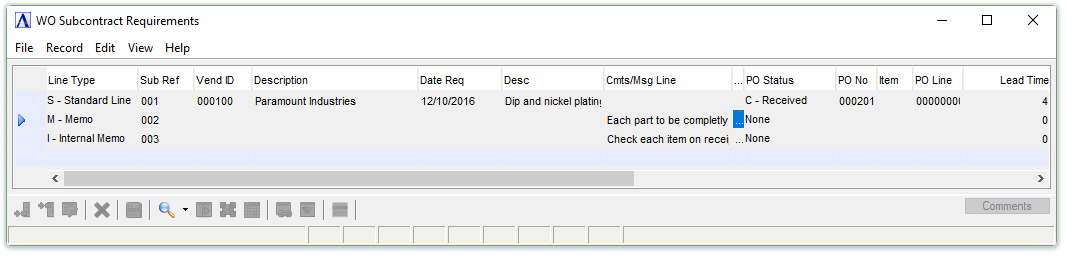
Work Order Subcontract Requirements
Add or Edit Work Order Subcontract Requirements...
-
Click
 to edit the form.
 -
Click
 to add an additional requirement
to the list.
to add an additional requirement
to the list. -
Click
 to insert a new requirement into
the list.
to insert a new requirement into
the list. -
Click
 to delete the comment record.
From the Line Type dropdown...
-
S = Standard Line
-
M = Memo
-
I = Internal Documentation
When selecting Memo or Internal Documentation in this field, the system will display a line for a memo. Use this line to enter additional information about the subcontract.
-
When selecting Memo, the information will appear on all purchase requisitions and purchase orders generated by this subcontract, as well as any printed work orders.
-
When selecting Internal Documentation, the information is for internal use and will only be shown on work orders.
Selecting Standard Line in the Line Type field, the following fields become active:
In the Sub Ref. field...
The reference number is a 6-character alpha-numeric field that can be
used to correlate the various subcontract labor steps on the work order
to a drawing.
In the Vendor ID field...
-
Enter a valid vendor number.
-
Click
 to select from a list of valid vendor IDs
In the Description field...
Display only. Displays the vendor description associated with the vendor ID number.
In the Date Req field...
-
Enter the date that production of the subcontract must be complete.
-
Select the Tab or Enter key to accept the default of today’s date.
The default date comes from the Estimated Start Date field of the header’s additional information display.
In the Desc field...
-
Enter a description of the subcontract requirement.
In the Cmts/Msg Line field...
-
A comment editor pops up automatically upon entering the Cmts/Msg Line field and allows entry of up to 1024 characters and can accept formatting such as line feed and tab characters.
-
The first 60 characters or up to the first line feed, (whichever is less) is stored in the Cmts/Msg Line field.
-
Hover over the column to the right of the Memo/Non-Stock Desc column to see the full text or select the column (double-click or single click and Ctrl + F/magnifying glass), or via the [Comments] button (or Alt + C) to invoke the comments editor.
NOTE:
Comments can only be edited when in the Edit mode.
From the PO Status dropdown...
In the PO No field...
-
Enter a valid purchase order number
-
Click
to select from a list of valid vendor IDs -
Press Tab or Enter to accept the default purchase order number.
There must first be purchase orders or requisition orders on record for this vendor before you can enter a number. Use the Purchase Requisition Entry or Purchase Order Entry tasks in the Purchase Order module to set up your entries.
In the PO Line field...
This field is bypassed if the P.O. # field is blank.
-
Enter the line number from the purchase or requisition order.
In the Item field...
This field is bypassed if the P.O. # field is blank.
-
Enter the item number from the purchase or requisition order.
In the Lead Time field...
-
Enter the number of days in lead time needed to complete this subcontract production.
Subcontracts are scheduled based on the lead time entered. The lead time describes the number of days of processing time before the subcontract is required. Ten lead days would generate a required date of 10 working days after the estimated start date. The purchasing calendar in the Purchase Order module will be used to verify work days.
In the Unit of Measure field...
-
Enter a two-character unit of measure
The unit of which an item is stocked or consumed. Examples are each, case, dozen, foot, etc. needed
for this service.
In the Op Ref field...
The Operations Reference is a dropdown list showing the user-defined Operations Reference number (entered in Operations Requirements) along with the corresponding Operations Code and Description. Select the appropriate operation step for the given subcontract line, if applicable.
-
Select the operation
A process in the production of an item, component, or finished good. sequence number from a
list of all valid operation codes for this work order using the dropdown
tool.
In the Rate field...
-
Enter the rate/cost per unit.
In the Units field...
-
Enter the quantity of units to be produced.
In the Unit Cost field...
Display only.
-
This is calculated from rate times units.
In the Tot Units field...
Display only.
-
This is calculated from units times scheduled production quantity.
In the Total Cost field...
Display only.
-
This is calculated from unit cost times scheduled production quantity.
When finished making entries to the fields...
-
Click
 to save.
Closing an unsaved record will issue the prompt:
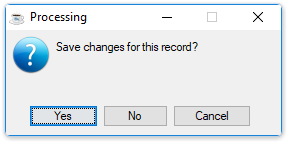
Save changes for this record?
-
Select Yes to save the changes.
-
Select No to return to the form.