Bill of Materials - Operations Detail
The Operations Detail task is accessed from the  button from the Bill
of Materials Masters task in Inquiry and Maintenance.
button from the Bill
of Materials Masters task in Inquiry and Maintenance.
Function
The Operations
Detail option is used for inquiry, addition, change, and deletion of all
operations associated with producing any bill
of materials A listing of materials, operations, and subcontracts used to describe the manufacture of an item. item.
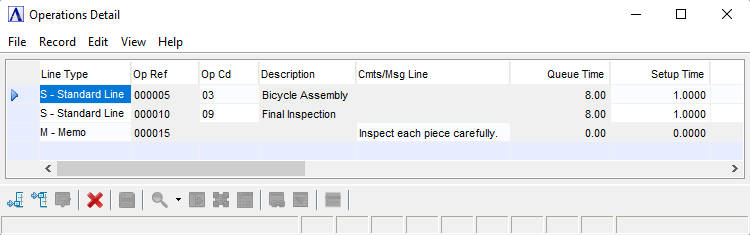
Operations Detail
About the Fields
In the Line Type field...
Use this field to assign a line sequence number to each operation line on the bill or to access any existing operation line number directly.
-
Select Standard Line or Memo from the dropdown. Selecting a memo line type enables the Cmts/Msg Line field for entry of a message regarding the operation.
-
Click
 to insert a new operation.
-
Click
 to insert an operation into the fields.
-
Click
 to remove an operation line.
In the Op Ref field...
Display only. Displays the "Work Order Operation Reference" for that line.
In the Op Cd field...
-
Enter a valid operation code. The code description will be displayed on the following line.
-
Click
 to display all valid operation codes.
 -
Click
 to display the operation code information for the code entered.
In the Description field...
Display only. Displays the description of the operation code entered.
In the Cmts/Msg Line field...
Display only. Available for Memo Line Types only.
In the Queue Time field...
Display only. Shows the average amount of time material will wait in line for the operation.
In the Setup Time field...
-
Enter the amount of time needed to set up for the assembly
The joining together of items and/or parts to make a product. That product might also be a part or item for another product assembly. of the entire lot.
In the Hrs Per Piece field...
-
Enter the number of hours needed to create the piece.
-
Press Tab key to accept the default.
Note:
The default is 1.00 if there is an entry in the Pieces Per Hr field.
In the Pieces Per Hr field...
-
Enter the number of pieces per hour that can be created.
-
Press Tab key to accept the default.
Note:
The default is whatever amount has been set up in the Operation Code Maintenance task and is available if there is an entry in the Hrs Per Piece field.
In the Move Time field...
- Enter the amount of time needed to move to the next process.
Note:
Move time is used by the scheduling system to allow for time between operations. The default is whatever time has been set up in the Operation Code Maintenance task.
In the Net Hours field...
Display only. Shows the actual net hours applied to this operation for each finished item. The formula to compute the net hours per piece is:
(Hrs/Piece ÷ Pieces/Hr) ÷
 Yield % + (Setup Time ÷ Standard Lot Size) = Net Hrs
In the Direct Rate field...
Display only. Shows the labor rate for the operation entered in the Operation Code Maintenance task.
In the Direct Cost field...
Display only. Shows the actual direct labor cost applied to this operation.The formula to compute the direct cost per finished item is:
Net hours x Direct Rate
In the Overhead Cost field...
Display only. Shows the amount of overhead cost per finished item that is added to the production cost of the operation. The formula to compute the overhead cost per finished item is:
Direct Cost per Finished Item x Overhead factor
In the Total Cost field...
Display only. Shows the amount of the total cost of producing the product. The formula to compute the total cost is:
(Net Hrs x Dir Rate) + (Net Hrs x Dir Rate x Overhead Factor) = Total Cost
-or-
Direct Cost + Overhead Cost = Total Cost
In the Date Effective field...
Display only. Displays the effective date for the operation.
In the Obsolete Date field...
Display only. Displays the date the operation becomes obsolete – based on the effective date for its replacement.
When finished making entries to the fields...
-
Click
 to clear the form and begin again.
-
Click
to add a new line.
-
Click
to insert a new line.
-
Click
 to save the report settings.
-
Click
to delete the line.