 EM: BBj Services > Scheduling
Description
 Scheduling provides administrators the ability to execute one or more tasks and/or programs at designated times and with a optional repeat frequency. One benefit for using the built-in scheduling feature as opposed to something such as CRON is that the scheduling interface makes it easy to run a BBj program, pause a replication job, or resume a replication job. See: Task Scheduling.
Location
EM Navigator →  BBjServices → Scheduling
Toolbar


Scheduled Task Groups
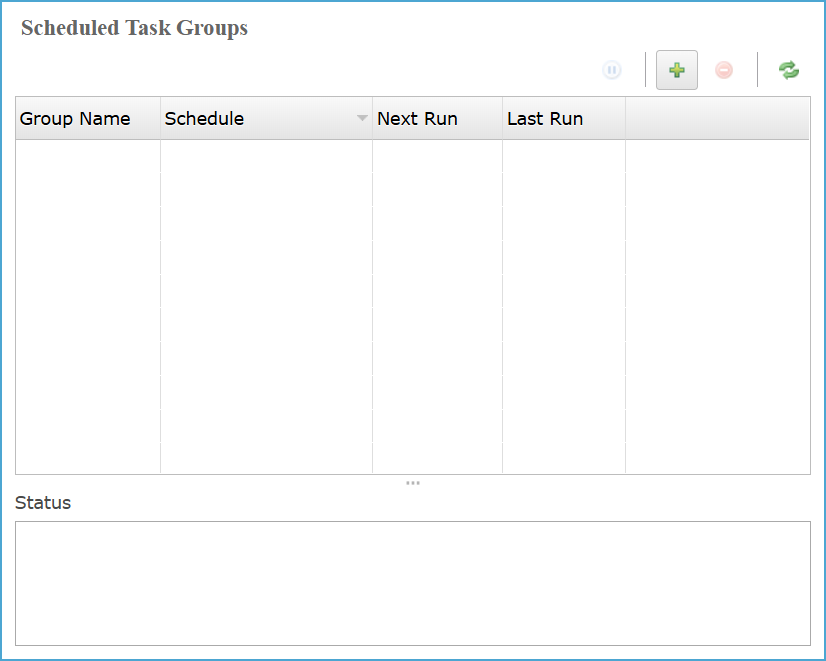
The Scheduling panel provides a centralized interface for managing all configured scheduling jobs, referred to as Task Groups. Each Task Group contains one or more executable tasks. The panel enables administrators to create, modify, or remove task groups and monitor their execution details. Columns within the interface display each group's configured schedule, the next scheduled run time, and the last execution time, ensuring complete visibility and control over all automated scheduling activities. See: Task Scheduler.
Scheduled Task Groups Column List
| Column | Description |
|---|---|
|
Name of the Task Group. |
|
|
For Task Groups, displays a short description of the scheduling for the group including the start date and time. |
|
|
The next time the Task Group is scheduled to run. |
|
|
The last time the Task Group executed. |
Scheduled Task Groups: Status
Provides real-time execution details, progress updates, and error messages while identifying the script, program file, or replication job executed within scheduled task groups for monitoring efficiency.
Creating Task: New Task Group Wizard
Accessed by clicking the  button, in the Scheduled Task Groups pane’s top-right corner, the New Task Group Wizard allows administrators to define task group names, choose scheduling types, and configure recurring or startup-triggered BBjServices task executions precisely.
Creating Task: Settings List
Creating Task: Date Time and Repeat Info
Accessed by clicking the Next, the Date Time and Repeat Info panel configures task start and end times, enables or disables the End Time checkbox, and defines repeat frequency and interval types.
Creating Task: Date Time and Repeat Info Settings List
| Settings | Description |
|---|---|
|
The exact date and time when the task group first begins execution within BBjServices. |
|
|
|
|
|
Defines how often the task group repeats by selecting an interval option: Hourly, Daily, Weekly, Monthly, or Yearly for automated task execution scheduling. |
|
|
Specifies how often the task repeats by defining numerical frequency intervals for recurring automated task executions. |
Task List
Accessed by clicking the button in the Task List pane, this wizard allows administrators to add tasks, choose task types, and configure properties; such as executing BBj programs, system calls, or replication job actions within the selected task group configuration process.
Task List Settings
| Settings | Description |
|---|---|
|
Defines the specific operation each task performs within the group, such as executing a BBj program, running a system command, or managing replication jobs. |
|
|
Displays configuration parameters and execution settings for the selected task type, including file paths, user credentials, arguments, and runtime options to ensure proper execution and operational flexibility. |
Task Type: Execute BBj Program
The Execute BBj Program configuration enables defining a BBj program task, including file paths, user credentials, arguments, client properties, and runtime options, ensuring precise automated program execution within scheduled or manually triggered task groups.
Execute BBj Program Settings List
| Settings | Description | ||||||||||||||||||
|---|---|---|---|---|---|---|---|---|---|---|---|---|---|---|---|---|---|---|---|
|
When the |
|||||||||||||||||||
|
Clicking the |
|||||||||||||||||||
|
Clicking the |
|||||||||||||||||||
|
Defines the account identity for task execution, offering admin for full system privileges and guest for limited access operations under restricted security permissions. |
|||||||||||||||||||
|
Authenticates the selected account by securely providing its corresponding password, ensuring authorized task execution under proper user credentials and maintaining controlled system access. |
|||||||||||||||||||
|
Captures command-line arguments for the BBj program. Clicking the |
|||||||||||||||||||
|
Defines client-specific runtime properties for the BBj program. Clicking the |
|||||||||||||||||||
|
|
|||||||||||||||||||
|
|
|||||||||||||||||||
|
Session-Specific classpath (SSCP) to use for executing the program.
|
|||||||||||||||||||
|
Execute the program immediately for testing purposes. |
Task Type: Execute System Call
Executes predefined operating system-level commands or external executables directly through BBjServices. Enables task automation by running shell scripts, batch files, or executable processes within a controlled, server-managed environment for integration. See: System Call.
Execute System Call Settings List
| Settings | Description |
|---|---|
|
Defines the full system path or file reference for the executable command. Clicking the |
|
|
Execute the program immediately for testing purposes. |
Task Type: Pause A Replication Job
Temporarily halts an active data replication job to prevent synchronization during maintenance or troubleshooting. Ensures data consistency and controlled resumption without interrupting existing replication configurations or causing data corruption. See: Replication Jobs.
| Settings | Description |
|---|---|
|
Displays a notice when no replication jobs exist. |
Task Type: Resume A Replication Job
Reactivates a previously paused replication job to resume data synchronization between systems. Maintains replication continuity and integrity by restarting the selected job from its last stable synchronization point.
| Settings | Description |
|---|---|
|
Displays a notice when no replication jobs exist. |