 EM: File System > Replication Jobs
Access to this feature requires an active Software Asset Management (SAM) subscription. See Benefits of ‘Software Asset Management' Feature Line.
Description
In BBj 13.0 and higher,  Replication Jobs are accessible through either the API or the Enterprise Manager, which provides administrators with an intuitive user interface for creating, editing, removing, and viewing replication jobs. For a broader understanding of replication functionality and concepts, see: Replication
Introduction.
Replication Jobs are accessible through either the API or the Enterprise Manager, which provides administrators with an intuitive user interface for creating, editing, removing, and viewing replication jobs. For a broader understanding of replication functionality and concepts, see: Replication
Introduction.
Note: Replication requires exclusive access to the data files; replication jobs cannot be created if Shared File Access is set for the BBjServices configuration.
Location
EM Navigator →  File System → Replication Jobs
Toolbar


Recopy Enabled: When disabled, the replication job will not attempt to recopy files that appear out of sync. This setting should normally remain enabled; however, temporarily disabling it can be useful if a job repeatedly recopies the same file. Such recopy loops occur when a file is continuously detected as different from its target counterpart, often due to corruption or on-disk modifications outside BBj’s control on the source server. Disabling recopy stops this cycle without affecting the rest of the replication job, allowing administrators to investigate the file differences.
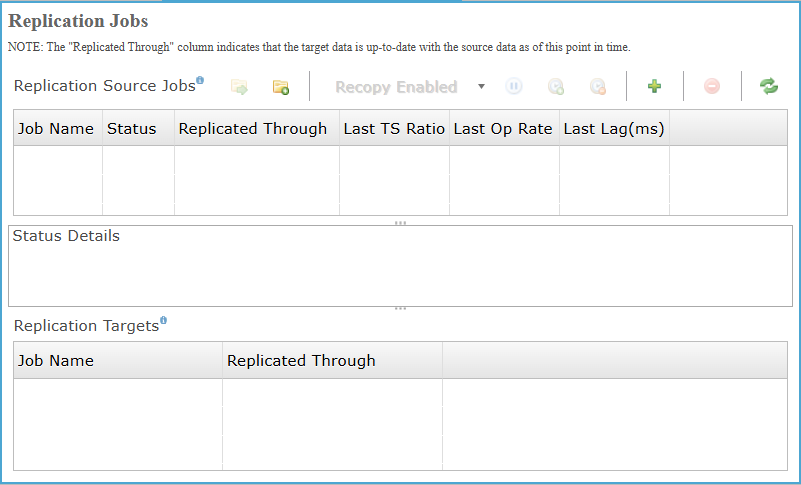
Replication Source Jobs
The Replication Source Jobs displays all replication jobs running on the connected server. This section monitors file operations on the selected source machine and automatically sends any detected changes to the corresponding target machine.
Replication Source Jobs Settings
Status Details
Detailed information about the selected replication job’s current state, activity, and operational messages below.
Replication Targets
A replication target is the location where the replication job makes copies of the file from the source machine, and keeps them in sync with any changes made to the files on the source. When replicating to the same machine, there will be entry in both the source job list as well as the replication targets list.
| Column | Description |
|---|---|
| Job Name | Name of the replication job. |
| Replicated Through | Displays the timestamp of the most recent replication event. |
Creating a Replication Job
To create a new Replication Job, click the  on the Replication Jobs pane to open the New Replication Job Wizard.Enter a Replication Job Name, then select either Replicate a Named Database Instance or a List of Data Files and Directories, and proceed by clicking Next to continue the configuration process.
Replication Jobs Settings
BBj Directory/File Replication
BBj Directory/File Replication defines a mapping between source files and their corresponding target files, which may reside on the same machine or on a different BBj Services installation. While the replication job is active, all changes made to the source files or directories, including subdirectories and their contents, are automatically applied to the target. During this process, the target files and directories remain read only to ensure data integrity.
File System Connection Settings
After naming the job and selecting replication option, click Next to configure File System Connection Settings. This pane, specify connections settings related to the file system server on the target.
File System Connection Settings List
Other Job Settings
After completing System Connection Settings, click Next to access the Other Job Settings pane directly. This pane configures additional replication options like bandwidth limits and advisory locking.
Other Job Settings List
Select Database
After completing Other Job Settings, click Next to open the Select Database configuration pane screen. This pane, allows choosing source database, optionally creates corresponding target database, and prepares replication including related data files structures.
Select Database Settings
Target Database Configuration
After completing Select Database settings, click Next to access Target Database Configuration pane. This pane allows configuring target database property paths and applying find and replace changes for precise replication directory mapping.
Target Value Find/Replace: Find locates specified target values within database properties, Replacement defines new text for matched selected values, Replace All applies replacements across all configurable properties.
Target Database Configuration Settings
Table Selection
After completing Target Database Configuration, click Next to open the Table Selection pane for replication. This pane, allows selecting specific database tables or all tables to include within the configured replication job process.
Included Directories and Files
After completing Table Selection, click Next to access the Included Directories and Files configuration pane. This pane, defines source directories, file patterns, and target locations for replication, controlling included content and synchronization behavior.
Included Directories and Files Settings
Directory/File Filter
From Included Directories and Files pane , click the button to open Directory/File Filter, define source and target paths, then confirm to add entry. Select any existing row and click the  icon to delete chosen directory or file mapping.
Directory/File Filter Settings

Included Directories and Files : Included Files/Directories and Excluded Files/Directories
After completing Directory/File Filter settings and selecting OK, clicking Next opens the Included Directories and Files pane, where all added source directories, configured patterns, and mapped target paths appear, alongside options to include or exclude directories and manage entries using the available toolbar controls.
Included Files/Directories
Manages directories selected for replication by listing included items, allowing exclusion when needed, select any included directory and click the  icon to move it to the excluded list.
Excluded Files/Directories
Lists files and directories the user excludes from replication. To remove an excluded entry, select it in this section and click the icon.
Wildcard/Regex Exclude Filter
When you click the icon in the Excluded Files/Directories section, the wizard opens the Wildcard/Regex Exclude Filter dialog. This dialog lets you define exclusion rules using either simple wildcard patterns (e.g., *.log, temp*) or full regular expressions to precisely exclude files within the selected source directory from replication. The Type, Source Directory, and Pattern fields allow you to specify exactly which files should not be included in the replication job.
Wildcard/Regex Exclude Filter Settings
| Settings | Description | ||||||
|---|---|---|---|---|---|---|---|
| Type |
Selects whether exclusion pattern is interpreted as simple wildcard or regular expression.
|
||||||
| Source Directory | Selects the folder used for filtering. Click the  icon to open the Browse For Folder dialog, then either choose an existing folder from your local system or create a new one by clicking the icon to open the Browse For Folder dialog, then either choose an existing folder from your local system or create a new one by clicking the  icon, and confirm the selection. icon, and confirm the selection. |
||||||
| Pattern | The filename applied to exclude items within the selected source directory. |

Summary
After completing the Wildcard/Regex Exclude Filter settings, clicking Next opens the Summary pane, presenting all configured replication job details for final review.