 EM: AI > AI Databases
Description
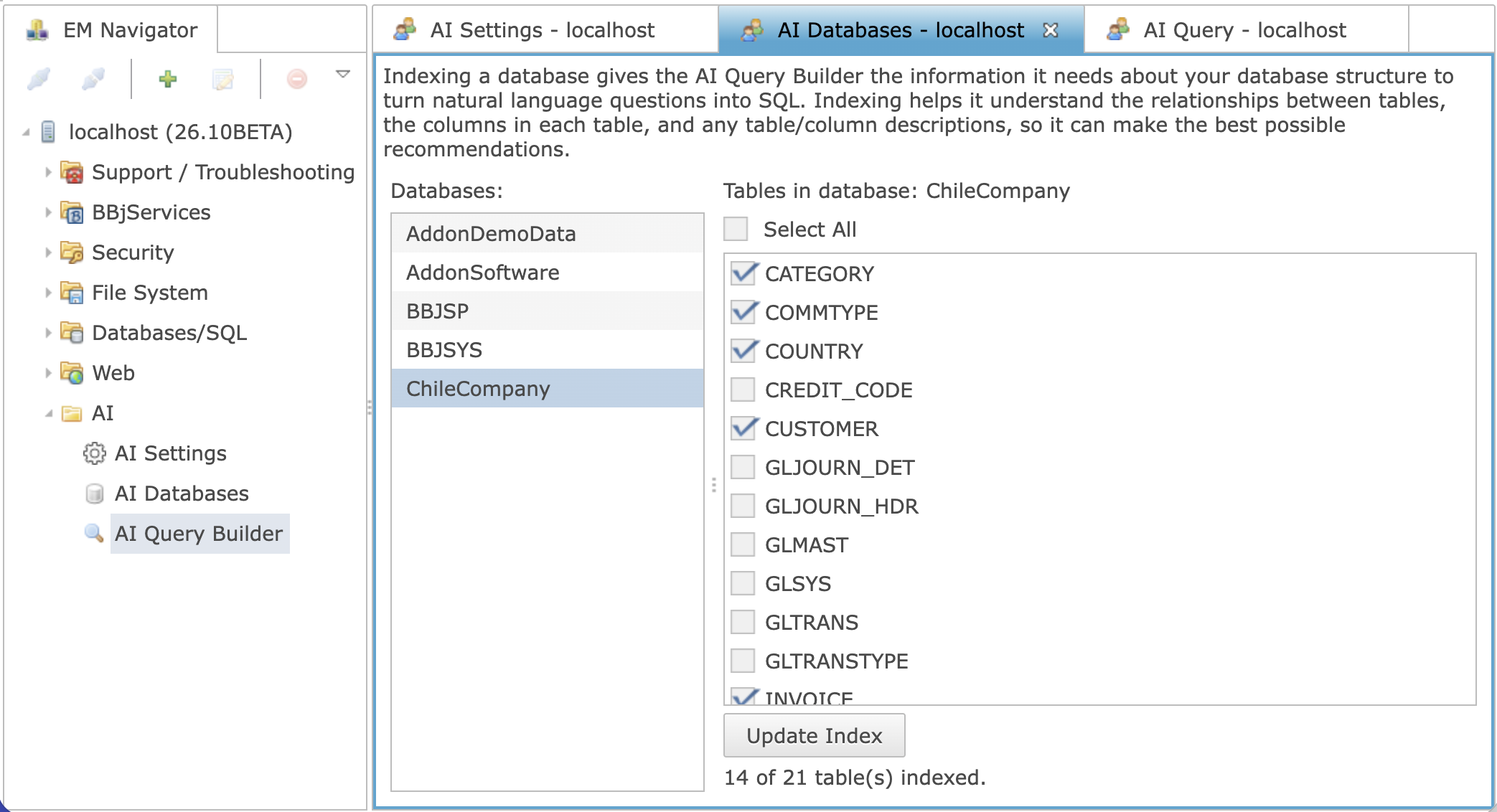
In BBj 26.03 and higher, the AI Databases screen is where you choose which databases — and which tables within them — the AI should know about. Indexing a table makes its schema (table names, column names and types, and any table or column descriptions you have entered) available to the AI, so that features like the AI Query Builder can translate natural language questions into accurate SQL statements against your data.
Location
EM Navigator → AI → AI Databases
Why Indexing Matters
Before the AI can turn a plain-language question into a working SQL query, it needs to understand your database structure: which tables exist, how they relate to one another, which columns each table has, and what those columns and tables actually represent. Indexing a table captures this information and makes it searchable by the AI at query time, so it can select the right tables and columns and produce the best possible SQL recommendation. Tables that are not indexed are not considered when the AI builds a query.
Selecting a Database
The left-hand Databases list shows every database configured on this server. Click a database name to load the list of its tables in the right-hand panel. The panel header updates to read Tables in database: <database name>.
Choosing Tables to Index
The right-hand panel lists every table in the selected database with a checkbox next to each one. A checked table is included in the AI's index; an unchecked table is not.
A status message below the table list reports how many tables are currently indexed out of the total (for example, 14 of 21 table(s) indexed), and updates to show progress while an index update is running.
Updating the Index
After checking or unchecking tables, click Update Index to apply your changes. The Enterprise Manager rebuilds the AI's schema index for the selected database in the background, so you can continue working while it completes. The status message reports success or, if a problem occurs, an error describing what went wrong.
You should update the index again any time you make significant changes to a database's structure, or to its table and column descriptions, so that the AI's understanding of your schema stays current.
Relationship to the Admin API
Indexing is performed through the same BBjAdminAI interface used by the AI Settings screen (obtained by calling getAI() on your admin connection). Indexing and index-status operations — requesting an index update for a set of tables and listing which tables are currently indexed — are available through the Admin API as well as through this screen, so this workflow can also be automated or scripted outside the Enterprise Manager if desired.
See Also