 EM: AI > AI Query Builder
Description
In BBj 26.03 and higher, the AI Query Builder lets you type a question in plain English and have the AI translate it into a SQL statement, which you can then review, edit, and run against your database. It combines a natural-language-to-SQL panel with a full SQL editor and results viewer in a single screen.
Location
EM Navigator → AI → AI Query Builder
Before You Start
The AI Query Builder relies on the provider configuration entered on the AI Settings screen, so at least one AI provider must be configured there before you can use it. It also relies on the tables you have indexed on the AI Databases screen — the AI can only generate accurate SQL for tables it has been given schema information about, so index the tables you plan to query before using this screen.
Toolbar
Building a Query From Natural Language
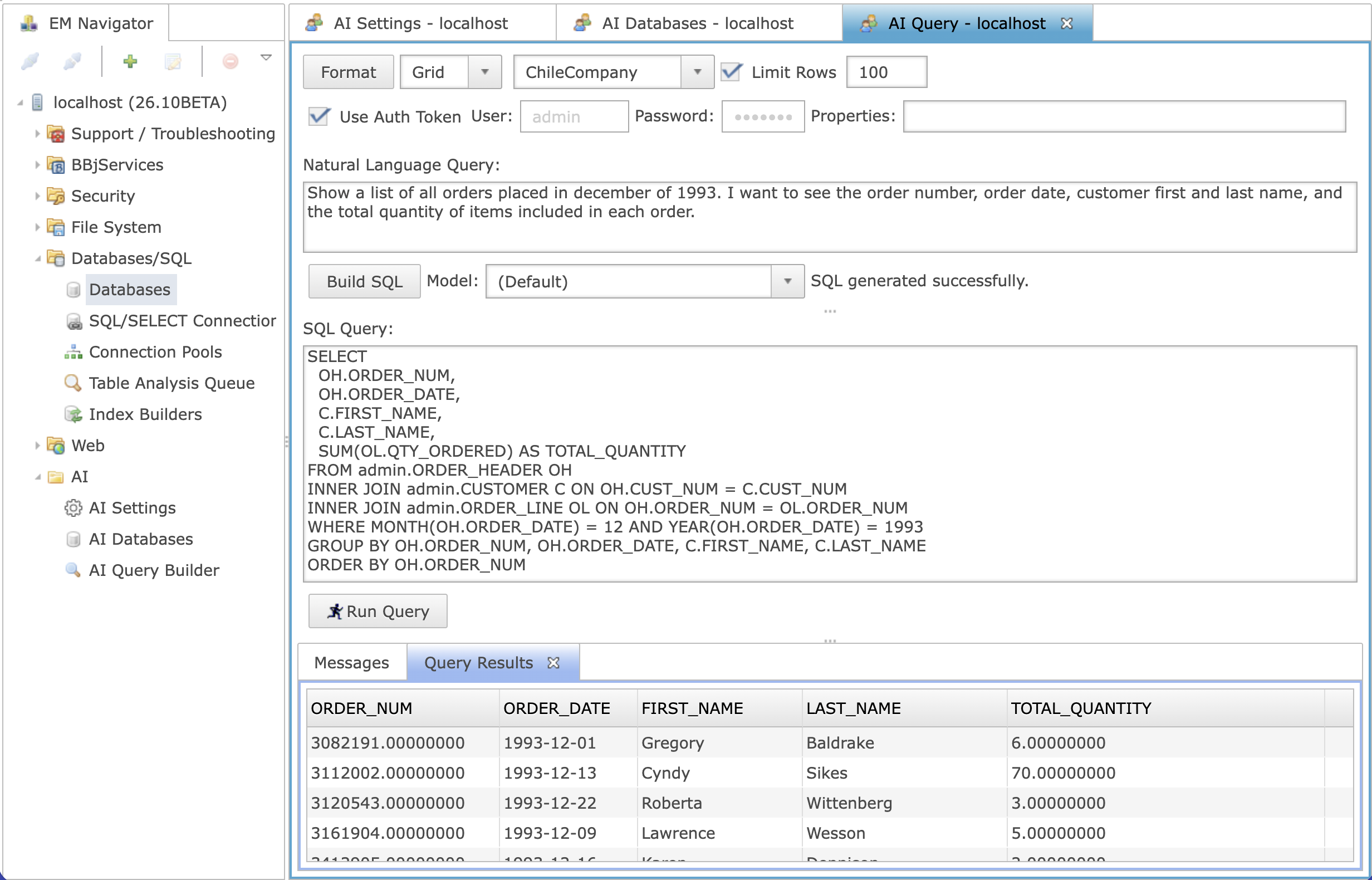
Type your question into the Natural Language Query box in plain English — for example: "Show a list of all orders placed in December of 1993. I want to see the order number, order date, customer first and last name, and the total quantity of items included in each order."
Use the Model dropdown next to the Build SQL button to choose which configured AI provider and model should generate the SQL for this request. Selecting (Default) uses whichever provider and model are currently marked as the system default on the AI Settings screen; otherwise the dropdown lists every model configured across all four providers (for example, Anthropic: claude-haiku-4-5).
Click Build SQL to send your question to the AI. While the request is processing, the status message next to the button reads Building SQL…. When it completes successfully, the generated statement is placed into the SQL Query box below and the status message reads SQL generated successfully. If the AI is unable to build a query — for example, if AI is not configured, or the request could not be completed — an error dialog explains why, and the status message reads Unable to build query.
Reviewing and Running the SQL
The SQL Query box shows the AI-generated statement as ordinary, editable SQL text. Review it before running it, and edit it if needed, just as you would in the standard SQL editor — the AI Query Builder does not require you to run its suggestions as-is.
Click Run Query (or select some SQL text and press Ctrl+Enter) to execute the statement shown in the SQL Query box against the selected database. Results appear in the Query Results tab below, using the viewer type (Grid or Text) chosen in the toolbar. Any informational or error messages from the run appear in the adjacent Messages tab, including the number of rows returned and how long the query took to run.
Tips for Good Results
-
Be specific about which columns you want to see and how you want the data grouped, filtered, or sorted — the more precise your question, the more precise the generated SQL will be.
-
Make sure the tables you are asking about have been indexed on the AI Databases screen. If a table has not been indexed, the AI has no information about it and cannot reference it correctly.
-
You can refine a generated query by editing the SQL directly, or by adjusting your natural language question and clicking Build SQL again.
-
If your organization has customized the SQL Generation Prompt on the AI Settings screen, that guidance is applied automatically every time you click Build SQL.
Relationship to the Admin API
Natural-language-to-SQL translation is performed through the same BBjAdminAI interface used by the AI Settings and AI Databases screens (obtained by calling getAI() on your admin connection), which accepts your question along with the target database and an optional provider/model choice, and returns the generated SQL along with whether the request succeeded. This means the same natural-language-to-SQL capability shown here is also available to be called directly through the Admin API.
See Also