 EM: AI > AI Settings
Description
In BBj 26.03 and higher, the AI Settings screen is where you configure the large language model (LLM) providers that power the artificial intelligence features in the Enterprise Manager. From this single screen you can enter provider credentials, tune each provider's behavior, choose which models are available, and select the provider and model that should be used by default whenever an AI feature does not specify one.
Location
EM Navigator → AI → AI Settings
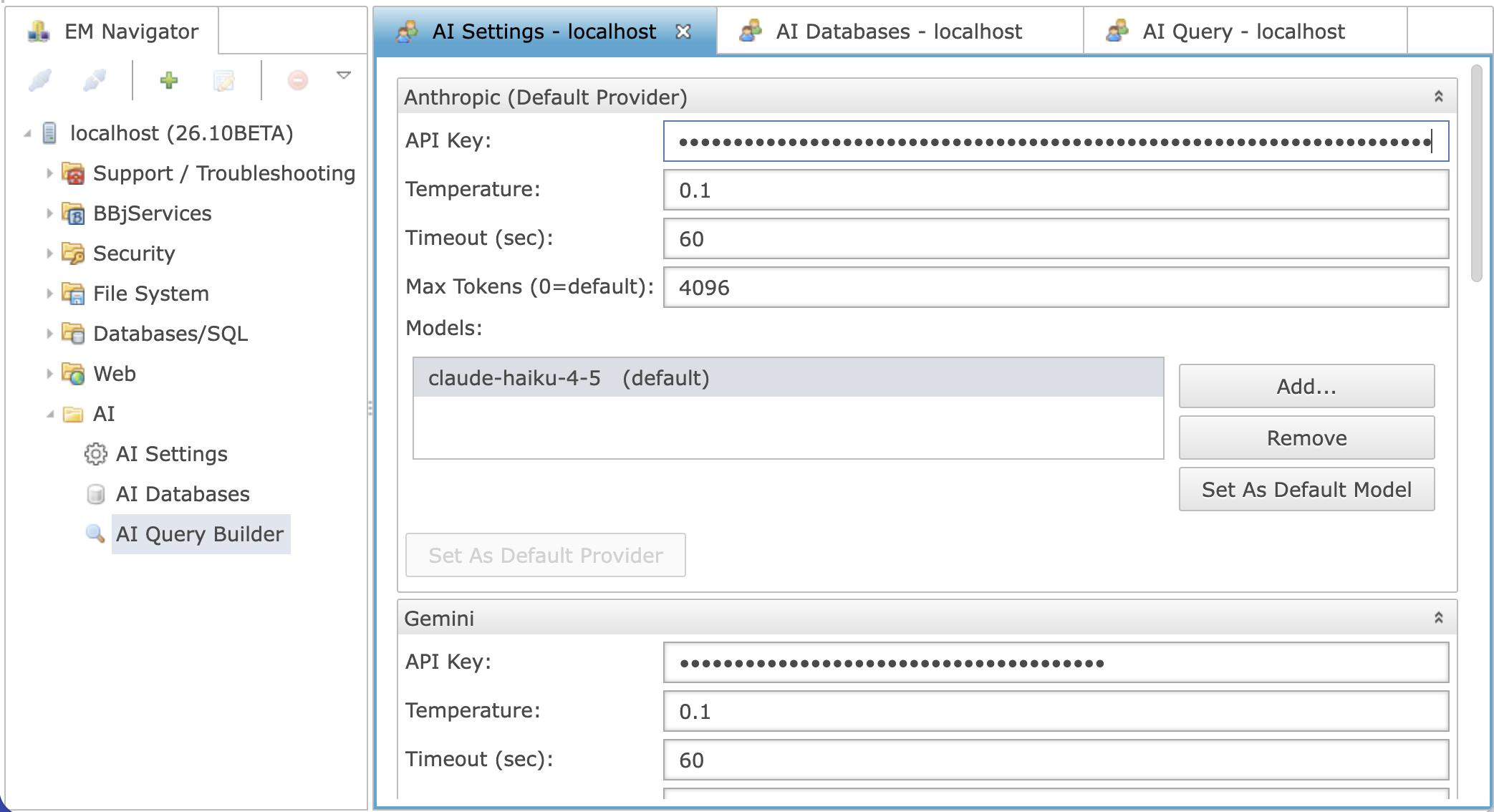
How This Screen Fits Into the Enterprise Manager
The provider credentials, models, and defaults which configured here are not limited to this screen. They are shared by every AI-powered feature in the Enterprise Manager, including:
-
The AI Query Builder, which turns natural language questions into SQL statements (see the AI Query Builder documentation page).
-
The AI chat panel available from the File System > Auditing results screen, which lets you ask questions about audit log search results in plain language.
Both of those features allow user to pick which of the providers/models configured here to use for that particular request, but neither of them lets you edit provider credentials directly — all provider configuration is managed from this AI Settings screen.
All of the configuration on this screen is also available through the Admin API, not just through the Enterprise Manager. The AI configuration is represented by the BBjAdminAIConfig class and is read and saved through the BBjAdminAI interface (obtained by calling getAI() on your admin connection). This means administrators can also read or script AI provider configuration programmatically wherever the Admin API is available.
Supported Providers
The Enterprise Manager supports four AI providers, each configured in its own expandable section:
-
Anthropic
-
Gemini(Google)
-
OpenAI
-
GitHub Copilot
Click a provider's section header to expand or collapse it. The provider currently marked as the system default is always shown at the top of the list, with (Default Provider) appended to its name.
Provider Settings
Each provider section exposes the following fields. A few fields are specific to a single provider, as noted below.
Managing Models
Each provider maintains its own list of models. Use the buttons next to the model list to manage it:
Setting the Default Provider
Exactly one provider is designated the system-wide default at any given time. This is the provider (and its default model) that AI features use when no other provider/model is explicitly selected.
To change the default provider, expand that provider's section and click Set As Default Provider. The provider you choose moves to the top of the list and its section header is updated to read <Provider Name> (Default Provider). Its Set As Default Provider button is disabled, since a provider that is already the default cannot be set as the default again.
System Prompts
Two text areas at the bottom of the screen let you customize the system-level instructions given to the AI model for different kinds of requests:
Saving Your Changes
Changes made on this screen are not applied until you save the editor (for example, using the Save toolbar button or the Ctrl+S keyboard shortcut). The editor's tab label indicates unsaved changes in the usual way. Once saved, the updated provider configuration is immediately available to the AI Query Builder and the auditing chat panel.
See Also