 EM: File System > Document Indexes
Description
In BBj 16.00 and higher the  Document Indexes provides centralized management of Lucene-powered full-text search indexes within BBj. Each document index configuration defines the monitored directories, supported file extensions, and Lucene options required to automatically include or remove documents from the index. This interface enables administrators to create, view, and maintain indexes for efficient, query-based retrieval of application documents. See: Lucene
search engine
Location
EM Navigator →  File System → Document Indexes
Toolbar
| Button | Function |
|---|---|

|
Adds a new entry and opens new application. |

|
Removes/deletes selected application(s) or files from the system. |

|
Opens the search panel to enter words or queries for retrieving indexed documents. |

|
Refreshes the list of apps. |

|
Edits selected application(s) / files. |

|
Enables to choose a folder/file from your local system. |
Document Indexes
The Document Indexes panel lists configured indexes by name and type, providing administrators with a clear view of available search configurations. The Document Index Name identifies each index instance, while the Index Type specifies the Lucene-based indexing method used for full-text search. Together, these attributes define the scope and index, ensuring accurate tracking and management of document search resources. See: Lucene
Documentation.
Document Indexes Settings
| Column | Description |
|---|---|
|
Identifies the unique name assigned to a document index, allowing administrators to distinguish and manage individual index configurations within Enterprise Manager. |
|
|
Specifies the indexing engine used for the document index, indicating that Lucene provides the underlying full-text search and query capabilities. |
Document Index Wizard: Lucene Specific Settings
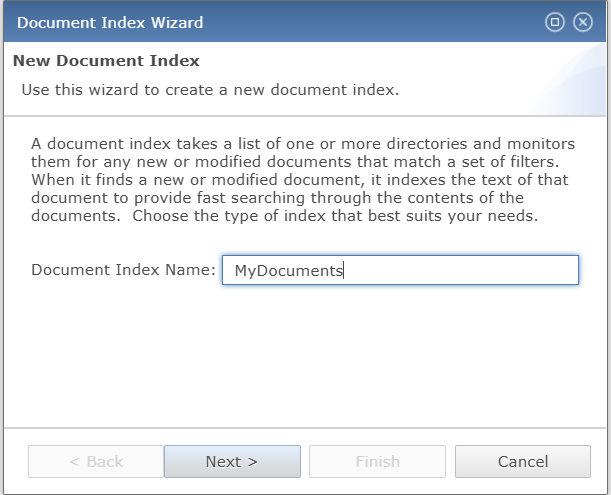
Creating a document index can be done either through the Admin API, or directly in Enterprise Manager, with the latter providing the fastest and most user-friendly method. The Document Index Wizard guides the administrator through a three-step process, where Lucene-specific settings such as index location, buffer size, wildcard options, analyzer class, and stopword configurations are defined. This structured setup ensures that the index is properly configured for efficient full-text search, leveraging Lucene’s advanced capabilities for flexible and optimized document retrieval. For details on using the Admin API, see: BBjAdminBase.createDocumentIndex().
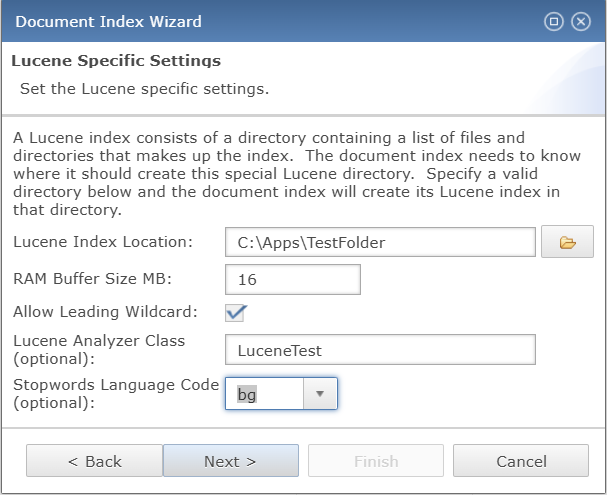
Lucene Specific Settings
| Settings | Description | ||||||||||
|---|---|---|---|---|---|---|---|---|---|---|---|
|
Specifies the directory where the Lucene index is stored, with the |
|||||||||||
|
Specifies the amount of memory in megabytes allocated for buffering indexed documents before they are written to disk, directly influencing indexing speed and performance. |
|||||||||||
|
|
|||||||||||
|
Specifies a custom Lucene analyzer class to control how text is tokenized and processed during indexing and searching, allowing advanced customization of language handling and query precision |
|||||||||||
|
Specifies the language code used to apply predefined stopword lists, enabling Lucene to exclude common words of that language from indexing and improve search efficiency.
|
Document Index Wizard: Common Settings
The Common Settings panel defines parameters shared across all document indexes to control how monitored directories and files are processed. Administrators can configure the scan frequency in seconds, specify one or more directories with optional recursive scanning, and apply include or exclude filters to target specific file types. These settings ensure that only the intended documents are indexed, providing precise control and efficiency in Lucene-based full-text search operations.
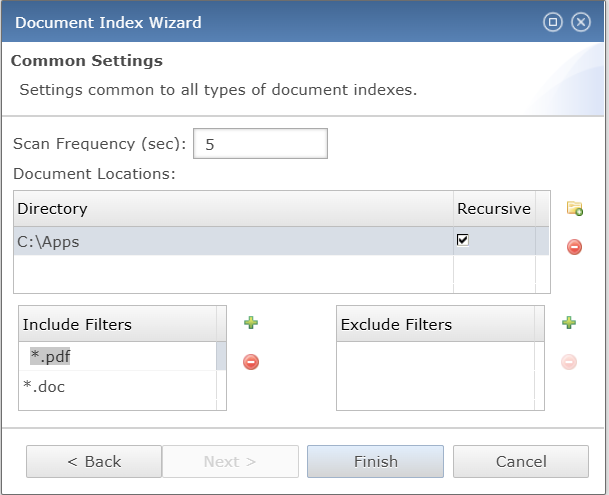
Common Settings
| Settings | Descriptions | ||||||
|---|---|---|---|---|---|---|---|
|
Defines the interval in seconds at which the document index scans monitored directories to detect and update changes in indexed files. |
|||||||
|
Specifies the directory path monitored for indexing with an option to include subdirectories recursively, and additional locations can be added by clicking the
|
|||||||
|
Defines file types to be indexed by specifying patterns such as extensions, and new filters can be added by clicking |
|||||||
|
Specifies file patterns to be excluded from indexing to prevent unwanted documents from being processed, and additional filters can be added by clicking |
 to display the selection dialog.
Querying a Document Index
Querying a document index through Enterprise Manager begins by clicking the icon in the Document Indexes panel which opens the search editor for entering Lucene-compatible queries. The search editor provides a text field for direct input. Clicking the icon launches the Lucene Query Builder for guided query construction. This step-by-step process enables administrators to refine searches using conditions such as exact phrases, excluded words, or proximity matches, ensuring precise retrieval of indexed content.
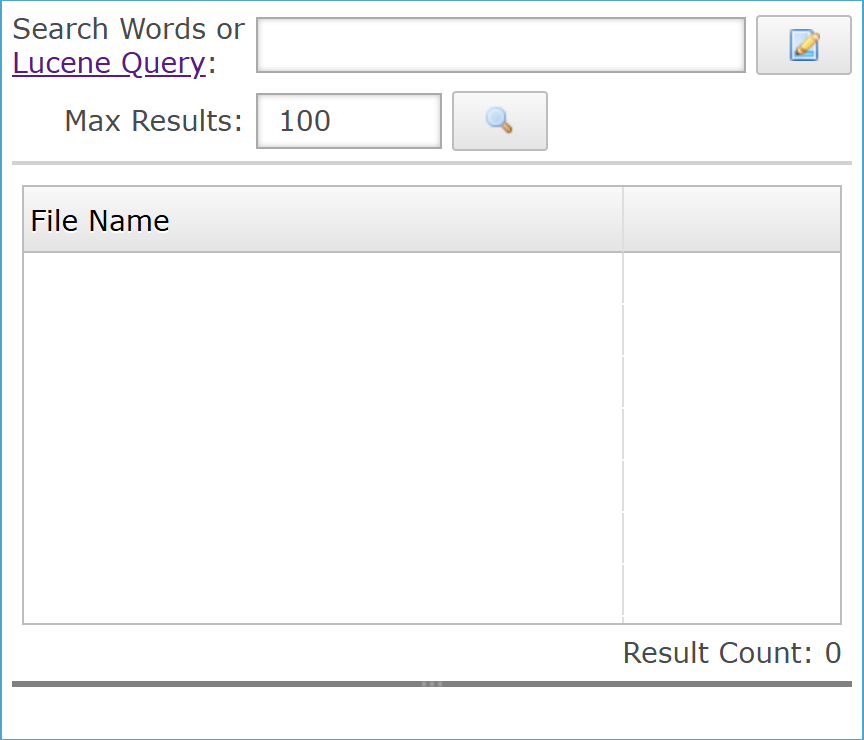
Querying Document Index Settings
| Settings | Description |
|---|---|
|
Search Words or Lucene Query |
Provides a text field for entering keywords or Lucene-compatible queries to retrieve matching documents from the selected index. |
|
Specifies the maximum number of search results returned from the index, with the |
|
|
Identifies each search result by document file name within the results grid for the selected index, enabling quick recognition of matched files. |
Lucene Query Builder
The Lucene Query Builder provides interface for constructing structured full-text search queries across indexed documents, enabling precise filtering with parameters such as required words, exact phrases, excluded terms, and proximity ranges. Administrators can also specify approximate matches and numerical ranges, with the system dynamically generating the computed query for validation. This tool ensures accuracy and efficiency in query creation while minimizing errors associated with manual Lucene syntax entry.
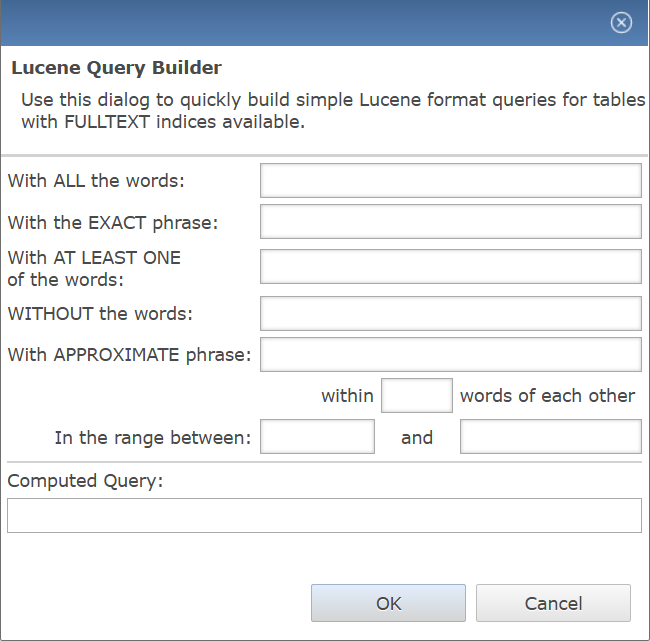
Lucene Query Builder Settings
| Settings | Description |
|---|---|
|
Ensures that only documents containing every specified term are matched, enforcing strict inclusion criteria for full-text searches and enhancing query precision by eliminating partial or incomplete results. |
|
|
Restricts search results to documents containing the precise sequence of words entered, ensuring accurate phrase matching for high-precision full-text queries. |
|
|
Broadens search flexibility by returning documents that contain any of the specified terms, ensuring results include matches even if only a single word from the list is present. |
|
|
Specifies words or terms that must be excluded from the Lucene query, ensuring that search results omit documents containing those expressions and thereby refining query precision. |
|
|
Enables proximity-based searching by matching phrases that are similar in structure or wording, allowing Lucene to retrieve documents containing near or variant text patterns for greater query flexibility. |
|
|
Restricts Lucene query results to values that fall within the specified lower and upper limits for the indexed field. |
|
|
Contains the final Lucene query string generated from the builder inputs for validation and execution in the search editor. See: Using FULLTEXT Files/Indices for Searching. |
Search Using the Admin API
With a configured document index, developers can write BBj code that leverages the Admin API to manage and query the index, enabling powerful search functionality within their applications. The API is straightforward to use. In the following example, two queries are demonstrated: the first searches for all documents containing the word “beef” OR “ham,” where matches are performed on whole words unless wildcard characters are applied. The second query introduces a wildcard to locate all documents with terms beginning with “chick*” (such as “chick”) OR the word “fish.” The query language supports advanced features including partial matching, fuzzy matching, ranges, equality, and more, offering robust and flexible search capabilities. See: Lucene Query Syntax.
Example
|
See Also
Full Text Indexing and Searching
FULLTEXT Verb - Create FULLTEXT File
Using FULLTEXT Files/Indices for Searching