 EM: File System > Asynchronous Trigger Jobs
Access to this feature requires an active Software Asset Management (SAM) subscription. See Benefits of ‘Software Asset Management' Feature Line.
Description
In BBj 15.0 and higher,  Asynchronous Trigger Jobs consist of a list
of directories and/or files monitored by the BBj filesystem. When a write
or remove operation occurs on a monitored file, a BBj program runs on
the specified target machine in response to the operation. This program
has access to the information provided by the file operation such as the
record data, key data, user, IP address, etc.
Asynchronous Trigger Jobs consist of a list
of directories and/or files monitored by the BBj filesystem. When a write
or remove operation occurs on a monitored file, a BBj program runs on
the specified target machine in response to the operation. This program
has access to the information provided by the file operation such as the
record data, key data, user, IP address, etc.
Asynchronous Triggers vs. File Triggers
Asynchronous triggers differ from standard file triggers in that the file operation does not wait for the trigger operation to complete before continuing. This means there is almost no overhead on the file system. Furthermore, these triggers can be configured to run on a remote BBjServices installation to allow the administrator to distribute the interpreter workload to another machine. As with file triggers, asynchronous triggers can execute any valid BBj code or embedded Java code that does not utilize any user interface related operations.
How Do They Work?
When a write or remove operation occurs on a monitored data file, a record of the operation is put into a queue for processing. The operations are processed in a FIFO (first in, first out) pattern. The queue persists between restarts of both the source and target instances of BBjServices (see BBj File Replication). When the target machine receives an operation to process, it launches the appropriate BBj program:
-
Write Program - Executed when the source performs a WRITE, WRITE RECORD, SQL UPDATE, or SQL INSERT operation.
-
Remove Program - Executed when the source performs a REMOVE or SQL DELETE operation.
Location
EM Navigator →  File System → Asynchronous Trigger Jobs
Toolbar


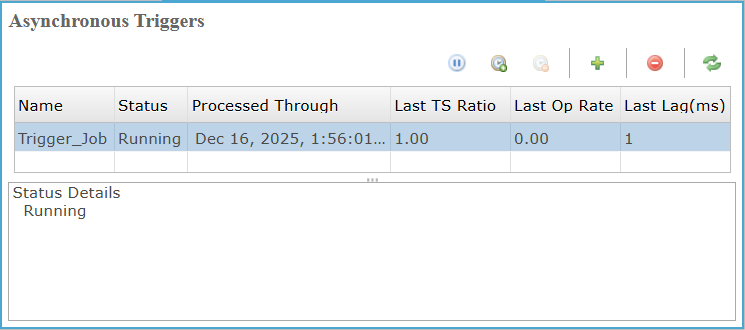
Asynchronous Triggers Jobs Pane
The Asynchronous Trigger Jobs pane lists configured trigger jobs, showing execution status, processing progress, throughput ratios, operation rates, and lag metrics, with a details area for viewing job-specific runtime information.
Asynchronous Triggers Jobs Settings
Asynchronous Triggers Jobs Pane: Status Details
Runtime messages and diagnostics explaining the current trigger job state, progress, warnings, or errors details.
Creating a New Job
Asynchronous trigger jobs can be created using the BDT Enterprise Manager or the Admin API. For information on managing asynchronous trigger jobs from the Admin API, see the Admin API Javadocs for BBjAdminBase and for BBjAdminAsynchTriggerJob.
Using the Enterprise Manager to Manage Jobs
From the Asynchronous Triggers pane, clicking the  icon opens the New Asynchronous Trigger Job Wizard, where users define a trigger job name and choose whether monitoring targets a named database instance or specific data files and directories.
Using the Enterprise Manager to Manage Jobs Settings
Select Database
After naming the trigger job and choosing database monitoring, clicking Next opens Select Database, where a configured database is chosen to define monitored data.
File System Connection Settings
After selecting the database and clicking Next, the wizard displays File System Connection Settings, where users configure target connectivity, credentials, port, and SSL for access securely.
File System Connection Settings List
Other Job Settings
After completing configuration of the File System Connection Settings, clicking Next opens Other Job Settings to configure advisory locking behavior.
Other Job Settings
Asynchronous Trigger Programs
After configuring Other Job Settings and clicking Next, the Asynchronous Trigger Programs pane allows specifying programs executed on write or remove operations, including configuration file and working directory paths.
Asynchronous Trigger Programs Settings
Include Directories and Files
After configuring the Asynchronous Trigger Program settings and clicking Next, this wizard defines the directories and files monitored by the job. Any detected write or remove activity within the specified paths, including subdirectories when enabled, invokes the configured trigger programs.
Include Directories and Files Settings
Directory File Filter
From Included Directories and Files, clicking the opens the Directory/File Filter dialog, where users define directory or file sources, optional modes, and recursive behavior, then confirm selections for inclusion.
Directory File Filter Settings
Excluded Files / Directories
After completing Directory/File Filter configuration and clicking Next, the Excluded Files/Directories pane enables refining scope by moving selected included files or directories to the excluded list by clicking the  icon , and removing excluded entries by selecting the file and clicking the
  icon, ensuring precise control over which files and subdirectories are omitted from auditing.
Wildcard/Regex Exclude Filter
Clicking the icon in Excluded Files/Directories opens the Wildcard/Regex Exclude Filter, where users define pattern-based exclusions by selecting a type, choosing a source directory, entering a match pattern, and confirming to exclude matching files or subdirectories from the audit job.
Wildcard/Regex Exclude Filter Settings
| Value | Description | ||||||
|---|---|---|---|---|---|---|---|
| Type |
Specifies how sources are defined when adding directories or files.
|
||||||
| Source Directory | Clicking the  icon opens directory browsing; selecting a local directory populates Directory Name and Source Directory, while clicking the icon opens directory browsing; selecting a local directory populates Directory Name and Source Directory, while clicking the  icon opens Create New Folder to define, create, and select a new directory before confirmation. icon opens Create New Folder to define, create, and select a new directory before confirmation. |
||||||
| File | Targets a single file path as the monitored source only. | ||||||
| Pattern | Specifies wildcard or regular expression used to match files for exclusion patterns. |
Editing Selected Audit Job
Selecting and double clicking an asynchronous trigger job from the Asynchronous Triggers pane opens its configuration view, displaying connection, authentication, locking, and filter settings. Users can manage included and excluded directories, add new directory filters using the icon , or remove selected files/directories by clicking the icon.