 EM: File System > Audit Logging Jobs
Description
The  Audit Logging Jobs allows the administrator to create, manage and edit all auditing tasks for any BBj database. All audit data will be logged to an audit database.
Location
EM Navigator →  File System → Audit Logging Jobs
Toolbar


Audit Logging Jobs
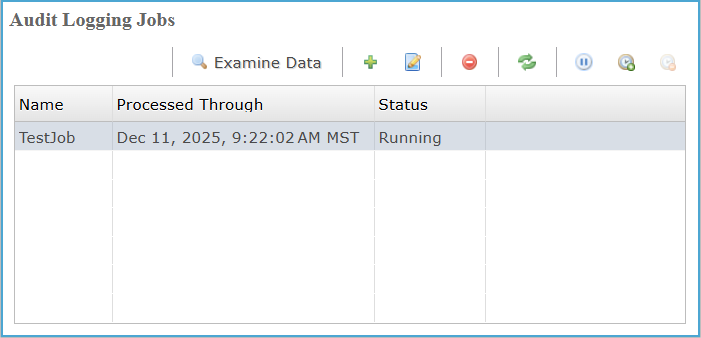
Manages configured Audit Logging Jobs by presenting each job’s name, processed-through timestamp, and current status, providing a clear operational view for monitoring ongoing audit data collection activities.
Audit Logging Jobs Settings
Audit Database / Log Viewer
Clicking the Examine Data  opens Audit Database/Log Viewer. The pane provides a detailed interface for filtering and reviewing recorded audit log entries using database, file, user, operation type, and date-range criteria.
Audit Database / Log Viewer Settings
Audit Database / Log Viewer: Column Settings
Column fields present detailed attributes of each audit entry, enabling users to review timestamps, users, files, operation types, programs, and modes efficiently.
Audit Database / Log Viewer: Column Settings
Create a New Audit Task
Accessing this process by clicking the  icon opens the Audit Job Wizard, enabling users to name the audit job, define an empty root directory, and select the intended auditing target.
New Audit Task Settings
 icon directs user to create a new folder; confirming any choice returns the selected directory to the DB Root Directory field.
Select Database
After completing the New Audit Job details, click Next to open the Select Database step, then use the Database Name dropdown to choose the database instance available on the system.
Other Job Settings
After selecting a database from the Database Name dropdown, the user clicks Next, and the wizard advances to the Other Job Settings pane, where rollover options and advisory locking configurations can be adjusted before proceeding.
Other Job Settings
Included Directories and Files
After completing Other Job Settings and clicking Next, the Included Directories and Files pane allows selecting directories and files for auditing, defining monitored sources whose changes are tracked and recorded during job execution.
Included Directories and Files Settings
| Setting | Description |
|---|---|
| Source |
Lists directories and files selected as audit sources. Click the |
 icon opens the file selection dialog, allowing selection of individual files. Selecting OK/ Open confirms choices and displays the selected directories and files in the Source table for inclusion in the audit job. After clicking Finish button, audit job appears in Audit Logging Jobs Pane.
Editing Selected Audit Job
Selecting an audit job in the Audit Logging Jobs list and clicking the  icon (Edit Selected Audit Job) opens the job configuration view, enabling review and modification of job details, rollover settings, and included source directories and files.
Editing Selected Audit Job Settings: Info
| Settings | Description |
|---|---|
| Job ID | Uniquely identifies the audit job for internal tracking. |
| Job Name | Audit Job name |
| DB Root Directory | Clicking the  icon opens the directory browser to select a path from the local system, while clicking icon opens the directory browser to select a path from the local system, while clicking  icon directs user to create a new folder; confirming any choice returns the selected directory to the DB Root Directory field. icon directs user to create a new folder; confirming any choice returns the selected directory to the DB Root Directory field. |
Editing Selected Audit Job Settings: Other
| Settings | Description | ||||||||||||
|---|---|---|---|---|---|---|---|---|---|---|---|---|---|
| Rollover Type |
Unit of measure to use to determine when to rollover. The frequency of the rollover will determine when a new audit database is created.
|
||||||||||||
| Rollover Frequency | The number of units of measure (Rollover Type) to use to determine next time ro rollover and create a new audit database. | ||||||||||||
| Advisory Locking |
|
Included Directories and Files
When clicked the Included tab lists directories and files actively monitored by the audit job, defining sources whose write and remove operations are captured during audit execution.
| Setting | Description |
|---|---|
| Source |
Lists directories and files selected as audit sources. Clicking the |
Excluded Directories and Files
Selecting a file or directory in Included section, and clicking the  moves it to Excluded. Selecting an item in Excluded section and clicking the
  restores it to Included.
| Value | Description |
|---|---|
| Included Files/ Directories | Lists files and directories actively monitored and audited by the selected audit job. |
| Lists files and directories explicitly excluded from auditing and change tracking operations. |