 EM: Web - App Deployment > SLL Configuration
Description
In BBj 17.0 and higher,  SSL Configurations allows multiple SSL ports to be defined for the integrated Jetty Web Server, requiring separate keystores, which Enterprise Manager enables administrators to configure and manage accordingly.
Location
EM Navigator →  Web →
Web →  App Deployment → SSL Configurations
Toolbar


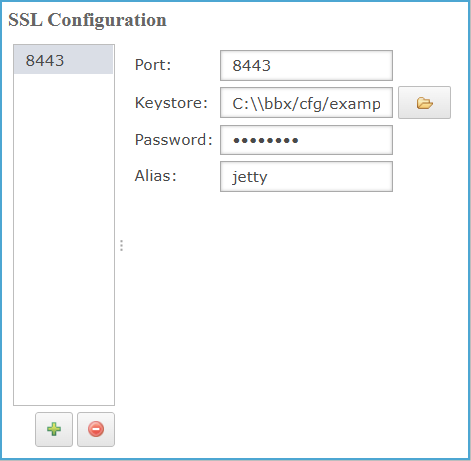
SLL Configuration
The SSL Configurations pane displays configured SSL ports and allows administrators to define port numbers, keystore locations, passwords, and aliases for managing secure Jetty Web Server connections.
SLL Configuration Settings
| Settings | Description |
|---|---|
| Port | The HTTP Port number. |
| Keystore | Clicking the  icon opens a file browser to navigate local directories. Users can create a new folder by clicking icon opens a file browser to navigate local directories. Users can create a new folder by clicking  icon, name it, confirm creation, select the folder or file, enter a file name if required, and click Open to display the Keystore path field. icon, name it, confirm creation, select the folder or file, enter a file name if required, and click Open to display the Keystore path field. |
| Password | Password for the keystore. |
| Alias | The Alias within the keystore. |
| Default |
|
Add a New Port
Clicking the  icon opens the Add New Port dialog, where administrators specify an SSL port number for HTTPS access and confirm with OK to add the port to the SSL configuration.
The SSL port binding happens at the transport layer in the HTTPS protocol and there is no need to specify which context a port belongs as the transport-layer will validate the incoming packets before handing them for processing.
Advanced SSL Configuration
The integrated Jetty server has disabled protocols SSLv3, TLSv1 and SSLv2Hello because they present security risks. If you want to disable any additional protocol or cipher then this can be done by editing jetty.xml.
Locate the ssl-config entry and embed within exclude-protocol and exclude-cipher elements. Here is an example:
<ssl-config alias="jetty"
keystore="/opt/basis/cfg/example.jks"
keystore-password-enc="B1NhCfk1XmL0/u1WA8aoKQ=="
port="8443">
<exclude-cipher>TLS_DHE_RSA_WITH_AES_128_CBC_SHA</exclude-cipher>
<exclude-protocol>TLSv1.1</exclude-protocol>
</ssl-config>
About the Keystore
SSL configuration requires a keystore. The example .jks keystore is supplied with every BBj install and is a great reference for building custom keystores. BBj requires at least two passwords for the keystore and another for the specific certificate used by Jetty. Examine the example.jks using the keytool command provided with Java.
keytool -v -list -keystore example.jks
Keytool creates new keystores as well. Generate a fresh key pair with this command:
keytool -keystore mykeystore.jks -alias jetty -genkey -keyalg RSA
Then, generate a certificate request with this command:
keytool -certreq -alias jetty -keystore mykeystore.jks -file jetty.csr
Send the certificate request to an SSL provider, and they will send back a public key guaranteeing your authenticity. The next step is to import the provider’s response, with this command:
keytool -keystore keystore -import -alias jetty -file response.crt
Finally, configure the keystore and passwords as appropriate in Enterprise Manager.