 EM: Security > 2-Factor Authentication
Description
The  2-Factor Authentication panel in Enterprise Manager strengthens account security by requiring an additional verification step beyond the standard username and password. Administrators can select from supported methods such as TOTP-based applications Google/Microsoft Authenticator App or an Email 2-Step Code, define the validity period for generated codes, and configure the email service for delivery. The panel also provides tools for enabling or disabling specific users, issuing instructions, and verifying the setup to ensure proper configuration and reliable access control. See: Two-Factor Authentication in BBj.
Location
EM Navigator →  Security → 2-Factor Authentication
Toolbar
| Button | Function |
|---|---|

|
Refreshes the displayed list of applications and their status. |
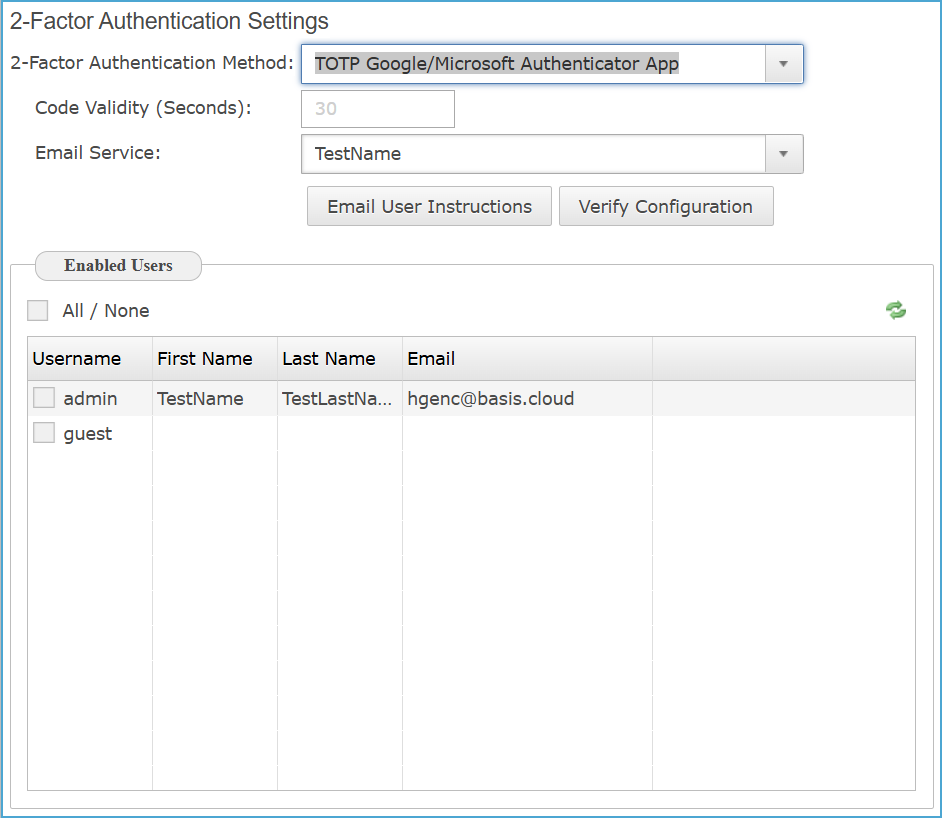
2-Factor Authentication Settings
| Settings | Description | ||||||||
|---|---|---|---|---|---|---|---|---|---|
|
Specifies the mechanism used to generate and deliver secondary authentication codes, offering options such as TOTP Google/Microsoft Authenticator apps for time-based one-time passwords or an Email 2-Step Code for token delivery through a configured mail service, with < none > disabling 2FA enforcement.
|
|||||||||
|
Sets the time, in seconds, that the two-factor authentication verification code remains valid before expiring. |
|||||||||
|
Specifies the configured email service used to deliver two-factor authentication codes and related notifications to users. |
|||||||||
|
Sends step-by-step setup instructions to selected users by email, guiding them through enabling and configuring two-factor authentication with the chosen verification method. |
|||||||||
|
Validates the current two-factor authentication setup by running a built-in test so administrators can confirm the configuration works before enforcement. |
Enabled Users
The Enabled Users defines the list of accounts authorized to use two-factor authentication, allowing administrators to selectively enable or disable protection for specific usernames, manage account details such as email addresses, and apply changes collectively using the All/None option for streamlined security configuration.
Enabled Users Settings
| Column | Descriptions |
|---|---|
|
|
|
|
Identifies the unique account name associated with a user, serving as the primary credential reference for enabling or managing two-factor authentication within the Enterprise Manager. |
|
|
Captures the user’s given name to support clear identification and selection when enabling or managing two-factor authentication for the account. |
|
|
Identifies the user’s last name to ensure precise recognition and administration when configuring or managing two-factor authentication for the account. |
|
|
The user’s registered email address used to deliver two-factor authentication codes, setup instructions, and related security notifications for the account. |