DWC Control Validation
Overview
DWC provides server-side and client-side validation options for verifying data entered into BBj controls. Form validation can validate a complete form when it is submitted, while client-side validation can identify invalid input in the browser before the data is sent to the server.
Client-side validation includes built-in validation attributes and developer-defined JavaScript validation functions. DWC also provides options for customizing validation messages, icons, placement, and submit-button behavior.
Form Validation
Form validation verifies data before a form is accepted. A BBj application can register an ON_FORM_VALIDATION callback on a submit button and use the resulting BBjFormValidationEvent to inspect the values entered in the form.
When the form-validation event fires, BBj locks the top-level window while the callback processes the submitted data. The callback must call accept() to indicate whether the form data is valid and allow BBj to continue processing.
Client-side validation can perform an earlier validation step in the browser. If a control fails client-side validation, the form-validation event is not fired until the client-side validation succeeds.
For an example of form validation in a BASIS web application, see: The Anatomy of a Web App Makeover. The current product download interface is available from the BASIS Product Download Page.
The formValidation.bbj sample demonstrates form validation by requiring values in the first-name and last-name fields before the form is accepted.
The Submit button registers a callback for the ON_FORM_VALIDATION event:
btnSubmit!.setCallback(BBjButton.ON_FORM_VALIDATION, "OnFormValidation")
When the form-validation event fires, the callback retrieves the submitted values from the BBjFormValidationEvent and checks whether both name fields contain data.
|
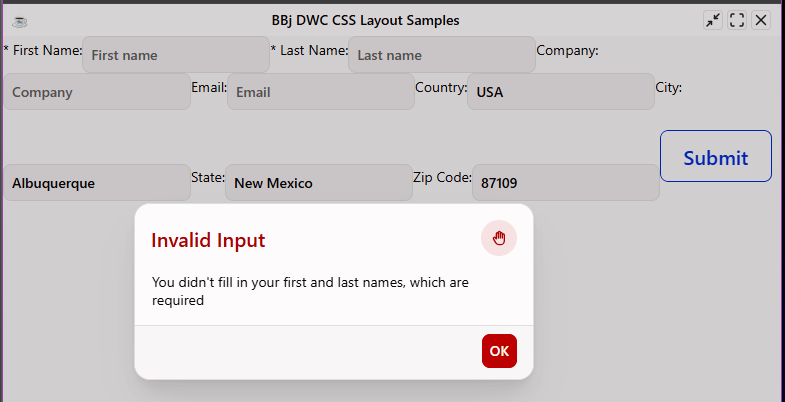
If either name field is empty, the callback calls accept(0) to reject the form and displays an Invalid Input message.
The following image shows the tested formValidation.bbj sample after submitting the form without entering the required first and last names.
If both fields contain values, the callback calls accept(1) and the form passes validation.
This example performs a simple length check. A production validation routine can apply additional checks, such as trimming leading and trailing spaces or using client-side validation to provide more immediate feedback.
Client-Side Validation
Client-side validation checks control values in the client before the form is submitted to the server. This provides immediate feedback when input is invalid and allows users to correct errors before form-level validation occurs.
DWC supports two approaches to client-side validation:
-
Built-in validationuses validation attributes on supported controls, such as setting a BBjEditBox to required so that it must contain a value before the form can be submitted. -
JavaScript validationuses the ClientValidation interface to evaluate control data with a developer-defined JavaScript validation function that returns whether the value is valid.
Client-side validation should complement, rather than replace, form-level validation. If a control fails client-side validation, the form-validation event does not fire until the client-side validation succeeds.
Built-In Validation
DWC's validation documentation describes the built-in validation attributes available for supported controls such as BBjEditBox. These attributes allow common validation requirements to be applied without writing a custom JavaScript validation function.
For a BBjEditBox, commonly used validation attributes include:
| Attribute | Description |
|---|---|
required
|
Requires the control to contain a value before the form can be submitted. |
minlength, maxlength
|
Specifies the minimum and maximum permitted length of text input. |
min, max
|
Specifies minimum and maximum values for applicable numeric input types. |
type
|
Specifies a predefined input type, such as a number or email address. |
pattern
|
Specifies a regular expression that the entered value must match. |
For example, the required attribute can be applied to the first-name and last-name BBjEditBox controls so that the form cannot be submitted while either field is empty. The pattern attribute can be used when input must follow a specific format, such as a ZIP code.
Built-In Client-Side Validation
The builtInValidation.bbj sample extends the form-validation example by adding built-in client-side validation to DWC controls.
The first-name and last-name BBjEditBox controls use the required attribute so that both controls must contain a value before the form can be submitted.
editFirstName!.setAttribute("required", "true")
editLastName!.setAttribute("required", "true")
If either required field is empty when the user attempts to submit the form, DWC marks the corresponding control as invalid and prevents the form from proceeding to form-level validation.

By default, an empty required control is not necessarily displayed as invalid immediately when the application first loads. DWC provides additional attributes for controlling when validation occurs and how validation state is maintained:
| Attribute | Description | Type | Default |
|---|---|---|---|
auto-validate
|
When true, the control will be validated with every change | boolean | true |
auto-validate-on-load
|
When true, the control will be validated when it is loaded for the first time | boolean | false |
auto-was-validated
|
When true, the control will switch on the valid property automatically after the control is validated and has is valid |
boolean | false |
To validate the required name fields when they first load, set auto-validate-on-load to TRUE in addition to required:
editFirstName!.setAttribute("required", "true")
editFirstName!.setAttribute("auto-validate-on-load", "true")
editLastName!.setAttribute("required", "true")
editLastName!.setAttribute("auto-validate-on-load", "true")
With this configuration, the required fields are validated when the controls load rather than waiting for user interaction or form submission.
The following image shows the name fields displayed in their invalid state immediately after the form loads.

The sample also applies built-in validation to the ZIP-code BBjEditBox by setting its pattern attribute to a regular expression:
editZip!.setAttribute("pattern", "(\d{5})(-\d{4})?")
This pattern accepts either a five-digit ZIP code, such as 87109, or a ZIP+4 value, such as 87109-1234. For additional information about testing and interpreting regular expressions, see: regex101.com.
When the ZIP-code field contains a value that does not match the configured pattern, DWC marks the control as invalid. Because the ZIP-code control is not configured with the required attribute, it can remain empty; however, any entered value must match the configured pattern.
The following image shows the tested builtInValidation.bbj sample with 87109-1234a, which does not match the required ZIP-code pattern.
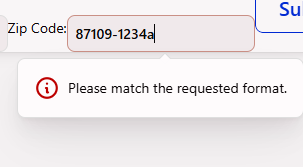
DWC displays a validation message indicating that the entered value does not match the requested format.
JavaScript Validation
When built-in validation attributes such as required or pattern are not sufficient, supported BBj controls can use the ClientValidation interface to evaluate input with a developer-defined JavaScript validation function.
The validation function receives the control's current value, evaluates it in the client, and returns a boolean result indicating whether the value is valid. This allows validation rules to include multiple conditions or application-specific requirements while providing immediate feedback before form-level validation occurs.
A client validation function can be assigned with setClientValidationFunction(). If the JavaScript expression does not contain return, BBj automatically inserts return at the beginning. Functions containing multiple JavaScript statements must include an explicit return statement.
Replicating the required Attribute with JavaScript
The javaScriptValidation-Required.bbj sample demonstrates using a JavaScript validation function to reproduce and extend the behavior of the built-in required attribute.
For the first-name BBjEditBox, the validation function trims the entered value and returns true only when at least one non-whitespace character remains:
rem Define the JavaScript function that determines if the provided input
rem is valid or not. Since this replicates the "required" attribute, the
rem JavaScript only has to ensure that the control's contents are not empty.
js! = "if (value.trim().length > 0) { "
js! = js! + " return true; "
js! = js! + "} else {"
js! = js! + " return false;"
js! = js! + "} "
editFirstName!.setClientValidationFunction(js!)
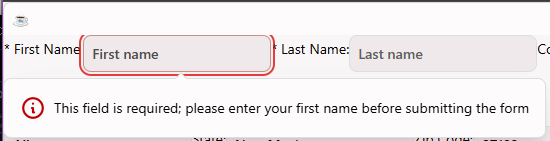
editFirstName!.setClientValidationMessage("This field is required; please enter your first name before submitting the form")
If the control is empty, or contains only spaces, the validation function returns false and DWC displays the custom validation message.
The following image shows the tested first-name field after client-side JavaScript validation fails.
The last-name field applies the same requirement with a more compact validation function:
editLastName!.setClientValidationFunction("return value.trim().length;")
editLastName!.setClientValidationMessage(
"This field is required; please enter your last name before submitting the form")
Because both examples use trim(), values containing only leading or trailing whitespace do not satisfy the validation requirement.
Validation Customization
In the previous example, we customized client-side validation by changing the validation style from popover to inline and providing a custom error message. The DWC Validation Customization documentation provides additional configuration options, including the validation-icon attribute for changing the icon displayed with a validation error message.
The following example assigns a Font Awesome icon to the Last Name field:
editLastName!.setAttribute("validation-icon", "fa:fas-exclamation-circle")
The following image shows the tested Last Name field after client-side validation fails, displaying the custom Font Awesome validation icon with the error message.

The validation-icon attribute can also use icons from the Tabler, Feather, and BBj icon pools. A custom icon can also be provided by a URL or a data URI containing base64-encoded image data.
Disabling the Submit Button
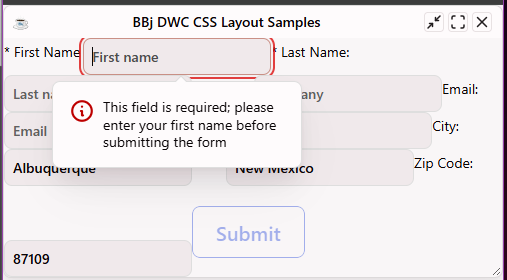
The validation-auto-disable attribute can automatically disable the form's Submit button while a control with client-side validation is invalid. The attribute is false by default; setting it to true keeps the Submit button disabled until the controls pass validation.
Note: Validation attributes can also be set on the closest BBjWindow instead of individually on each control. When an attribute is set on a window, prefix the attribute name with data-.
window!.setAttribute("data-validation-auto-disable", "true")
With this attribute set, the Submit button is disabled when the First Name or Last Name field is invalid and becomes available after both fields pass the client-side JavaScript validation.
The following image shows the tested form after the First Name field fails client-side validation; the Submit button remains disabled until the required fields pass validation.
See Also
Dynamic Web Client (DWC) Overview