BBjCalendarWidget Plug-In - Technical Overview
- Overview
- Calendar Classes, Terms, and Definitions
- Class Overview
- BBjCalendarWidget
- Views
- Configuration
- Events vs. Entries
- Calendar Entries
- Entry Colors
- The CalendarEntry Class
Overview
The first article in the BBjCalendarWidget series, Introducing the BBjCalendarWidget Plug-In, provided background information along with a high-level overview of the widget. This article takes a deeper and more technical look at the plug-in, covering common calendar concepts and the BBj custom classes that you’ll use when integrating a calendar widget into your application.
Calendar Classes, Terms, and Definitions
CalendarAPI - Provides methods to create most of the calendar objects and provides access to all the constants from the other classes.
BBjCalendarWidget - The main calendar control you create from the CalendarAPIusing one of the five creation methods. At a minimum, you will need to provide to the creation method a BBjTopLevelWindow or BBjChildWindow that will contain the calendar control. The other creation methods take more parameters to provide flexibility when creating the calendar control.
CalendarEntry - A single calendar entry, or appointment, that you can create from the CalendarAPI and then added to an existing calendar.
CalendarEntrySource - A source that provides multiple calendar entries. The entry source can be a web service that provides an array of calendar entries in JSON format, a public Google calendar, or a web service or ICS file that provides entries in the iCalendar format.
CalendarEvent - A calendar event (think action, not appointment), usually triggered by the user interacting with the calendar, for which your application may set a callback. Because the BBjHtmlView control must initialize the calendar contained within, your application can set a callback to be notified when the calendar is ready for use. For example, executing the following line of code (as seen in the demo programs):
|
results in the calendar executing the code in your OnCalendarReady subroutine as soon as the plug-in has finished initializing the calendar. This is where you typically include code to add calendar entries or entry sources.
CalendarView - A particular view into the calendar, such as one that displays the entire month, a single week, a single day, or a list of entries similar to an agenda view. The calendar defaults to the CalendarAPI.CALENDAR_VIEW_DAY_GRID_MONTH() view, but you can change the view via the API or by modifying the current view in the calendar’s options, and the user can select a view from the toolbar.
CalendarOptions - A class that contains all the options for the calendar in one place. It’s possible to modify the calendar’s options after creating the calendar (see demo #2), or you can create an instance of the options from the CalendarAPI and specify it when creating the calendar itself (see demos #3 and #4). When done this way, you can affect the calendar’s appearance, e.g. its theme or current view type, before your program displays the calendar to the user to avoid an abrupt change in appearance.
CalendarToolbar - A class that defines a configurable header and/or footer toolbar for the calendar. By default, the calendar has a header toolbar that contains navigation buttons (today, yesterday, tomorrow, etc.), the current view’s title, and view option buttons (month, week, day, list). It’s possible to remove the toolbar completely, or even add both header and footer toolbars.
Programmatic Navigation - Once you have added a calendar to your BBj program it defaults to the current date unless you have specified a different date via custom options. You can call methods like navigateNext(), navigateNextYear(), etc. to cause the calendar to display the desired date.
Class Overview
The BBjCalendarWidget plug-in includes several BBj custom classes that cover every aspect of the calendar, including the calendar itself (BBjCalendarWidget.bbj), calendar configuration (CalendarOptions.bbj), calendar entries (CalendarEntry.bbj), calendar entry sources (CalendarEntrySource.bbj), calendar views (CalendarView.bbj), calendar toolbars (CalendarToolbar.bbj), and calendar events (CalendarEvents.bbj). In the following sections, we’ll take a deeper look at some of these classes.
BBjCalendarWidget
This is the plug-in’s main class, and you instantiate a BBjCalendarWidget object by calling a creation method on the CalendarAPI utility class. At a minimum, you’ll need to pass in a BBjChildWindow or BBjTopLevelWindow when creating theBBjCalendarWidget. Other constructors exist to give you greater control over the calendar’s initial state and configuration. Internally, the plug-in extends the BBjWidget class that adds a BBjChildWindow to the provided parent window and sizes it to match. It then creates a BBjHtmlView inside the container window, injects the necessary JavaScript libraries and CSS files, and finally executes JavaScript in the HtmlView to instantiate the calendar with the default options.
The BBjCalendarWidget class also defines several events that your code can respond to by setting callbacks for in your application. This allows you to execute custom code in your BBj application as a result of a calendar event, such as when a user clicks on a calendar entry or drags an entry to a different day or time. All the callback events are static constants named with the pattern ON_CALENDAR_*, as in the ON_CALENDAR_READY event. Your BBj application can register for this and other events by executing the setCallback() method and providing the event that you’re interested in receiving.
The class also offers several methods to aid in adding entries, i.e. appointments, to the calendar, removing entries, updating entries, and getting the list of current entries displayed. The class also offers method for getting and setting the calendar’s options, themes, view types, and even controlling the visibility of entries based on customizable tags. There are also utility methods for converting to/from JSON arrays and BBjVectors, and injecting custom CSS and JavaScript.
Views
The calendar offers several views or ways to display time periods and entries. For example, the CalendarView::CALENDAR_VIEW_DAY_GRID_MONTH() view type looks like a typical wall calendar that displays the current month in a grid, as shown in Figure 1 below:
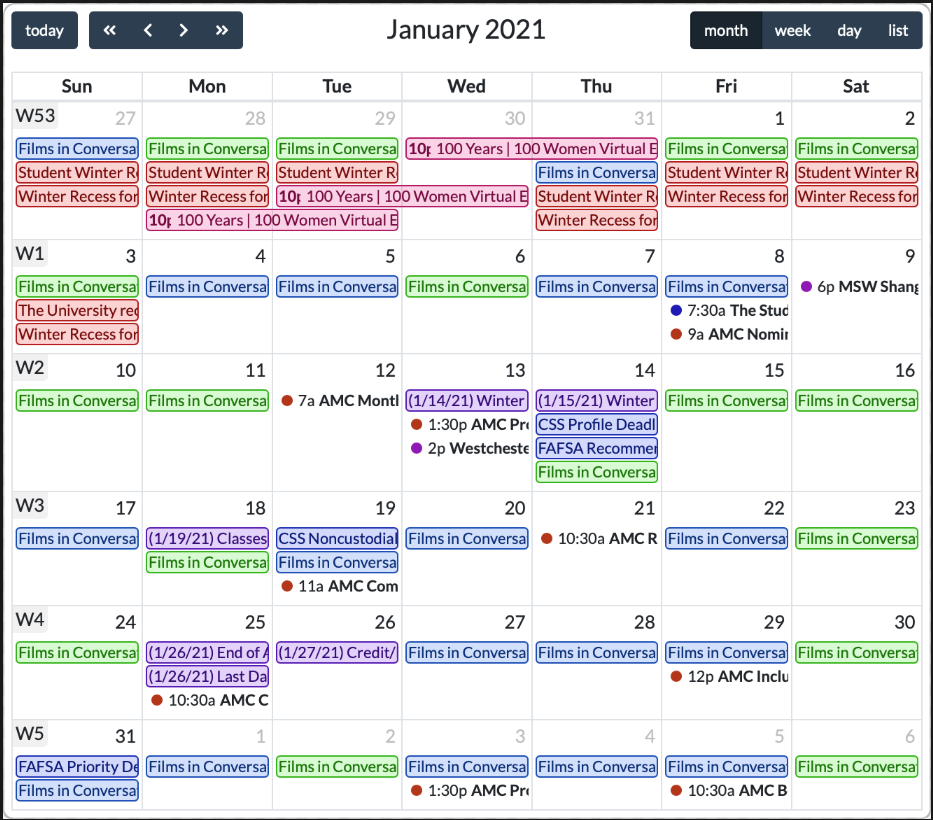
Figure 1. The calendar’s dayGridMonth view.
In the screenshot above, the calendar is displaying a month’s worth of entries in a grid view. As you might guess, the dayGridWeek view is similar except that it displays a week’s worth of entries in a grid.
Another view type is the timeGridDay, shown in Figure 2 below.
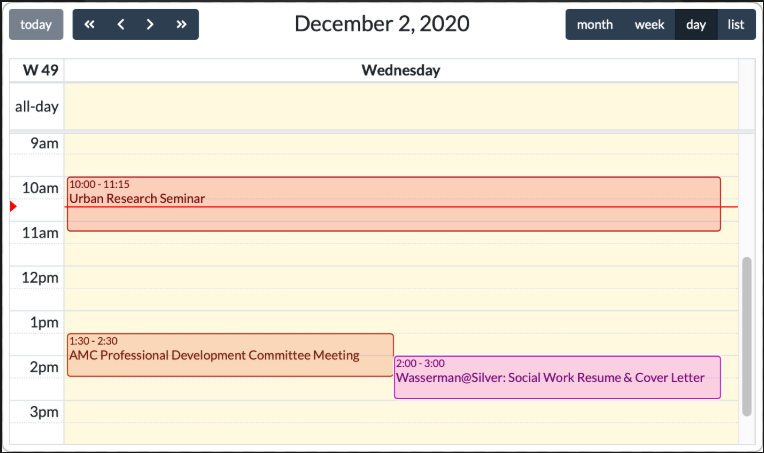
Figure 2. The calendar’s timeGridDay view.
This view type can display a single day or full week in a time grid that covers the 24-hour span for a full day. Because we enabled the calendar’s "now indicator", there’s a red line just below the 10:30 slot line that gives the user a visual indication for where they currently are in the time grid given the current time of day. If you typically have calendar entries that occur during a subset of the day, such as during business hours, it’s possible to hide the other slot times in the calendar’s configuration.
The last view category type is the list, or agenda view, such as the listWeek view shown in Figure 3 below.
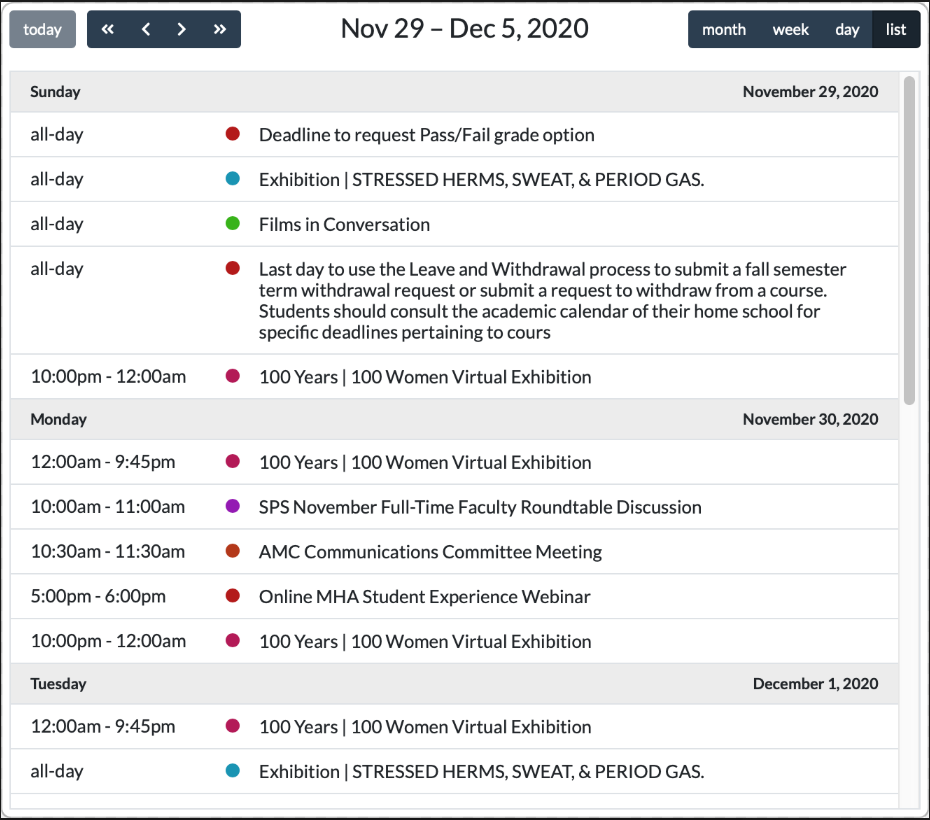
Figure 3. The calendar’s listWeek view.
Entries in the list views are displayed in an agenda format grouped by day. The subcategories for the list types include the listDay, listWeek, listMonth and listYear.
Your application code can call the BBjCalendarWidget::setViewType() method to force a particular view. Also, as part of the calendar’s configuration, we can define a toolbar that’s displayed on the top or bottom of the calendar which typically has buttons that the user can press to choose a particular view type. The calendar’s toolbar is displayed at the top of the calendar in the screenshots above in the default configuration. Figure 4 shows a larger screenshot of the calendar’s toolbar.

Figure 4. The calendar’s default toolbar configuration.
The default toolbar configuration shows buttons for quickly jumping to today’s date, navigation controls to go backward/forward by months or years, the title, and buttons for changing the view type. Depending on your use-case and available screen space, you may choose to modify the toolbar and remove portions to save space which can be accomplished by modifying the calendar’s configuration. It’s also possible to modify the button text for the view type, so you can change ‘list’ to ‘agenda’ if desired (see: demo #7).
Configuration
The CalendarOptions custom class offers dozens of options that you may use to customize the calendar’s appearance and functionality. For example, if our BBj application deals exclusively with business days and hours, we can call the setEnableWeekends() method and provide a zero (meaning FALSE) for the parameter which results in the calendar removing Saturdays and Sundays from its display. Furthermore, we could call the setSlotMinTime() and setSlotMaxTime() methods to force the calendar to show a reduced time grid, such as the one shown in Figure 2 above. Using these methods, it’s possible to restrict the time grid so that instead of going from 00:00:00 (midnight) to 23:59:59 (just before the next day’s midnight) the time grid will instead only display slots from 08:00:00 (8 AM) to 17:00:00 (5 PM).
The CalendarOptions class offers several other ways to modify the calendar’s appearance, including setting event colors (border, background, and text), themes (made available via Bootstrap CSS files), default slot duration, valid date range, week number display (see Figures 1 and 2), and more.
You can customize the calendar in a couple of different ways:
1) Get and then set the desired options inline dynamically, calling the render() method afterwards to force the calendar to update with the new configuration:
-
myCal!.getOptions().setEnableEntryDurationEditable(1)
-
myCal!.getOptions().setEnableEntryResizableFromStart(1)
-
myCal!.getOptions().setEnableEntryStartEditable(1)
-
myCal!.getOptions().setEnableSlotEntryOverlap(0)
-
myCal!.render()
2) Get the options instance, call setter methods on it, then use it to set the calendar's options as shown below. Note that in this scenario you don’t have to call the render() method for the changes to take effect:
-
opts! = myCal!.getOptions()
-
opts!.setEnableEntryDurationEditable(1)
-
opts!.setEnableEntryResizableFromStart(1)
-
opts!.setEnableEntryStartEditable(1)
-
opts!.setEnableSlotEntryOverlap(0)
-
myCal!.setOptions(opts!)
Events vs. Entries
Before digging into the calendar events, it’s worth explicitly making the distinction between a calendar entry and a calendar event. The FullCalendar library uses the term "event" to cover both calendar appointments and the action that results from the user interacting with the calendar, such as switching the view type. For clarity, the BBjCalendarWidget uses the term "entry" for a calendar appointment to distinguish it from the "event" action.
The BBjCalendarWidget class defines several events that you can use in callback statements so that your application can react to the user changing the calendar. For example, we can set a callback on the calendar so that we’re notified when the user clicks on a calendar entry:
|
The code above sets a callback referencing the BBjCalendarWidget::ON_CALENDAR_ENTRY_CLICK()event type. Therefore, after the user clicks on a calendar entry, our application code that exists in the onCalendarEntryClick subroutine will execute in response to the user’s selection.
Both the CalendarAPI.bbj and the CalendarEvents.bbj class files list several different event types, including the CalendarEntryClickEvent that we’re interested in for this example. Our callback code can get the click event object which then provides access to several more objects of interest. For example, from the CalendarEntryClickEvent our code can get the CalendarEntry that defines the appointment that the user clicked, the calendar’s current CalendarView object that defines the current view and date/time range, and even the low-level HTML element and JavaScript mouse event information if desired.
Calendar Entries
When you initially create a calendar in your BBj application, it will display the calendar with the selected or default view and date/time range. At this point, the calendar will be empty as we haven’t added any calendar entries yet. After adding entries to the calendar, they’ll be displayed in the view as shown in Figure 5.
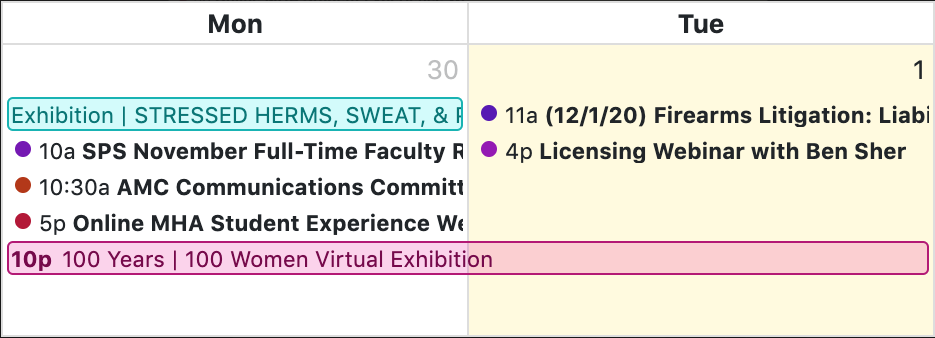
Figure 5. Sample calendar entries.
The screenshot above presents a lot of information which we’ll examine more closely. The image is an excerpt from a dayGridMonth view, such as the one from Figure 1, and shows two days: Monday the 30th and Tuesday the 1st. Since Monday was from the previous month, the number "30" is dimmed. And since Tuesday the 1st is "today" (or was, when the screenshot was taken), it’s highlighted with a light yellow background to make it easier to find in the calendar.
Monday has five events scheduled:
-
One all-day "Exhibition" event that displays with a bordered background at the top of the date box, above all other events.
-
Three hour-long normal events that are prefixed by a small colored circle.
-
One multi-day "100 Years" event that starts at 10 PM Monday night and runs through Tuesday.
This serves as a good example, as it shows the visual difference between all-day, regular, and multi-day events. Most of the screenshots in this article present the calendar entries in different colors. We mentioned earlier that it’s possible to set custom colors for the entries which includes the border, background, and text color. In addition to setting the default entry colors, it’s also possible to override the default color scheme for individual events before they’re added to the calendar. That explains how different entries in Figure 1 have different color schemes. But we’ve gone a step further, and have given all related calendar entries the same color scheme and groupID. Since related events all share the same color scheme, it’s easy for the user to pick out related entries based on color. And since we assigned the same groupID to the related events, whenever the user modifies one of the grouped entries then they will all be affected by the change. For example, imagine that Tuesday’s "Licensing Webinar" entry occurs every Tuesday at 4:00 PM. Because we set those entries to have the same groupID, they can be modified as a set. So if we drag and drop the entry to Wednesday, all instances of the Tuesday’s "Licensing Webinar" entries will be changed to Wednesday.
It’s worth noting that you can register callbacks for several events, including the case where the user changes an entry or group of entries by rescheduling them to a different day and/or time. In your callback code, you’ll get a CalendarEntryChangeEvent object which includes the original entry before modification, the entry after modification, and a vector filled with related entries such as those with the same groupID.
Entry Colors
The default entry colors are set to blue, but it’s possible to change the entry color scheme via the calendar’s options. It’s also possible to override the default color on a per-entry basis, as demonstrated in the screenshots above. When adding multiple entries from a CalendarEntrySource, you can set custom default entry colors for each source. Regardless of whether the source has default or custom colors, it’s always possible to override the colors and set custom colors for one or more entries in the source.
There are a few methods for setting the entry colors, and you can individually set the background, border, and text color. It’s also possible to make a single method call with three parameters to set those colors in one line of code. Because the underlying FullCalendar library is written in HTML/CSS/JavaScript, colors can be provided as a BBjString that resolves to any valid color name or format and alpha transparencies are fully supported. That means that color values like "red", "rgb(255, 0, 0)", "rgb(255, 0, 0, 128)", "#ff0000", "#ff000080", "#f00", "#f008", "hsl(0, 100%, 50%)", and "hsl(0, 100%, 50%, 0.5)" are all valid ways of specifying the color red.
The CalendarEntry Class
When working with a calendar, both as a user and application developer, you’ll find yourself dealing heavily with entries. This is where the CalendarEntry class comes into play. In object-oriented programming, a class is a blueprint or prototype from which objects are created. So the CalendarEntry class represents the set of properties and methods that are common to all calendar entries. There are a few entry properties that are required and we will always need to define, such as the entry’s title and start date/time. Beyond that, the other properties can be set to further describe the entry such as ending date/time, colors, description, location, associated URL, and more.
We’ll also need a way to uniquely identify a calendar entry, especially when we need to delete entries from the calendar. For example, if the user indicates that they want to delete a single calendar entry, we have to ensure that we can correctly identify the entry to delete so that we don’t inadvertently delete the wrong entry. There are a couple of ways the BBjCalendarWidget deals with this. First, each CalendarEntry object has an optional ID that you can set via the CalendarEntry::setId() method. You can then remove that specific entry object later referencing the same ID. Second, the BBjCalendarWidget automatically assigns a UUID to all events which can also be used when removing entries from the calendar.
Calendar entries also support the ability to add extended information in the form of key/value pairs. Therefore it’s possible to add more information to the entry such as an extended description, a location, a list of attendees, etc. See the CalendarEntry::addExtendedProperty(), CalendarEntry::removeExtendedProperty(), and CalendarEntry::setExtendedProperties() methods for more information.
It’s also possible to add custom tags to entries. For example, you could tag entries based on the user, whether the entry is personal or work-related, whether there’s a video conference associated with the entry, etc. Once you’ve added tags to entries, you can call methods on the calendar object to change which entries are displayed. That means that you can write your application to hide or show entries with a specific tag or set of tags. It’s also possible to query the calendar to get a BBjVector filled with CalendarEntry objects that contain one or more tags of interest. This tagging functionality means that it’s possible to add several employee appointments to a calendar, then toggle which employee’s entries are displayed when the user clicks a checkbox.
There are several ways to add entries to a calendar. As you would expect, there are methods on the calendar object that you can call to add one or more CalendarEntry objects and/or one or more CalendarEntrySource objects. You may recall that it’s significantly faster to add multiple rows of data to a BBjGrid via a vector than it is to repeatedly add data a single row at a time. The same is true for the BBjCalendarWidget, and it’s significantly faster to add a BBjVector filled with CalendarEntry objects than it is to repeatedly add discrete CalendarEntry objects.
It’s also possible to retrieve entries from other sources such as a web service, provided the service provides the information in the correct format (JSON, Google calendar, ICS or iCalendar). And if you have a Google Developer Account and have registered for an API key, you can add entries to your calendar by providing the public Google calendar’s URL. Figure 6 below shows a portion of a BBjCalendarWidget that displays weather entries that it retrieved from a public Google calendar URL.
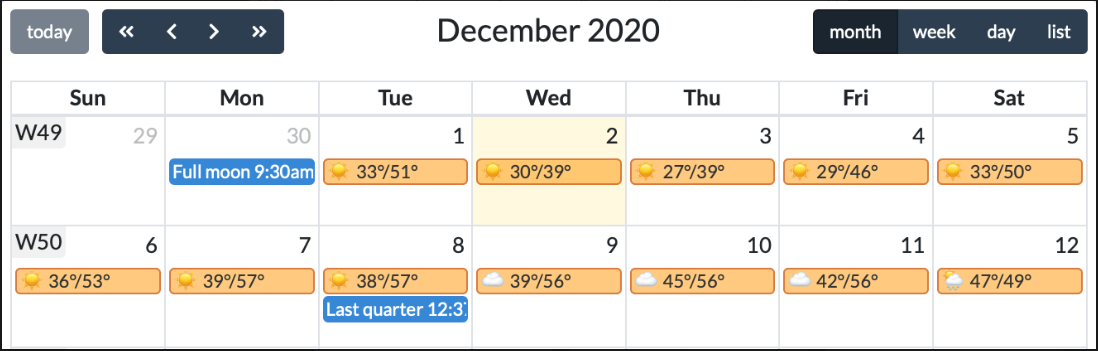
Figure 6. A BBjCalendarWidget displaying weather information from a Google calendar.
See Also
Advantage Article: Introducing the BBjCalendarWidget Plug-In
The BBjCalendarWidget Plug-In - Demos