The BBjCalendarWidget Plug-In - Advanced Topics
Intro
In this article we’ll cover a couple of advanced topics, namely understanding date/time formats (rather important for a Calendar ), and debugging!
Working with Dates and Times
There are many cases where you will provide a date and/or time string to the calendar, see: the sixth demo shown in Figure 14. Generally speaking, it’s best to provide the date in a predetermined format, such as the ISO 8601 format covered in this W3 Consortium document, see: TR/NOTE-datetime. Using this format, a date will be represented as YYYY-MM-DD, e.g. 1997-07-16. Using this format prevents the ambiguity that’s possible with date strings such as 01-02-03, where it’s impossible to tell which numbers represent the year, month, and day. The BBjCalendarWidget attempts to validate and normalize provided dates and times using the JavaScript Date function which does a pretty good job parsing non-standard date strings. In the sixth demo, you can choose a date string from the BBjListEdit control then click the go button to have the calendar navigate to that date. When you select the desired date string like “4 Jul 2021” and click the go button, the calendar will correctly navigate to 2021-07-04.
In that same demo, after navigating to the date of interest, you can click the get Date button which executes this code:
|
Clicking the get ISO Date button executes this code:
|
Calling this method returns the calendar’s date in ISO 8601 format, e.g. “2021-07-04T06:00:00.000Z”.
Time strings are also used, such as with the CalendarOptions::setSlotMinTime() method which determines the earliest time slot shown in the “week” and “day” views. The format of the provided time string is HH:MM:SS where H=hours, M=minutes, and S=seconds. For example, to have the day start at 6:30 AM you can set this parameter to "06:30:00".
You can also provide a string that identifies a date, time, and time zone designation. The time zone may be the letter Z, which indicates that the time is based on the UTC (Coordinated Universal Time) time zone. UTC is also known as GMT (Greenwich Mean Time) or Zulu Time, which is where the letter Z comes from. It can also be the time zone’s offset from UTC, such as the strings "+01:00" or "-07:00" to indicate that the zone is one hour ahead of UTC or seven hours behind UTC. It’s also possible to reference a named time zone, such as "PST" to indicate Pacific Standard Time.
The ISO 8601 format allows you to specify everything in a single string, such as YYYY-MM-DDThh:mm:ss.sTZD, e.g. 1997-07-16T19:20:30.45+01:00. In this format, the date and time portions are separated by the 'T' character, and the time portion can also include fractional seconds. Figure 16 below shows a breakdown of the format where we’ve simplified the TZD, or Time Zone Designator, to the letter Z:
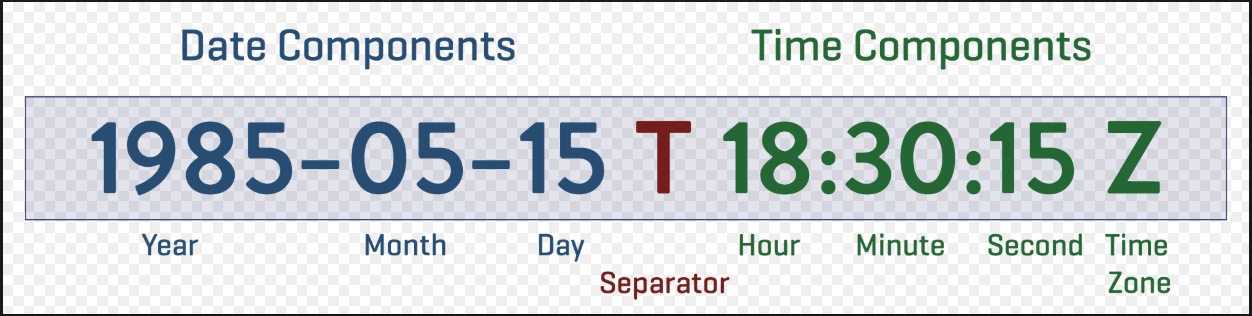
Figure 16. The ISO date format breakdown
The BBjCalendarWidget doesn’t automatically attempt to validate a CalendarEntry’s starting and ending date/time parameters, as this has the potential to add significant overhead when adding many entries to the calendar. BBj developers may choose to validate the starting and ending parameters with their own code, or they can use the following CalendarAPI methods to parse date and/or time strings:
-
getValidDateString(BBjString dateString!) -
getValidTimeString(BBjString timeString!) -
getValidDateTimeString(BBjString dateTimeString!)
These methods attempt to parse the provided string into a JavaScript or Java Date object, and if successful they will return an ISO 8601 formatted version of the date and/or time.
Debug Mode
Although it is unlikely that a BBj developer will need to debug the low-level interaction between the BBjCalendarWidget and the FullCalendar JavaScript library, it’s possible to run the calendar in debug mode. When running in BUI, it’s as simple as using the CalendarAPI::createBBjCalendarWidget() method that takes a debug parameter. It’s also possible to call the BBjCalendarWidget::setEnableDebug() method after the calendar has been initialized, but in this scenario, the debug messages will only be available after the calendar has been initialized. If you need to see the debug messages for the entire initialization process, then you should create the calendar object with the debug flag.
When running in GUI, the same rules apply but to get the full debug functionality you will need to set the "!CHROMIUM_SWITCHES" global string table variable, see: STBL !CHROMIUM_SWITCHES for more information) to include a remote debugging port before creating the calendar. For example:
|
Once debugging has been enabled, the JavaScript console will contain color-coded debug output. In GUI, as long as the remote debugging port has been set for the !CHROMIUM_SWITCHES STBL entry, a new Developer Tools Inspector tab should appear in your default browser. In BUI, you can open the Developer Tools via your browser’s standard mechanism. This varies depending on the browser, but with popular browsers such as Chrome and Microsoft Edge, you can right-click on the BUI page and select Inspect from the popup menu. You can also access the Developer Tools from your browser’s menu (View > Developer > Developer Tools in Chrome and Tools > Developer > Developer Tools in Microsoft Edge). In the Developer Tools, you can select the Elements tab to view the HTML DOM. Selecting the Console tab displays the JavaScript console where you ought to be able to see the debug messages.
What’s Not Yet Implemented
The FullCalendar JavaScript library is very advanced and offers several configuration options and events that have not yet been implemented in the BBjCalendarWidget. Some of these may be added in the future if there is sufficient demand, but in the meantime here is a non-exhaustive list of things that the BBjCalendarWidget does not currently support:
See Also
Advantage Article: Introducing the BBjCalendarWidget Plug-In
BBjCalendarWidget Plug-In - Technical Overview