General Ledger - Recurring Journal Entry Register
Function
This task prints a listing of all recurring journal entries by cycle code and then updates them to the Journal Entry file. A specific cycle code may be selected. Once updated, these entries are then processed as any other journal entry. The Recurring Journal Register includes all information entered in Recurring Journal Entry in the previous step.
To access this task...
Select Recurring Journal Entry Register from the Inquiry and Maintenance menu.

Recurring Journal Entry Register
About the Fields
All Cycles checkbox...
-
Mark the box for a report including all journal entry cycle codes.
-
Unmark the box to report specific cycle codes selected in the next step.
In the Journal Entry Cycle Code field...
This field is active when the All Cycles checkbox is unmarked.
-
Enter the selected cycle code for the register.
-
Click
 to select from a list of all valid codes.
If entering a new cycle code the system will issue the following prompt:
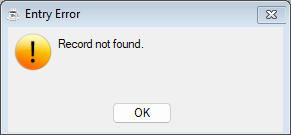
Record not found.
-
Click OK to return to the Recurring Journal Entry Register task.
To create a new record, use the Cycle Codes task.
In the Posting Date field...
-
Enter the desired accounting date for the report.
-
Click
 to select a date by using the calendar tool.
From the Reversal by dropdown...
This field is optional.
-
Select Calculation (C) from the dropdown list
-
Select Date (D) from the dropdown list
When done making selections...
-
Click
 when the information is correct and proceed with the printing.
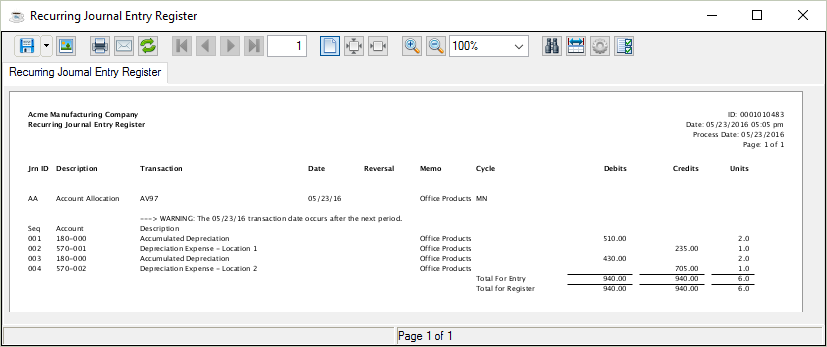
Sample Recurring Journal Entry Register
See Output Options.
When the print information has been sent, the module will issue the following confirmation box:

Do you want to run the Recurring Journal Entry Register update?
-
Click Yes to proceed with the update as printed. Once the information is updated, the following confirmation box is displayed:
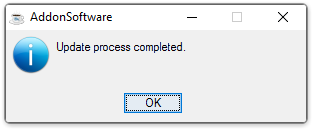
Update process completed.
-
Click No to bypass the update and return to the Maintenance menu. To correct any errors, use the Recurring Journal Entry task.
NOTE:
The date from the original Recurring Journal also appears on this report.