General Ledger - Recurring Journal Entry
Function
This task is used to create and maintain general ledger journal entries required on a recurring basis (e.g., rent, depreciation schedules, etc.). The recurring journal entry header is transferred to the Journal Entry files following the creation of the Recurring Journal Entry Register.
NOTE:
Recurring Journal Entries are entered using the same format as regular Journal Entries. Please refer to that section for additional information.
To access this task...
Select Recurring Journal Entry from the Inquiry and Maintenance menu.
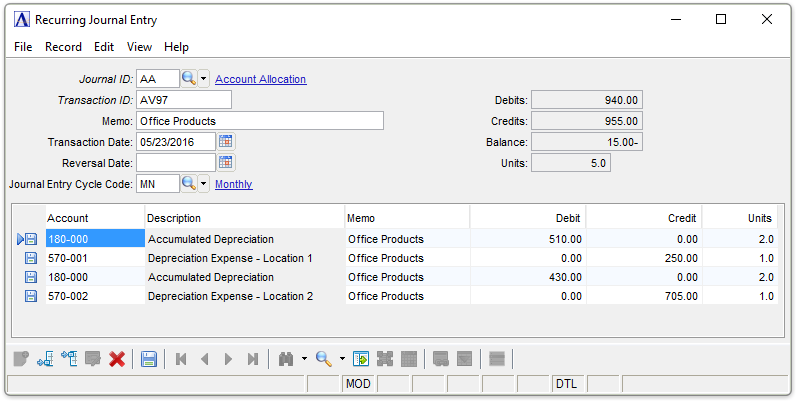
Recurring Journal Entry
About the Fields
In the Journal ID field...
-
Enter a valid two-character Journal ID code (e.g., JE for Journal Entry).
-
Click
 to select from a list of all valid codes.
 -
To review or edit existing recurring journal entries, select
 .
.
Each Journal ID code must already be defined and set up through the Journal ID Codes task in the Maintenance menu to allow entries to be made using the code.
If selecting a journal ID that may not be recurring, the system issues
a message box:
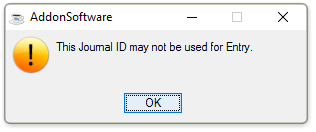
This Journal ID may not be used for Entry.
Another journal ID must be selected.
If entering a new Journal ID code the system issues a message box:
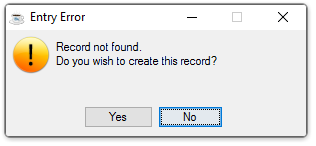
Record not found. Do you wish to create this record?
-
Click Yes to create a new record.
-
Click No to return to the Maintenance menu without creating the record.
In the Transaction ID field...
-
Enter a transaction ID for this journal entry of up to 10 characters long.
In the Memo field...
This field is optional.
-
Enter a description up to 30 characters long.
This field helps describe the overall purpose of the journal entry and will print on the Recurring Journal Entry Register and Daily Detail Register. This description does not carry into the general ledger after updating (Refer to Account/Memo field).
Memo Example
Inventory Adjustment
In the Transaction Date field...
-
Enter the date in the MMDDYYYY format.
-
Click
 to select a date by using the calendar
tool.
to select a date by using the calendar
tool.NOTE:
The actual month and year of this entry will change, and will be requested before it is updated to the Journal Entry task.
In the Reversal Date field...
This field is optional.
-
Enter a date for this transaction to be reversed in the MMDDYYYY format.
-
Click
to select a date by using the calendar
tool.
Use this field to have this transaction reversed automatically on the specified date. When entering a reversal date, a second journal transaction is created automatically, appears on the general ledger daily report, and will automatically update to the general ledger as an exact reversal of the first entry.
In the Journal Entry Cycle Code field...
This field is optional.
-
Enter the cycle code assigned to this recurring journal entry.
-
Click
to select from a list of all valid codes.
In the Debits field...
Display only. Shows the total debits for this journal entry.
In the Credits field...
Display only. Shows the total credits for this journal entry.
In the Balance field...
Display only. Shows the balance for this journal entry.
In the Units field...
Display only. Shows the units for this journal entry.
Line Detail Entry
The body of each recurring journal entry consists of detail debit and credit lines where each line contains the following information:
In the Account field...
-
Enter a valid GL account number. The description of the account will be displayed.
-
Click
to select from a list of all valid codes.
Creating a new record:
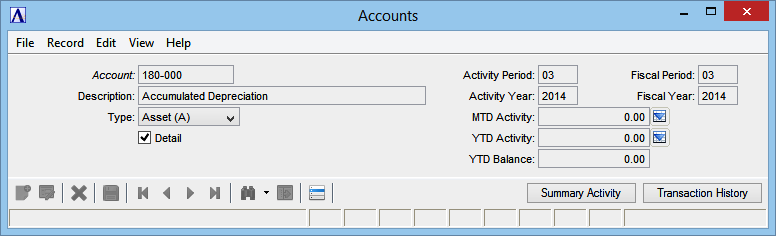
Accounts
-
Account field contains the Journal ID. Display only.
-
Enter a description for this new account.
-
Select the type of Account (Asset, Liability, Capital, Income and Expense) from the type dropdown.
-
Click
 to save the new GL account.
Recurring Journal Entry
In the Memo field...
This field is optional.
-
Enter a memo of up to 30 characters to further identify each line item of the journal entry.
This memo will appear on the Journal Entry Register, Daily Detail Report and be carried into the Detail Transaction File in the general ledger.
In the Debit field...
-
Enter the debit amount for this recurring journal entry.
-
Use the Tab key to accept the edits and move to the Debit field.
In the Credit field...
-
Enter the credit amount for this recurring journal entry.
-
Use the Tab key to accept the edits and move to the Units field.
In the Units field...
This field is optional.
-
Enter the number of units for this account.
This field only enabled if the Use Units parameter is checked in the General Ledger Application Parameter Maintenance task.
Units Example
Enter 7 if the transaction involved renewal of seven vehicle licenses.
Attempting to leave unsaved changes by selecting Close Window, the module l issues this confirmation box :
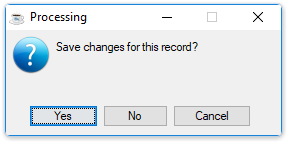
Save changes for this record?
-
Click Yes to save the current record and return to Maintenance menu.
-
Click No to return to the Maintenance menu without saving the current record.
-
Click Cancel or the "Close Window" button.
When finished making entries to the fields...
-
Click
to the left of the invoice line
item or at the bottom of the form to save the entry. -
Click
 to insert a new entry.
 -
Click
 to insert an entry between existing
entries.
to insert an entry between existing
entries. -
Click
 to enable edits to the form.
 -
Click
 to remove an entry.
 -
Click
 to clear the form and begin again.