Accounts Payable - Recurring Invoice Entry
Function
Use this task to establish records of recurring bills or invoices that are processed each month. You enter recurring invoices much the same way standard non-recurring invoices are entered. Recurring invoice processing begins in each payment period with the printing of the Recurring Invoice Register. The update that follows places the recurring invoices in the standard Invoice Entry file so the remainder of the processing is done along with the regular payment period processing.
To access this task...
Select Recurring Invoice Entry from the Inquiry and Maintenance menu.
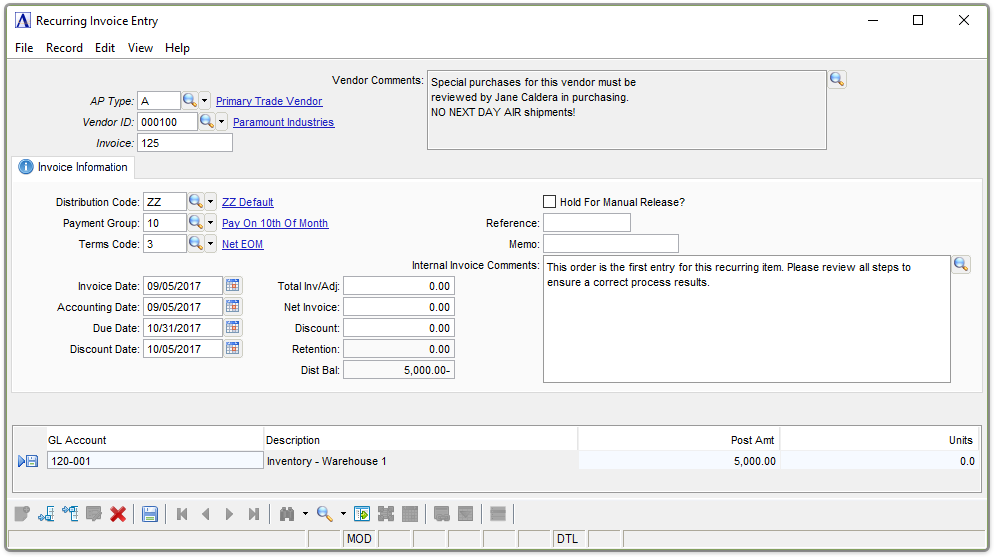
Recurring Invoice Entry
About the Fields
Recurring invoices are identified by the combination of vendor number, accounts payable type (optional) and invoice number entered when the invoice is defined. The same data fields and procedures for the Invoice Entry task are also used for the Recurring Invoice Entry task, with the exception of the following two fields. For information on the other fields, refer to Invoice Entry.
-
To view the buyer code records, click the record navigation buttons;
 to view the first record,
  to view the previous record,
  to view the next record, and
  to view the last record.
In the AP Type field...
-
Enter a 2-character alphanumeric code to identify the AP type code.
-
Click
 to view a list of AP Types.
In the Vendor ID field...
-
Enter a vendor ID Number.
-
Click
to select vendor number from a list of existing vendor number code
records.
In the Invoice field...
-
Optionally enter an alphanumeric invoice number.
The number of days from the first of the year is appended to the invoice number during the Recurring Invoice Register update process. When a recurring invoice remains in the Accounts Payable module more than one year, the suffix becomes the number of days plus 365.
Recurring Invoice Number Example
A recurring invoice with the number of 665544 is updated on January 31. During the update, it is numbered 6655440031. The same recurring invoice updated on February 28 creates an invoice numbered 6655440059. On March 30, the same invoice is numbered 6655440089. On January 31 of the next year, the invoice is numbered 6655440396. This creates a unique identity (invoice number and day of year) each month for a recurring invoice.
In the Vendor Comments field...
Display only. Automatically filled in with information from Vendor Comments table.
In the Distribution Code field...
Enter or select a distribution code.
Click to view and select available distribution code records.
In the Payment Group field...
Enter or select the payment group for the recurring invoice.
Click to view and select available payment group records.
In the Terms Code field...
Display only. Determines the due date, discount date, and percentage of available discount for the invoice.
Click to view and select available terms code records.
Hold For Manual Release? checkbox...
-
Mark the box to hold for manual release. Invoices put on hold during invoice entry cannot be selected for payment during the Payment Selection task.
In the Invoice Date field...
-
Enter the date of the invoice.
-
Click
 to select a date by using the calendar
tool.
to select a date by using the calendar
tool. -
The default date is the current date.
In the Accounting Date field...
-
Enter the accounting date for the invoice.
-
Click
to select a date by using the
calendar tool. -
The default date is the current date.
In the Due Date field...
-
Display only. The invoice due date.
In the Discount Date field...
-
Display only. The date through which the invoice is eligible for a discount.
In the Reference field...
A reference, such as a shipping document number, can be associated with the invoice and printed on the Invoice Register.
-
Enter a reference number associated with the invoice.
In the Total Inv/Adj field...
-
Enter the invoice amount, including any adjustment to the original invoice, as a positive or negative amount.
In the Net Invoice field...
-
Displays the invoice amount eligible for discount after subtracting freight, shipping, and other non-discountable charges.
In the Discount field...
-
Enter the discount amount to be applied to the net invoice amount.
In the Retention field...
-
Display only.. Amount to be retained.
In the Dist Bal field...
-
Display only. The remaining undistributed amount, recalculating as invoice amounts are entered and allocated.
In the Memo field...
When the Print Memo On Check Stub parameter is checked, this memo is printed on the check stub next to the amount paid. In addition, the memo prints on the Invoice Register.
-
Enter optional descriptive information.
In the Internal Invoice Comments field...
These comments are internal only (don't appear on reports or customer-facing documents), and follow the order all the way through invoicing and into history. They can be changed/amended at any time (even AFTER the invoice goes to history).
-
Enter or edit by typing directly into the form field, or click
(or Ctrl + F) to launch the comment editor.
In the Repeat Interval field...
-
Enter the number of times this invoice will recur.
-
Select a Repeat Interval code from a list.
In the Repeat Times field...
-
Enter the number of times this invoice will recur.
In the Last Issued Date field...
Display only. The invoice date used the last time for this recurring invoice.
In the Last Accounting Issued Date field...
Display only. The invoice accounting date used the last time for this recurring invoice.
In the GL Account field...
-
Enter or select the general ledger account to which the invoice distribution amount is assigned.
In the Description field...
Display only. Displays the description associated with the selected general ledger account.
In the Post Amt field...
-
Enter the amount to be posted to the selected general ledger account.
In the Units field...
-
Enter the unit quantity associated with the general ledger account.
When finished entering recurring invoice information...
-
Click
 to save the record.
 -
Click
 to return to the Accounts
Payable Maintenance menu.
to return to the Accounts
Payable Maintenance menu.
If the window is saved before fully distributing the current invoice, the module issues this prompt:
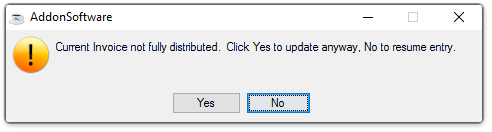
Current Invoice not fully distributed.
-
Click Yes to proceed with the update.
-
Click No to resume edits to the entry.
If the window is closed without saving the record, the module issues this confirmation prompt:
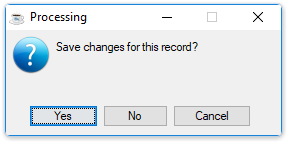
Save changes for this record?
-
Click Yes to save the changes.
-
Click No to return to the Accounts Payable Maintenance Menu without saving the record.
-
Click Cancel or the "Close Window" button to return to the Accounts Payable Maintenance menu.