 EM: Support Troubleshooting > Send Support Files
Description
The EM Navigator offers a Support/Troubleshooting option. This node holds the collection of available options related to interacting with BASIS’ Technical Support. Expand the Support/Troubleshooting category to access the only option, Send Support Files.
In BBj 16.00 and higher,  Send Support Files is a setting for sending support files at the request of BASIS personnel.
Location
 EM Navigator →
  Support / Troubleshooting → Send Support Files
Toolbar
| Button | Function |
|---|---|
 Create New Support Upload Job Create New Support Upload Job |
Creates a New Support Upload Job. |

|
Cancels the selected job(s)] . |

|
Refreshes the information. |
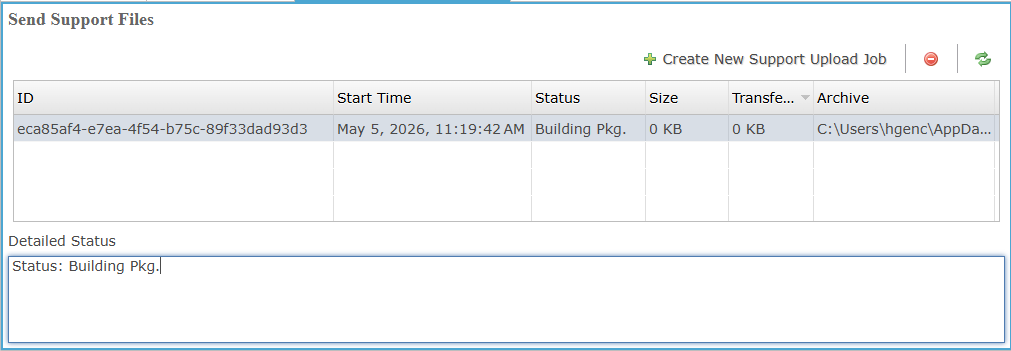
The upload jobs in this list each support two additional actions
Refresh the Job: The information displayed for each upload job is a snapshot, and does not automatically update. To update/refresh the information about a job, select it and click the button.
Cancel or Remove the Job: Once an upload job appears in this display, it remains until you manually remove it from the list or you uninstall/upgrade BBj. To delete a job’s entry, select it and click the [Cancel the selected job(s)] button. To delete multiple job entries, select the entries before clicking the button. Use the standard Ctrl-Click or Shift-Click actions to select multiple entries.
If a job has not yet finished, clicking the button cancels the upload and deletes the job from the list. If the job has already been uploaded to BASIS, this just deletes the entry from the list.
Send Support Files
The Send Support Files display creates and tracks support upload jobs used to send troubleshooting files to BASIS Technical Support. It lists each job’s ID, Start Time, Status, Size, Transferred amount, and Archive file, and includes a Detailed Status area for selected job information.
Send Support Files Settings
Detailed Status
The Detailed Status area shows additional information for the selected support upload job, helping users review more specific status details when needed.
When to Send Support Files
If a Software Problem Report needs more context, a BASIS representative, such as support or a developer, can request a customer to upload support files.
Support Files alone are not helpful, as problem investigations need to have the full context of the problem and a description of any visible symptoms to be productive. When in doubt, please ask your BASIS representative if support files would be useful before sending them.
How to Send Support Files
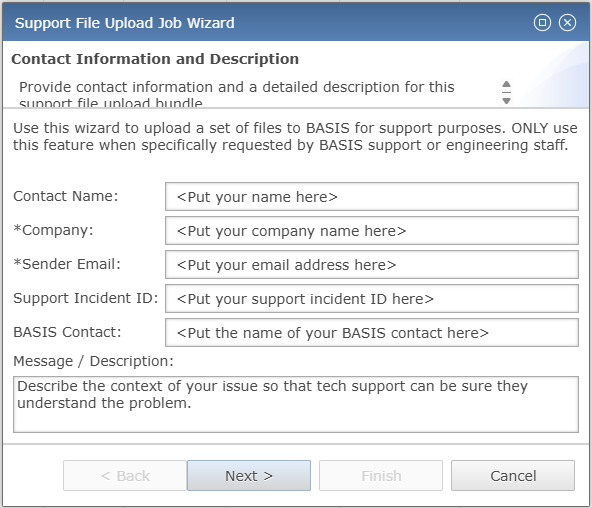
Start by clicking the [Create New Support Upload Job] button. This starts the Support File Upload Job Wizard:
Send Support Files Settings
| Settings | Description |
|---|---|
| Contact Name | Provide your name. |
| Company | Provide your company name. |
| Sender Email |
Provide your email address. Note: Providing your email address allows BASIS to respond after receiving the support files. |
| Support Incident ID |
Provide your support incident identifier. Note: For support files that are to be associated with an existing support ticket, provide the ticket ID. If there is no existing support ticket, leave this field blank. To locate your ticket ID, check the ticket submission confirmation email, or if you can log into the BASIS Ticket Portal, click View tickets. |
| Basis Contact |
Provide the name of your BASIS contact. Who at BASIS requested that you upload the support files? |
| Message/Description | Describe the problem you are experiencing. Enter any notes or details that may help explain what this upload represents. |
Click Next > to advance and choose the support files to include in the upload. The following types of files can be included:
-
Configuration Files
-
Log Files
-
BLS Log Files
-
BLS Configuration Files
-
Database Files
Configuration Files
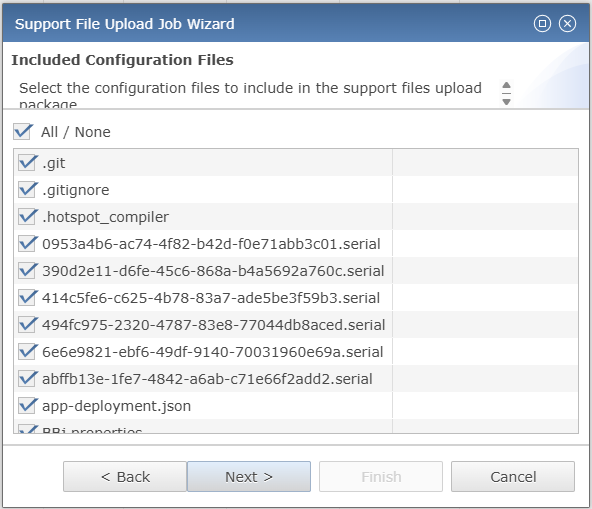
Configuration Files selected with checked boxes are included in the upload package, and unchecked files are omitted. The All/None checkbox checks or unchecks all listed files. After the required files are selected, clicking Next > advances to the next step.
Log Files
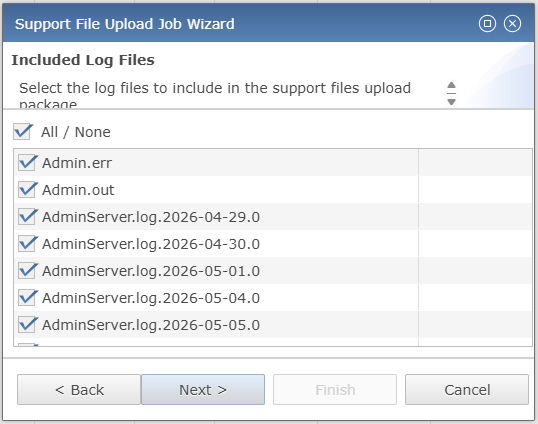
Log Files selected with checked boxes are included in the upload package, and unchecked files are omitted. The All/None checkbox checks or unchecks all listed files. After the required files are selected, clicking Next > advances to the next step.
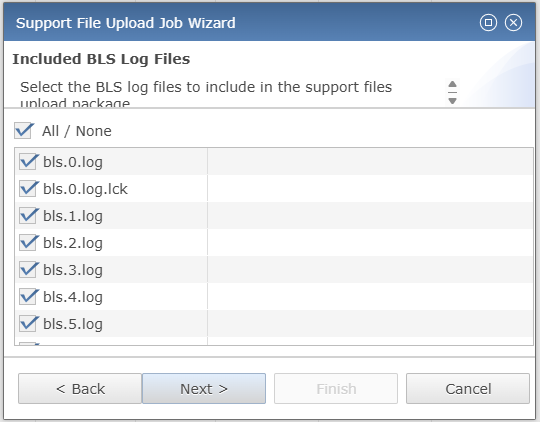
BLS Log Files
Check the box next to any BASIS License Server (BLS) log file listed to include it in the upload, uncheck those you wish to omit. The All/None checkbox allows you to quickly check or uncheck all of the files listed. Select the files to upload and then click Next >.
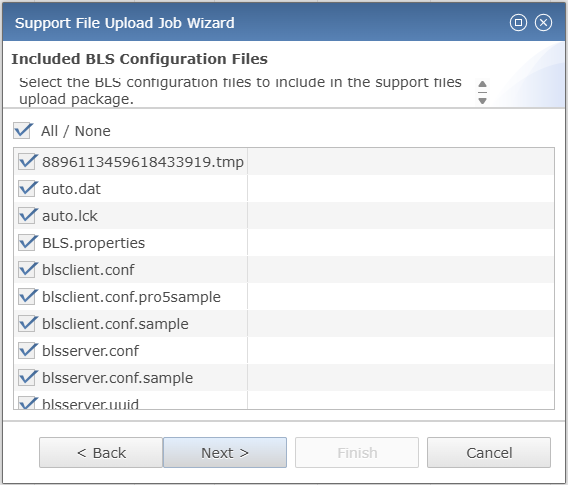
BLS Configuration Files
Check the box next to any BASIS License Server (BLS) configuration file listed to include it in the upload; uncheck those you wish to omit. The All/None checkbox allows you to quickly check or uncheck all of the files listed. Select the files to upload and then click Next >.
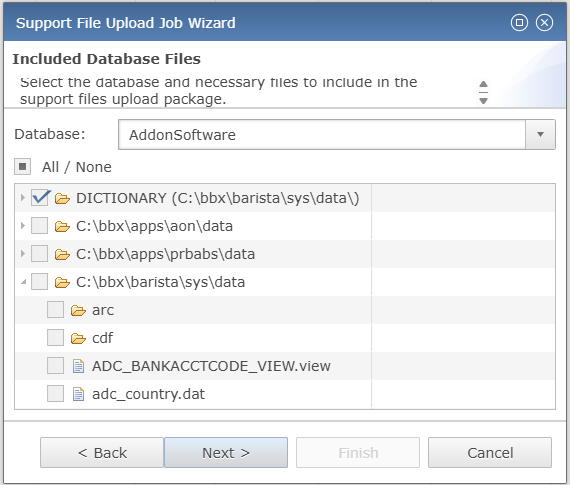
Included Database Files
In the Database dropdown control, select the one database for which you wish to upload files. Only one database can be uploaded in a single submission; selecting a different database will omit all of the files from any previously selected databases.
Check the box next to any database file listed to include it in the upload; uncheck those you wish to omit. The All/None checkbox allows you to quickly check or uncheck all of the files listed. Select the files to upload and then click Next >.
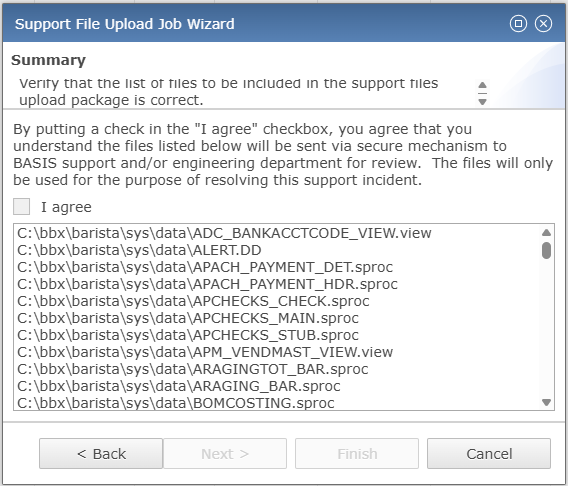
Summary
Review the summary listing of all of the files to upload. To remove a file from the upload, use the [< Back] button to return to the relevant file list and uncheck the file or files to omit.
Check the I agree box to approve uploading the listed files to BASIS for the purpose of resolving this support incident. Finally, click the Finish button to upload your files to BASIS Technical Support. The Send Support Files display now shows an entry for the upload, with initial information about its status.
Local Support ZIP Folder Location
Local versions of the support files in a ZIP folder are stored in the machine's temp directory as defined in java.io.tmpdir. They are deleted when the upload is complete or when BBjServices is shut down.