 EM: File System > Triggers
Description
 Triggers are a powerful feature of the BBj file system and database that allow developers to execute BBj code whenever specific operations occur on a file. They can be used to validate data before writing it, verify permissions before allowing a user to read or write, perform data manipulation prior to saving information to a file or database table, and support many additional use cases. Developers can manage triggers through the graphical interface in the Enterprise Manager or programmatically by using the CREATE TRIGGER statement to control file triggers via SQL.
Location
 EM Navigator →
  File System → Triggers
Toolbar

Configuring and Managing Triggers
Triggers in BBj operate at the file level, meaning they fire regardless of whether the file operation is a READ RECORD issued by a BBj program or an SQL operation executed through a third party ODBC/JDBC application.
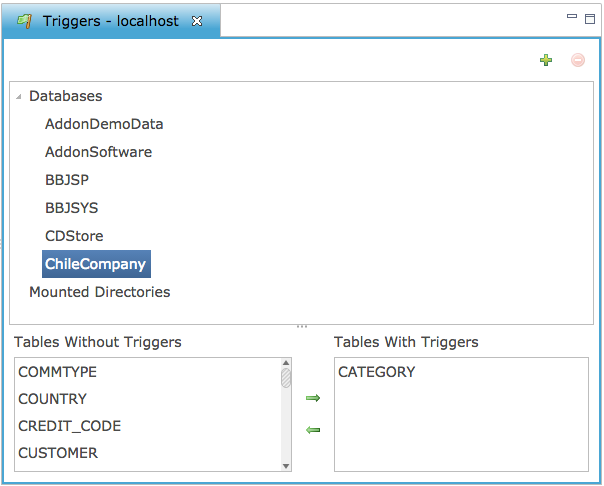
The top section of the panel displays the configured databases along with any mounted directories. Mounted Directories represent the filesystem locations that the administrator has explicitly selected for trigger visibility. To be able to access triggers on files in a particular directory (if they are not part of a configured BBj database), BBj needs to know that it should look in required directories for files with triggers.
Adding a Trigger to a Database Table
Select the database from the list of databases under the Databases item. Then double click the table to add a trigger or add triggers to multiple tables by selecting the desired tables and click the  or
or  buttons.
Mounting a Trigger Directory
This is only necessary when an administrator needs to manage triggers on files that are not part of a configured BBj database.
-
Select the Mounted Directories item.
-
Click the
 button in the toolbar.
 -
Choose the directory from your local system to add, or click
 button to create a new folder.
After mounting the appropriate directory, add a trigger as follows:
-
Locate the file in the list of Files Without Triggers.
-
Double click the file to add a trigger or add triggers to multiple files by selecting the desired files and click the
button.
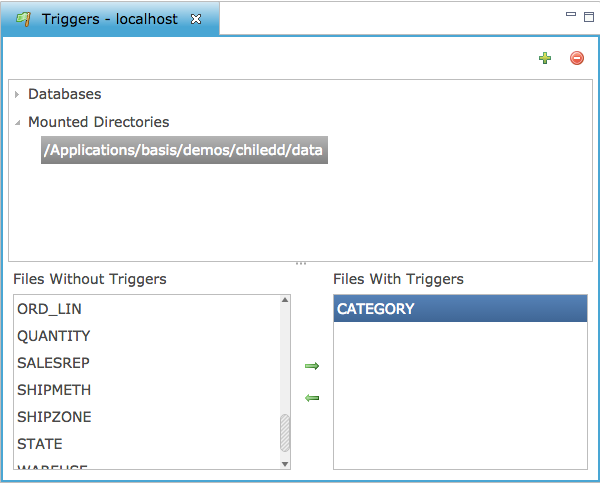
Configuring a Trigger
To configure a trigger, double-click the trigger from the list which opens the Trigger Editor.
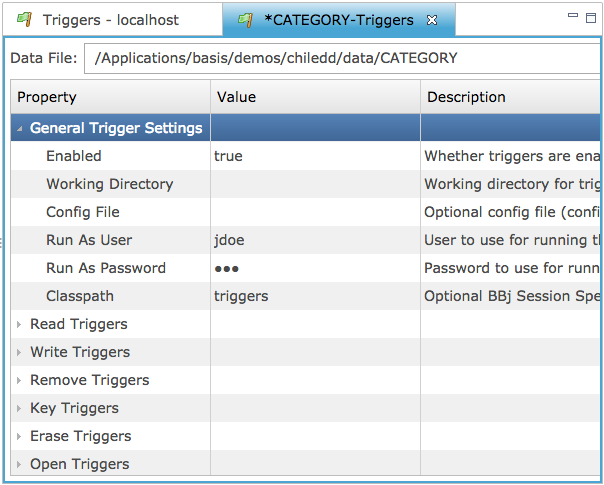
File Triggers
The File Triggers panel displays all trigger categories and configuration options for the selected data file, allowing administrators to manage trigger settings and review associated operational behaviors.
Data File: Displays the full path of the selected data file for viewing and configuring its associated triggers.
File Triggers Settings List
General Trigger Settings
General Trigger Settings provide options to enable triggers, define execution paths, specify user credentials, and configure classpath or session-specific settings for trigger processing.
General Trigger Settings List
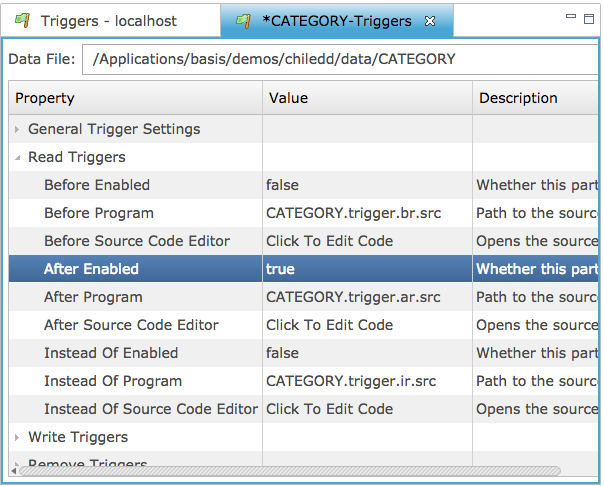
Configuring Each Type of Trigger
Configuring each trigger type allows enabling specific actions, assigning program files, and defining source code behavior for all read-related operations. Most operations possible on data files may also have triggers attached to them. The following list describes the different operations that can occur on a file and thus have triggers attached to them.
Types of Triggers List
Trigger Operation Properties
Trigger Operation Properties let administrators enable specific trigger types, assign operation-specific program files, and view read-only source code for Before, After, and Instead Of operations in the updated interface.
Trigger Operation Properties List
| Settings | Description |
|---|---|
| Enabled | Enable or disable the specific type of trigger for the file. If a specific type is enabled and misconfigured in some way, the file will not be accessible. |
| <Type>Program | The BBj code to execute when the trigger fires. For information on how to program triggers. See: Programming Triggers. |
| Click to View |
Displays the current source code for the trigger operation located in the file specified in Program. NOTE: The source code viewer in the Enterprise Manager is read-only. |
| Read-Only Code | BASIS advises using the BASIS IDE to edit trigger source code files to gain the benefit of syntax highlighting and other IDE features. |
Timing Types
Each trigger fires at a particular point in the process of performing a particular file operation. The following describes the three times a trigger may fire: