 EM: File System > Online Copy Jobs
Description
 Online Copy Jobs allows administrators to copy BBj/BBx data files (e.g., Mkeyed, Xkeyed, Vkeyed) from a source directory to a target location, even while the files are in active use by applications or third-party tools. Online Copy Jobs keep the destination synchronized with the source during the process, ensuring changes made mid-transfer are captured.
Administrators can configure each job by specifying a name, source and destination folders, optional transfer delay, and advanced options such as bandwidth limits and key definition changes. Jobs are created and managed visually from the Online Copy Jobs panel.
Online copy jobs provide two primary features for administrators:
-
Creating backups of live data files without interrupting user access.
-
Copying files into new formats or folder structures with optional conversion settings.
Location
EM Navigator →  File System → Online Copy Jobs
Toolbar


Finish: Stops synchronization for the selected online copy job, leaving destination files available.
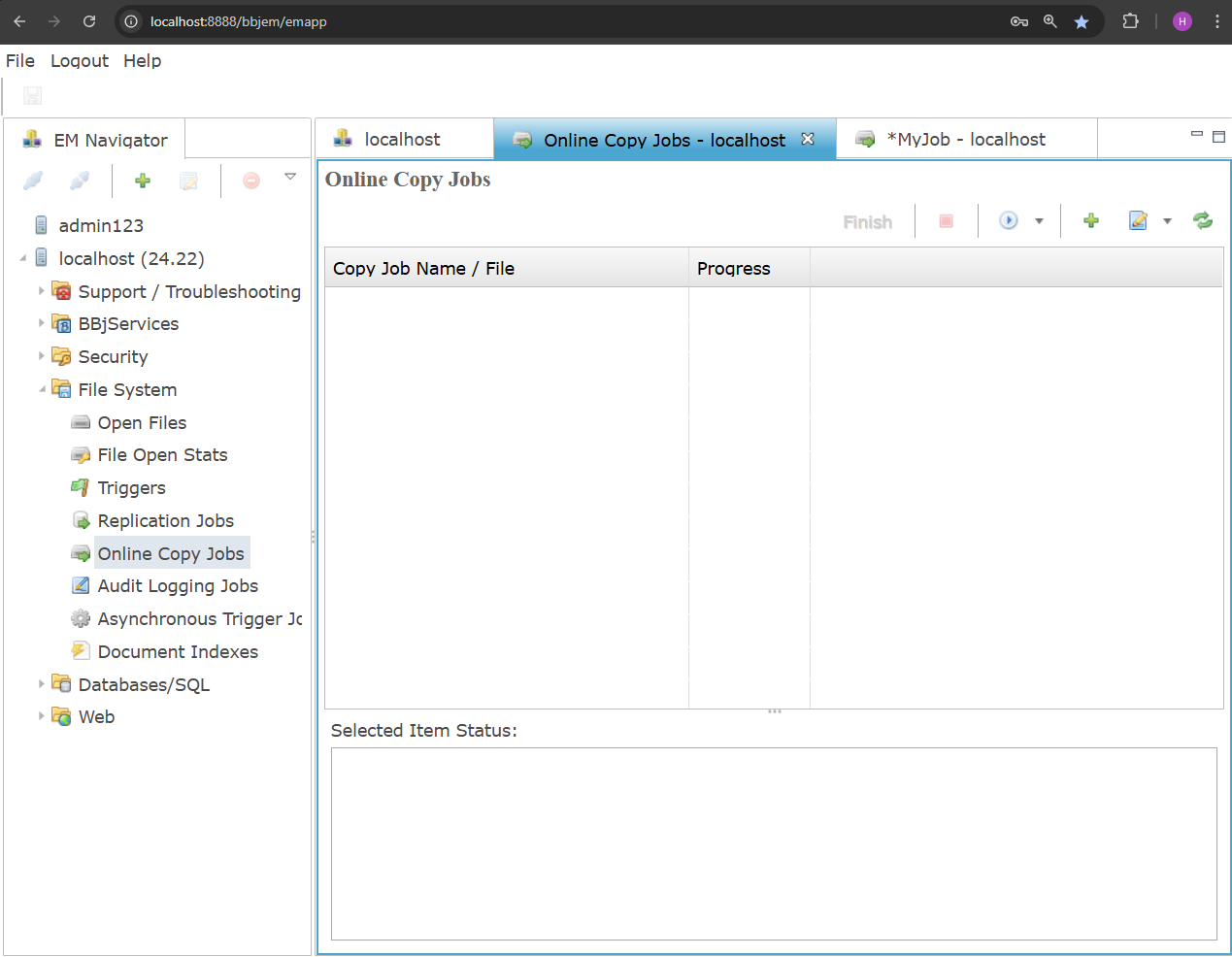
Online Copy Jobs
The Online Copy Jobs pane provides a centralized view for creating, managing, and monitoring file copy jobs. The main table displays each job under the Copy Job Name / File column, and the Progress column shows the percentage of completion for each associated file or overall job. Below the table, the Selected Item Status panel shows real-time status messages or updates for the currently selected file or job.
Online Copy Jobs Settings
Creating an Online Copy Job
From the Online Copy Jobs pane, click the  icon in the top-right toolbar. This opens the job creation panel, where you can begin configuring a new Online Copy Job.
Creating an Online Copy Job Settings
Browse for Folder Dialog
After completing the required fields in the Online Copy Jobs pane clicking the  icon opens the Browse For Folder dialog to navigate and select a directory. Inside this dialog, clicking the icon again enable user to Create New Folder before selection. The folder path then appears in the Directory Name field, and clicking OK adds it to the copy job. The
  icon removes a selected directory from the list, and the
  icon updates the folder view to display any recent additions or changes.
Select Files for Copy Job
Clicking the  icon opens the File Browser, where the user selects a file from local system or clicking the icon to Create New Folder for selection. After selecting a file, a Destination Information dialog prompts for the Destination Directory and an optional File Extension. Clicking OK confirms the selection, and the file then appears in the Online Copy Jobspane in the File Name column.
File Properties Configuration
Clicking the  icon opens the File Information pane to configure source and target file settings. The Column Mapping tab defines column relationships, and the Keys/Indexes tab sets key structures, completing advanced file properties for the online copy job.
File Properties Configuration: File Information
This panel provides configuration for source and target file paths, templates, record sizes, and file types. Users can define detailed file properties to ensure accurate structure and compatibility when processing files in the online copy job.
File Information Settings List
File Properties Configuration: Column Mapping
The Column Mapping tab allows users to define how each source column corresponds to a target column, ensuring correct field alignment during copying. It supports accurate data structure translation and prevents mismatches between source and destination file layouts.
Column Mapping Settings
| Column | Description |
|---|---|
| Source Column | Identifies the selected field in the source file that will be mapped to its corresponding destination field during the copy process. |
| Target Column | The destination field in the target file to receive mapped data during the online copy job transformation process. |
File Properties Configuration: Keys/Indexes
The panel defines the target file’s key structure, enabling selection of single-key or multi-key formats, key numbering, uniqueness, and segment details. It ensures target indexing aligns with BBj file requirements for correct record retrieval and optimized data access performance.
Keys/Indexes Settings
| Settings | Description |
|---|---|
| Target Is Single Keyed File |
|
| Source Key Size | The byte length of the source file’s primary key, automatically derived based on selected source file structure. |
| Target Key Size | The byte length used for the target file’s primary key, determined by selected target file structure. |
| Target Supports Multiple Keys |
|
| Unique | Marks the selected key as enforcing uniqueness, ensuring stored records cannot contain duplicate key values. |
| Key Number/Name | Identifies each key’s assigned index number and descriptive label used for defining lookup and access behavior. |
| Segments | Defines specific field ranges comprising each key, controlling how records are indexed and retrieved efficiently. |