IntelliJ Extension Overview (Preview Feature)
On this Page
Getting Started - Installation and initial setup
- Installation
- Initial Configuration
- Enable BBj Language Service
- Testing Your Setup
- Running Your First Program
- Troubleshooting
Features - Overview of all plugin features
Configuration - IntelliJ settings reference
IntelliJ Commands - Keyboard shortcuts and run commands
IntelliJ Guide
The BBj Language Support plug-in for IntelliJ IDEA provides integrated development support for BBj applications, including installation, configuration, language service setup, code validation, execution commands, troubleshooting guidance, and development features for BBj 25.00 and higher environments. The guide also includes IntelliJ-specific configuration requirements for BBjServices, Java, and Node.js integration.
What is BBj Language Support
The BBj Language Support plugin provides comprehensive IDE support for BBj development in IntelliJ IDEA, including:
-
Intelligent code completion for BBj keywords, functions, and Java classes.
-
Real-time validation to catch errors as you type.
-
Code navigation with Go to Definition.
-
Hover documentation for functions and classes.
-
Built-in run commands to execute BBj programs in GUI, BUI, and DWC modes.
Requirements
-
IntelliJ IDEA 2024.2 or higher (Community or Ultimate).
-
BBj 25.00 or higher.
-
BBjServices running locally.
-
Java 17 or higher.
-
Node.js 18 or higher (auto-detected from PATH, or auto-downloaded by plugin).
Getting Help
GitHub Issues - Report bugs or request features
BBj Documentation - Official reference
Getting Started
This section provides installation, configuration, validation, troubleshooting, and initial setup guidance for the BBj Language Support plug-in in IntelliJ IDEA environments running BBj 25.00 or higher, including BBjServices, Java, and Node.js requirements.
Installation
From JetBrains Marketplace:
1. Open IntelliJ IDEA.
2. Go to Settings > Plugins > Marketplace tab.
3. Search for BBj.
4. Click Install on BBj Language Support.
5. Restart the IDE when prompted.
As an alternative it can be install directly from the: JetBrains Marketplace.
From .zip File
For offline installation:
1. Download the .zip file from: GitHub Releases.
2. Open IntelliJ IDEA.
3. Go to Settings > Plugins.
4. Click the gear icon and select Install Plugin from Disk.
5. Select the downloaded .zip file.
6. Restart the IDE when prompted.
Initial Configuration
After installation, configure the plugin to work with your BBj installation:
BBj Home
1. Go to Settings > Languages & Frameworks > BBj.
2. The plugin automatically detects BBj Home if installed in a standard location.
3. If not found, set the path manually using the browse button.
4. The plugin validates the path by checking for BBj.properties in the cfg/ subdirectory.
Node.js Runtime
1. The plugin automatically detects Node.js from your system PATH.
2. If not found, the plugin can auto-download Node.js 18 or higher.
3. You can manually set the Node.js path in Settings > Languages & Frameworks > BBj if needed.
Note: Node.js is required for the language server to function.
Enable BBj Language Service
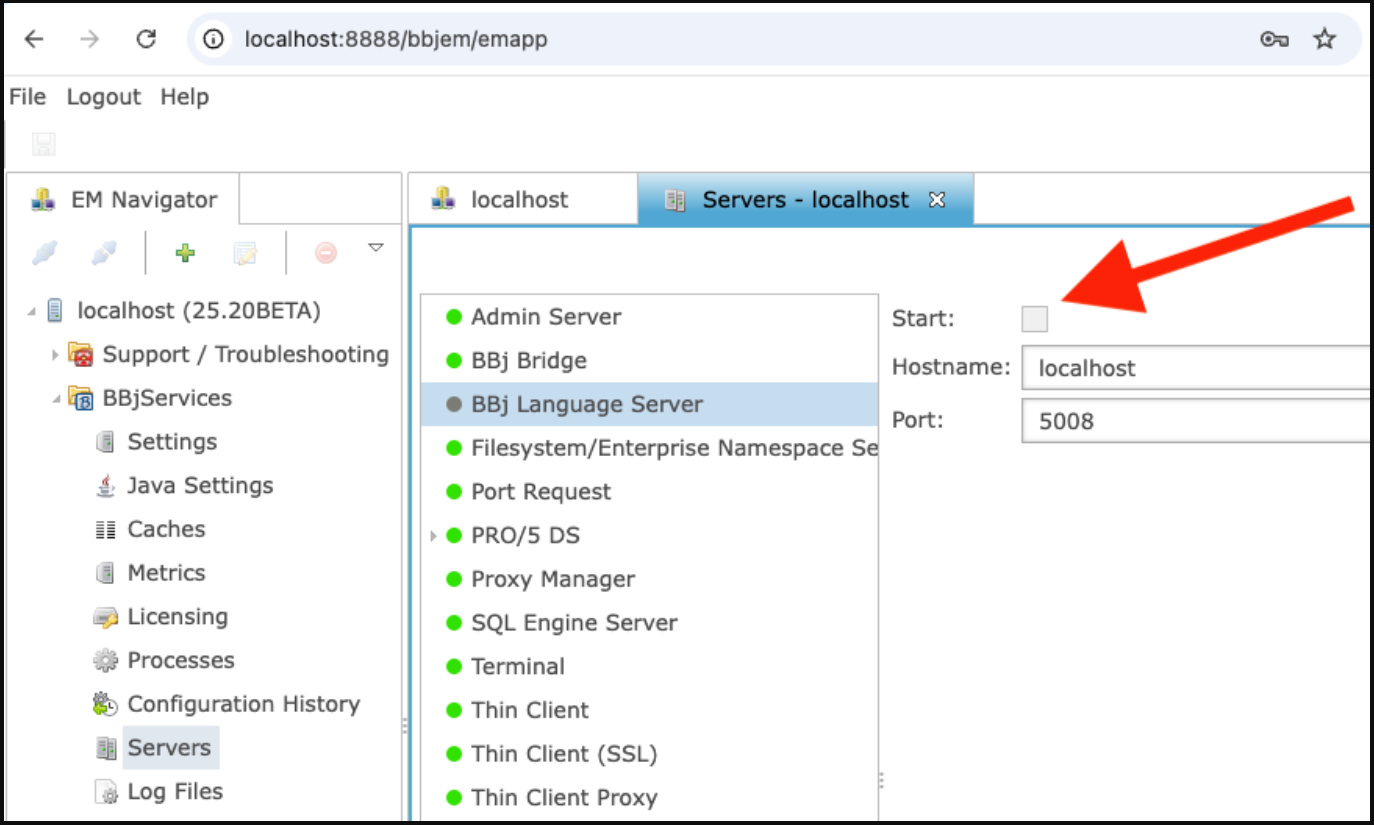
BBj 25.00 introduces a new server component, the BBj Language Service. You must enable it in Enterprise Manager:
1. Open BBj Enterprise Manager.
2. Navigate to :  EM Navigator →
  BBjServices →
  Servers
3. As shown in the image, enable the BBj Language Server.
Testing Your Setup
1. Create a new file with a .bbj extension.
2. Type some BBj code:
|
3. You should see:
-
Syntax highlighting.
-
Code completion suggestions when typing.
-
Validation errors if any syntax issues exist.
-
BBj Language Server status widget in the status bar showing Ready.
Running Your First Program
With a .bbj file open:
1. Press Alt+G to run as a GUI application.
2. Or right-click in the editor and select Run As BBj Program.
3. Or press Alt+B to run as a BUI web application (requires EM authentication first).
4. Or press Alt+D to run as a DWC application (requires EM authentication first).
Troubleshooting
Troubleshooting information helps identify configuration, language server, and Java integration issues affecting IntelliJ plugin functionality.
Language Server Not Starting
If features like completion aren't working:
1. Check the BBj Language Server tool window in the bottom panel for error output.
2. Verify Node.js is available and accessible.
3. Try Tools > Restart BBj Language Server
Java Integration Not Working
The Java interop service requires:
1. BBjServices to be running.
2. Proper BBj Home configuration.
3. Valid classpath configuration.
Note: Check the Java Interop status bar widget for connection state (Connected/Disconnected/Checking).
Missing Configuration Banners
The plug-in displays editor banners when required configuration components or services are unavailable or incorrectly configured:
-
Missing BBj Home banner - Set BBj Home in Settings.
-
Missing
Node.jsbanner - InstallNode.jsor let the plugin download it. -
Java Interop Unavailable banner - Start BBjServices or check configuration.
-
Server Crash banner - Check the BBj Language Server tool window for errors.
Note: Follow the banner instructions to resolve configuration issues.
Features
The BBj Language Support plugin provides a comprehensive set of features to enhance your BBj development experience in IntelliJ IDEA.
Code Completion
Get intelligent suggestions as you type:
-
BBj Keywords: All BBj verbs and statements.
-
Built-in Functions: Complete list of BBj functions with documentation.
-
Variables: Global and local variable suggestions.
-
Java Classes: Full Java class, method, and field completions (via Java interop service).
-
Custom Icon Mapping: BBj-specific completion icons for different element types.
Completion Triggers
Completions automatically appear when:
-
Typing after a dot (
.) for method/field access. -
Starting a new statement.
-
Inside function parameters.
-
After
USEstatements for class imports.
Syntax Highlighting
Provides semantic syntax highlighting using the TextMate grammar definitions in (bbj.tmLanguage.json and bbx.tmLanguage.json).
-
Keywords and Verbs: BBj language keywords.
-
String Literals and Numbers: Constant values.
-
Comments: Single-line and multi-line comments.
-
Class and Method Names: Type identifiers.
-
Variable References: Local and global variables.
-
Labels and Line Numbers: Jump targets.
Customization
Configure BBj syntax highlighting colors from Settings > Editor > Color Scheme > BBj
Validation and Diagnostics
Provides real-time error detection as you type:
-
Syntax Errors: Invalid BBj syntax.
-
Undefined References: Missing variables, labels, or classes.
-
Access Violations: Incorrect access to class members.
-
Type Mismatches: Incompatible type operations.
Note: Validation errors are indicated in the editor and include detailed diagnostic messages.
Hover Information
Hover over elements to see:
-
Functions: Parameter signatures and documentation.
-
Variables: Type information.
-
Java Classes: JavaDoc documentation from Java sources.
-
Methods: Method signatures with parameter names.
Code Navigation
Provides navigation shortcuts and supported reference types for locating BBj classes, methods, variables, and labels across project files within the IntelliJ BBj Language Support plug-in environment.
Navigate to symbol definitions:
-
Mac:
Cmd+ClickorCmd+B -
Windows/Linux:
Ctrl+Clickor Ctrl+B
Signature Help
Displays parameter names, types, and argument positions dynamically during function entry.
-
Shows parameter names and types.
-
Displays current parameter position.
-
Updates dynamically as you type.
Document Symbols (Structure View)
Provides structured navigation and quick access to symbols within large BBj source files.
-
Access via the Structure tool window.
-
Shows classes, methods, variables, and labels.
-
Click to jump to symbol definition.
-
Powered by LSP
textDocument/documentSymbol
Note: Use Cmd+F12 (Mac) or Ctrl+F12 (Windows/Linux) for quick symbol navigation access.
Editor Assistance Features
Combines comment toggling, bracket matching, and spell-checking features to improve BBj code readability, editing efficiency, structural navigation, and comment validation within the IntelliJ BBj Language Support plug-in.
Toggle line comments quickly:
-
Mac:
Cmd+/and Windows/Linux:Ctrl+/
Note: BBj line comments use the REM prefix.
Bracket Matching:
-
Automatic matching for
(),[],{} -
Highlights matching brackets when cursor is adjacent.
-
Helps navigate nested structures.
Spell Checking:
-
Bundled BBj keyword dictionary.
-
BBj keywords not flagged as typos.
-
Standard IntelliJ spell checking for comments and strings.
Run Commands
Runs BBj programs directly from the editor using supported execution command shortcuts. See: Commands.
| Command | Shortcut | Description |
|---|---|---|
| Run as GUI | Alt+G
|
Run program in BBj GUI mode |
| Run as BUI | Alt+B
|
Run program as BUI web application |
| Run as DWC | Alt+D
|
Run program as DWC application |
| Compile | - | Compile BBj program to bytecode |
Java Integration
Seamless integration with Java classes:
-
Class Completions: All classes from configured classpath.
-
Method Signatures: Full parameter information.
-
Field Access: Public field completions.
-
JavaDoc: Documentation from Java sources.
-
Connection State: Status bar widget shows Connected/Disconnected/Checking.
Java Integration Requires:
-
BBjServices running.
-
Classpath configured in BBj settings.
-
Proper BBj Home configuration.
Note: Check the Java Interop status bar widget for connection state.
File Type Support
The plugin recognizes multiple BBj file types:
| Extension | Description |
|---|---|
.bbj
|
BBj source files |
.bbjt
|
Tokenized BBj files |
.src
|
BBj source files (legacy) |
.bbx
|
BBx configuration files |
.bbl
|
BBj library files (recognized for run commands) |
Service Status Widgets
BBj language server and Java Interop service states available through IntelliJ status bar widgets.
Language server status, shows the state of the BBj Language Server:
-
Ready: Server running normally.
-
Starting: Server initialization in progress.
-
Stopped: Server not running.
-
Error: Server encountered an error.
Java interope status, shows the connection state of Java interope service:
-
Connected: Java interop service is available.
-
Disconnected: Service not available.
-
Checking: Connection check in progress.
Editor Banners
Contextual notifications appear at the top of the editor to help with configuration:
-
Missing BBj Home - Set BBj Home in Settings to enable language features.
-
Missing Node.js - Install Node.js or let the plugin download it automatically.
-
Java Interop Unavailable - Start BBjServices or check configuration.
-
Server Crash - Language server encountered an error; check logs.
Note: Follow the banner instructions to resolve configuration issues.
Server Log Tool Window
Server log tools provide diagnostic output and error details for troubleshooting BBj Language Server startup and runtime issues.
Debug language server issues:
-
BBj Language Server log panel in the bottom tool window.
-
Console output from the language server process.
-
Error messages and diagnostic information.
-
Useful for troubleshooting startup issues.
Note: Access the tool window from View > Tool Windows > BBj Language Server or click the status bar widget.
Configuration
The BBj Language Support plugin for IntelliJ IDEA provides comprehensive configuration options accessible through IntelliJ's Settings UI.
Accessing Settings
Provides platform-specific shortcuts and navigation paths for accessing BBj plug-in configuration settings.
All BBj plugin settings are located on this single application-level settings page.
Open settings:
-
macOS:
Cmd+, -
Windows/Linux:
Ctrl+Alt+S
Note: To access settings, Languages & Frameworks > BBj
BBj Environment
BBj installation environment settings required for configuration, validation, runtime execution, and library resolution.
BBj Home
Path to your BBj installation directory (e.g., /opt/bbj or C:\bbj).
Features:
-
Browse button for directory selection.
-
Auto-detects BBj Home if installed in standard locations (empty field triggers auto-detection).
-
Validates path by checking for
BBj.propertiesfile incfg/subdirectory. -
Valid paths show no error, invalid paths display a warning about missing
BBj.properties.
Required for most features to work:
-
Running programs.
-
Resolving libraries.
-
Finding configuration files.
config.bbx Path
Optional custom path to your config.bbx file.
-
Default:
{BBj Home}/cfg/config.bbx(used when field is empty). -
When to configure: Only needed if using a non-standard
config.bbxlocation outside the BBj installation directory.
Node.js Runtime
Node.js runtime configuration supports language server validation, automatic detection, and compatible runtime management within IntelliJ.
Features:
-
Auto-detects from system PATH.
-
Validates version 18+
-
If not found, plugin can auto-download a compatible Node.js version.
Required: The language server is a Node.js application and requires Node.js to run.
Classpath
Classpath configuration information defines available Java classes, completion sources, and Enterprise Manager classpath integration settings.
Classpath Entry
The dropdown is populated from basis.classpath.* entries in BBj.properties.
Features:
-
Dynamically updates when BBj Home changes.
-
Determines which Java classes are available for code completion.
-
Must match a classpath entry defined in BBj Enterprise Manager.
Troubleshooting: If dropdown is empty, verify BBj Home is set correctly and BBj.properties contains basis.classpath.* entries.
Language Server
Language server logging settings provide configurable diagnostic output levels for monitoring, troubleshooting, validation analysis, and runtime behavior.
Log Level
Controls the verbosity of language server output.
Options: Error, Warn, Info, Debug
Default: Info
Debug level shows:
-
Detailed information about Java class loading.
-
Classpath scanning details.
-
Parser analysis.
-
Validation timing.
Features:
-
Changes take effect immediately without restarting the language server.
-
View logs in the "BBj Language Server" tool window (bottom panel).
Usage:
1. Set Log Level to Debug in settings.
2. Open the BBj Language Server tool window to see detailed diagnostics.
3. Set back to Info when done to reduce output noise.
Java Interop
The Java interop service provides Java class introspection for code completion.
Host
Hostname for the Java interop service.
Default is localhost.
Port
Port number for the Java interop service.
Default is 5008
Features:
-
Auto-detected from
BBj.propertieswhen BBj Home is set. -
Validates range: 1 - 65535.
-
Must match the port BBjServices is using for the Java interop service.
Enterprise Manager
EM URL: URL for BBj Enterprise Manager.
Default: http://localhost:8888 (used when field is empty).
Usage: Used for BUI and DWC web runner (launching programs in browser).
EM Token Authentication
BUI and DWC run commands require authentication with Enterprise Manager.
Authentication Flow:
1. Go to Tools > Login to Enterprise Manager.
2. Enter your EM username and password in the dialog.
3. Plugin stores the JWT token securely in IntelliJ's PasswordSafe (credential store).
4. Token is used automatically for subsequent BUI/DWC runs.
5. Re-authenticate if the token expires.
Note: The stored token is managed by IntelliJ's secure credential storage and persists across IDE restarts.
Run Settings
Auto-save before run
Checkbox to enable automatic file saving before executing run commands.
Default: Enabled
Note: When enabled, automatically saves the current file before executing any run command (GUI, BUI, or DWC).
Troubleshooting Configuration
Verify BBj Home
Check the Settings page for validation errors on the BBj Home field:
-
Valid path: No error displayed.
-
Invalid path: Warning appears about missing
BBj.properties.
Check Classpath
If the Classpath Entry dropdown is empty:
1. Verify BBj Home is set correctly.
2. Check that {BBj Home}/cfg/BBj.properties exists.
3. Verify BBj.properties contains basis.classpath.* entries.
Language Server Logs
To diagnose language server issues:
1. Set Log Level to Debug in Settings.
2. Open the "BBj Language Server" tool window (bottom panel).
3. Look for detailed diagnostics including:
-
Java class resolution.
-
Parser warnings.
-
Validation details.
4. Set Log Level back to Info when done.
IntelliJ Commands
The BBj Language Support plugin for IntelliJ IDEA provides commands for running, compiling, and managing BBj programs through keyboard shortcuts, context menus, the toolbar, and the Tools menu.
Run Commands
Direct access to BBj execution and compilation tools supports running, testing, and building programs from multiple IntelliJ interface locations.
Run As BBj Program (Alt+G)
Runs the current BBj file as a GUI (desktop) application.
Action ID: bbj.runGui
Keyboard Shortcut: Alt+G
Access:
-
Press
Alt+Gin the editor. -
Right-click in a BBj file editor →"Run As BBj Program".
-
Right-click a BBj file in Project View → BBj Run → Run As BBj Program.
Note: Available when BBj source file is open and language server is ready.
Run As BUI Program (Alt+B)
Runs the current BBj file as a BUI (Browser User Interface) web application.
Action ID: bbj.runBui
Keyboard Shortcut: Alt+B
Access:
-
Press
Alt+Bin the editor. -
Right-click in a BBj file editor → "Run As BUI Program".
-
Right-click a BBj file in Project View → BBj Run → Run As BUI Program.
Requires: Enterprise Manager authentication. See: Configuration for authentication setup.
Behavior: Opens the program in your default browser via the configured EM URL.
Run As DWC Program (Alt+D)
Runs the current BBj file as a DWC (Dynamic Web Client) application.
Action ID: bbj.runDwc
Keyboard Shortcut: Alt+D
Access:
-
Press
Alt+Din the editor. -
Right-click in a BBj file editor → "Run As DWC Program".
-
Right-click a BBj file in Project View → BBj Run → Run As DWC Program.
Requires: Enterprise Manager authentication. See: Configuration for authentication setup.
Behavior: Opens the program in your default browser via the configured EM URL.
Compile Command
Compilation settings and actions provide a convenient way to build BBj source files into bytecode directly within IntelliJ.
Action ID: bbj.compile
Access: Toolbar button in the main toolbar (located before the Run Configuration dropdown area).
Note: No keyboard shortcut is assigned by default. You can assign a custom shortcut in Settings → Keymap → search "BBj".
Available when: BBj source file is open and language server is ready.
Tools Menu Commands
The following commands are available in the Tools menu.
Restart BBj Language Server
Restarts the language server process.
Action ID: bbj.restartLanguageServer.
Access: Tools > Restart BBj Language Server.
Available when: A BBj file is open in the editor.
Use when:
-
Language server becomes unresponsive.
-
After significant configuration changes (BBj Home, classpath, Node.js path).
-
Troubleshooting unexpected language server behavior.
Refresh Java Classes
Reloads the Java classpath and clears cached class information.
Action ID: bbj.refreshJavaClasses.
Access: Tools > Refresh Java Classes.
Available when: Language server is started.
Use when:
-
Classpath has changed (new JARs added, classpath entry updated in Enterprise Manager).
-
Java classes are not appearing in code completion.
-
After modifying BBj.properties classpath entries.
Login to Enterprise Manager
Authenticates with BBj Enterprise Manager and stores the JWT token.
Action ID: bbj.loginEM.
Access: Tools > Login to Enterprise Manager.
Usage:
1. Select Tools > Login to Enterprise Manager.
2. Enter your Enterprise Manager username and password in the dialog.
3. Plugin stores the JWT token securely in IntelliJ's PasswordSafe.
4. Token is used automatically for subsequent BUI/DWC run commands.
Required for: Running BUI and DWC programs. The stored token persists across IDE restarts.
Token expiration: If the token expires, run this command again to re-authenticate.
Configuration: See EM URL configuration to configure the Enterprise Manager URL.
Keyboard Shortcuts Summary
| Command | Shortcut | Description |
|---|---|---|
| Run As BBj Program | Alt+G |
Run as GUI (desktop) application |
| Run As BUI Program | Alt+B
|
Run as BUI web application |
| Run As DWC Program | Alt+D
|
Run as DWC web application |
| Compile BBj File | (toolbar button) | Compile current BBj file |
Note: Shortcuts use the default keymap. Custom keymaps may differ. You can customize shortcuts in Settings > Keymap → search "BBj".
Context Menus
Context menu options provide quick access to BBj program execution commands from editor and project view locations.
Editor Context Menu
Right-click in a BBj file editor to access run actions at the top of the menu:
-
Run As BBj Program.
-
Run As BUI Program.
-
Run As DWC Program.
Project View Context Menu
Right-click a BBj file in the Project tool window to see the "BBj Run" submenu containing:
-
Run As BBj Program.
-
Run As BUI Program.
-
Run As DWC Program.
Toolbar Buttons
The Compile button appears in the main toolbar when editing BBj files. It is located before the Run Configuration dropdown area.
Run commands are accessed via keyboard shortcuts and context menus (not toolbar buttons).
Auto-Save Option
When the "Auto-save before run" setting is enabled in Settings, files are automatically saved before any run command executes.
Default: Enabled
Configuration: Settings > Languages & Frameworks > BBj > Auto-save before run.
Requirements for Commands
For commands to work properly, ensure:
1. BBj Home is configured in Settings.
2. BBjServices is running.
3. Language server is in "Ready" state (check the status bar widget).
4. For BUI/DWC commands:
-
Enterprise Manager is accessible at the configured EM URL.
-
You are authenticated (use Tools > Login to Enterprise Manager).
Troubleshooting
Troubleshooting guidance helps identify and resolve issues that prevent BBj commands from appearing, executing, or operating correctly.
Commands Not Available
If run commands are unavailable or displayed as disabled:
1. Verify a BBj file is open in the editor.
2. Check the language server status bar widget shows "Ready".
3. Verify BBj Home is configured in Settings.
Run Commands Fail
If run commands do not execute or show errors:
1. Ensure BBjServices is running.
2. Verify the BBj file has no syntax errors (check for diagnostics in the editor).
3. Check the BBj Language Server tool window (bottom panel) for error messages.
BUI/DWC Commands Fail
If BUI or DWC run commands fail:
1. Verify Enterprise Manager is accessible at the configured EM URL.
2. Authenticate using Tools > Login to Enterprise Manager.
3. Check the EM URL in Settings > Languages & Frameworks > BBj > EM URL.
4. Ensure the EM token has not expired (re-authenticate if needed).
Compile Command Not Working
If the Compile button does not appear or does not work:
1. Verify BBj Home is configured.
2. Check that a BBj file is open in the editor.
3. Ensure the language server is running (check status bar widget).
See Also
BBj Documentation - Official reference
GitHub Issues - Report bugs or request features
Visual Studio Code (VS Code) Extension Overview (Preview Feature)