Shop Floor Control - WO Transaction History Report
Function
This report displays transactions
that have been made against a work order A document or group of documents that describes a job. A work order can also be a computer file that retains all job information.;
such as labor hours and charges, material issues,
and subcontract receipts. This report displays the same information that
is shown in the Transaction History option of the Work
Order Entry task. Totals display by number of labor hours, total
labor cost, total material cost, total subcontract cost, and the total
of labor plus material plus subcontracts.
A document or group of documents that describes a job. A work order can also be a computer file that retains all job information.;
such as labor hours and charges, material issues,
and subcontract receipts. This report displays the same information that
is shown in the Transaction History option of the Work
Order Entry task. Totals display by number of labor hours, total
labor cost, total material cost, total subcontract cost, and the total
of labor plus material plus subcontracts.
Individual transaction
types can be selected to use this report as an audit against the general
ledger postings created by that transaction. For instance, all material
transactions for a period will balance to all ‘WI’ (Issue To relieve on-hand inventories and charge those materials to a job.)
transactions.
To access this task...
Select WO Transaction History Report from the Reports menu.
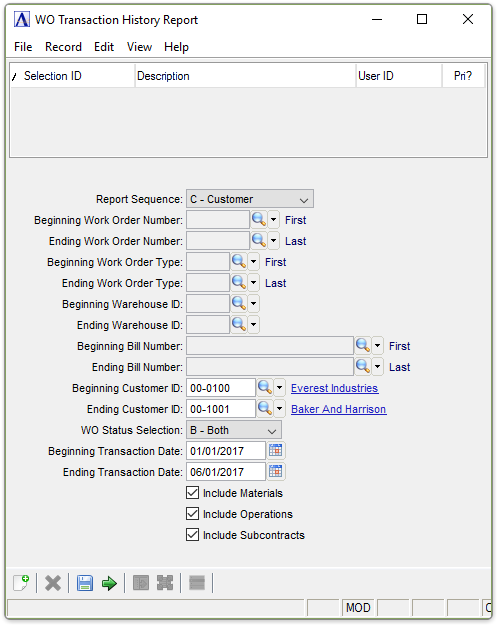
WO Transaction History Report
About the Fields
From the Report Sequence dropdown...
-
Select C - Customer to sort by customer number
-
Select W - Work Order to sort by work order number
-
Select T - WO Type to sort by work order type
-
Select B - Bill Number to sort by bill number
In the Beginning/Ending Work Order Number field...
This field is active when the Report Sequence Work Order (W) has been selected.
-
Enter the first/last work order number for the report.
-
Press Tab or Enter to select the first/last work order on record.
-
Click
 to select from a list of all
valid work order numbers.
to select from a list of all
valid work order numbers.
The requested information differs depending on what you entered in the Selected Report Sequence field .For W – Work Order, enter the lowest work order number that is to appear on the report. For T – WO Type, enter the lowest work order type code that is to appear on the report. For C – Customer, enter the lowest customer number that is to appear on the report. For B – Bill Number , enter the lowest item code that is to appear on the report. Numbers sort before letters.
In the Beginning/Ending Work Order Type field...
This field is active when the Report Sequence T – WO Type has been selected.
-
Enter the first/last work order type for the report.
-
Press the Tab or Enter keys to select the first/last work order type.
-
Click
to select from a list of all
valid work order types.
In the Beginning/Ending Warehouse ID fields...
This field is active when the Report Sequence B – Bill Number has been selected.
-
Enter the first/last warehouse code number.
-
Press the Tab or Enter keys to select the first/last warehouse ID.
-
Select the Find Field Records button
to select from a list of all valid warehouse IDs.
In the Beginning/Ending Bill Number field...
This field is active when the Report Sequence B – Bill Number has been selected.
-
Enter the first/last bill number for the report.
-
Press the Tab or Enter keys to select the first/last bill number.
-
Select
to select from a list
of all valid bill numbers.
In the Beginning/Ending Customer ID field...
This field is active when the Report Sequence C – Customer has been selected.
-
Enter the first/last customer ID for the report.
-
Press Tab or Enter to select the first/last customer ID.
-
Click
to select from a list of all
valid customer IDs.
From the WO Status Selection dropdown...:
-
B - Both to create a report for both open and closed work orders.
-
O - Open to create a report for open work orders.
-
C - Closed to create a report for closed work orders.
In the Beginning/Ending Transaction Date field...
-
Enter the first/last date to be entered on the report.
-
Press Tab or Enter to use the first/last date on file.
-
Click
 to use the tool to select the
date.
to use the tool to select the
date.
Checkboxes...
Select any combination of the following:
-
Include Materials to create the report based on materials.
-
Include Operations to create the report based on operations.
-
Include Subcontracts to create the report based on subcontracts.
When finished making entries to the fields...
-
Click
 to run the report.
 -
Click
 to save the selections.
 -
Click
 to clear all selections.
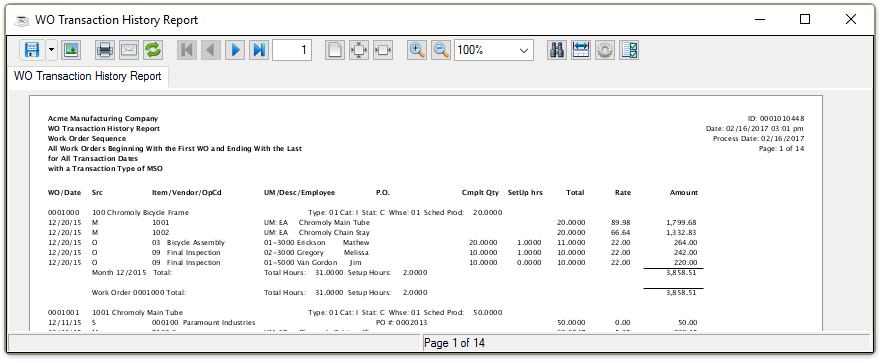
Sample WO Transaction History Report
See Output Options.