Shop Floor Control - Application Parameters
Function
The Shop Floor Control parameters allow tailoring of the module to the specific needs of a business. This requires a careful study of each option. A unique set of parameters is defined for each company.
Some fields can be changed after the module is operating. Check with your AddonSoftware dealer if any changes need to be made after the module is in use.
To access this task...
Select Application Parameters from the Inquiry and Maintenance menu

Work Order Parameters
About the Fields
To enable edits to the form select  .
.
Application Parameters Tab
In the Current Period field...
Displays the current accounting year.
In the Current Year field...
Displays the current accounting year.
In the Max # Op Codes/WO field...
-
Enter the maximum number of operation codes that will be allowed per work order.
Print Costs On Traveler? checkbox...
-
Mark the box to include items costs when travelers are created.
-
Unmark the box to not include costs as the default.
NOTE:
Costs can be added to travelers manually when they are created in the Traveler Printing task.
Edit Planned WO Materials? checkbox...
-
Mark the box to allow editing the WO Material Requirements grid for planned work orders.
-
Unmark the box to keep the WO Material Requirements grid disabled for planned work orders.
Edit Planned Production Qty? checkbox...
-
Mark the box to allow editing the Scheduled Production Quantity on the Work Order Entry form for planned work orders.
-
Unmark the box to keep the Scheduled Production Quantity disabled for planned work orders.
Interface Options
Bill of Mat Interface Enabled? checkbox...
This field is only accessible if the Installed
field in the System Description Maintenance task of System Maintenance
is checked for Bill
of Materials A listing of materials, operations, and subcontracts used to describe the manufacture of an item..
-
Mark the box if the Bill of Materials module is in use.
-
Unmark the box if material information will come from Shop Floor Control.
Ord Proc Interface Enabled? checkbox...
This field is only accessible if the Installed field in the System Description Maintenance task of System Maintenance is checked for Order Processing.
-
Mark the box if the Order Processing module is in use.
-
Unmark the box if processing information will come from Shop Floor Control.
Purch Order Interface Enabled? checkbox...
This field is only accessible if the Installed field in the System Description Maintenance task of System Maintenance is checked for Purchase Orders.
-
Mark the box if the Purchase Order module is in use.
-
Unmark the box if purchase information will come from Shop Floor Control.
Payroll Interface Enabled? checkbox...
This field is only accessible if the Installed field in the System Description Maintenance task of System Maintenance is set to Y for Payroll.
-
Mark the box if the Payroll module is in use.
-
Unmark the box if employee information will come from Shop Floor Control.
Post To General Ledger checkbox...
-
Mark the box if the General Ledger is in use.
-
Unmark the box if General Ledger is not used.
Payroll
From the Use Std or Actual PR dropdown...
-
Select the payroll type using the dropdown tool
-
Use Actual Payroll Cost (A) to determine your labor rates at actual.
-
Use Std PR Cost (S) to determine your labor rates at standard.
From the Time Sheet Entry Sequence dropdown...
-
Select the time sheet entry sequence using the dropdown tool:
-
D – Date to organize your time sheets by date.
-
E – Employee to organize your time sheets by the employee.
-
W – Work Order to organize your time sheets by work order.
Use Time Clock In Entry? checkbox...
This field is active if the Time Sheet Entry Sequence is set to Date or Employee.
-
Mark the box to determine time spent on an operation with a start/stop clock.
-
Unmark the box to ignore the time clock entry.
In the Default Overhead Rate field...
Labels Tab
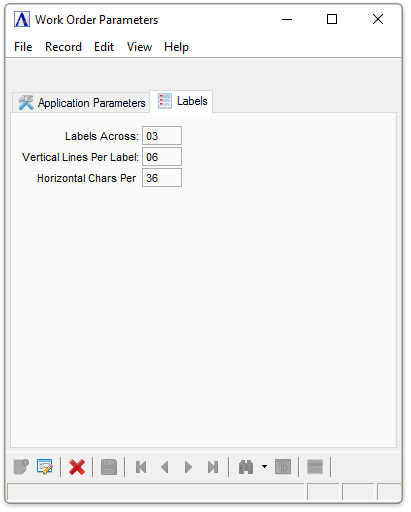
Work Order Parameters - Labels tab
In the Labels Across field...
-
Enter the number of labels across to be created.
In the Vertical Lines Per Label field...
-
Enter the number of vertical lines per label to be created.
In the Horizontal Chars Per field...
-
Enter the number of horizontal characters per label to be created.
When finished making entries to the fields...
-
Click
 to save the entries.
Closing an unsaved record will issue the prompt:
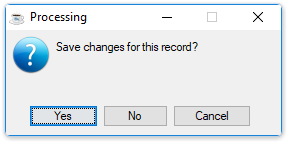
Save changes for this record?
-
Select Yes to save the changes.
-
Select No to return to the form.