Shop Floor Control - Load Balance Inquiry
Function
The Load
Balance How evenly the workload is distributed between work centers. The Load Balance Inquiry compares available hours to scheduled hours. Inquiry provides a view of the impact that open
work orders will have on the work schedule presented graphically. The
inquiry displays a 24-day period from the date entered. A graphic presentation
displays the available hours for each operation A process in the production of an item, component, or finished good.
based on the calendar entries compared to the amount of work that is scheduled.
You may select to display open, planned, or quoted work orders, or any
combination. This task also features a zoom/unzoom
feature that allows you to view your load balance down to a fraction of
an hour.
How evenly the workload is distributed between work centers. The Load Balance Inquiry compares available hours to scheduled hours. Inquiry provides a view of the impact that open
work orders will have on the work schedule presented graphically. The
inquiry displays a 24-day period from the date entered. A graphic presentation
displays the available hours for each operation A process in the production of an item, component, or finished good.
based on the calendar entries compared to the amount of work that is scheduled.
You may select to display open, planned, or quoted work orders, or any
combination. This task also features a zoom/unzoom
feature that allows you to view your load balance down to a fraction of
an hour.
To access this task...
Select Load Balance Inquiry from the Shop Floor Control main menu.
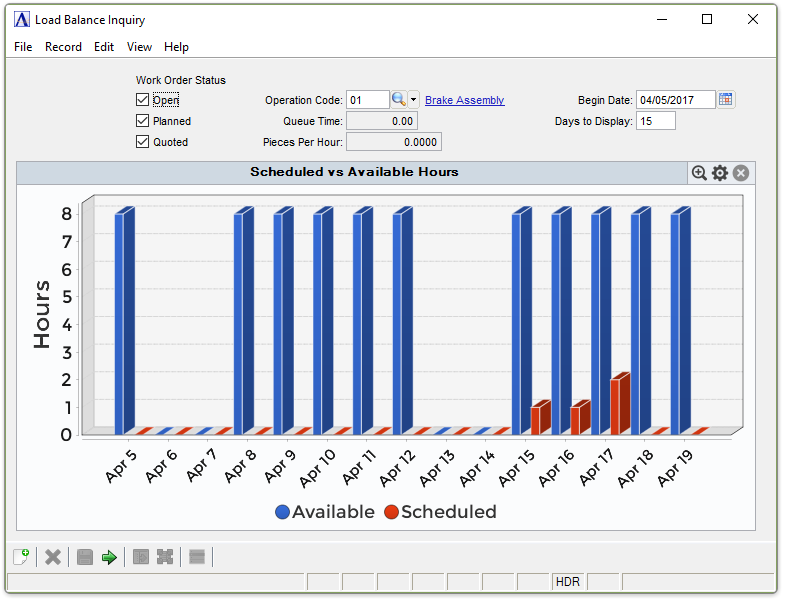
Sample Load Balance Inquiry
About the Fields
Work Order Status checkboxes...
-
Mark the box next to Open to view only open orders.
-
Mark the box next to Planned to view only planned orders.
-
Mark the box next to Quoted to view only quoted orders.
-
Mark any combination or all of the above.
In the Operation Code field...
-
Enter the code of the operation to display.
-
Click
 to select from a list of valid operation codes.
In the Queue Time field...
Display only. Shows the queue time A record of the average amount of time material will wait in line for the next operation. established in the Operation
Code Maintenance task; or from the Bill
of Materials A listing of materials, operations, and subcontracts used to describe the manufacture of an item. Master File if installed.
In the Pieces Per Hour field...
Display only. Shows the pieces per hour established in the Operation Code Maintenance task; or from the Bill of Materials Master File if installed.
In the Begin Date field...
The inquiry shows a 24-day period beginning from this date.
-
Enter the beginning date to display.
-
Press the Tab or Enter keys to accept the default of today’s date.
-
Click
 to use the tool to select the date.
In the Days to Display field...
- Enter the number of days to display.
The graphical image is a data widget and has the same features as those found in the Digital Dashboard.
When finished making entries to the fields...
-
Click
 to
display the inquiry.
to
display the inquiry. -
Click
 to save the selections
for future runs.
to save the selections
for future runs. -
Click
 to
clear entries.
to
clear entries.
When
clicking , the
Load Balance Inquiry’s graphical display appears. It shows the available
hours set up for this operation and the hours that are scheduled against
those available hours. All selections in the upper fields are interactive and changing these selections automatically changes the graphical display.