Inventory Control - Item Default Values
Function
This form is used to establish defaults to streamline the entry of new inventory items. Defaults may be set for the item regarding buyer code, distribution code, stocking level, and so forth, which are commonly used in your inventory. For new inventory items these defaults are overwritten by the Product Type item defaults, and can be manually overwritten.
To access this task...
Select Item Default Values from the Parameters menu.
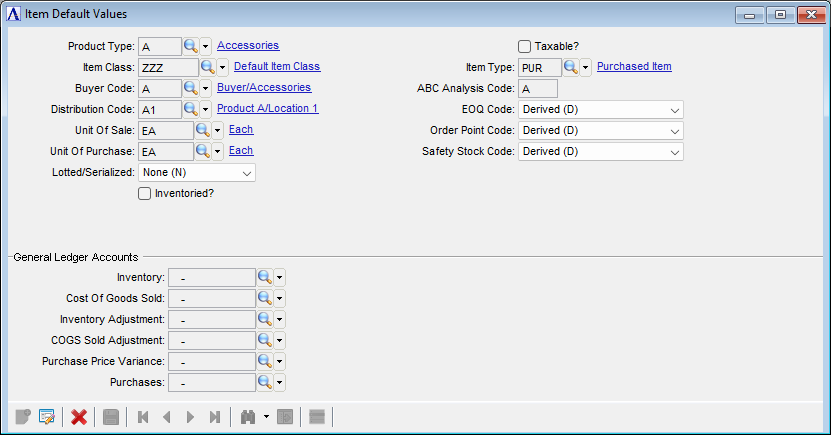
Item Default Values
About the Fields
In the Product Type field...
-
Enter the product type to use as a default.
-
Click
 to select from a list of valid product types.
In the Item Class field...
This code, in conjunction with the Pricing Code within the Customer Master File, may be used to calculate the actual sales price of an item. Refer to the Pricing Table Maintenance task.
-
Enter a default for the item class.
-
Click
to select from a list of valid item classes.
In the Buyer Code field...
-
Enter the default buyer code.
-
Click
to select from a list of valid buyer codes.
In the Distribution code field...
-
Enter the default distribution code.
-
Click
to select from a list of valid distribution codes.
In the Unit of Sale field...
-
Enter the default sale unit of measure.
In the Unit Of Purchase field...
-
Enter the default purchase unit of measure.
From the Lotted/Serialized Item dropdown...
-
Select "Lotted (L)" to establish lotted inventory tracking.
-
Select "Serialized (S)" to establish serialized inventory tracking.
-
Select "None (N)" if no lotted or serialized inventory tracking is necessary.
Inventoried? checkbox...
-
Mark the box if the product is inventoried.
-
Unmark the box if the product is not inventoried.
Taxable? checkbox...
-
Mark the box if the product is taxable.
-
Unmark the box if the product is not taxable.
In the Item Type field...
-
Enter a default for the item type.
-
Click
to select from a list of item types.
In the ABC Analysis Code field...
-
Enter the default level of analysis for this product.
From the EOQ Code dropdown...
-
Select Derived (D) to determine EOQ automatically and to update automatically at month end.
-
Select Entered (E) to determine EOQ manually, yet update automatically at month end.
-
Select No Recalculation (N) to determine EOQ manually and to update manually.
From the Order Point Code dropdown...
-
Select Derived (D) to determine EOQ automatically and to update automatically at month end.
-
Select Entered (E) to determine EOQ manually, yet update automatically at month end.
-
Select No Recalculation (N) to determine EOQ manually and to update manually.
From the Safety Stock Code dropdown...
-
Select Derived (D) to determine EOQ automatically and to update automatically at month end.
-
Select Entered (E) to determine EOQ manually, yet update automatically at month end.
-
Select No Recalculation (N) to determine EOQ manually and to update manually.
General Ledger Accounts
If the AR Parameters "Distribute Sales by Item" flag is set, the GL Account fields are disabled, since the accounts will come from the Distribution Code associated with the item. If not distributing sales by item, then fill in the appropriate GL Accounts.
When done making selections...
-
Click
 to save the changes.