Inventory Control - Print Count Sheets
Function
Count sheets can only be printed after inventory items are selected for physical count processing through the Select Cycles for Freeze task. Count sheets aid in the actual counting of inventory and show all items selected for processing.
To access this task...
Select Print Count Sheets from the Physical Inventory menu.
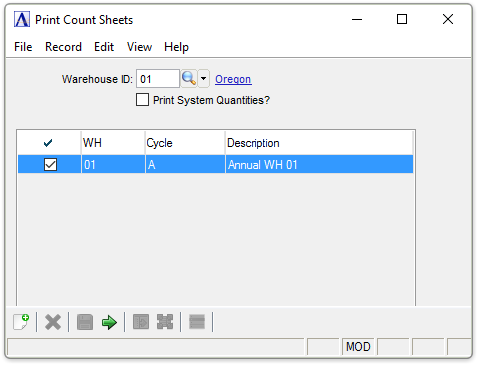
Print Count Sheets
About the Fields
In the Warehouse ID field...
-
Enter a warehouse code.
-
Click
 to
select from a list of warehouse codes.
to
select from a list of warehouse codes.
Print System Quantities? checkbox...
-
Mark the box to print the system’s on-hand quantities for each item.
-
Unmark the box to print without the quantities.
In the Check fields...
-
Mark the box to select an inventory cycle code.
When done making count sheet selections...
-
Click
 to clear the form and re-enter options.
 -
Click
 to save the settings.
 -
Click
 to print the Count Sheets.
After selecting , the system issues the following prompt:
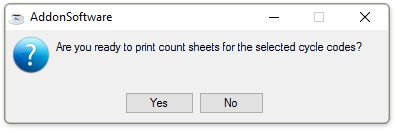
Are you ready to print count sheets for the selected cycle codes?
-
Click Yes to print count sheets for the selected cycle codes.
-
Click No to return to the Physical Inventory menu.
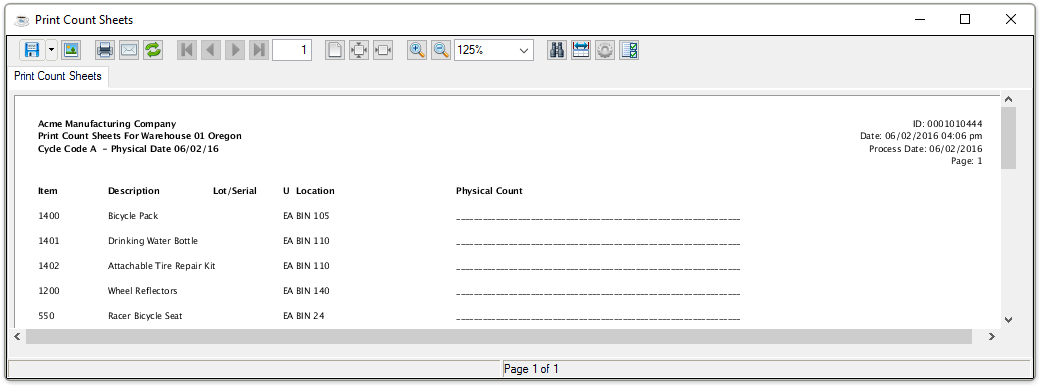
Sample Count Sheet
See Output Options.