Inventory Control - Select Cycles for Freeze
Function
This task enables the selection of portions of inventory to count, based on inventory cycle codes. If the inventory is organized into separate groups for physical counting, one or all cycle codes may be selected for processing. The quantities on-hand for the selected items are recorded at the time of the selection, and are used as the basis for comparison when you actually enter the counts.
NOTE:
The accuracy of the Physical Inventory Selection task is increased if all inventory related transactions are updated before beginning. This includes the Sales Register update from the Order/Invoice Processing module, receipts from the Purchase Order module, warehouse transfers, and manual inventory transactions from the Inventory Control module.
To access this task...
Select Select Cycles for Freeze from the Physical Inventory menu.
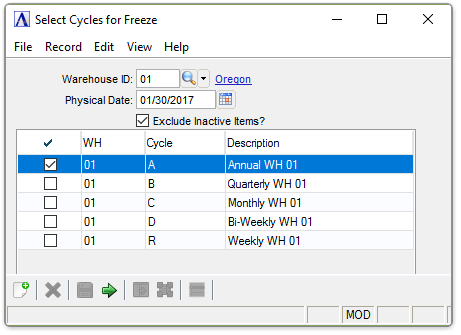
Select Cycles for Freeze
About the Fields
In the Warehouse ID field...
-
Enter a valid warehouse ID.
-
Click
 to
select from a list of warehouse codes.
to
select from a list of warehouse codes.
In the Physical Date field...
Cycle records in the module are displayed in a list. Use the checkboxes next to the cycle records to select them for freezing.
-
Enter a date for freezing the cycles.
-
Click
 to select a date using the calendar tool.
Exclude Inactive Items? checkbox...
-
Mark the box (default) to exclude inactive items.
-
Unmark the box to include all items.
When done making selections...
-
Click
 to create the Inventory Price Listing.
 -
Click
 to clear the form and re-enter options.
The system produces the following prompt:
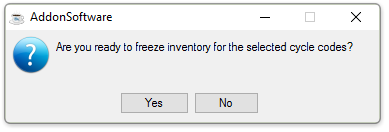
Are you ready to freeze inventory for the selected cycle codes?
-
Click Yes to freeze the inventory.
-
Click No to not proceed and return to the Physical Inventory menu.
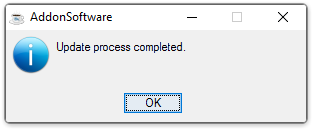
Update process completed.