Running BBj Applications with Different Look and Feels
Description
BBj includes the ability to specify a Look and Feel (L&F) when running in Thin Client (TC), as a Desktop App, and in WebUI. When running in TC and as a Desktop App, the L&Fs available on the client can be used. Conversely, when running in WebUI, all BBj processes, including the client, are run on the server. Therefore, only the L&Fs available on the server can be used by the BBj client application. The INFO(1,4) function reports the client's look and feel.
Font and Control Sizing
When using a particular L&F the font may be larger and controls may be smaller than what the application was originally designed for (especially true for tight tolerances often designed exclusively for Windows clients), resulting in text being cut off. The best solution is to resize or relayout controls so that all text fits. If redesign is not an easy option, the DPI and SCALE (BBj 26.01+) modes for the SYSGUI device may be set to improve this behavior as a “workaround”. For example, in the config file, the following can be specified:
ALIAS X0 SYSGUI "" DPI=80,SCALE=1.4
When controls are sized too tightly to contain the full text using a particular L&F, the fonts can be made smaller by setting the DPI (default of 96) to a lower value (in this case 80).
When the DPI is set lower the fonts are smaller and can be harder to read, therefore controls and the fonts multiplier can be set larger with the setting of SCALE (default of 1) to a higher value (in this case 1.4).
With both of these modes, it’s best to limit changes to default values to make the application display correctly. Therefore make the DPI bit smaller than 96, enough so that the text fits in the controls, but not smaller than absolutely necessary. Then the compensating SCALE= should be a bit more than 1.0, but not increased too much that windows will no longer fit in the display area.
Available L&Fs
Default Behavior
BBj uses the platform's look and feel by default; you can also set this look and feel explicitly by using default.
| System | L&F |
|---|---|
| Windows OS | com.sun.java.swing.plaf.windows.WindowsLookAndFeel
|
| macOS | com.apple.laf.AquaLookAndFeel
|
| Unix default | javax.swing.plaf.metal.MetalLookAndFeel
|
BASIS provided L&Fs
-
cross(javax.swing.plaf.metal.MetalLookAndFeel) -
vpro5
Java Provided L&Fs
-
javax.swing.plaf.metal.MetalLookAndFeel
-
com.sun.java.swing.plaf.motif.MotifLookAndFeel
-
swing.plaf.nimbus.NimbusLookAndFeel
-
com.sun.java.swing.plaf.gtk.GTKLookAndFeel(need GTK installed)
FlatLaf L&Fs (The FlatLaf library is included in BBj 25.11 and higher)
- com.formdev.flatlaf.FlatLightLaf
- com.formdev.flatlaf.FlatDarkLaf
- com.formdev.flatlaf.FlatDarculaLaf
- com.formdev.flatlaf.FlatIntelliJLaf
- com.formdev.flatlaf.themes.FlatMacLightLaf
- com.formdev.flatlaf.themes.FlatMacDarkLaf
Version History
-
In BBj 5.00 and higher, the L&F can be specified by using -
LF<lafname>BBj command line argument:bbj -LFvpro5
-
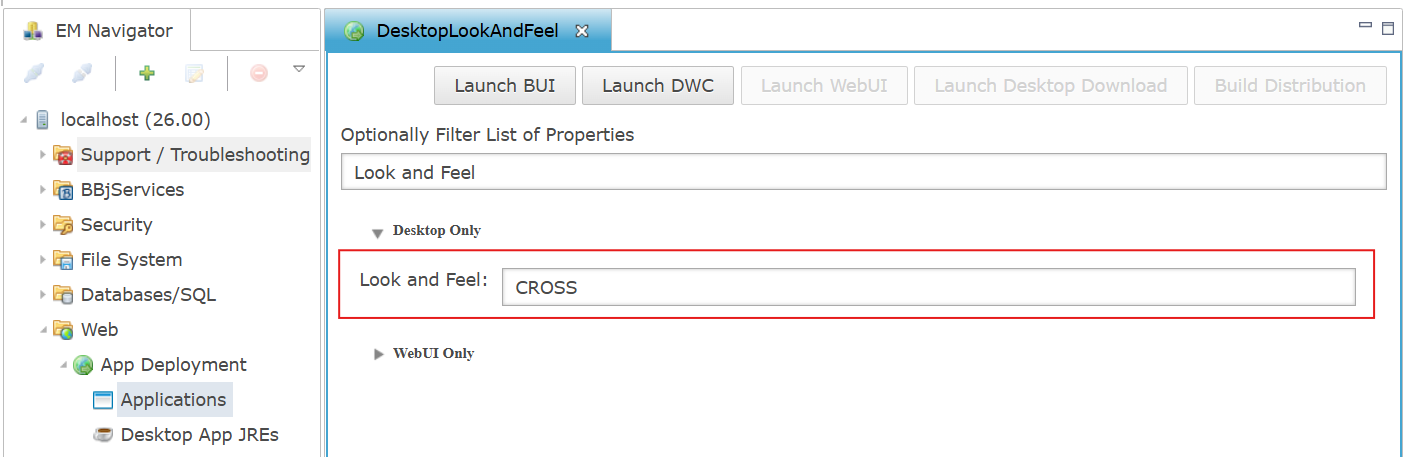
In BBj 19.20 and higher, the L&F can be specified for a Desktop App application in the Desktop section, Look and Feel option in the Applications configuration in Enterprise Manager.
-
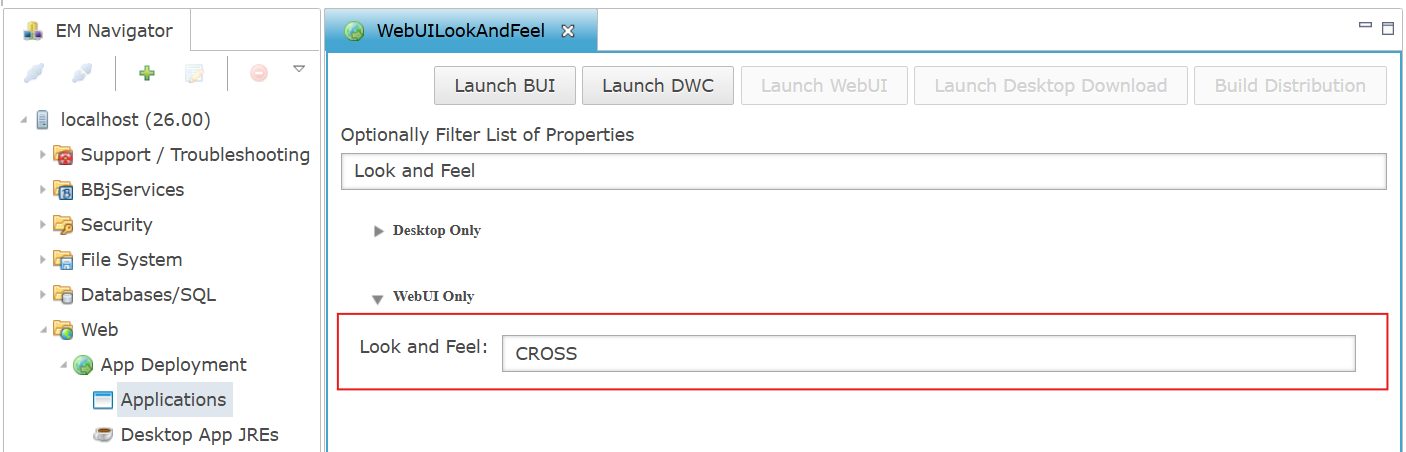
In BBj 25.11 and higher, the L&F can be specified for a WebUI application in the WebUI section, Look and Feel option in the Applications configuration in Enterprise Manager.
 Examples
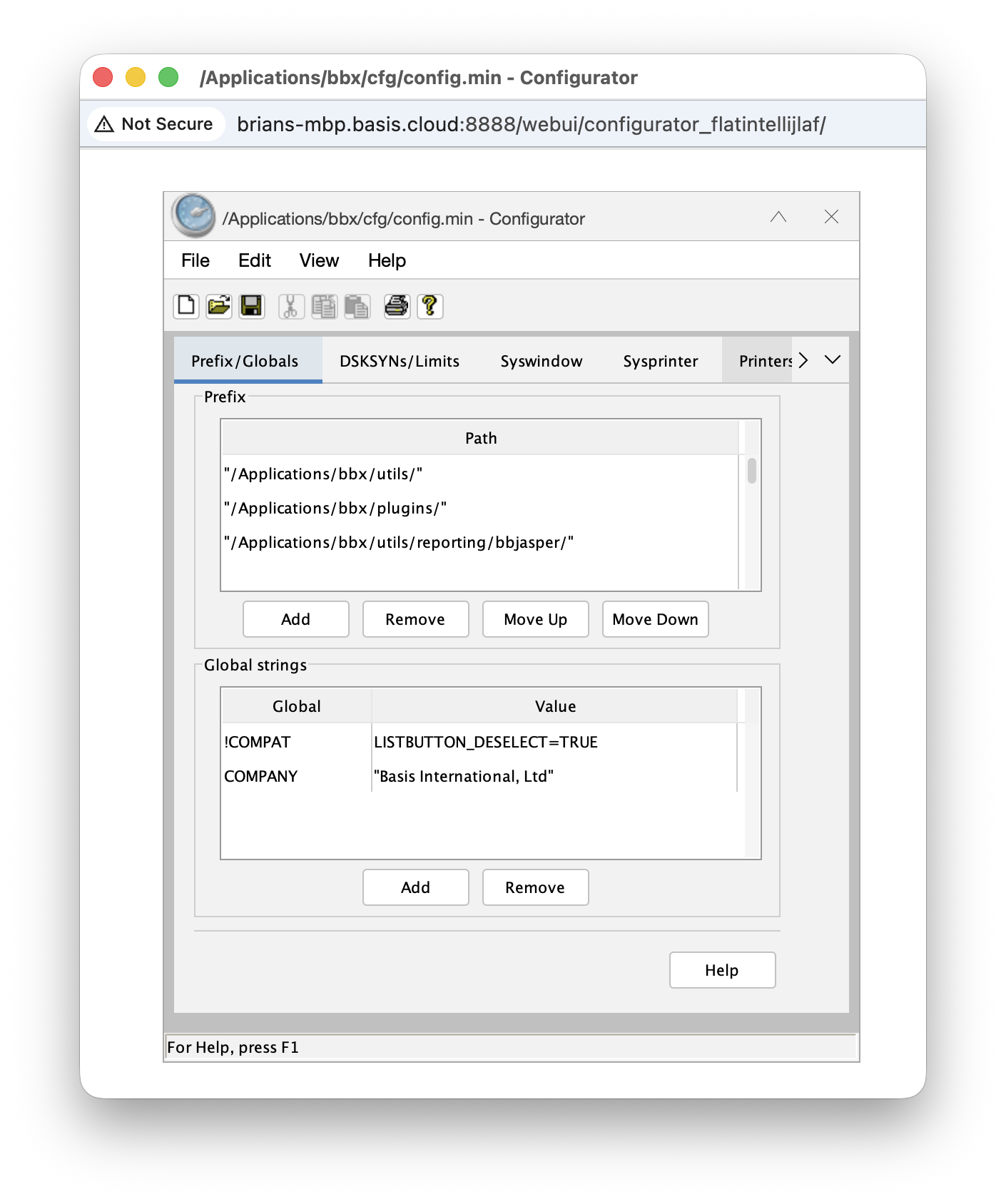
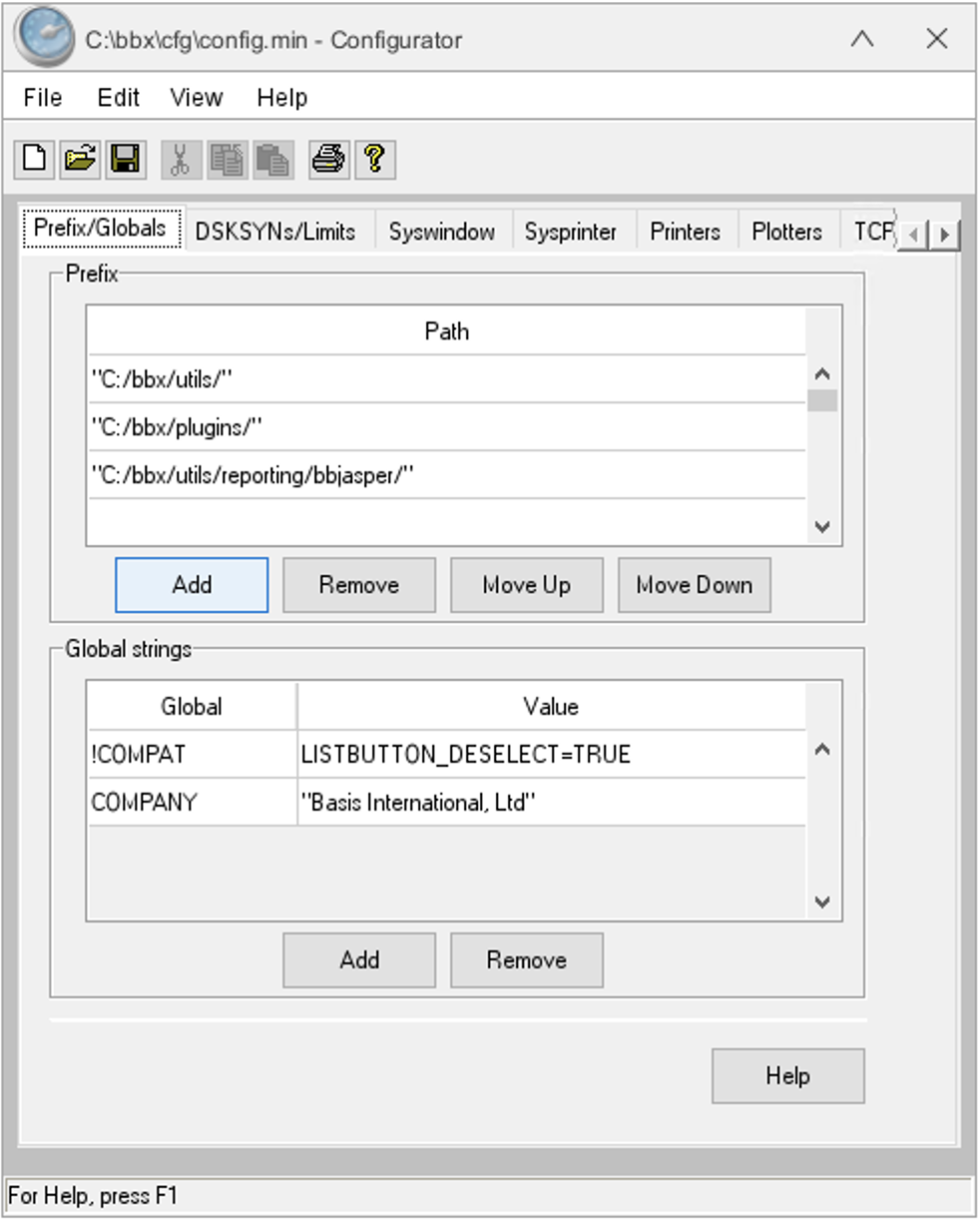
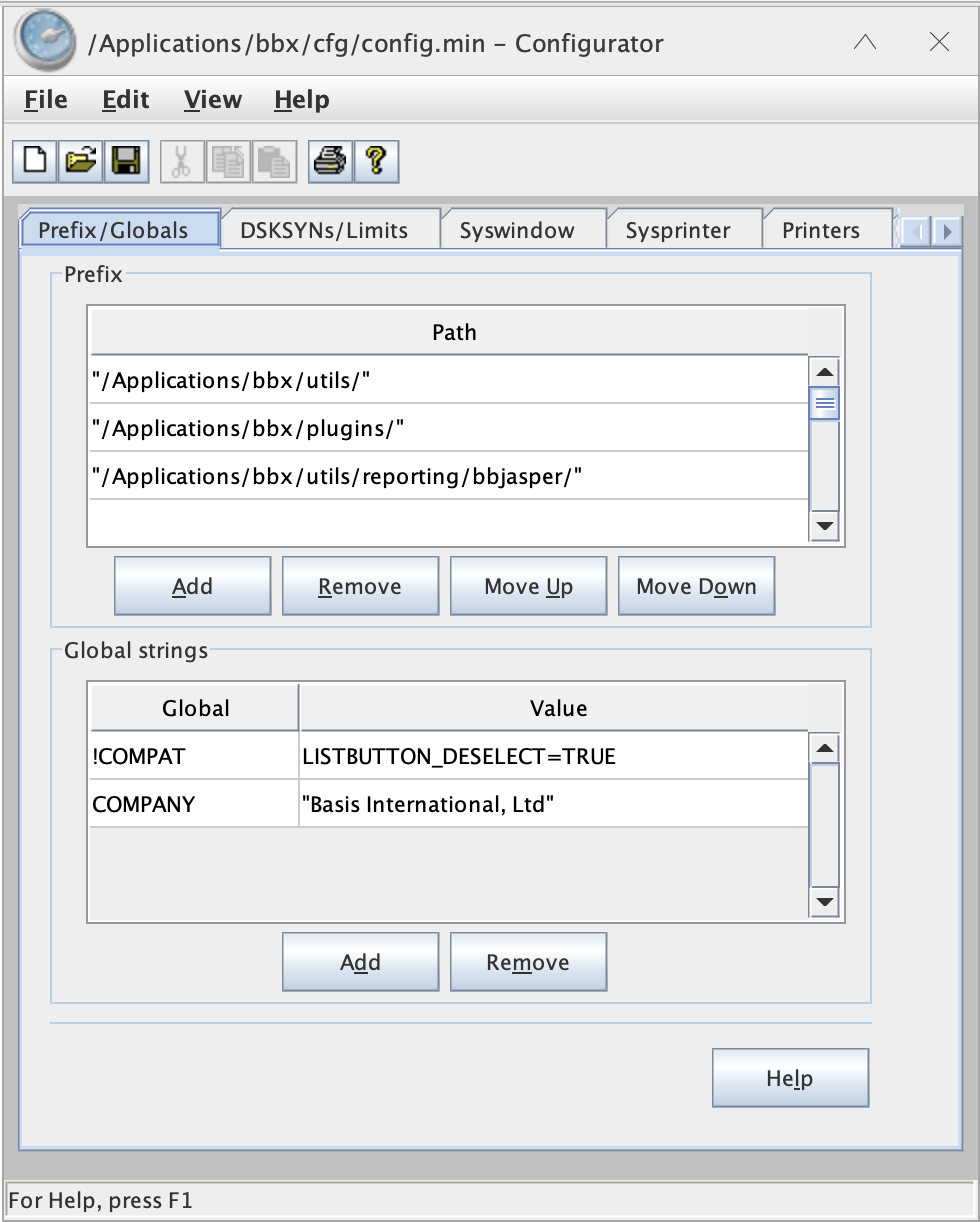
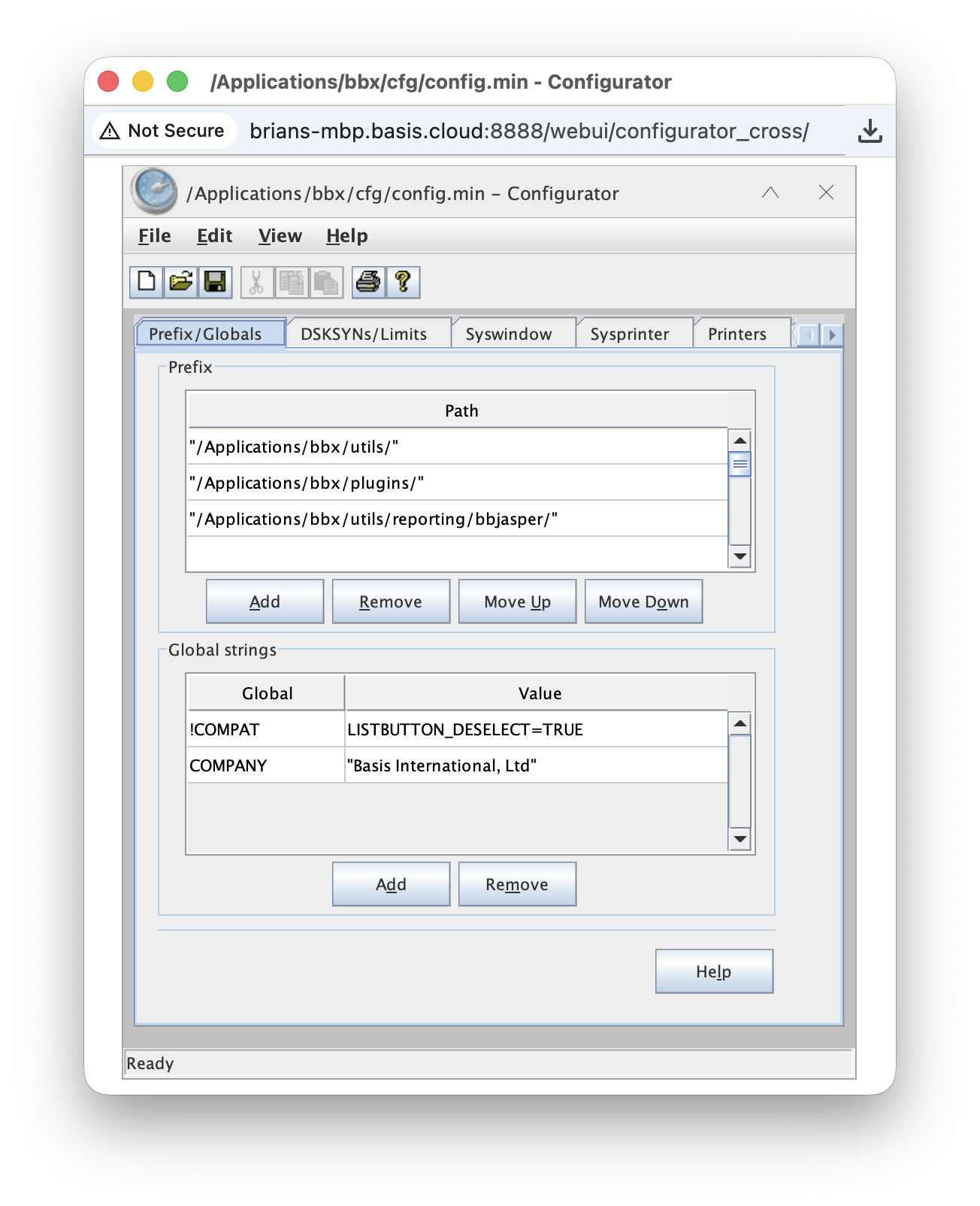
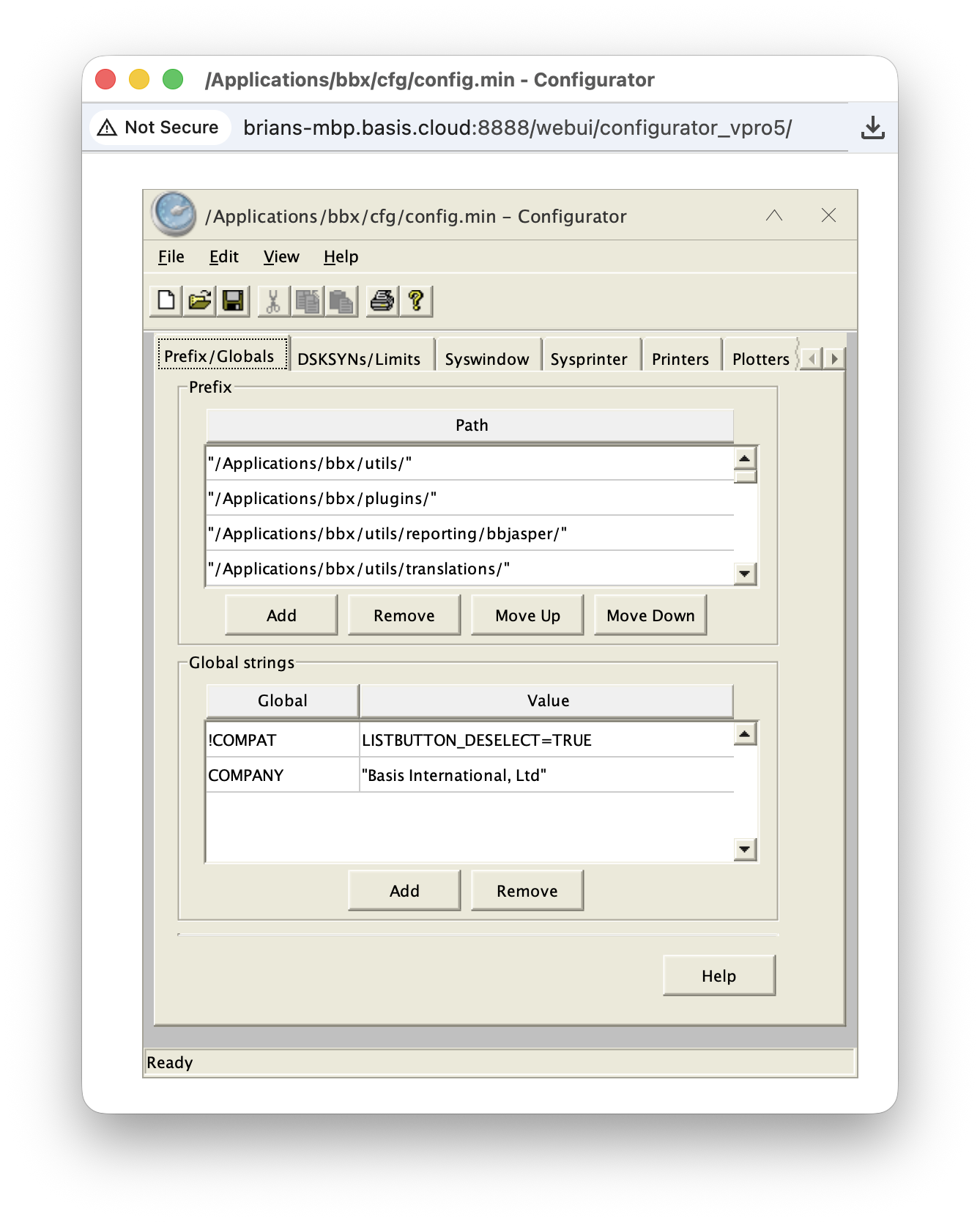
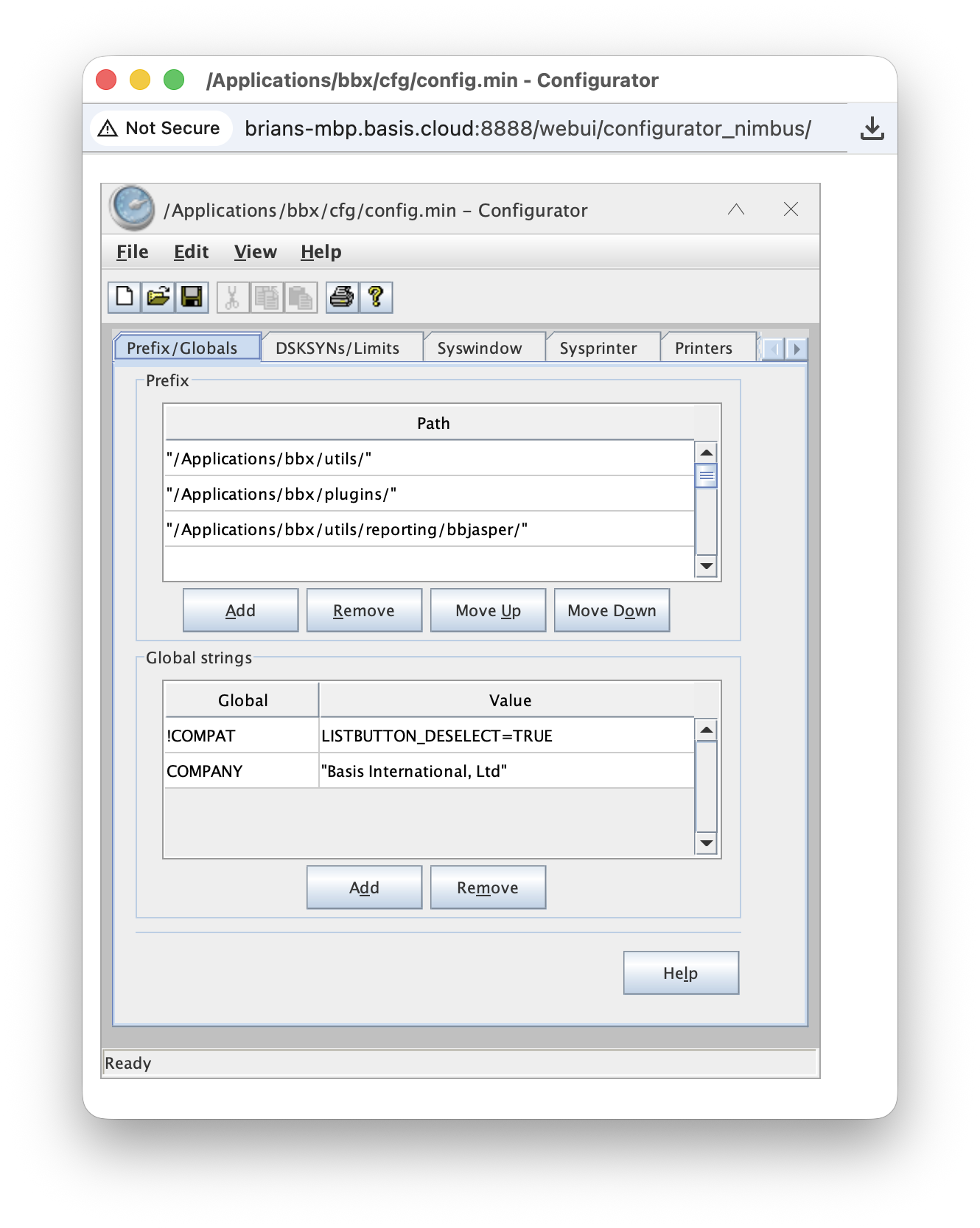
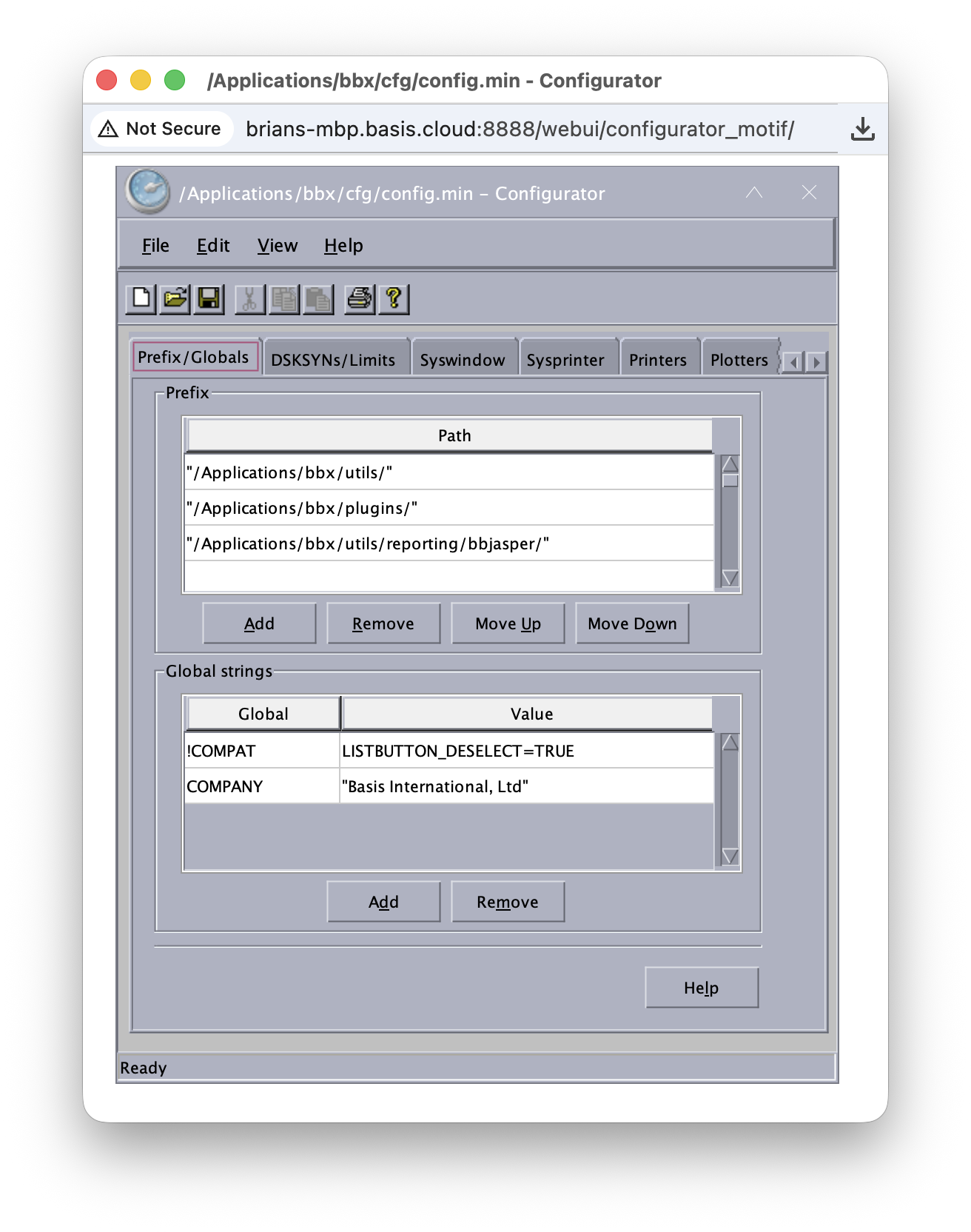
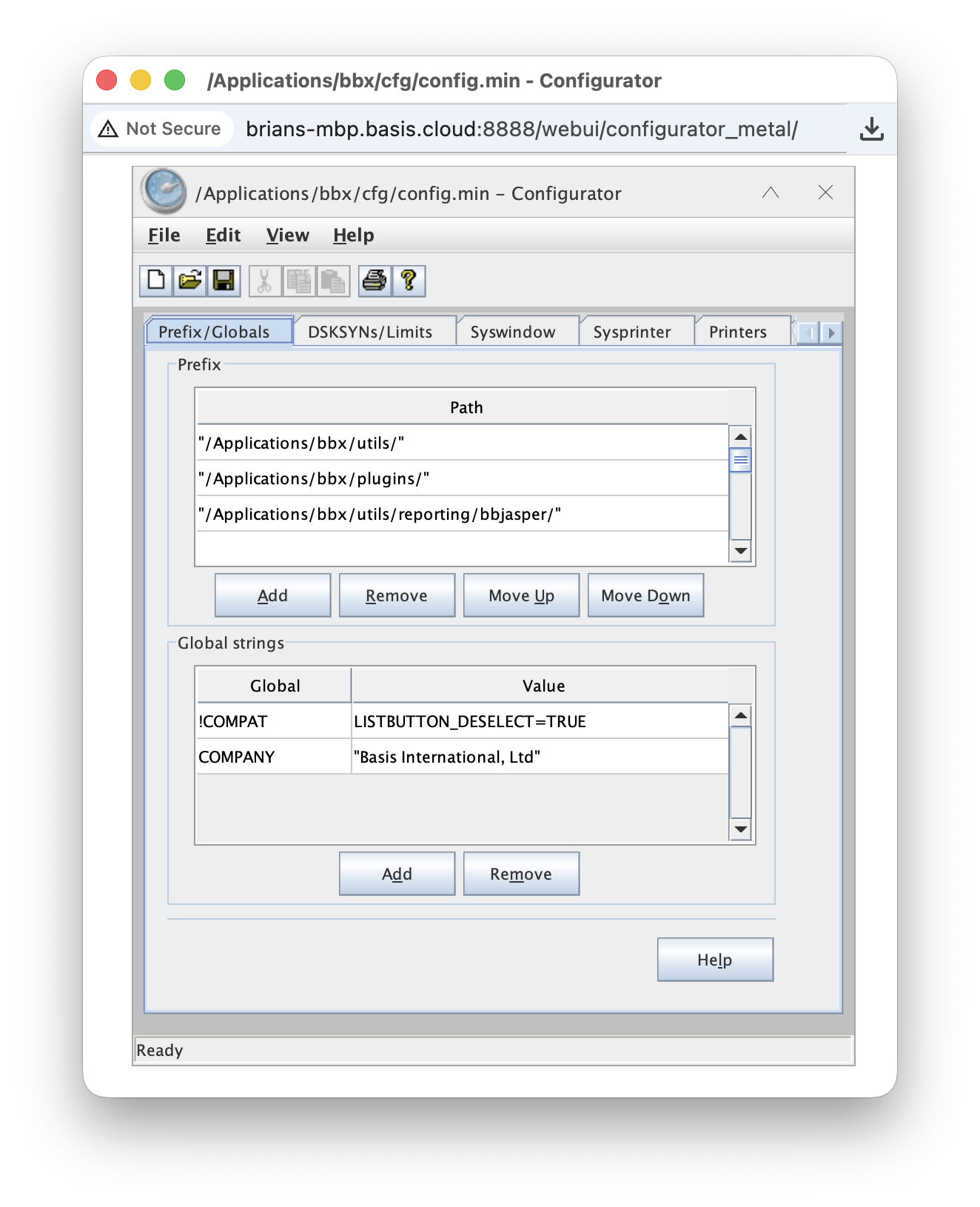
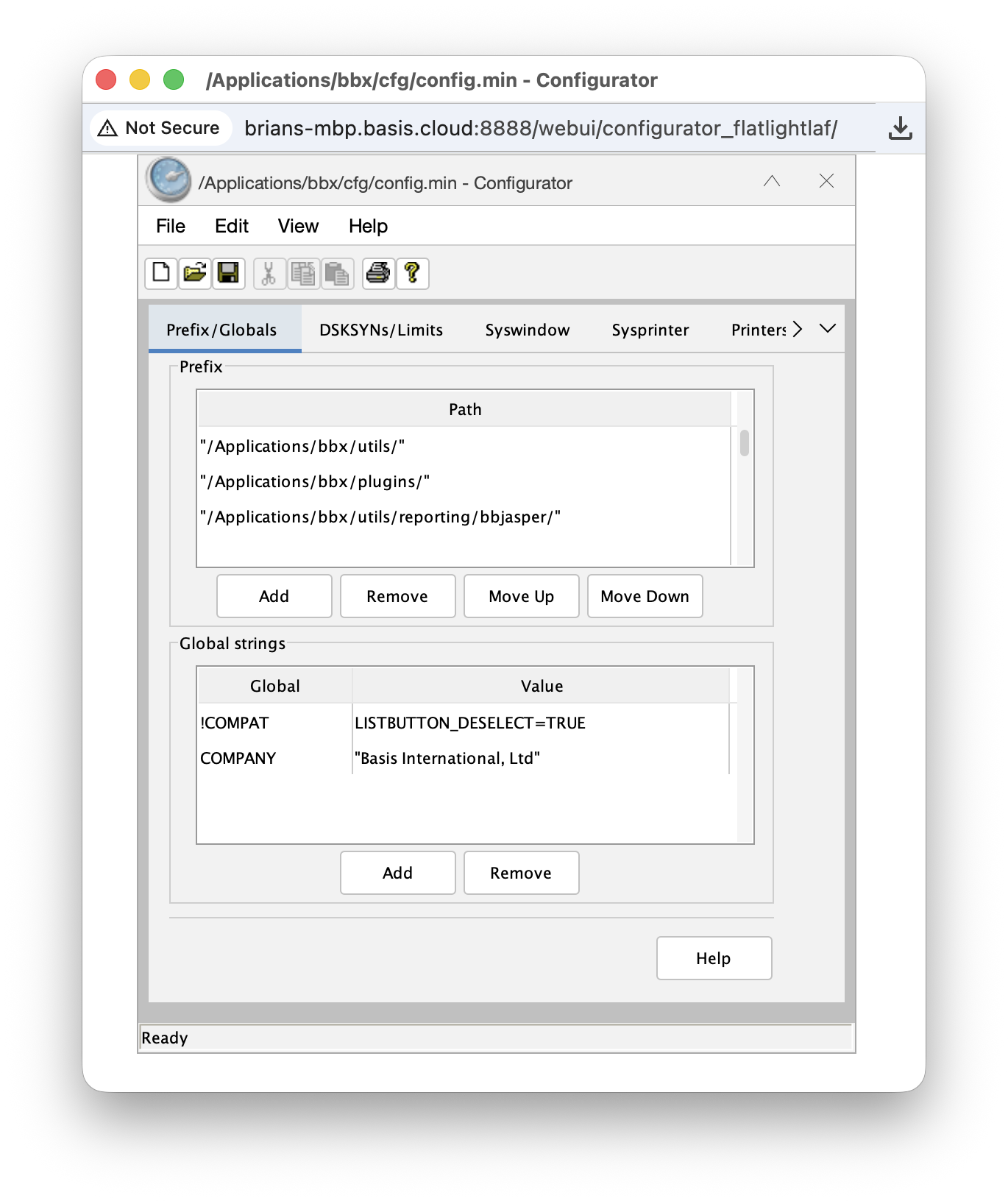
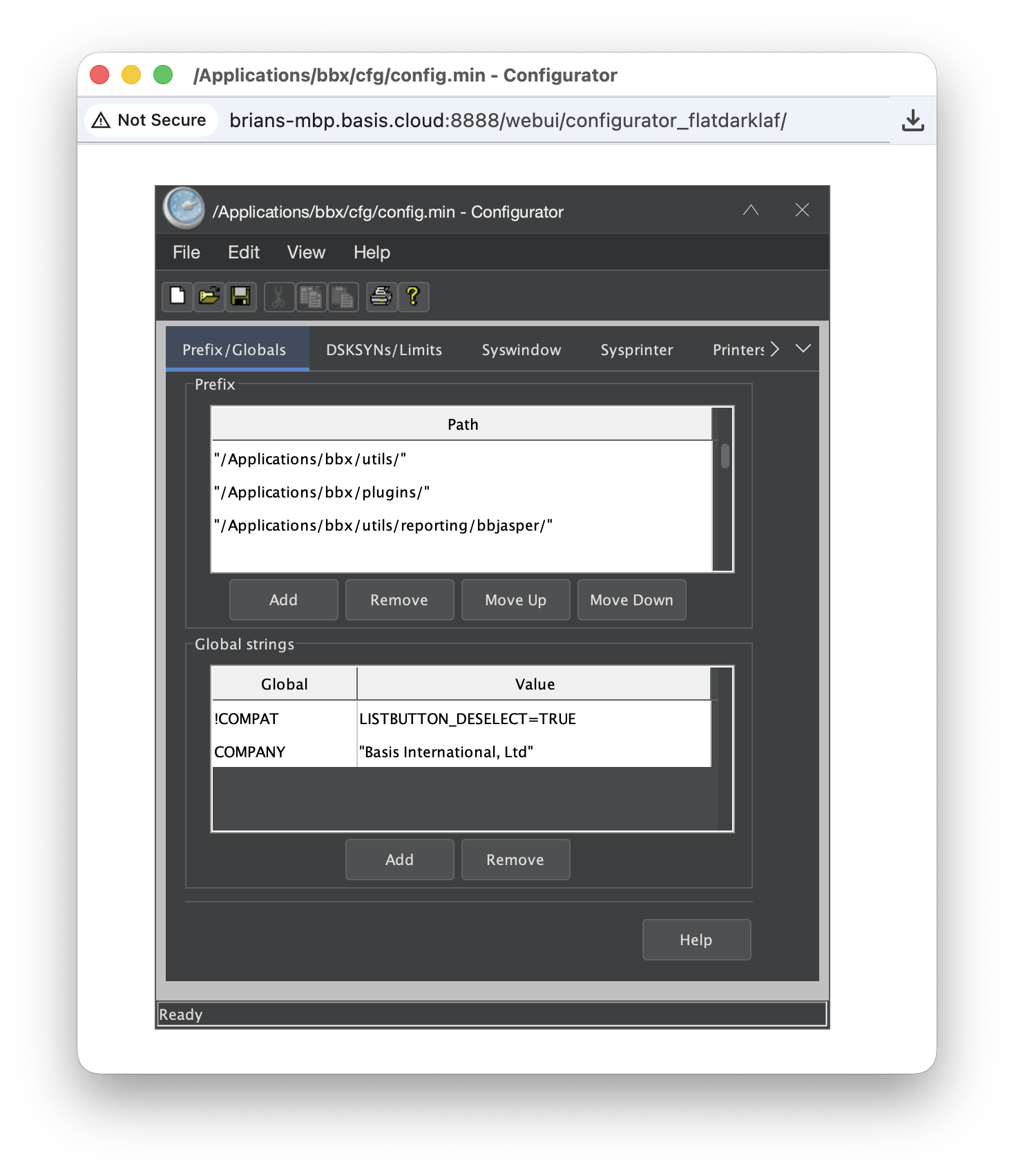
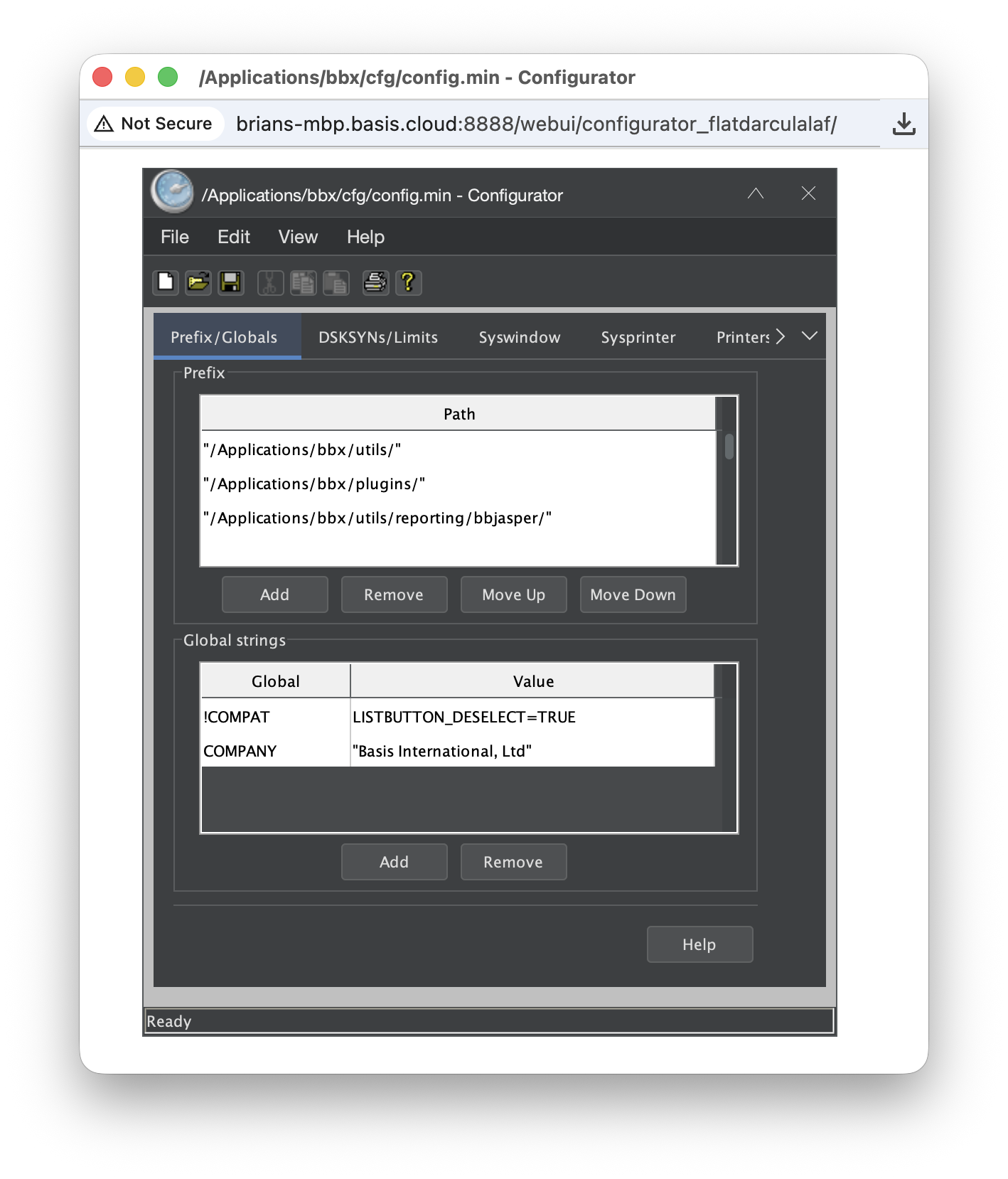
The following examples show Configurator running in WebUI, select an example to display the screenshot.
 L&F: default
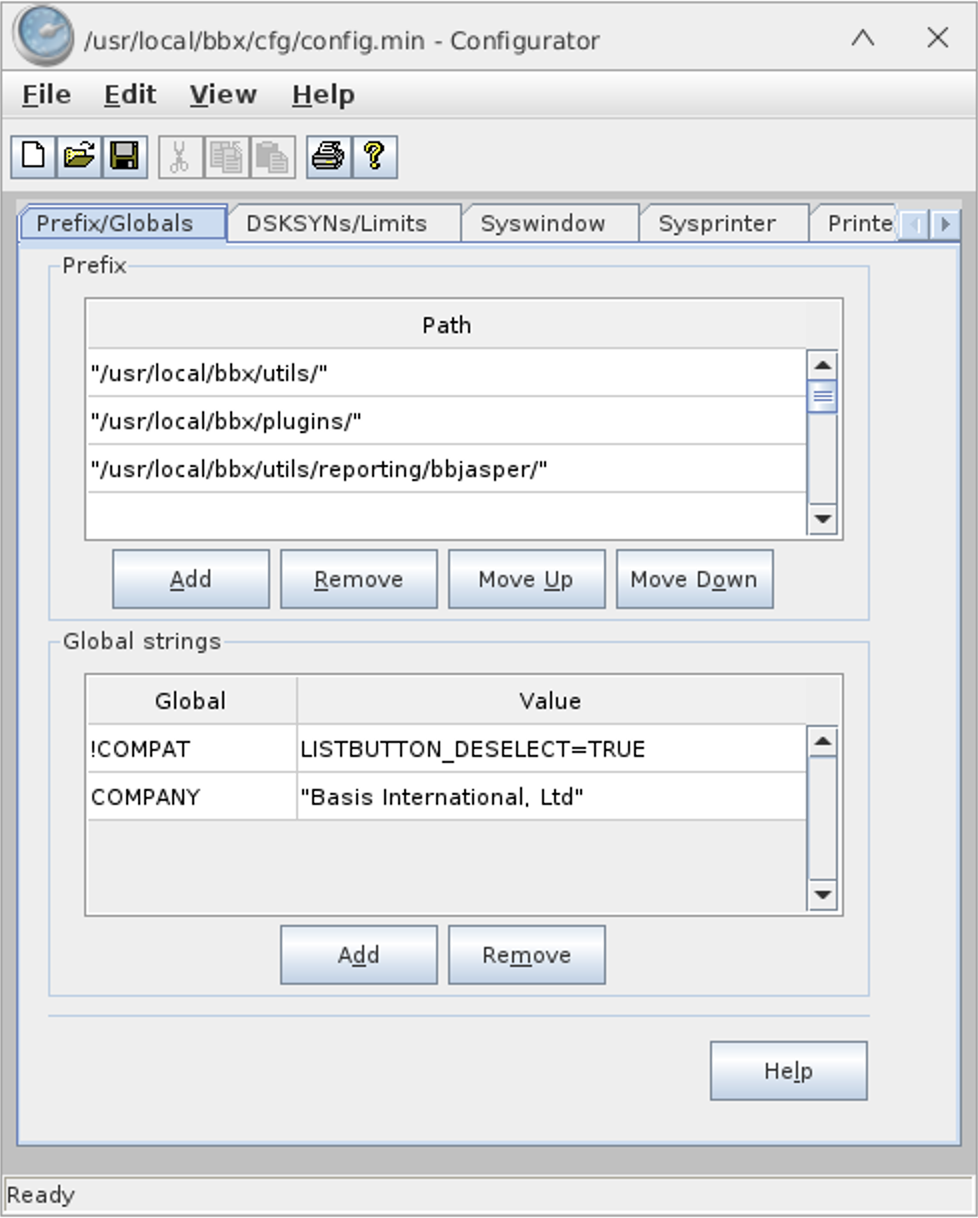
L&F: cross
L&F: vpro5
L&F: swing.plaf.nimbus.NimbusLookAndFeel
L&F: com.sun.java.swing.plaf.motif.MotifLookAndFeel
L&F: javax.swing.plaf.metal.MetalLookAndFeel
L&F: com.formdev.flatlaf.FlatLightLaf
L&F: com.formdev.flatlaf.FlatDarkLaf
L&F: com.formdev.flatlaf.FlatDarculaLaf
L&F: com.formdev.flatlaf.FlatIntelliJLaf