BDT Code Completion
Description
This topic includes the following sections:
- Overview
- Settings
- USE Statements
- DECLARE Statements
- Custom Class and Interface Names
- Keyword Statements
- Variables
- Object Methods and Fields
- Comment Completion
- Code Assistance Templates
- Example Code
Overview
Code Completion in the BDT Studio can improve the experience of working with object syntax and external libraries. For alternative solutions, see the VS Code extension or the IntelliJ plugin.
For BBj 26.00 and higher, accessing the BDT plug-ins in the BDT Studio, a standalone application, supersedes using the Eclipse IDE.
Code Completion is context-sensitive, so it will offer different suggestions depending on where and what you are typing. There are several specific contexts recognized by BDT Code Completion, and each is outlined in this document.
Note:
It is important to remember that BBj is not Java, and BDT does not offer the full set of suggestions that Java and the JDT offer. Some Java offerings are not possible in a dynamic language such as BBj; others are merely not on BASIS's list of completed features. If you would like to see specific additional Code Completion and Code Assistance features implemented, please suggest them by posting on the IDE User Group.
Invoking Code Completion
You can invoke Code Completion in certain contexts while editing your code by typing Ctrl+SPACE to open a popup menu of suggestions to insert into your code. Typing or deleting characters can further refine or widen the list of suggestions. The search system is not case-sensitive, so you do not need to match the case of the package, variable, or method name you are searching for, and the case of your input will be changed to match the suggestion when you select it.
This shortcut, along with all other shortcuts, can be found under the name “Content Assist” by pressing Ctrl+Shift+L. It can be modified by pressing Ctrl+Shift+L again or by navigating to the General → Keys section of BDT Studio Preferences.
The Ctrl+SPACE key combination is indicated in the documentation
by the caret symbol ^ at the end of a
line of code.
Making a Selection
You can navigate the Content Assist popup menu with the arrow keys or the mouse, and you can make a selection by pressing Enter after highlighting an item or by double-clicking an item. When you make a selection, the selected code will be inserted, and you can continue typing as normal. By default, if only one suggestion is available when you press Ctrl+SPACE, it will be filled in automatically, and the popup menu will not be shown. This behavior can be modified in Code Completion Settings.
Dismissing Code Completion
You can dismiss the popup menu by pressing Esc or by clicking outside it with the mouse. Code completions can be reverted by selecting Edit → Undo Typing or by pressing the undo shortcut Ctrl+Z (Cmd+Z on macOS).
Example Code
In order to demonstrate some of BDT’s Code Completion capabilities for custom objects and classes, many of the examples will make use of the example code below. This code is not designed to do anything except demonstrate the scope and limitations of Code Completion.
|
For the examples in this document, this file is saved as Sample_Classes.bbj in
the Classes/ folder in the Sample_Project
project, as seen in Figure 1.
The examples in this document will not modify this file, and instead will edit the file Sample_File.bbj. If you duplicate this project structure, you will be able to follow along with the examples.
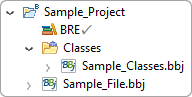
Figure 1: Sample Project directory structure
Code Completion Settings
Code Completion activates automatically
after a set delay in some contexts, such as after #
and . as described in the Object
Methods section. This behavior can be adjusted in the BDT Studio Preferences by navigating to Window → Preferences or Eclipse → Preferences, then navigating
to BDT → Editor → Content Assist,
as seen in Figure 2.
Unchecking the box labeled “Enable auto activation” will disable the automatic appearance of the Code Completion popup menu.
Changing the number in the box marked “Auto activation delay (ms):” will adjust the delay in milliseconds before the menu appears.
Unchecking the box marked “Insert single proposals automatically” will cause BDT to show the popup menu even when only one suggestion is available.
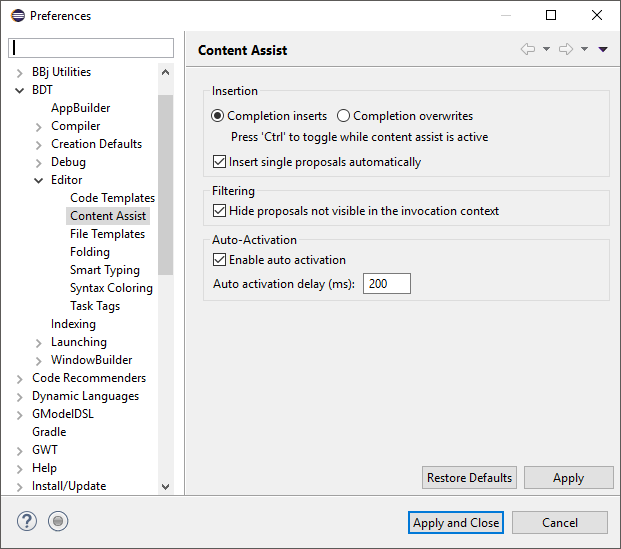
Figure 2: Content Assist Preferences
USE Statements
Code Completion is available for Java USE statements, BBj USE statements, and Custom Object USE statements.
Note:
There is no Code Completion behavior for typing only
USE ^. You must invoke either Java
USE Statements, BBj USE Statements, or Custom Object USE Statements by
using the corresponding syntax.
Java USE Statements
BDT will search for Java packages when you activate Code Completion
after typing USE followed by a space
and one or more alphabetic characters to refine the search.
Typing USE j^ (where ^
indicates pressing Ctrl+SPACE) yields suggestions of Java packages
starting with “j”, as seen in Figure
3:
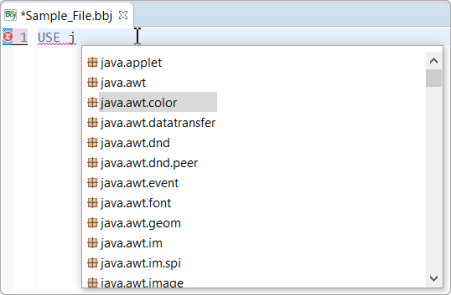
Figure 3: Java USE Statements Code Completion
After the popup menu is activated, you can refine the list further by typing more characters, as in Figure 4:
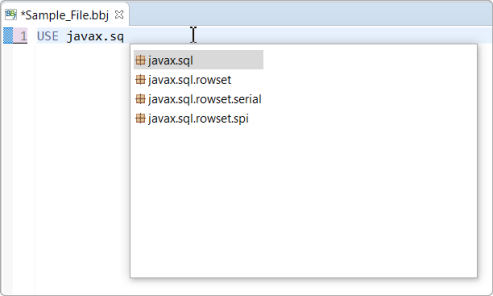
Figure 4: Refining Java USE Statements Code Completion
BBj USE Statements
BDT will search for BBj language packages and custom classes and interfaces
when you activate Code Completion after typing USE
:: followed by any number of additional characters. For instance, Figure 5 shows that typing USE ::^ produces suggestions of all available
BBj language packages:
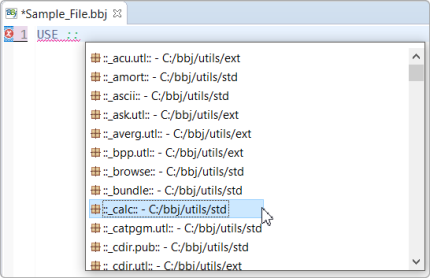
Figure 5: BBj USE Statements Code Completion
As always, you can refine the list further by typing more characters.
Custom Object USE Statements
BDT will suggest custom object types if you activate Code Completion
after typing USE ::<myfile.bbj>::^,
where <myfile.bbj> is a user-created
file in which custom object types are defined.
Note:
If your .bbj file
is in a folder, you must press Ctrl+SPACE before typing the first
'/' in the directory path, as shown in
Figure 6. BDT will not offer completions otherwise. You can continue typing
to refine the search after the pop-up menu appears.
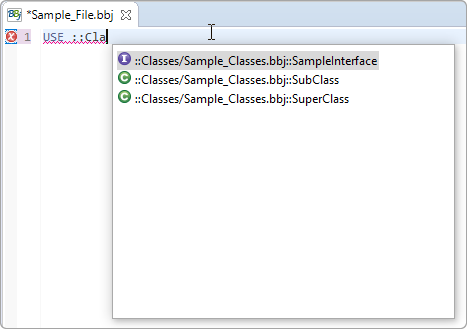
Figure 6: Custom Object USE Statements Code Completion
BDT searches for files in the Working Directory before searching in
the PREFIX. The Working Directory is defined by default as the Project
Home directory in the BDT Studio, unless otherwise specified by the user with
the -WD option for bbj.exe.
If you place source files in a folder within your project, you should
use paths for your file references that are relative to the Working Directory.
Your statement would then be in the following format:
USE
::<folder name>/<file name>::<class name>.
This format will allow BDT’s Code Completion to work as expected. To get code completion on Custom Objects that are not located in the tree below your Project Home directory, you must use the BBj PREFIX. Add a PREFIX location so that the file is found according to the standard BBj PREFIX logic.
DECLARE Statements
Generic DECLARE Statements
BDT will suggest BBj, Java, and custom object types when you activate
Code Completion by typing DECLARE ^,
as in Figure 7:
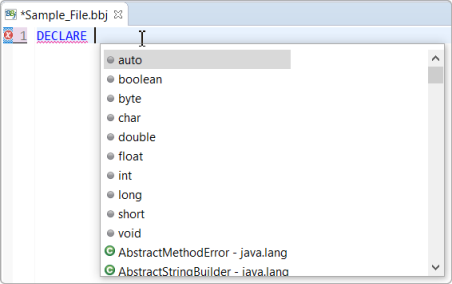
Figure 7: Generic DECLARE Statements Code Completion
Java DECLARE Statements
BDT will suggest Java types or packages when you activate Code Completion
after typing DECLARE followed by an alphabetic
character.
BBj DECLARE Statements
BDT will suggest BBj language packages and custom object types when
you activate Code Completion after typing DECLARE
:: followed by any number of characters.
Custom Object DECLARE Statements
BDT will suggest Custom Object types from user-created files when you
activate Code Completion after typing DECLARE
::<myfile.bbj>:: followed by any number of characters, where
<myfile.bbj> is a file in which
Custom Objects are defined. The file must be located somewhere that BDT can find, either as a relative path from the Project Home folder, or relative
to a PREFIX entry.
If the Custom Object has already been included with a USE statement,
the full file path is not necessary, and completions for the object will
be offered after typing DECLARE followed
by a space and any number of characters matching the name of the object.
Custom Class and Interface Names
Outside of DECLARE and USE statements, Code Completion for Custom Class
and Interface names is available in some other specific contexts. Activating
Code Completion after the keywords extends
or implements will yield suggestions
of Custom Class or Interface names, respectively, as shown in Figure
8:
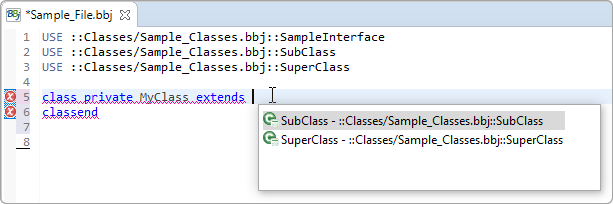
Figure 8: Code Completion after the extends keyword
Activating Code Completion in other general contexts, such as on empty lines, will also yield suggestions of custom class and interface names, along with Java class names and custom variable names. This behavior can be seen in Figure 13, in the Variables section.
Keyword Statements
Activating Code Completion after the keywords class,
method, interface,
or field yields suggestions for the next
keyword, either public or private,
as shown in Figure 9:
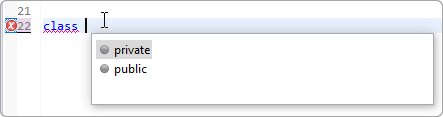
Figure 9: Keyword Statement Code Completion
Activating Code Completion after defining a class name yields suggestions
for the keywords extends or implements.
Activating Code Completion on an empty line within a class or interface
yields suggestions for the keywords field
or method.
Note that BDT Code Completion considers context beyond just the current
line. For example, if the current line is not within a class, pressing
Ctrl+SPACE after the word method
or field does not activate Code Completion
and instead displays the following error (on the bottom left of the window
shown in Figure 10):
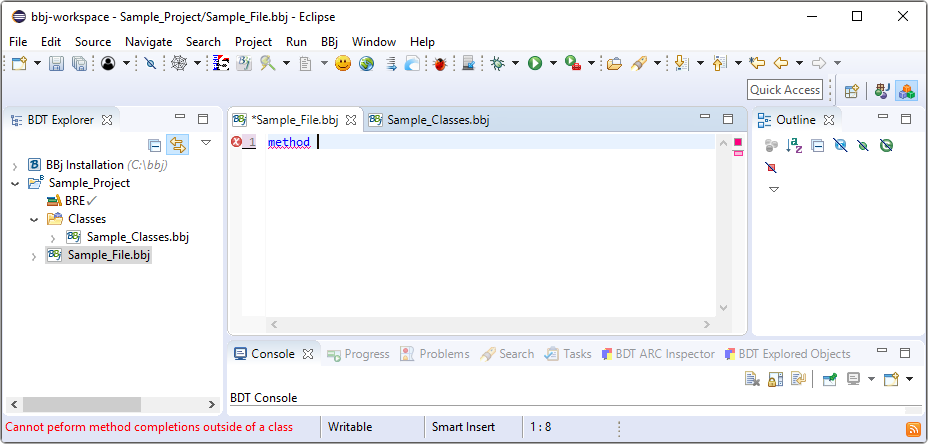
Figure 10: “Cannot perform method completions outside of a class”
If you perform the same action within a class, however, BDT will suggest appropriate keywords, as seen in Figure 11:
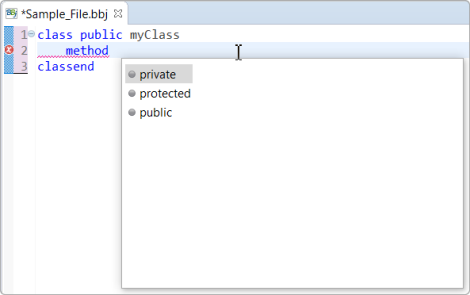
Figure 11: Activating method completions within a class
Variables
BDT Code Completion can suggest user-defined variable names in appropriate
locations, but only if they have been declared with a DECLARE statement.
By default, most contexts allow the completion of variable names, as long
as they are not other, more specific contexts. Variable names will be
suggested on empty lines (as in Figure
12), after arithmetic operators, in the parameter lists of methods,
after keywords such as if, for,
and while, and in many other contexts.
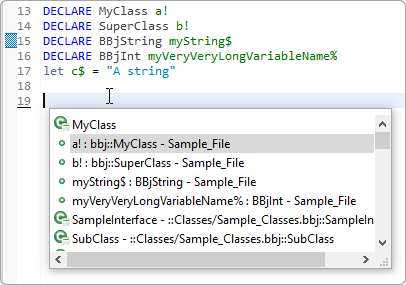
Figure 12: Activating Variable Code Completion on an empty line
Notice in Figure 12 that all
variables which have been declared are available with Code Completion,
but the variable c$, which was not declared,
is unavailable.
In addition to the regular methods of inserting selections from the
pop-up menu, variables can also be inserted by selecting them with the
arrow keys (not the mouse) and typing “.”,
but the period will not be appended
to the selection, and the popup menu will not be dismissed.
They can also be selected in the same way by typing “;”
or “#”, and the semicolon or pound sign
will be appended after the variable name and the menu will be dismissed.
These additional techniques also apply to Object Fields, explored in further detail below.
Object Methods and Fields
Code Completion is available for Java Object Methods and Fields, BBj Object Methods, and BBj Custom Object Methods, and the context is very similar for each.
For both Java and BBj Custom Object Methods, BDT can only offer Object
Method Code Completion for variables with a declared type defined by a
DECLARE statement. If a variable has been declared properly, Object Method
Code Completion will be available after typing the variable name followed
by a period: <variable-name>.^.
Only methods with an appropriate access level for the given context will
be available - public methods will always be available, private methods
are only available when writing code within their class, and protected
methods are available within their class and any subclasses.
Static methods are available for both variables and classes. When they are accessed via the class name, no declare statements are necessary.
Methods with Parameters
When a method with parameters is selected from the popup menu, the editing mode will change, as shown in Figure 13. The first parameter is highlighted so that you can type its name to replace it, and by pressing Tab, you can navigate through the subsequent parameters. This editing style is the same as that of Code Templates. Because the variable names used in the method definition are visible when you invoke a method with Code Completion, it can be particularly useful to give custom method parameters descriptive names.

Figure 13: Inputting parameters after selecting a method
The parameter names for auto-generated “set” methods for fields are simply the field names, as shown in Figure 14:

Figure 14: Inputting parameters for an auto-generated “set” method
Methods with parameters can be inserted by selecting them with the arrow
keys and typing ‘(’. Note that because
typing the ‘(’ character makes a selection
and inserts the method, dismissing the popup menu, you will not be able
to choose between methods with the same name after typing the ‘(’
character, so you should make your selection before that point.
Methods without Parameters
In addition to the regular methods of inserting selections from the
popup menu, object methods with no parameters
can be inserted by selecting them with the arrow keys (not the mouse)
and typing one of the characters ‘.’,
‘,’, ‘;’,
or ‘[’. The character will be appended
after the insertion. This does not work for methods which have parameters.
Figures 15 and 16 show an example of a method without parameters:
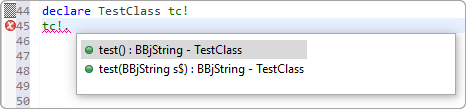
Figure 15: Choosing a method without parameters
Highlighting with the arrow keys and typing ‘.’
results in the following:
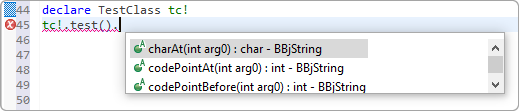
Figure 16: Selecting the method without parameters by typing ‘.’
Figures 17 and 18 show an example of doing the same for a method with a parameter:
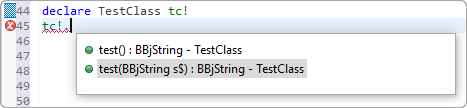
Figure 17: Choosing a method with parameters
A period is inserted and the method is not selected:
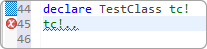
Figure 18: Failing to select the method with parameters by typing
‘.’
Java Object Fields
When Code Completion is activated for a Java Object, the suggestions will include any public constants or fields in addition to public methods.
Java Object Code Completion requires the Java library to be included in a USE statement, and the variable to be declared in a DECLARE statement, with the exception of static fields or methods, which do not require that a variable be declared.
In the Figure 19, activating
Code Completion after the class name, Color,
results in suggestions of public static fields and methods.
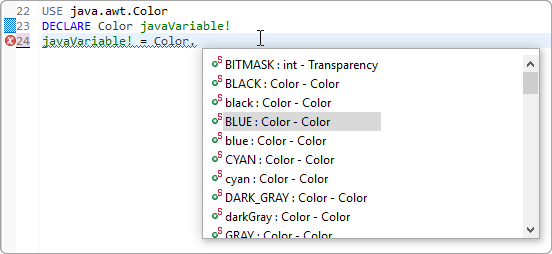
Figure 19: Activating public static method Code Completions on a class name
In addition to the regular ways of inserting selections from the pop-up
menu, Object Fields can also be inserted by selecting them with the arrow
keys (not the mouse), and typing “.”,
but the period will not be appended to the selection, and the popup menu
will not be dismissed.
They can also be selected in the same way by typing “;”
or “#”, and the semicolon or pound sign
will be appended after the variable name and the menu will be dismissed.
These additional techniques also apply to Variables.
Java Object Methods
Java Object Code Completion requires that the Java library be included in a USE statement, and that the variable be declared in a DECLARE statement, with the exception of static fields or methods, which do not require that a variable be declared.
In Figure 20, activating Code Completion after the declared variable name followed by a period and the beginning characters of the desired method yields suggestions of public and static methods:
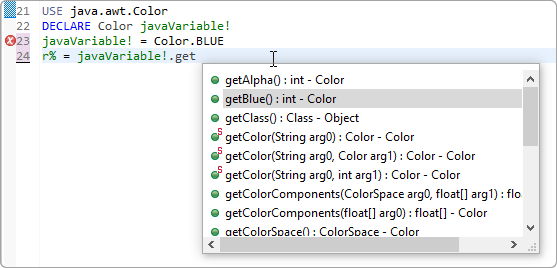
Figure 20: Activating Java Object Method Code Completion on a declared variable
BBj Object Methods
Methods for BBj Objects can be invoked in the same way as Java Object Methods. Typing a period after a variable with a declared type will yield suggestions of available methods for that variable. Suggestions will be shown for objects such as BBjColor or BBjButton, but not for BBjInt or BBjNumber. Suggestions will be shown for BBjStrings (as shown in Figure 21), but they will lead to syntax errors, as a BBjString must be copied to an object variable to have access to its methods.
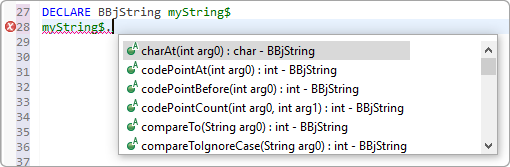
Figure 21: Activating syntactically incorrect Code Completion on a BBjString variable
BBj Custom Object Methods
BBj Custom Object Methods can be invoked in the same way as Java Object Methods. For non-static methods, the variable must be declared with a DECLARE statement, and for static methods the class name or a declared variable name may be used. Typing the variable or class name followed by a period and invoking Code Completion will produce suggestions of available methods for that variable type or class. Figures 22 and 23 demonstrate activating BBj Custom Object Method Code Completion on a class name and a declared variable, respectively.
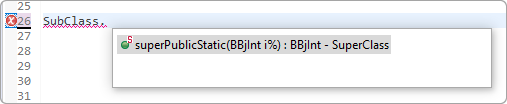
Figure 22: Activating public static method Code Completion on a custom class
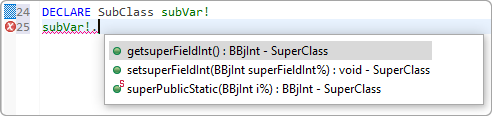
Figure 23: Activating public method Code Completion on a custom object variable
Notice, in the example above, that only three methods are available
on the SubClass variable subVar!,
and only one of these methods is defined in the example - the public static
method. The first two methods, getsuperFieldInt()
and setsuperFieldInt(BBjInt superFieldInt%)
are automatically generated methods to get and set the superFieldInt
field. These methods are automatically generated for all fields, and share
the same access level as their fields. Custom Object Fields do not appear
as suggestions for Code Completion outside of a class.
The third method listed is defined in SuperClass,
and is inherited by SubClass because
SubClass extends SuperClass.
The other public methods in SubClass
and SuperClass are constructors, and
therefore do not qualify for Code Completion in this context.
BBj Custom Class Methods and Fields
Code Completion within a custom class has slightly different syntax
and behavior. After typing the ‘#’ character
within a class method and invoking Code Completion, all available methods
and fields will be suggested. This includes private fields and methods
from the class, protected fields and methods from the class and any superclasses,
public fields and methods from the class and any superclasses, and the
special variables #this! and #super!.
Note that using #super!() to access a
superclass’ constructor is valid syntax within a subclass constructor.
Requesting Code Completion for #super!.
(notice the ‘dot’ there) is also supported.
In Figure 24, note that the
symbols next to each suggestion provide visual cues about the methods
and fields available. Larger solid shapes are methods, and smaller hollow
shapes are fields. Red squares are private, yellow diamonds are protected,
green circles are public, and the blue triangle indicates a variable such
as “this!”. Static methods have a small
red ‘S’ in the upper right.
Also note that although MyClass implements
SampleInterface, the methods defined
in SampleInterface are not available
for Code Completion until they are defined in a class.
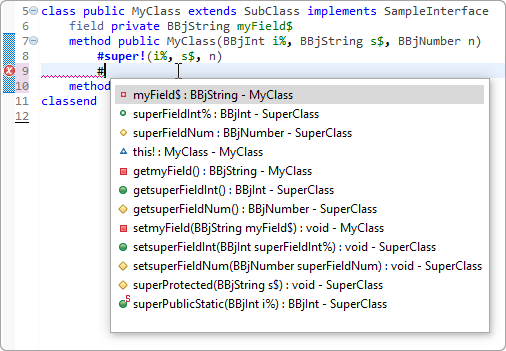
Figure 24: Custom Class Methods and Fields Code Completion within a custom class method
One useful feature that is unique to Custom Class Method Code Completion
is the possibility of searching for methods that contain the characters
you have typed but do not necessarily start with them. This is possible
if Code Completion is invoked immediately after the ‘#’
character, and it is only possible for methods. In Figure
25, after the pop-up menu has been activated, typing “yf”
shows the results getMyField and setMyField.
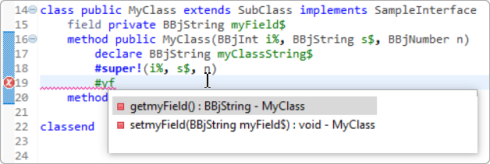
Figure 25: Custom Class Method “contains” search
In addition to the standard ways to insert Code Completion, BBj Object
Fields can be inserted from the popup menu by selecting them with the
arrow keys (not the mouse), and typing “.”,
but the period will not be appended to the selection, and the popup menu
will not be dismissed.
They can also be selected in the same way by typing “;”
or “#”, and the semicolon or pound sign
will be appended after the variable name.
This feature also applies to Variables.
Comment Completion
BDT provides convenient automatic formatting for block comments. Simply
type /** or REM
/** and press Enter, and BDT will create a block of REM statements
with a Javadoc-formatted comment after them, as shown in Figure
26. Typing Enter after any line except the last one will insert
another REM line, formatted the same as the middle line.
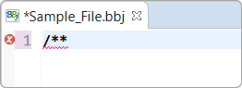
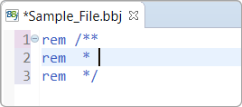
Figure 26: Block Comment Completion
In addition to Block Comment Completion, BDT also offers a convenient shortcut to toggle the comment status of one or more lines.
Single Line: If you press Ctrl+/ while the cursor is anywhere in a line of code, BDT will either insert or remove a REM statement at the beginning of that line (depending on whether or not that line already starts with a REM statement), as in Figure 27.
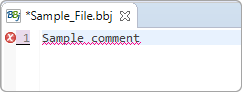
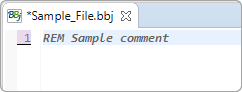
Figure 27: Using the Toggle Comment feature
Multiple Lines: If you press Ctrl+/ while more than one line of code is highlighted, BDT will either insert or remove REM statements at the beginning of each line (depending on whether or not all of the lines already start with a REM statement), as in Figure 28.
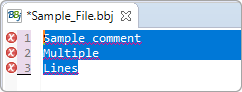
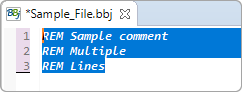
Figure 28: Using the Toggle Comment feature on multiple lines
Note:
If any highlighted line does not contain a comment, including any empty lines, BDT will add REM statements for all of the lines, even ones that are already commented, as shown in Figure 29.
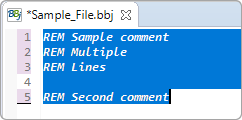
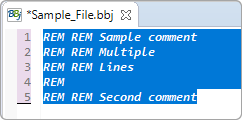
Figure 29: Attempting to use Toggle Comment on multiple lines with a blank line included
To remove REM statements from multiple comments separated by one or more lines that are not commented (either empty or not), instead of using Ctrl+/ to toggle comments (and adding unwanted additional REM statements), right-click the highlighted section and select Source → Uncomment, or select Source → Uncomment from BDT Studio’s main menu. Similarly, you can select Source → Comment to add REM statements to all lines selected regardless of their content.
Note:
Although the Toggle Comment feature will recognize REM verbs in any case (upper, lower, or mixed), the Uncomment command is case-sensitive and will only remove all-uppercase REM verbs.
Figure 30 demonstrates that highlighting all the text and selecting Source → Uncomment results in the first line being uncommented, but the rest of the file remains the same, even the final lowercase comment.
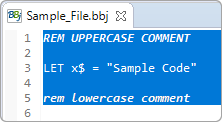
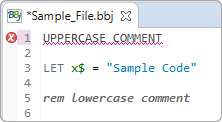
Figure 30: Case Sensitivity of Source → Uncomment
Code Assistance Templates
BDT also offers the convenient and powerful Code Assistance Templates,
which can be activated in the same way as Code Completion, by pressing
Ctrl+SPACE. However, the behavior of these templates is slightly different.
Instead of simply filling in one line, Code Assistance Templates can produce
multiple lines of correctly formatted code, with certain fields highlighted
for you to edit. For instance, typing forst^
yields the following suggestion of a FOR..STEP..NEXT loop, as shown in
Figure 31:
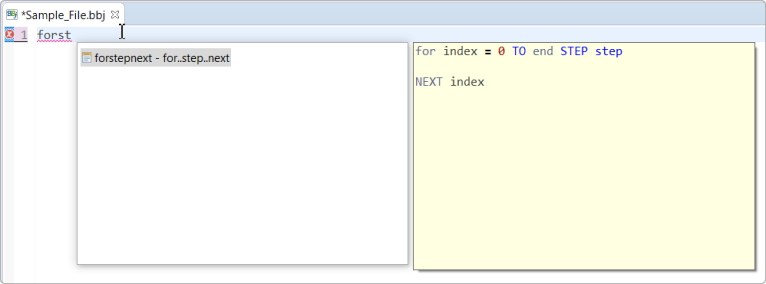
Figure 31: Activating Code Assistance Templates
By pressing Enter or double-clicking the suggestion, the template for the code will be inserted into the document, as in Figure 32:
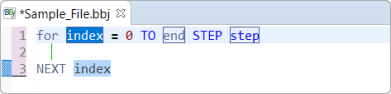
Figure 32: Using a Code Assistance Template
The first field to be edited, index,
is already highlighted, so you can simply type in the variable you want
to use and the text will be replaced. The corresponding index
field on line 3 will automatically match whatever you type in the first
field. By pressing Tab, you can move through the other fields end and step,
and finally to the empty line within the loop, which is indented.
There are many available templates for this type of code completion, and, if you wish, you can also create your own.
Creating Your Own Templates
To create your own templates or to view or edit existing templates, open the Preferences window under Window → Preferences in Windows or Eclipse → Preferences… in macOS.
In the Preferences window, go to BDT → Editor → Code Templates, as shown in Figure 33.
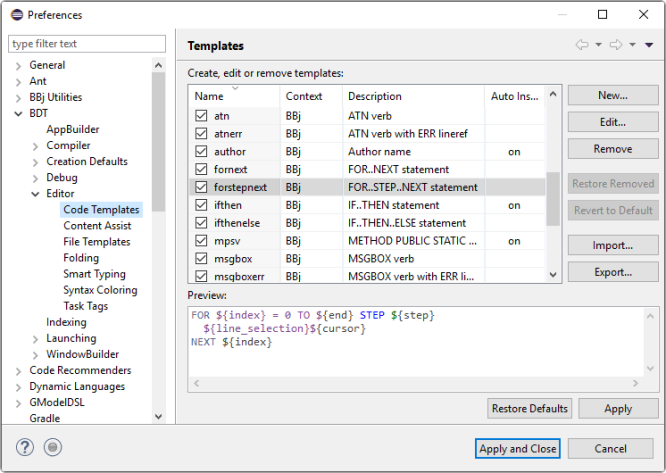
Figure 33: Code Templates Preferences
Here you can find all the predefined templates offered by BDT, which can be edited or removed if you wish. By selecting New… you can create your own custom templates.
You can see the syntax for creating templates by looking at existing
template examples. The name of the template is what you type to activate
it. Names are not case-sensitive, so you may use any case you like for
naming or activating them. You may use the same name for multiple templates,
and select them from the pop-up menu based on the preview panel. Names
may contain any alphanumeric and special characters including spaces,
although they may only begin with an alphanumeric character or one of
the following special characters: !,
#, $,
%, or _.
Beginning a template name with any other special character will prevent
BDT from recognizing it. Variables are indicated by wrapping a word in
curly brackets preceded by a dollar sign, like so: ${variable}. If multiple
variables share a name, the first one will be editable and the others
will match its value. Some variables behave in special predefined ways,
such as ${user}, which automatically inserts the user’s username rather
than being an editable field. These variables can be seen from the Edit
window under the Insert Variable...
button or by right-clicking and selecting Insert
Variable....
Code Templates can be as complicated and specific or as general and simple as you like, so taking advantage of this feature for frequently-used code can greatly improve your efficiency and productivity.
If you edit any of the predefined templates, you can undo any changes you have made by selecting the template and then clicking Revert to Default. Clicking Restore Defaults will remove any templates you have created and revert any changes you have made to existing templates. If you click this by mistake, simply click Cancel instead of either Apply or Apply and Close, and your changes will be restored. You can also check or uncheck the checkboxes to deactivate any template, and it will no longer be suggested by Code Assistance.
Predefined Templates
The list of predefined templates is reproduced below:
| Name | Description |
|---|---|
|
abs |
Absolute Value |
|
abserr |
Absolute Value with ERR lineref |
|
addr |
ADDR load public program into memory as resident program |
|
addrerr |
ADDR with ERR lineref |
|
adjn |
Adjust Numeric |
|
adjnerr |
Adjust Numeric with ERR lineref |
|
asc |
Convert Character to ASCII Numeric |
|
ascerr |
Convert Character to ASCII Numeric with ERR lineref |
|
ath |
Convert ASCII to Hexadecimal |
|
atherr |
Convert ASCII to Hexadecimal with ERR lineref |
|
atn |
Arctangent |
|
atnerr |
Arctangent with ERR lineref |
|
author |
Author name |
|
fornext |
FOR..NEXT statement |
|
forstepnext |
FOR..STEP..NEXT statement |
|
ifthen |
IF..THEN statement |
|
ifthenelese |
IF..THEN..ELSE statement |
|
mpsv |
METHOD PUBLIC STATIC VOID |
|
msgbox |
MSGBOX verb |
|
msgboxerr |
MSGBOX verb with ERR lineref |
|
new |
Create new object |
|
repeatuntil |
REPEAT..UNTIL statement |
|
setdrive |
SETDRIVE verb |
|
setdriveerr |
SETDRIVE verb with ERR lineref |
|
switch |
SWITCH..CASE statement |
|
while |
WHILE loop with condition |