Shop Floor Control - Time Sheet Entry
Function
This task allows the entry
of labor hours that have been accumulated against an open
work order The status of a work order that allows transactions. An open work order is one where manufacturing is still in process. See also Closed, Planned, and Quoted Work Orders. and entry of the number of production items
completed at that operation A process in the production of an item, component, or finished good..
Depending on the selections made in the Shop Floor Control parameters,
labor hours may be entered from daily time sheets, weekly
time sheets, or work order travelers. Entries
may also be made using numbers of hours worked or using start/stop times.
The status of a work order that allows transactions. An open work order is one where manufacturing is still in process. See also Closed, Planned, and Quoted Work Orders. and entry of the number of production items
completed at that operation A process in the production of an item, component, or finished good..
Depending on the selections made in the Shop Floor Control parameters,
labor hours may be entered from daily time sheets, weekly
time sheets, or work order travelers. Entries
may also be made using numbers of hours worked or using start/stop times.
NOTE:
The
first two fields that appear on this screen will differ according to the
setting of theTime
Sheet Entry Sequence parameter established
in the Application Parameters task under the Payroll tab. If the parameter is set
to D-Date, the Date field will appear before the Employee field for use
with daily time sheets. If the parameter is set to E-Employee, the Employee
field will appear before the Date field for use with weekly time sheets.
If the parameter is set to W-Work Order, the Work Order field will appear
before the Date field for entries from a traveler A document that travels with a job throughout the shop floor. Typically, a the traveler reflects all processes and comments about how to manufacture the job, materials, and subcontracts.
.
To access this task...
Select Time Sheet Entry from the Transaction Processing menu.
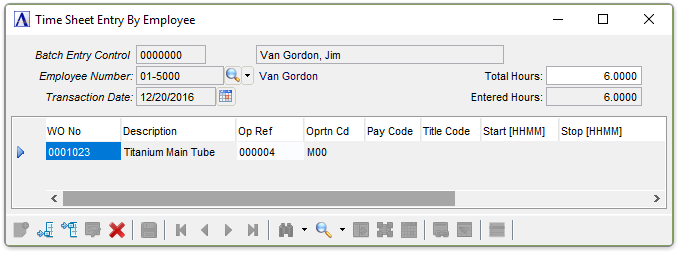
Time Sheet Entry
About the Fields
In the Employee Number field...
-
Enter a valid employee number.
-
Click
 to
select from a list of all valid employees.
to
select from a list of all valid employees.
In the Transaction Date field...
-
Enter a date for the time sheet entry.
-
Press Tab or Enter to accept the current date.
-
Click
 to use the tool to select the date.
In the Total Hours field...
-
Enter the total amount of time to be recorded in this entry.
In the WO No field...
-
Enter an open work order number.
-
Click
to select from a list of
all open work orders.
In the Op Ref field...
In the Op Ref field, enter the number associated with the operation performed, or use Ctrl + F to look up available operations for the work order.
-
Enter a Work Order Operation number.
-
Press Tab or Enter to select from a list of all valid Work Order Operation Ref numbers.
In the Oprtn Cd field...
Display only. Shows the Operation Code associated with the selected Op Ref.
In the Pay Cd field...
This field is only active if the Payroll Interface Enabled? parameter is checked in Application Parameters.
-
Enter a valid pay code for this employee.
-
Click
to
select from a list of all valid pay codes.
In the Title Cd field...
This field is only active if the Payroll Interface Enabled? parameter is checked in Application Parameters.
-
Enter a valid title code.
-
Click
to
select from a list of all valid title codes.
In the Start [HHMM] field...
This field is only active if the Time Clock Entry parameter is checked.
-
Enter the start time for this operation using a 24-hour clock.
For example, if your employee started this operation at 7:30 A.M., enter it as 0730. If the employee started this operation at 7:30 P.M., enter it as 1930.
In the Stop [HHMM] field...
This field is only active if the Time Clock Entry parameter is checked.
-
Enter the stop time for this operation using a 24-hour clock.
For example, if your employee stopped this operation at 3:30 P.M., enter it as 1530.
NOTE:
If Stop Time is less than Start Time the system adds 1200.
In the Setup Time field...
-
Enter the number of hours spent setting up the operation.
In the Hrs field...
-
Enter the number of hours spent working on this operation.
In the Qty Completed field...
-
Enter the number of production items completed at this operation.
When finished making entries to the fields...
-
Click
 to save the records.
If the Total Hours field and Entered Hours fields do not match, the system displays the prompt:
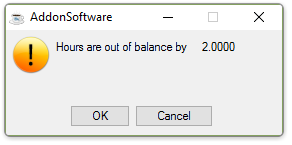
Hours are out of balance
-
Select Cancel to access the Time Sheet By Employee form for editing.
-
Select OK to force the total hour to balance the entered hours.