Shop Floor Control - Production Exception Report
Function
Use this report to determine what production is causing work orders to become overdue. Determine delays due to labor, to purchase orders, or to both. The estimated starting date, actual start, and estimated completion dates are shown, along with the date required.
To access this task...
Select Production Exception Report from the Reports menu.
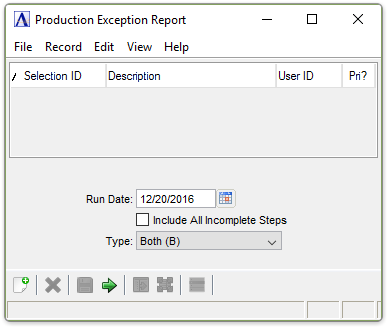
Production Exception Report
About the Fields
In the Run Date field...
-
Enter the date on which the report should base its calculations.
-
Select Tab or Enter to Select the current date.
-
Click
 to use the tool to select the date.
Run
hours are calculated by taking standard hours for the operation A process in the production of an item, component, or finished good. code/sequence and subtracting actual hours worked.
Include All Incomplete Steps checkbox...
-
Mark the box to include overdue steps only.
-
Unmark the box to include all steps.
From the Type dropdown...
-
Both (B) to include both (default setting)
-
Past Due Labor (L) from the dropdown to only include work orders that are past due because of labor.
-
Past Due Pos (P) from the dropdown to only include work orders that are past due because of purchase orders.
When finished making entries to the fields...
-
Click
 to run the report.
 -
Click
 to save the selections.
 -
Click
 to clear all selections.
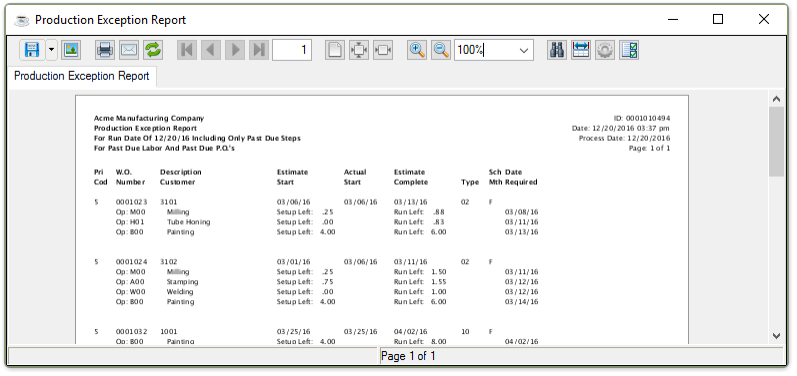
Sample Production Exception Report
See Output Options.