Shop Floor Control - Create Shop Floor Calendar
Function
Use this task to create the
initial shop floor calendars for your operations. The Work Order A document or group of documents that describes a job. A work order can also be a computer file that retains all job information. Entry task uses these
calendars to determine how many hours of a particular operation A process in the production of an item, component, or finished good.
are available The quantity of materials available for use in production or sales. Available is calculated by subtracting Committed from On Hand. for each
day. Changes to these defaults are easily made in the Shop Floor Calendar
Maintenance task.
A document or group of documents that describes a job. A work order can also be a computer file that retains all job information. Entry task uses these
calendars to determine how many hours of a particular operation A process in the production of an item, component, or finished good.
are available The quantity of materials available for use in production or sales. Available is calculated by subtracting Committed from On Hand. for each
day. Changes to these defaults are easily made in the Shop Floor Calendar
Maintenance task.
The information entered here for one operation can be copied to other operations in the Copy Shop Floor Calendar task.
To access this task...
Select Create Shop Floor Calendar from the Inquiry and Maintenance menu.
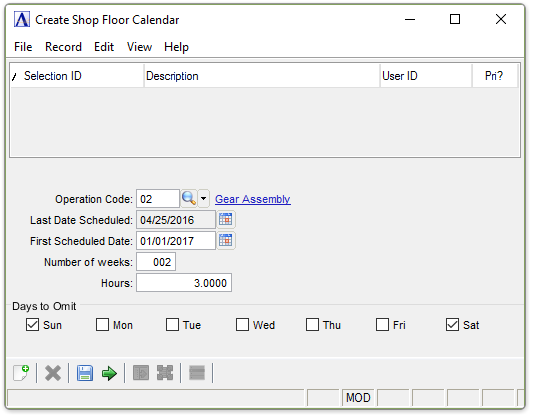
Create Shop Floor Calendar
About the Fields
In the Operation Code field...
-
Enter the operation code to schedule.
-
Click
 to select from a list of existing
operation codes.
to select from a list of existing
operation codes.
When an existing operation code is entered, the last date scheduled field is filled.
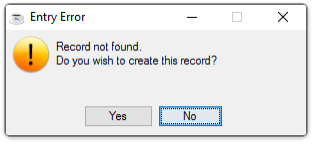
If an operation code that the system does not recognize is entered, the following prompt is issued:
-
Select Yes to create a new operation code.
-
Select No to return to the Operation Code field.
Selecting Yes launches the Operation Codes window to create a new code record.
In the Last Day Scheduled field...
Display only. Shows the last date of the currently selected operation code’s scheduled calendar. If there is an overlap of dates, the calendar being created will override any existing calendar.
In the First Scheduled Date field...
-
Enter the first day to be scheduled for this calendar.
-
Press Tab or Enter to use the default of today’s date.
-
Click
 to use the tool to select the
date.
to use the tool to select the
date.
In the Number of weeks field...
-
Enter the number of weeks for which this operation will be scheduled.
In the Hours field...
-
Enter the number of hours needed to complete
A finished job. By contrast, work order can be partially closed. That is, a portion of the production is closed, but some still remains to be processed.
the operation.
In the Days To Omit field...
-
Mark the checkboxes by the days of the week that will be omitted from the calendar:
-
Sun
-
Mon
-
Tue
-
Wed
-
Thu
-
Fri
-
Sat
-
When finished making entries to the fields...
-
Click
 to update the calendar.
 -
Click
 to save the entries.
 -
Click
 to clear entries.