Payroll - W-2 Box Definition
Function
The W-2 Configuration task is used to set up the W-2 print format and define the W-2 calculations required for each field. This task makes it possible to accommodate virtually any requirements for the IRS (SSA) standard W-2 form. Complete the information for each box on the W-2 form as instructed below. The Display additional options... button provides access for creating a Code Listing report.
To access this task...
Select W-2 Processing from the Periodic Processing menu, then select W2 Box Definition.
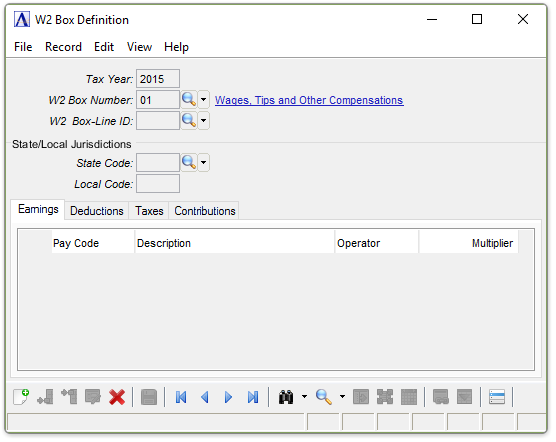
W2 Box Definition
About the Fields
To Enable Edits to the form select  .
.
In the Tax Year field...
-
Enter the Calendar Tax Year that this Code Definition Applies to.
-
Click
 to select from a list of all valid codes.
 -
Click the record navigating buttons;
 to view the first record,
  to view the previous record,
  to view the next record, and
  to view the last record.
In the W2 Box Number field...
-
Enter the number or letter of the box on the W-2 form. A description of the pay code appears in the next column
-
Click
 to select from a list of valid codes.
In the W2 Box-Line ID field...
-
Enter the number or letter of the box line on the W-2 form. A description of the pay code appears in the next column
-
Leave blank if the box does not contain sub-boxes or sub-lines.
-
Click
to select from a list of valid codes.
In the State Code field...
-
Enter a state code if applicable. A description of the pay code appears in the next column
-
Click
to select from a list of valid codes.
In the Local Code field...
-
Enter a local code if applicable.
Note:
Refer to Appendix H regarding multiple state tax withholding. Review sample configuration for boxes 16 and 17. Boxes a through f and 15, 16, 19 are informational only. The calculation information described below is not required for these boxes.
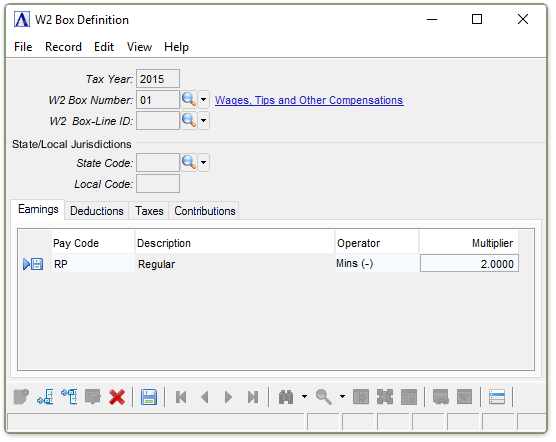
W2 Box Definition - Earnings tab
In the Pay Code column...
Earnings Code, may be displayed as Pay Code on some modules.
-
Enter a valid pay code. A description of the pay code appears in the next column.
-
Click
to select from a list of valid codes.
From the Operator dropdown...
-
Select the Plus Sign (+) if the amount in the Employee's Pay Code (Earnings History) Year to Date Dollars is to be added to the amount being calculated.
-
Select the Minus Sign (-) if the amount in the Employee's Pay Code (Earnings History) Year to Date Dollars is to be subtracted from the amount being calculated.
-
Select the None if the amount is to be ignored.
In the Multiplier field...
-
Enter a factor by which the amount in the designated code (and column) is to be multiplied for use in the calculation.
-
Enter 1 if no factor is to be used.
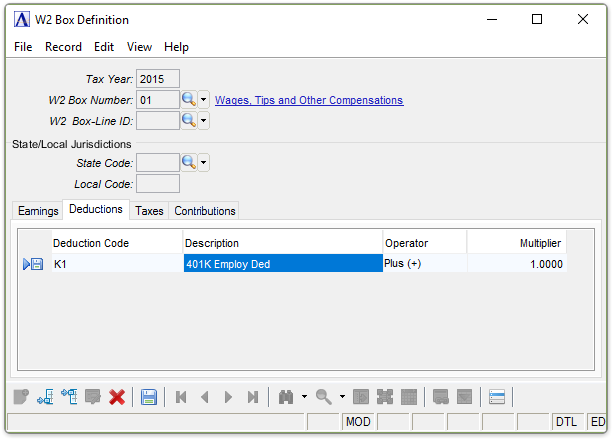
W2 Box Definition - Deductions tab
In the Deduction Code field...
-
Enter a valid deduction code. A description of the deduction code appears in the next column.
-
Click
to select from a list of valid codes.
From the Operator dropdown...
-
Select the Plus Sign (+) if the amount in the Employee's Deduction History Year to Date Dollars is to be added to the amount being calculated.
-
Select the Minus Sign (-) if the amount in the Employee's Deduction History Year to Date Dollars is to be subtracted from the amount being calculated.
-
Select the None if the amount is to be ignored.
In the Multiplier field...
-
Enter a factor by which the amount in the designated code (and column) is to be multiplied for use in the calculation.
-
Enter 1 if no factor is to be used.
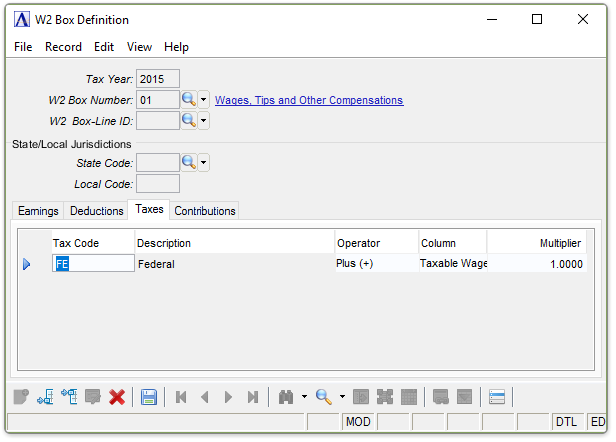
W2 Box Definition - Taxes tab
In the Tax Code column...
-
Enter a valid tax code. A description of the tax code appears in the next column.
-
Click
to select from a list of valid codes.
From the Operator dropdown...
-
Select the Plus Sign (+) if the amount in the Employee's Tax History - Year to Date Column is to be added to the amount being calculated.
-
Select the Minus Sign (-) if the amount in the Employee's Tax History - Year to Date Column is to be subtracted from the amount being calculated.
-
Select the None if the amount is to be ignored.
From the Column dropdown...
-
Select which Column of the Employee's Tax History is to be used.
-
Select Gross Wages to use the Gross Wages Column for the Calculation.
-
Select Taxable Wages to use the Taxable Wages Column for the Calculation.
-
Select Tax Amount to use the Tax Amount Column for the Calculation.
In the Multiplier field...
-
Enter a factor by which the amount in the designated code (and column) is to be multiplied for use in the calculation.
-
Enter 1 if no factor is to be used.
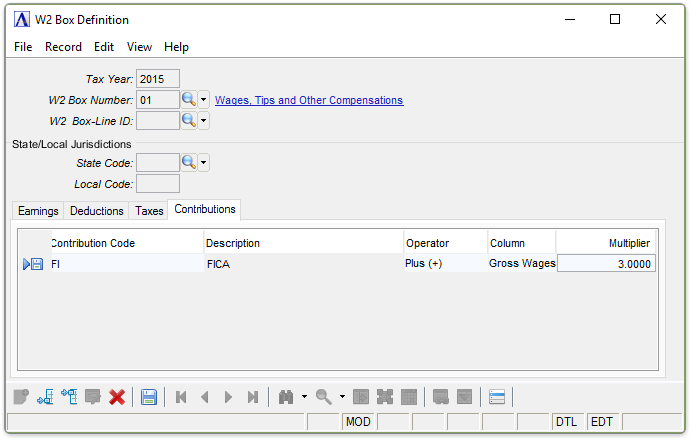
W2 Box Definition - Contributions tab
In the Contribution Code column...
-
Enter a valid Contribution code .A description of the contribution code appears in the next column.
-
Click
to select from a list of valid codes.
From the Operator dropdown...
-
Select the Plus Sign (+) if the amount in the Employee's Contribution History - Year to Date Column is to be added to the amount being calculated.
-
Select the Minus Sign (-) if the amount in the Employee's Contribution History - Year to Date Column is to be subtracted from the amount being calculated.
-
Select the None if the amount is to be ignored.
From the Column dropdown...
-
Select which Column of the Employee's Contribution History is to be used.
-
Select Gross Wages to use the Gross Wages Column for the Calculation.
-
Select Basis to use the Basis Wages Column for the Calculation.
-
Select Contribution Amount to use the Contribution Amount Column for the Calculation.
In the Multiplier field...
-
Enter a factor by which the amount in the designated code (and column) is to be multiplied for use in the calculation.
-
Enter 1 if no factor is to be used.
When finished making selections...
-
Click
 to save the record.
 -
Click
 to clear the form and begin again.
 -
Click
 to delete the record selected.
If the Window is closed without saving the record, the module issues this confirmation prompt:
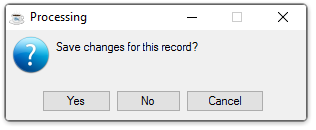
Save changes for this record?
-
Click Yes to save the changes.
-
Click No to return to the Payroll W2 Process Menu without saving the record.
-
Click Cancel to return the W2 Box Definition Code you are Editing.
Selecting
the  button displays the following options:
Then you are presented with the choice to print a listing of all W2 Box Definitions.
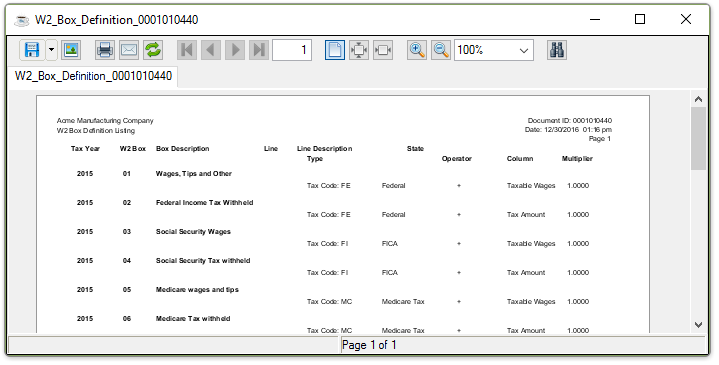
Sample W2 Box Definition Listing
See Output Options