Payroll - Employee Labels
Function
This task is used to print employee names and addresses onto pre-cut label sheets. The label format is adjustable and is specified in the Payroll Application Parameters task. Labels may be printed for all employees, both active and terminated, or for only active employees.
To access this task...
Select Employee Labels from the Reports menu.
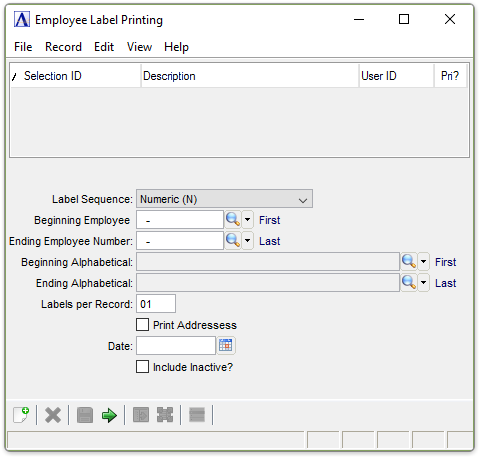
Employee Label Printing
About the Fields
From the Label Sequence dropdown...
-
Select Alternate Sequence (A) to print in alphabetic sequence by Alternate Sort Key.
-
Select Numeric Sequence (N) to print by employee number sequence.
In the Beginning/Ending Employee field...
Enabled when Numeric Sequence is selected.
-
Enter the first/last employee to appear on the listing.
-
Click
 to select from a list of valid codes.
 -
Leave Blank to indicate First/Last.
In the Beginning/Ending Alphabetical field...
Enabled when Alternate Sequence is selected.
-
Enter the first/last employee to appear on the listing.
-
Click
to select from a list of valid codes. -
Leave Blank to indicate First/Last.
In the Labels Per Record field...
-
Enter the number of labels to print for each employee record.
Labels Per Record Example
Selecting 6 labels per record with 50 employees, a total of 300 labels are printed.
Print Addresses checkbox...
This option is useful when preparing time cards and personnel folders for new employees.
-
Mark the box to print full name and address labels.
-
Unmark the box to print employee labels consisting of name, employee number, title, department name, and date.
In the Date field...
-
Enter the date to be printed on the labels if desired.
-
Click
 to select from a Pop Up Calendar.
Include Inactive? checkbox...
-
Mark the box if Inactive or Terminated Employees should be included.
-
Unmark the box to exclude Inactive or Terminated Employees.
When done making selections...
-
Click
 to process the report.
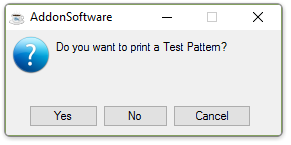
Do you want to print a Test Pattern?
-
Click Yes to print a test pattern.
-
Click No to begin printing without a test pattern.
-
Click Cancel to return to the Payroll Reports Menu.
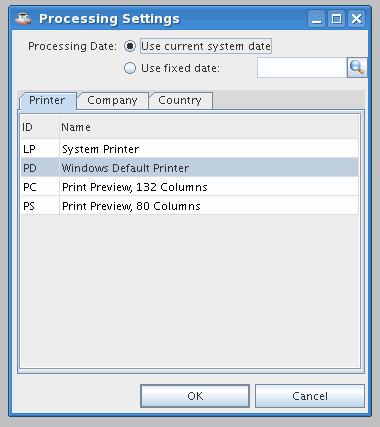
Processing Settings
NOTE:
Prints to the Default Printer selected in the Processing Settings.