Purchase Order Processing - Requisitions By Item
Function
Use this task to create a report showing the items on open purchase requisitions. You may choose to view the open purchase requisitions for all or selected inventory items, for a single warehouse or for all warehouses.
To access this task...
Select Requisitions By Item from the Reports menu.
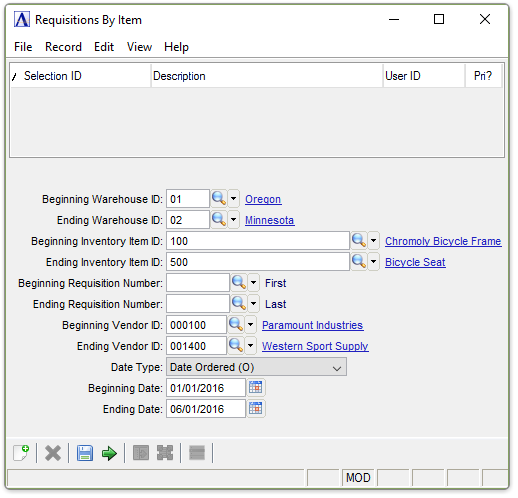
Requisitions By Item Report
About the Fields
In the Beginning/Ending Warehouse ID field...
-
Enter the first/last warehouse number to appear on the report.
-
Press Tab to accept the default first/last warehouse record.
-
Click
 to
select from a list of warehouse IDs.
to
select from a list of warehouse IDs.
In the Beginning/Ending Inventory Item ID field...
-
Enter the number of the first/last item to appear on the report.
-
Press Tab to accept the default first/last item record.
-
Click
to
select from a list of item numbers.
In the Beginning/Ending Requisition Number field...
-
Enter the number of the first/last requisition to appear on the report.
-
Press Tab to select the first/last requisition record.
In the Beginning/Ending Vendor ID field...
-
Enter the number of the first/last vendor to appear on the report.
-
Press Tab to accept the default first/last vendor record.
-
Click
to
select from a list of vendor numbers.
From the Date Type dropdown...
-
Select Date Ordered (O) to view the requisitions within an order date range.
-
Select Date Promised (P) to view within a promised date range.
-
Select Date Required (R) to view within a required date range.
-
Select Don’t Deliver Before (D) to view within a delivery date range.
In the Beginning/Ending Date field...
-
Enter the first/last date to appear on the report.
-
Press Tab to select the first/last date record.
-
Click
 to select a date by using the calendar tool.
When done making selections...
-
Click
 to run the Requisitions by Item Report process.
 -
Click
 to save the record.
-
Click
 to clear the form and begin again.
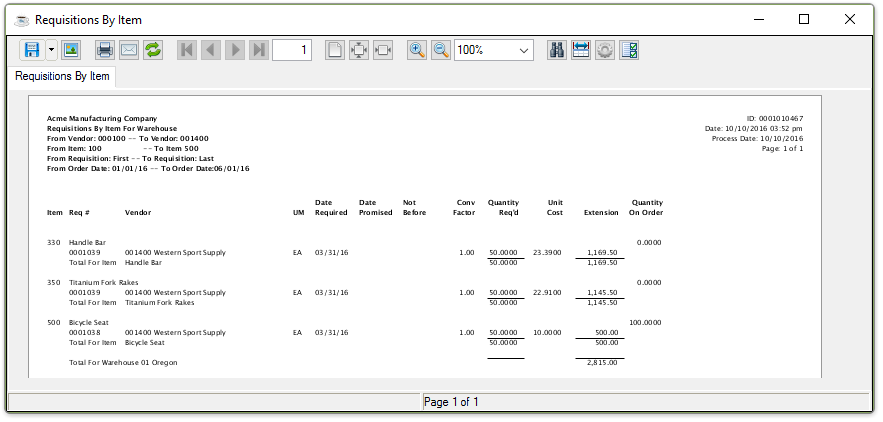
Sample Requisitions by Item Report
See Output Options