Purchase Order Processing - Purchase Requisition Register
Function
Use this task to create a register of requisitions entered since the last update. Requisitions may be made by selecting vendor and date and sort the register in one of three print sequences. When updating the register, any requisitions not on hold are converted to purchase orders.
To access this task...
Select Purchase Requisition Register from the Purchase Order Processing main menu.
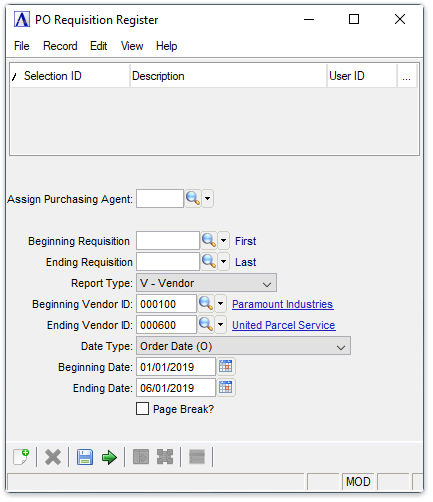
PO Requisition Register
About the Fields
In the Assign Purchasing Agent field...
Optional field. When entered, the Purchasing Agent will be assigned to ALL purchase orders in the register.
-
Enter a valid code for the Purchasing Agent
-
Click
 to select
from a list of agent codes.
to select
from a list of agent codes.
In the Beginning/Ending Requisition Number field...
-
Enter the number of the first/last requisition to appear on the register.
-
Press Tab to select the first/last requisition record.
From the Report Type dropdown...
-
Select R -Requisition to list by requisition number.
-
Select V -Vendor to list by vendor number.
-
Select A -Vendor Alpha to list alphabetically.
In the Beginning/Ending Vendor ID field...
-
Enter the number of the first/last vendor to appear on the register.
-
Click
to select
from a list of vendor codes. -
Press Tab to accept the default first/last vendor record.
From the Date Type dropdown...
-
Select Order Date (O) to view the requisitions within an order date range.
-
Select Required Date (R) to view within a required date range.
-
Select Don’t Deliver Before Date (D) to view within a delivery date range.
-
Select Promised Date (P) to view within a promised date range.
In the Beginning/Ending Date field...
-
Enter the first/last date to appear on the register.
-
Click
 to select a date by using the calendar tool.
 -
Press Tab to select the first/last date record.
Page Break? checkbox...
-
Mark the box to insert page breaks on the register between vendors.
-
Unmark the box to minimize paper usage.
When finished making entries to the fields...
-
Click
 to run the Purchase Requisition process.
 -
Click
 to save the record.
-
Click
 to clear the form and begin again.
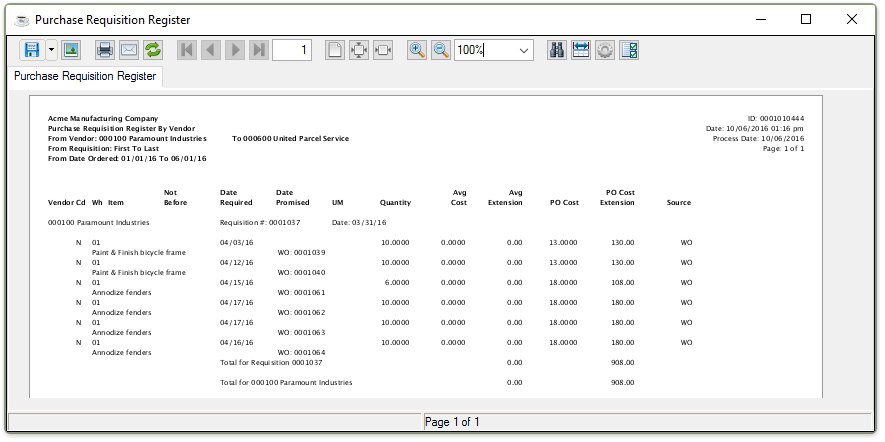
Sample Purchase Requisition Register
See Output Options.
Updating
After closing the print preview window the system requests a register update. Updating the Purchase Requisition file creates purchase orders out of the selected requisitions.
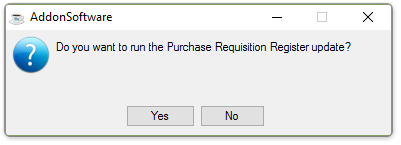
Do you want to run the Purchase Requisition Register update?
-
Click Yes to update the register.
-
Click No to return to the Purchase Order Processing Menu without updating.