Purchase Order Processing - Purchase Requisition Print
Function
This task prints purchase requisitions entered since the last Purchase Requisition Register update and not printed individually from the Purchase Requisition Entry task.
To access this task...
Select Purchase Requisition Print from the Purchase Order Processing main menu.
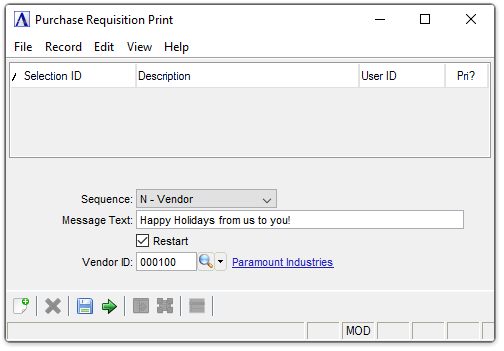
Purchase Requisition Print
About the Fields
Requisitions may be printed in sequence by warehouse or vendor. The Restart and Vendor ID fields are used to create a list from a specific vendor number instead of the entire vendor list.
From the Sequence dropdown...
-
Select R -Requisition to list by requisition number.
-
Select N -Vendor to list by vendor number.
-
Select A -Vendor Alpha to list alphabetically.
-
Select W -Warehouse to list by warehouse.
In the Message Text field...
-
Enter up to 38 characters to include a message at the bottom of each requisition.
Restart checkbox...
Check this field in the case of a printer malfunction, power outrage, or other such situations that cause the report to not run completely.
-
Mark the box to restart with a specific vendor.
-
Unmark the box to begin with the first vendor on file.
In the Vendor ID field...
This field is accessible if the Restart field is checked.
-
Enter the number of the first vendor to restart printing.
-
Click
 to select
from a list of vendor IDs.
to select
from a list of vendor IDs. -
Press Tab to accept the default first vendor ID.
When finished making entries to the fields...
-
Click
 to run the Purchase Requisition process.
 -
Click
 to save the record.
-
Click
 to clear the form and begin again.
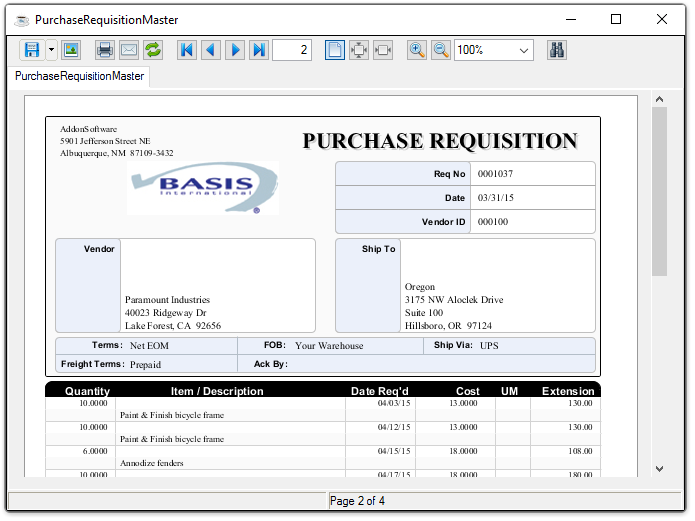
Sample Purchase Requisition Print Preview
See Output Options.
When the printing is complete, the system displays the prompt:
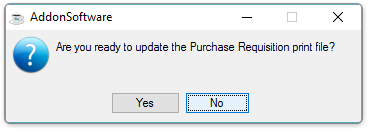
Are you ready to update the Purchase Requisition print file?
-
Enter Yes to update the requisition file.
-
Click No to not update the file.
Updating
Updated requisitions will not be included when next using the Purchase Requisition Print task but can be reprinted when selecting them in the Purchase Requisition Entry task.