Purchase Order Processing - PO Status Report
Function
Use this task to create a report showing information about required dates, quantities ordered, and quantities received and invoiced, balances due, and unit costs. The report can be created for a single warehouse or for all warehouses and sorted by vendor, alternate sequence, or purchase order number.
To access this task...
Select PO Status Report from the Reports menu.
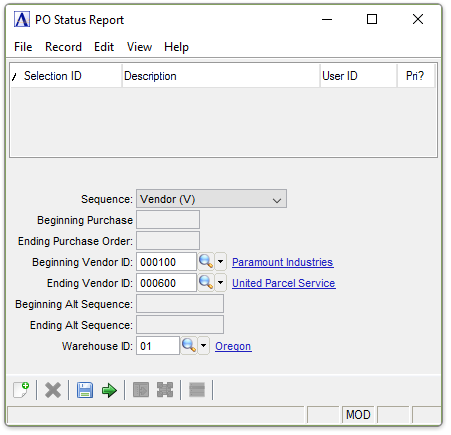
Purchase Order Status Report
About the Fields
A determining factor on whether purchase orders and detail line items display on this report is made by the selection in the Warehouse field. If selecting all warehouses, all purchase orders matching the criteria and their line items display. But if selecting a single warehouse, all purchase order headers from that warehouse are listed, with or without line items; line items are only listed when they come from the selected warehouse.
From the Sequence dropdown...
-
Select Vendor (V) to create the report in vendor sequence.
-
Select Vendor Alpha (A) to create the report alphabetically by vendor.
-
Select Purchase Order (P) to create the report in purchase order sequence.
In the Beginning/Ending Purchase Order field...
This field becomes active when Purchase Order (P) is selected in the Sequence field.
-
Enter the number of the first/last purchase order to appear on the report.
-
Press Tab to select the first/last purchase order record.
In the Beginning/Ending Vendor ID field...
This field becomes active when Vendor (V) is selected in the Sequence field.
-
Enter the number of the first/last vendor to appear on the report.
-
Click
 button
to select from a list of vendor numbers.
button
to select from a list of vendor numbers. -
Press Tab to accept the default first/last vendor record.
In the Beginning/Ending Alt Sequence field...
This field is active when Vendor Alpha (A) is selected in the Sequence field.
-
Enter the letter of the first/last vendor to appear on the report.
-
Press Tab to select the first/last vendor record.
In the Warehouse ID field...
-
Enter a valid warehouse ID.
-
Click
to
select from a list of warehouses. -
Press Tab to accept the default all warehouses.
When done making selections...
-
Click
 to run the PO Status Report process.
 -
Click
 to save the record.
-
Click
 to clear the form and begin again.
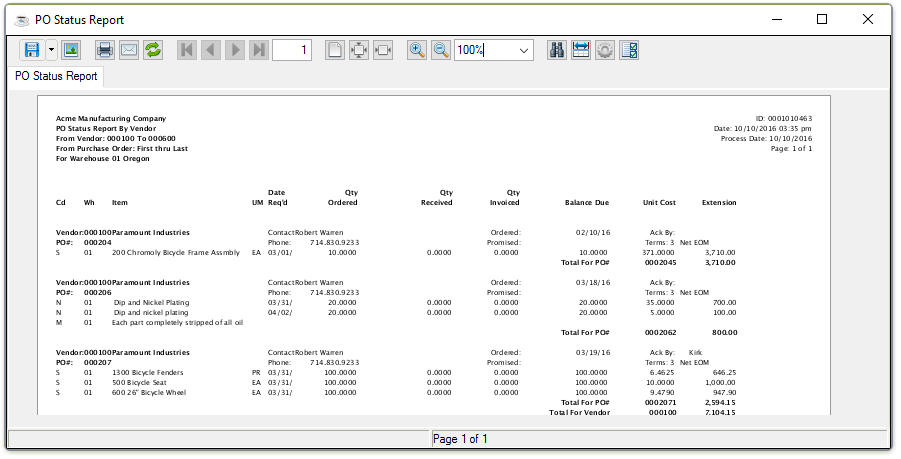
Sample PO Status Report
See Output Options.