Sales Order Processing - Order Fulfillment
Function
This is an optional task that can be used after the Picking List is printed for an order, and before the order is invoiced. Use this task to enter picking, packing and shipping information for the order.
After an order fulfillment is completed ("All Packed" box is checked and all cartons Shipped), the information can either be pulled into Invoice Entry, or pushed into Invoice Entry using the Fulfillment Report.
While an order is in Order Fulfillment it cannot be modified in Order Entry, nor can it be accessed in Invoice Entry until the fulfillment is completed.
To access this task...
Select Order Fulfillment from the Sales Order Processing menu.
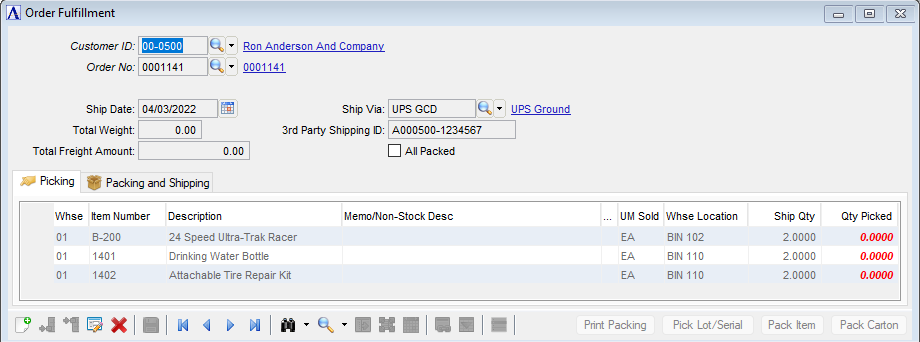
Order Fulfillment
About the Fields
In the Customer ID field...
-
Click
 to select an order already in Order Fulfillment.
 -
Enter a valid customer number.
-
Click
 to select from a list of Customer IDs.
In the Order No field...
-
Click
to select an order already in Order Fulfillment for the entered Customer ID. -
Enter the order number for an open order for the entered Customer ID.
-
Click
to select from a list of open orders for the entered Customer ID.
Is this Order ready to be filled?
If the entered order is not already in Order Fulfillment, the following prompt appears:
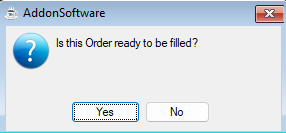
Is this Order ready to be filled?
-
Click Yes if the order is ready to be filled (picked and packed for shipment). This will populate Order Fulfillment with information for the order from Order Entry.
-
Click No if it isn't.
In the Ship Date field...
The Ship Date defaults to the order's Ship Date in Order Entry.
-
Press Tab or Enter to accept the default, or enter a different date if needed.
-
Click
 to select a date by using the calendar tool.
In the Total Weight field...
Display only. Displays the sum of the Weight for all of the Cartons in the Carton Grid on the Packing and Shipping tab.
In the Total Freight Amount field...
Display only. Displays the sum of the Freight Amt for all of the Cartons on the Carton Grid on the Packing and Shipping tab.
In the Ship Via field...
The Ship Via defaults to the order's Ship Via in Order Entry.
-
Press Tab or Enter to accept the default, or enter a different Ship Via if needed.
-
Click
to select from a list of Ship Via codes.
In the 3rd Party Shipping ID field...
-
The 3rd Party Shipping ID defaults to the order's 3rd Party Shipping ID.
-
Press Tab or Enter to accept the default, or enter a different 3rd Party Shipping ID if needed.
All Packed checkbox...
-
Check the All Packed checkbox when all the picking and packing quantities have been entered for the order. This enables the Print Packing button, which allows printing the Packing List.
-
Picking and packing quantities cannot be changed once the All Packed checkbox is checked.
NOTE:
The order cannot be invoiced if the All Packed checkbox is not checked.
Print Packing button...
Use the Print Packing button to print the Packing List for the order. It is enabled only when the All Packed checkbox is checked.
Picking tab: Item Picking Grid
The Item Picking Grid on the Picking tab is used to record the quantity of each item picked for the order being filled. It also allows packing a selected item in cartons using the Pack Item button.
About the Fields
In the Whse field...
Display only. Displays the warehouse ID entered in Order Entry for the detail line.
In the Item Number field...
Display only. Displays the item number entered in Order Entry for the detail line.
In the Description field...
Display only. Displays the description for the item in the detail line.
In the Memo/Non-Stock Desc field...
Display only. Displays the memo of non-stock item description entered in Order Entry for the detail line.
In the UM Sold field...
Display only. Displays the item's selling unit of measure entered in Order Entry for the detail line.
In the Whse Location field...
Display only. Displays the warehouse location for the item in the detail line.
In the Ship Qty field...
Display only. Displays the ship quantity entered in Order Entry for the detail.
In the Qty Picked field...
Enter the quantity picked for the item. The number is displayed in bold red font if it does not match the Ship Qty.
Pick Lot/Serial button: Lot/Serial Picking Grid
When the Qty Picked field gains focus for lotted/serialized items, the Pick Lot/Serial button is enabled, and the Lot/Serial Picking Grid launches automatically unless the All Packed checkbox is checked for the fulfillment.
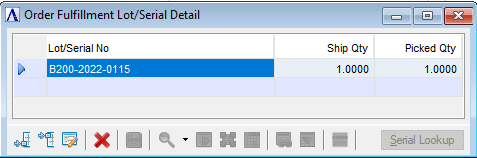
Order Fulfillment Lot/Serial Detail
About the Fields
In the Lot/Serial No field...
-
Enter the lot/serial number for the item picked.
In the Ship Qty field...
Ship Qty defaults to the lesser of either (1) the available quantity for the lot/serial number, or (2) the quantity left to pick for the item.
-
Press Tab or Enter to accept the default, or enter a different quantity being shipped for the lot/serial number.
In the Picked Qty field...
-
Enter the quantity picked for the lot/serial number.
Lot/Serial Lookup button...
The Lot/Serial Lookup button is enabled for inventoried lotted/serialized items. Use it to select from a list of lot/serial numbers for the item.
Pack Item button: Item Packing Grid
When the Qty Picked field gains focus for a pickable item (not Memo or Other line types), the Pack Item button is enabled for that item. It launches the Item Packing Grid that allows packing the selected item in one or more cartons.
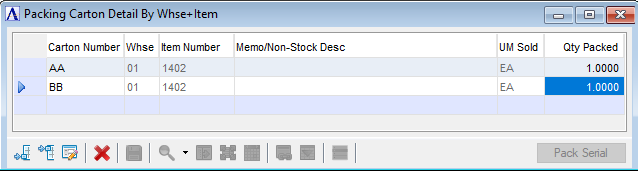
Packing Carton Detail By Whse+Item
About the Fields
In the Carton Number field...
-
Enter the Carton Number where the item is being packed.
In the Whse field...
Display only. Displays the warehouse ID the item is being packed from.
In the Item Number field...
Display only. Displays the item number for the item being packed.
In the Memo/Non-Stock Desc field...
Display only. Displays the non-stock item description for the item being packed.
In the UM Sold field...
Display only. Displays the unit of measure used to pack the item.
In the Qty Packed field...
-
Enter the quantity of the item packed in the carton. The number is displayed in bold red font if the total quantity packed for the item in all cartons is not equal to the quantity picked for the item.
Pack Lot/Serial button: Lot/Serial Packing Grid
When the Qty Packed field gains focus for lotted/serialized items, the Pack Lot/Serial button is enabled, and the Lot/Serial Packing Grid launches automatically unless the All Packed checkbox is checked for the fulfillment.
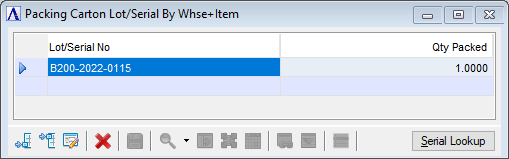
Packing Carton Lot/Serial By Whse+Item
About the Fields
In the Lot/Serial No field...
-
Enter the lot/serial number of the item that was packed in the carton.
In the Qty Packed field...
-
Enter the quantity of the lot/serial number that was packed in the carton for the item.
Lot/Serial Lookup button...
The Lot/Serial Lookup button is enabled for inventoried lotted/serialized items. Use it to select a lot/serial number that was picked for the item, but hasn't been fully packed yet.
Packing and Shipping tab: Carton Grid
The Carton Grid on the Packing and Shipping tab is used to record the cartons that were shipped to fill the order. It also allows packing a selected carton with multiple items using the Pack Carton button.
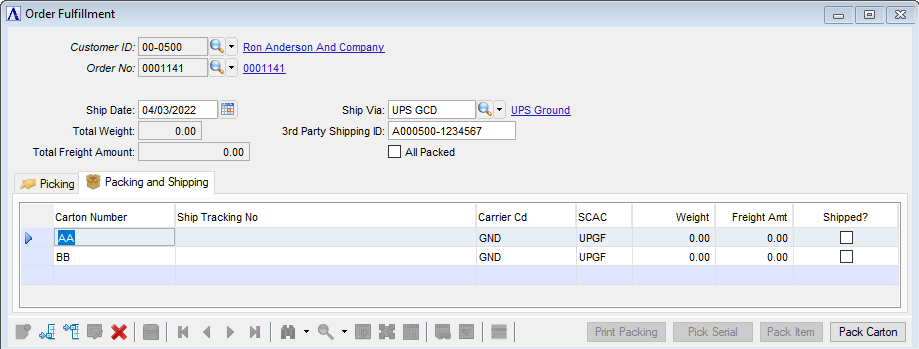
Order Fulfillment: Packing and Shipping tab
About the Fields
In the Carton Number field...
-
Enter an identification number for the carton being packed. Cartons entered on the Item Packing Grid (launched via the Pack Item button on the Picking tab) are also listed.
In the Ship Tracking field...
-
Enter the tracking number the shipment carrier assigned to the carton.
In the Carrier CD field...
The Carrier Cd defaults to the Carrier's Service Code for the Ship Via entered for this fulfillment.
-
Press Tab or Enter to accept the default, or enter a different Carrier Cd if needed.
In the SCAC field...
The SCAC defaults to the SCAC Code for the Ship Via entered for this fulfillment.
-
Press Tab or Enter to accept the default, or enter a different SCAC if needed.
In the Weight field...
-
Enter the weight of the carton as shipped.
In the Freight Amt field...
-
Enter the freight amount charged for shipping the carton.
Shipped? checkbox...
-
Check the Shipped checkbox when a carton has been shipped.
NOTE:
The order cannot be invoiced unless the Shipped checkbox is checked for ALL cartons in the fulfillment.
Pack Carton button: Carton Packing Grid
The Pack Carton button launches the Carton Packing Grid that allows packing the selected carton with multiple items.
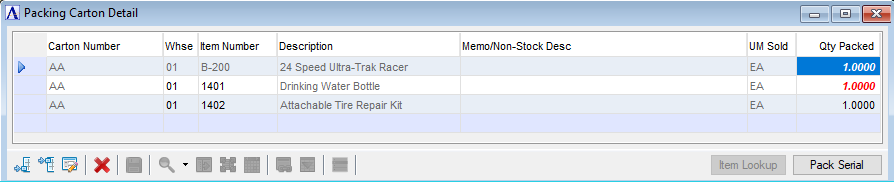
Packing Carton Detail
About the Fields
In the Carton Number field...
Display only. Displays the carton number the Carton Packing Grid was launched for.
In the Whse field...
-
Enter the warehouse ID the item is being packed from for this carton. For the first carton packing detail line, the Whse defaults to a warehouse an item was picked from for this order. For subsequent carton packing detail lines, the Whse defaults to the previously entered Whse for the carton, and focus skips to the Item Number field.
In the Item Number field...
-
Enter the item number for the item being packed in the carton. Leave blank for non-stock items.
In the Description field...
Display only. Displays the description for the entered item.
In the Memo/Non-Stock Desc field...
This field is disabled when an item number has been entered. It is only enabled for non-stock items.
-
Enter the non-stock item description for the item being packed.
In the UM Sold field...
Display only. Displays the unit of measure used to pack the item.
In the Qty Packed field...
-
Enter the quantity of the item packed in the carton. The number is displayed in bold red font if the total quantity packed for the item in all cartons is not equal to the quantity picked for the item.
Item Lookup button...
Use the Item Lookup button to select an item (including non-stock) that was picked for the fulfillment, but hasn't been fully packed yet.
Pack Lot/Serial button: Lot/Serial Packing Grid
When the Qty Packed field gains focus for lotted/serialized items, the Pack Lot/Serial button is enabled, and the Lot/Serial Packing Grid launches automatically unless the All Packed checkbox is checked for the fulfillment.
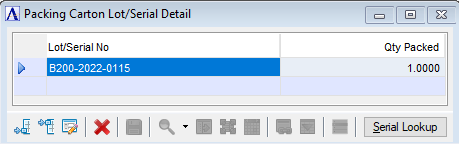
Packing Carton Lot/Serial Detail
In the Lot/Serial No field...
-
Enter the lot/serial number of the item that was packed in the carton.
In the Qty Packed field...
-
Enter the quantity of the lot/serial number that was packed in the carton for the item.
Lot/Serial Lookup button...
The Lot/Serial Lookup button is enabled for inventoried lotted/serialized items. Use it to select a lot/serial number that was picked for the item, but hasn't been fully packed yet.