Inventory Control - Stock Movement Report
Function
Use this task to create a report showing the movement of inventory during selected periods. Items may be selected for the report within a specific warehouse or product category. The report displays subtotals by product type and warehouse.
To access this task...
Select Stock Movement Report from the Reports menu.
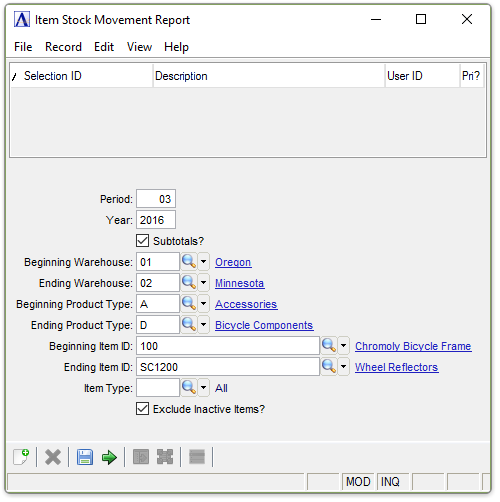
Item Stock Movement Report
About the Fields
In the Period field...
-
Enter the period to include on the report.
-
Press Tab to accept default as displayed.
In the Year field...
-
Enter the year of the period.
Subtotals? checkbox...
-
Mark the box to generate a report that includes subtotals by product type and warehouse.
-
Press Tab to generate a report without subtotals.
In the Beginning/Ending Warehouse field...
-
Enter the code of the first/last warehouse to include on the report.
-
Press Tab to select the first/last warehouse code record.
-
Click
 to
select from a list of warehouse codes.
to
select from a list of warehouse codes.
In the Beginning/Ending Product Type field...
-
Enter the type of the first/last product to include on the report.
-
Press Tab to select the first/last product type record.
-
Click
to
select from a list of product types.
In the Beginning/Ending Item ID field...
-
Enter the number of the first/last item to include on the report.
-
Press Tab to select the first/last item number record.
-
Click
to
select from a list of item numbers.
In the Item Type field...
-
Enter the item type to include on the report.
-
Press Tab to select all item types.
-
Click
to
select from a list of item types.
Exclude Inactive Items? checkbox...
-
Mark the box (default) to exclude inactive items.
-
Unmark the box to include all items.
When done making selections...
-
Click
 to create the Stock Movement Report.
 -
Click
 to save the settings.
 -
Click
 to clear the form and re-enter options.
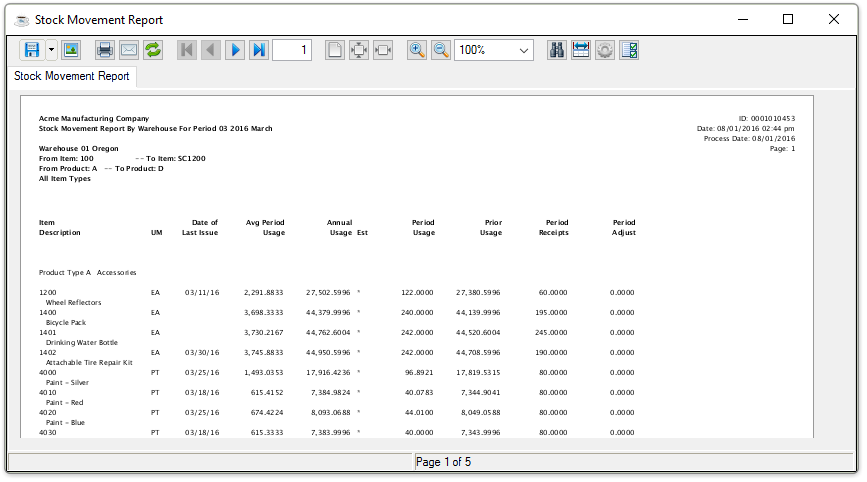
Sample Stock Movement Report by Warehouse
See Output Options.