Inventory Control - LIFO/FIFO Tier Report
Function
If maintaining a LIFO/FIFO inventory, use this task to create a report showing the LIFO/FIFO tiers with on hand quantities and costs of inventory. LIFO systems display tiers in descending order; FIFO systems display tiers in ascending order. Subtotals by item, product, and warehouse are included on the report.
To access this task...
Select LIFO/FIFO Tier Report from the Reports menu.
If you are not using a LIFO/FIFO inventory, the fields for this report cannot be accessed and the system displays the prompt:

LIFO or FIFO inventory nor being used warning
-
Click OK to return to the Reports menu.
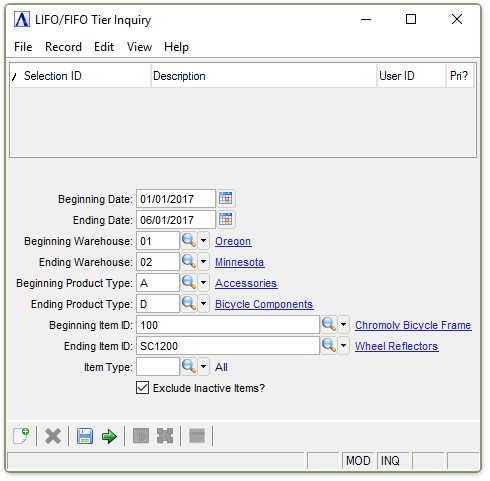
LIFO/FIFO Tier Report
About the Fields
In the Beginning/Ending Date field...
-
Enter the first/last date to include on the report.
-
Press Tab to select the first/last date record.
-
Click
 to select
a date by using the calendar tool.
to select
a date by using the calendar tool.
In the Beginning/Ending Warehouse field...
-
Enter the warehouse code of the first/last warehouse to include on the report.
-
Press Tab to select the first/last warehouse code record.
-
Click
 to select
from a list of warehouse numbers.
to select
from a list of warehouse numbers.
In the Beginning/Ending Product Type field...
-
Enter the type of the first/last product to include on the report.
-
Press Tab to select the first/last product type record.
-
Click
to
select from a list of product types.
In the Beginning/Ending Item ID field...
-
Enter the number of the first/last item to include on the report.
-
Press Tab to select the first/last item number record.
-
Click
to
select from a list of item numbers.
In the Item Type field...
-
Enter the item type to include on the report.
-
Press Tab to select all item types.
-
Click
to
select from a list of item types.
Exclude Inactive Items? checkbox...
-
Mark the box (default) to exclude inactive items.
-
Unmark the box to include all items.
When done making selections...
-
Click
 to create the Inventory Transaction History Listing.
-
Click
 to clear the form and re-enter options.
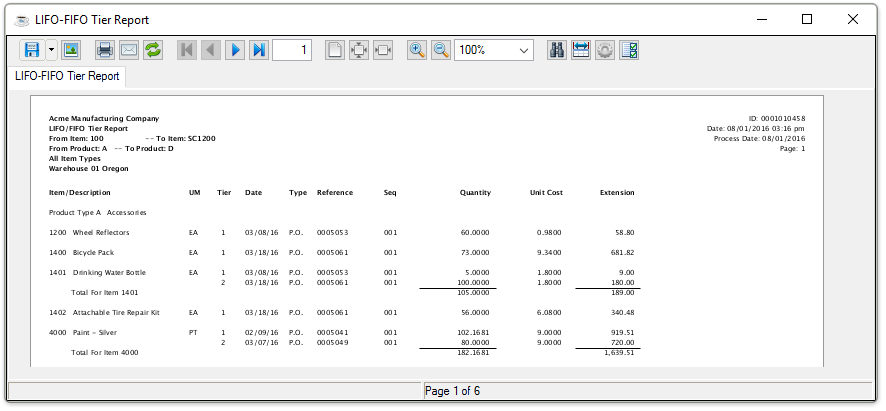
Sample LIFO/FIFO Tier Report
See Output Options.