General Ledger - Closed Fiscal Year Adjustments Utility
Function
This task is used to make journal entries directly to the General Ledger for the prior fiscal year after it has been closed.
To access this task...
Select Closed Fiscal Year Adjustments Utility from the Utilities menu.
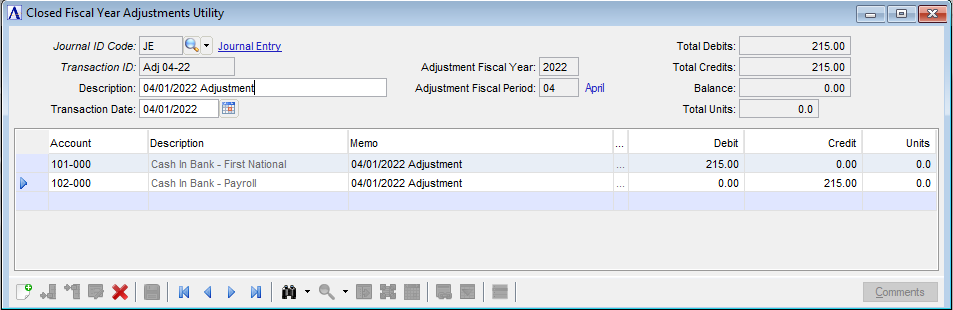
Closed Fiscal Year Adjustments entry form
Closed Fiscal Year Adjustments Utility
About the fields
At the top of the Closed Fiscal Year Adjustments form, enter the Journal ID code, Transaction ID, Description and Transaction Date for a given set of journal entries. In the grid, enter the details for the account to be credited and the account to be debited. Any transaction may be recalled, modified or deleted up until the time it is updated.
In the Journal ID Code field...
Enter a valid two-character Journal ID code that allows for journal entry.
Click  to select from a list of all valid codes.
In the Transaction ID field...
Enter a transaction ID for this journal entry of up to 10 characters long.
In the Description field...
Enter a description up to 30 characters long.
In the Transaction Date field...
Enter the transaction date for the adjustment in MMDDYYYY format. The date must be in the prior fiscal year, image to select date using the calendar control.
In the Adjustment Fiscal Year field...
Display only. Shows the fiscal year the adjustment transaction date falls in.
In the Adjustment Fiscal Period field...
Display only. Shows the fiscal period the adjustment transaction date falls in.
In the Total Debits field...
Display only. Shows the total amount of debits for this adjustment entry.
In the Total Credits field...
Display only. Shows the total amount of credits for this adjustment entry.
In the Balance field...
Display only. Shows the balance for this adjustment entry.
In the Total Units field...
Display only. Shows the total units for this adjustment entry.
Line Detail Entry
Each adjustment journal entry is a two-step process requiring a detail line for the debit and another for the credit. Each line contains information regarding the account number, description, and amount of the entry. Should a one-sided entry be necessary, the user will need to use alt–<enter> and provide a password to override the "out of balance" message.
In the Account field...
Enter a valid GL account number. The description of the account entered is displayed.
Click  to select from a list of all valid accounts.
In the Memo field...
Enter a memo to further identify each line item of the adjustment journal entry. For new lines the Memo field is initialized to the adjustment's Description field, and skipped the first time. It can be edited by returning to the field, or clicking the "Comment" button, to launch the comment editor that allows up to 1024 characters. Only the first 30 characters, or up to the first line feed, are shown in the Memo field. All 1024 characters are shown in the Cmt Txt field.
In the Cmt Txt field...
Enter a memo to further identify each line item of the adjustment journal entry. For new lines the Cmt Txt field is initialized to the adjustment's Description field, and skipped the first time. It can be edited by double clicking on the field, or clicking the "Comment" button, to launch the comment editor that allows up to 1024 characters. The first 30 characters, or up to the first line feed, are shown in the Memo field. All 1024 characters are shown in the Cmt Txt field.
In the Debit field...
Enter the debit amount for this line item.
In the Credit field...
Enter the credit amount for this line item
In the Units field...
This field is optional. This field is editable only when the Use Units parameter is checked in the General Ledger, Maintenance, Parameters and Application Parameters task.
Enter the number of units for this line item.