General Ledger - Daily Detail Register
Function
This task prints a list of all general ledger transactions entered through journal entries or generated from other modules. It also presents the option to update to the general ledger Summary Activity and Transaction History files.
To access this task...
Select Daily Detail Register from the General Ledger menu.
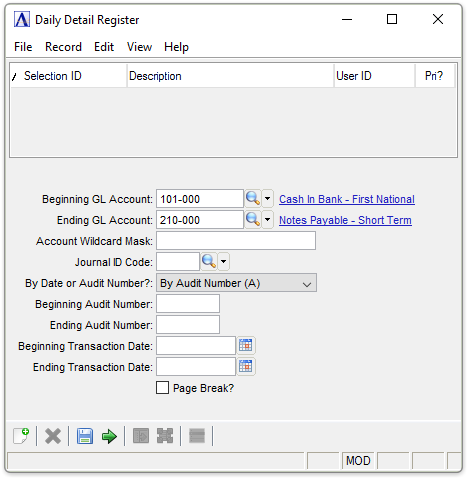
Daily Detail Register
About the Fields
In the Beginning/Ending GL Account field...
-
Enter the first/last account number that will be listed on the register.
-
Click
 to select from a list of all valid codes.
In the Account Wildcard mask field...
Understanding Wildcard Masks
Certain tasks allow for the input of an account wildcard to enable you to select accounts that have common numbering as part of their identification. The wildcard can use the ‘?’ and ‘-’ characters; the '?' represents a single character, and the dash '-' is a literal. For example, assume an account mask set to 000-000, as is the case with standard demo data. If you want to select all accounts that end with '1', use the wildcard mask ???-??1. The question marks stand in place of the account digits; the dash is located as expected in the mask.
In the Journal ID Code field...
-
Enter a specific Journal ID to include on the register.
-
Click
to select from a list of all valid codes.
By Date or Audit Number? dropdown...
-
By Date, generates the register by date.
-
By Audit Number, generates the register by audit number.
In the By Beginning/Ending Audit Number field...
- Enter the beginning and ending audit numbers to appear on the register.
In the By Beginning/Ending Transaction Date fields...
- Enter the beginning and ending transaction dates to appear on the
register or use the calendar tool
 to select the
dates.
to select the
dates.
Page Break? checkbox...
-
Mark the box to create a page break with each change in the audit number/date.
When done making selections...
-
Click
 to create the register.
 -
Click
 to clear the form and begin
again.
to clear the form and begin
again. -
Click
 to save the register settings.
If there are balance issues to report the system does so with a prompt prior to creating the report. If the Suspense Account is in use and the OOB amount does not exceed the GL Post Limit and the resulting Suspense Account Balance for the current period will not exceed the Account Balance, and a valid Journal ID exists on the Suspense Account, the following prompt will appear:

This register is out of balance. Post the OOB amount to the suspense account?
When Yes is selected, a transaction is created which will post the out of balance amount to the Suspense Account when the update is run. A message is printed on the register:

Sample transaction
When No is selected, the out of balance prompt will appear:
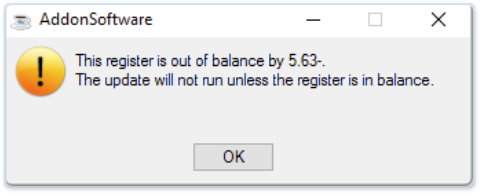
This register is out of balance. The update will not run unless the register is in balance.
If the Suspense Account is in use but has an invalid or blank Journal ID or the OOB amount exceeds the Suspense Account GL Post Limit, or the resulting Suspense Account Balance for the current period will exceed the Suspense Account Balance limit, the following prompt appears:
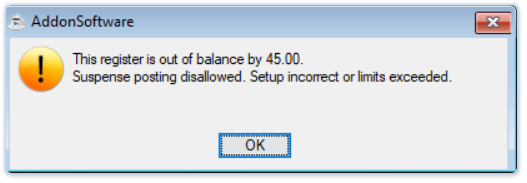
This register is out of balance. Suspense posting disallowed. Setup incorrect or limits exceeded.
Selecting OK, the out of balance prompt will appear:
This register is out of balance. The update will not run unless the register is in balance.
If the Suspense Account is not in use, the out of balance prompt will appear:
This register is out of balance. The update will not run unless the register is in balance.

Sample Daily Detail Register
See Output Options.
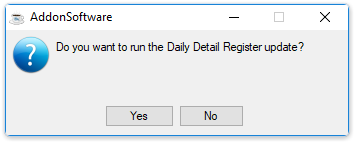
Do you want to run the Daily Detail Register update?
-
Select Yes to run the register.
-
Select No to skip the updating step.
Updating
The Daily Detail Register table is cleared as part of the update.
Update process completed.